My learning
What it is for
My learning is Membership through a student's eyes: every course and bundle you have access to, with your progress in each. From here you open a course, go through its lessons and download your certificate. The app remembers where you left off.
This chapter also covers the Course catalog — the list of published courses and bundles you do not have access to yet and can buy.
Where to find it
- My learning: in the left menu, click Membership (the academic cap icon), then My learning.
- Course catalog: in the left menu, click Membership → Course catalog.
Both items are visible to anyone with the permission Learning and my courses → View.
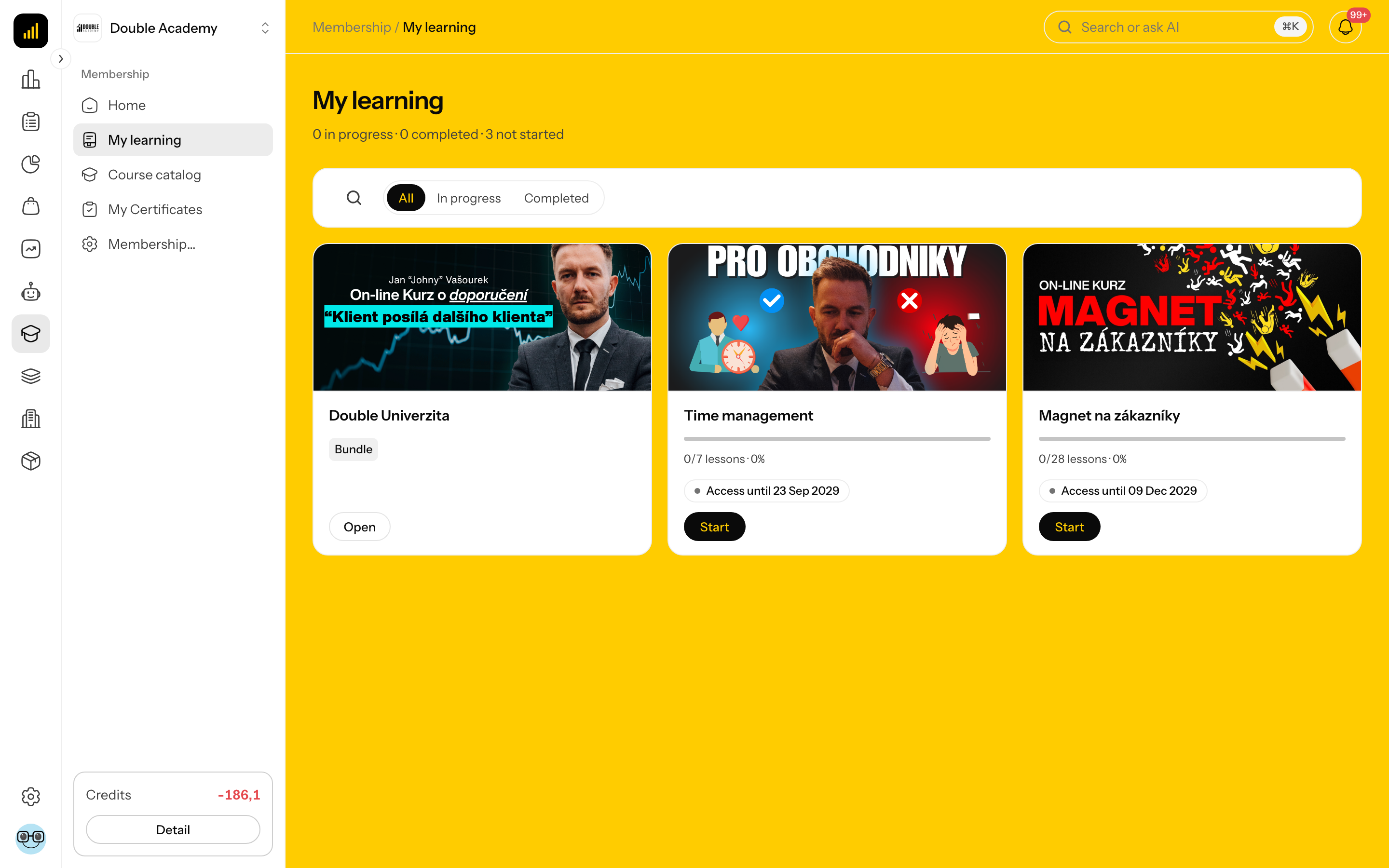
What I see on the My learning screen
- Header — the heading Membership · My learning and a summary such as 2 in progress · 1 completed · 3 not started.
- Tabs All, In progress, Completed.
- The Search button — search by course title.
- Course cards — each shows the cover image, the title, the Bundle label for a bundle, completed lessons out of the total and a percentage, Access until a date for time-limited access, and these buttons:
| Button | When it is shown |
|---|---|
| Start | you have not started the course yet |
| Continue learning | the course is in progress |
| Review | you have completed the course |
| Open | for a bundle |
| Download certificate | for a completed course |
With no courses, the page reads You are not enrolled in any courses yet.
How to find a course in the Course catalog
The Course catalog shows the organisation's published courses and bundles you do not have access to yet. Courses and bundles you already have (bought or assigned) are not in it — you find them in My learning.
- In the left menu, click Membership → Course catalog.
- Use the tabs All, Course, Bundle to narrow the list by type.
- Use the search button to search by title.
- Click a course card — the course page opens.
The card shows the number of modules and lessons and a lock on the image. Twelve cards fit on a page; more are on the following pages. With no courses, the page reads No courses available yet.
How to buy a course or a bundle
- In the Course catalog, click a course with a lock.
- The course page reads You need to purchase this course to access the content. (for a bundle You need to purchase this bundle to access the content.) and shows the button Buy course (Buy bundle).
- Click Buy course, choose a variant (access length) in the purchase window, fill in your details and pay.
Once paid, the course appears in My learning. If the Buy course button is missing, the course is not for sale — ask an admin for access.
How learning in a course works
- In My learning, click Start or Continue learning on a course.
- The course page opens: the image or intro video, the number of modules and lessons, your progress, the tabs Description and Links, and the Chapters list (modules and lessons).
- Click Start course (or Continue Learning), or click a lesson directly in the Chapters list.
- The lesson plays a video or shows text. Under the player are the tabs Lesson (description), Links and About module. If the lesson has attachments, they are in the Attachments section with a Download button.
- After watching, click Watched under the player, or the Mark as Completed icon next to the lesson in the Chapters panel. Undo a mistake with Mark as Incomplete.
- Use the arrows next to the lesson title to go to the previous or next video or lesson.
If the admin switched on Complete lessons automatically, the Watched button is not shown — under the player is a bar X% watched, and the lesson is marked on its own once you have watched at least 95% of every video in it. Skipping ahead does not count.
On a phone, Chapters and Watched are in the bar at the bottom of the screen.
Course progress grows with completed lessons. After the last lesson is completed, the window Congratulations! appears — You have successfully completed the course … with Your certificate is ready, We also sent the certificate to your email., a Download button and Back to course.
Locked lessons and ended access
| What you see | What it means | What to do |
|---|---|---|
| This lesson is locked. You need to purchase the course. and Buy course | you do not own the course | buy it or ask an admin |
| Complete the previous video first (on a locked lesson) | the course uses Sequential learning | complete the previous lesson |
| Access expires in X days / Access expires tomorrow / Access expires today and Renew access | time-limited access is ending | click Renew access and buy another period |
| Access denied — You do not have permission to view this course. Please contact your administrator. | the course exists but you have no permission for it | contact the organisation admin |
| Course not found. | the course does not exist or is not published | contact an admin |
Bundles and supplementary content
For a bundle, clicking Open shows the bundle page the admin prepared — text, video, tiles of the courses in the bundle and supplementary content. Open a course by clicking its tile. Supplementary content (bonus videos and the like) can also sit in the course sidebar next to Chapters.
Who can do this
The My learning and Course catalog pages require the permission Learning and my courses → View (Permission matrix, module Membership). You can open a course's lessons only if you have access to the course — by purchase or assignment.
Common questions and problems
I cannot see a course I bought. The order may not be paid yet (with a bank transfer or a proforma invoice, the course becomes available once the payment arrives). If it was paid, contact an admin.
The Watched button is disabled. You have already completed the course.
The lesson is not marked as completed although I watched the video. With Complete lessons automatically, you have to watch 95% of every video in the lesson without skipping ahead.
My access has expired. The Access until date has passed. Click Renew access on the course, or ask an admin to extend it.
Related
- Home — the first page of the membership
- My Certificates — downloading a certificate
- Courses & bundles — the admin's view