Products
What it is for
The Products screen is the catalogue of everything you sell: physical or digital goods, a service, a ticket or an online course. You create a product once and then sell it anywhere — in the shop, through a form, on a landing page or in a funnel. Every product is sold through variants: a simple product has one variant, a product with variants has several (size, colour, length of course access).
Where to find it
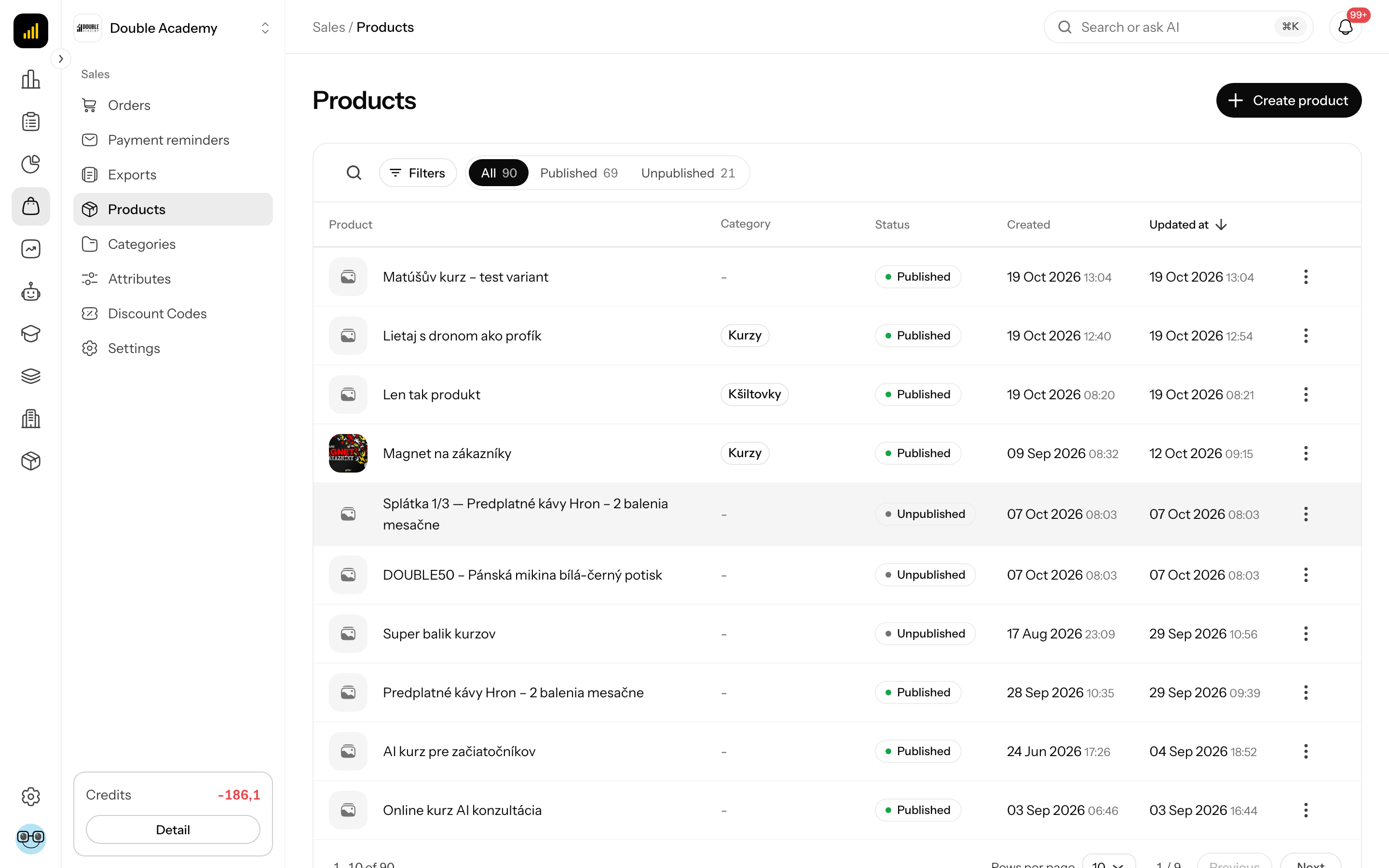
In the left menu click Sales, then Products. The product list opens with the heading Sales / Products.
Before you start
A product on the Products screen is quicker to set up when these are ready:
| What | Why | Where |
|---|---|---|
| Supported currencies and Default currency | the price is entered separately for each supported currency; without currencies no price fields appear | Organization → Settings → Localization, see Organization settings |
| Supported languages | the Translations section shows one block per language | same place |
| Categories | you put the product into them in the General section | Sales → Categories |
| Attributes (optional) | variants are built from them, e.g. Size: S, M, L | Sales → Attributes, or create them right while adding variants |
| Tax classes (optional) | set the VAT rate per country | Sales → Settings → Tax classes, see Settings |
Creating a product needs the Sales → Products → Create permission, editing needs Edit (more in Who can do this).
What I see in the product list
The Sales → Products list is a table of all the organization's products.
Above the table are tabs by status, each with a count:
| Tab | What it shows |
|---|---|
| All | every product |
| Published | products on sale |
| Unpublished | drafts the customer does not see |
Next to the tabs is Search — it searches product name, SKU, variant and category (the field reads Search product, SKU, variant or category…). The Filters button opens the Filter data window with these filters:
| Filter | Options |
|---|---|
| Category | All or one of your categories |
| Product type | All, Product, Course |
| Gender | All, Men, Women, Unisex |
| Currency | All or one of the currencies the app knows (not only the organization's supported currencies) |
| Amount from / Amount to | price range |
Filters apply immediately and stay on after you close the window (Done). Active filters show above the table as chips; Reset clears them all.
Table columns:
| Column | Meaning |
|---|---|
| Product | main picture and name in the organization's default language |
| Category | first category; the others appear after clicking the +N chip |
| Status | Published or Unpublished |
| Created | date and time of creation |
| Updated at | date and time of the last change |
Clicking a row opens the product for editing. At the end of each row the … menu offers Edit, Publish / Unpublish, More info (shows columns hidden on a narrow screen) and Delete. Below the table you set Rows per page and move between pages.
How to create a product
The steps on the Products screen from an empty form to a saved product:
- In the left menu click Sales → Products.
- Top right, click Create product.
- The What do you want to create? window opens. Choose:
- Product — A physical or digital product with a price and stock variants.
- Course — An online course with access-duration variants.
- The product form opens. Under the header are the section tabs General, Images, Translations, Pricing and Variants. The Create product button is always top right in the open section.
- In General fill in Product name (the only required field) and pick a Category — see How to fill in the General section.
- In Images upload pictures — How to add product images.
- In Translations check the name and add a description in each language — How to fill in product translations.
- In Pricing enter the price in each currency — How to set prices and a sale price.
- In Variants choose a simple product or a product with variants — How to set up a simple product, How to create variants from attributes or, for a course, How to set up a Course product.
- Click Create product.
After saving you see Successfully created and the new product opens for editing. If the Publish switch is on, the product is on sale at once; otherwise it stays as a draft in the Unpublished tab.
The type cannot be changed
Product type cannot be changed after creation. If you picked Product instead of Course by mistake, create a new product of the right type and delete the wrong one.
Closing the What do you want to create? window without a choice returns you to the list.
How to fill in the General section
The General section of the product form (Sales → Products → product row or Create product) holds the basic data:
| Field | Required | Meaning | Limits / default |
|---|---|---|---|
| Publish (row Status) | no | switch: is the product on sale | off for a new product |
| Product name (row Details) | yes | internal and default product name | without it the product is not saved: Name is required |
| Category (row Properties) | no | one or more categories, checkboxes | lists the categories from Sales → Categories |
| Product type | — | Product or Course | read only; set in the What do you want to create? window |
| Gender | no | -, Unisex, Women, Men | optional property the list can be filtered by |
If the name is missing on save, the form switches to General by itself and marks the field.
How to add product images
In the Images section of the product form you add the pictures the customer sees:
- In the product form click Images in the tabs.
- Click Choose pictures (empty gallery) or the Add picture tile, or drag pictures with the mouse straight into the gallery.
- Pick one or more files. After upload you see Images uploaded.
- Change the order by dragging a tile. The first picture is the main one — it carries the Main label and shows in the product list and in the shop.
- Remove one picture with the Remove picture icon, all of them with Remove all.
- Click Save (for a new product Create product).
Limits: pictures only, up to 3 MB per picture. Larger files are refused with Some files could not be added. Only pictures up to 3 MB can be uploaded. Pictures upload as soon as they are chosen, but they are attached to the product (and order changes or removals take effect) only when you save the product.
How to fill in product translations
In the Translations section of the product form you set the product's name and description in each organization language. Each Supported language has a block with:
| Field | Required | Meaning | Limits / default |
|---|---|---|---|
| Product name | yes | name the customer sees in that language | pre-filled from the name in General and follows it until you overwrite it |
| URL slug | no | part of the product's address in the shop | left empty, it is created from the name |
| Description | no | short description | — |
| Long description | no | long description with formatting (headings, lists, links) | — |
Empty name = no translation
Without a name, this language's translation won't be saved at all — even if you fill in a description.
The number next to Translations in the form's left menu is the number of the organization's supported languages (one block per language), not the number of filled-in translations.
How to set prices and a sale price
The Pricing section of the product form (Price in different currencies based on organization settings) has one row per supported currency:
| Field | Required | Meaning | Limits |
|---|---|---|---|
| Price (EUR), Price (CZK) … | for a simple product yes, in at least one currency | selling price including VAT | not an exchange-rate conversion — you enter your own amount per currency |
| Compare at price (EUR) … | no | price before the discount; the customer sees it struck through next to the current one | must be higher than Price; empty or 0 = no sale |
Steps:
- In the product form click Pricing in the tabs.
- Enter the amount in Price for each currency you sell in.
- To show a sale, enter a higher amount in Compare at price. A preview of how the customer sees the price appears under the fields.
- In the Tax class row pick a class (see below).
- Click Save.
If Compare at price is lower than or equal to Price, the field turns red with The original price must be higher than the current price and the product is not saved. Compare at price is for display only — it never enters the order total.
If you see no price fields but the text Select an organization to display price fields, the organization has no currencies — add them in Organization → Settings → Localization (Supported currencies). In a product with variants each variant may also have its own price — How to set a variant's own price.
How to choose the product's tax class
The Tax class row in the Pricing section of the product form decides which VAT rate the product is taxed at:
- In Pricing open the Tax class select.
- Choose Default (class name) — the product uses the organization's default class — or a specific class.
- Under the select check the Rates: … text with the rates per country.
- Click Save.
If the class has no rates you see The class has no rates — the product’s legacy rate is used. The Manage tax classes link takes you to Sales → Settings → Tax classes. Which country's rate applies to an order is decided by the organization's VAT mode — see VAT.
How to set up a simple product
A simple product is sold in one version — one price, one stock (an e-book, a ticket, a service). You set it up in the Variants section of a Product-type product:
- In the product form click Variants in the tabs.
- With no variants yet you see Choose how to set up this product and two choices. Click Simple product.
- You see Variant added and the table gets a Simple product row with the No variants label.
- In the row set Available, In stock and optionally Ambassador and File (see How to set a variant's stock and availability).
- Enter the price in the Pricing section — a simple product has no price on the variant, only on the product.
- Click Save.
You cannot add another variant to a simple product — Add new variant is disabled, with the explanation: A simple product is sold in one version, so no variant can be added to it. For variants, remove it and choose Product with variants. So: delete the Simple product row with the bin icon and continue with the next part.
How to create variants from attributes
A product with variants exists in several versions (size, colour). You create the variants in the Variants section of the product form:
- In the product form click Variants in the tabs.
- Click Product with variants (no variants yet) or Add new variant under the table.
- The Add variants window opens.
- In Option name type or pick an attribute, for example Size. If it does not exist yet, click Create "Size" in the list — it is created immediately.
- In Values pick or type the values, for example S, M, L. A new value is created the same way through Create "…". Until a name is chosen the field says Choose the option name first.
- For another attribute (for example Colour) click Add another option and repeat steps 4–5. Remove an option with the Remove option icon.
- Under New variants check which combinations will be made (every value with every value). Combinations the product already has are skipped (… variant(s) already exist and will be skipped).
- Click Create variants (count). The button stays disabled while no new combination exists.
- In the variants table set each variant's price, availability and stock.
- Click Save.
New variants carry the new label until you save the product. Creating a new attribute or value right in the window needs the Sales → Attributes → Create permission. Without it and with no attributes, the window shows No attributes are defined yet. Ask an administrator to create product attributes.
How to set a variant's own price
In a product with variants, the table in the Variants section has a Pricing column. A variant without its own price is sold at the product price from the Pricing section.
- In Variants click the link in the variant's Pricing column (an amount or Change).
- The Variant pricing window opens with the variant's name: Set custom prices for this variant. Leave empty to use the product-level prices.
- For each currency fill in Price and optionally Compare at price.
- Click Save. The window closes and the whole product is saved at once.
If neither the variant nor the product has a price, a warning icon appears by the price and the product is not saved, with Variant "…": This variant has no price. Set one on the variant or in the product prices. If Compare at price is lower than the price the message is The original price … must be higher than the price … (for an inherited price … than the product price … this variant inherits).
How to set a variant's stock and availability
In the table of the Variants section of the product form each variant has these controls:
| Column | Meaning | Limits / default |
|---|---|---|
| Available | ticked = the variant can be bought | on by default; nobody can buy an unavailable variant |
| In stock | number of units | empty = Not tracked (sold without limit); 0 = Sold out; 1–5 = Last units; more than 5 = In stock |
| Ambassador | the variant counts towards an ambassador's commission | see How to allow selling through ambassadors |
| File | PDF attached to the variant | Product type only; see How to attach a file to a variant |
Save the changes with Save.
How stock behaves on a sale: units are deducted when the order is created, before it is paid, and returned when you cancel the order. If the customer wants more units than are in stock, the order is not created (Variant … of product "…" has insufficient stock). There is no stock reservation and no low-stock alert.
A published product must have at least one Available variant, otherwise it is not saved: A published product must contain at least one available variant.
How to reorder variants
In the table of the Variants section grab a row by the handle on the left (Drag to reorder) and drag it to its new place. The order is saved with Save and the customer is offered the variants in the same order. In a course, access lengths move only within their own variant. A simple product has no order.
How to remove a variant
In the table of the Variants section click the bin icon at the end of the row. The row disappears at once, without confirmation; it is removed for good only after Save. If you change your mind, leave the form without saving. Past orders keep the line with the removed variant.
A product needs at least one variant — without one it is not saved: Please add at least one variant (simple or with attributes).
How to set up a Course product
A Course product sells access to a course in Membership. One variant is one access length with its own price (for example 3 or 12 months), optionally also a variant by options (for example Basic and With video analysis).
- Create a product as in How to create a product and in the What do you want to create? window choose Course.
- In Variants click one of the choices:
- Add new variant — One variant is one length of access with its own price. Adds a row with a length of 1 month.
- Add variants by options — Different variants of the same course, for example Basic or With video analysis. Each has its own price, access length and seats. Opens the Add variants window (as in How to create variants from attributes).
- In the Variant and access length column choose Lifetime or Time-limited. For Time-limited enter a number and the unit days, months or years.
- Add another length with Add access length under the table (or next to a specific variant by options).
- In the Seats column enter the limit of seats sold; empty = Unlimited.
- Set the price of each length in the Pricing column (the Variant pricing window).
- Click Create product / Save.
- Link the product to the course: Membership → Membership administration, in the course the Link a product button — see Courses.
The same variant may not be in the course twice with the same length — otherwise Variant … is in the course twice. Change its access length or remove it. A course has no File column.
When the product is linked to a course or bundle, the top of the product form says This product sells the course: (or the courses:) with links to them. After the order is paid, the buyer gets access for the length of the variant they bought.
How to attach a file to a variant
The table in the Variants section of a Product-type product has a File column:
- In the variant row tick the box in the File column.
- Click Upload and choose a PDF file.
- After upload the link turns into Change (replaces the file); hover to see the file name.
- Click Save.
The file is not sent after payment
Today the customer gets the variant's file only as a reward for filling in a form (set in the form). It is not sent automatically after an order is paid.
Unticking the box detaches the file from the variant on save.
How to allow selling through ambassadors
In the table of the Variants section tick the Ambassador column for a variant. That variant counts towards the commission of the ambassador who brought the customer (rates are set in the ambassador programme settings).
Optionally set the base the commission is calculated from:
- With Ambassador ticked, click the Change link (or the amount shown).
- In the Ambassador base window enter an amount per currency, for example your margin.
- Click Save — the product is saved at once.
Without a base the commission is calculated from what the customer actually paid for the line (after discount).
How to publish or hide a product
A product is on sale only when it is Published. Change the status in two ways:
- in the Sales → Products list: the row's … menu → Publish or Unpublish (saved at once, message Successfully saved);
- in the product form: General section → Publish switch → Save.
An unpublished product does not show in the shop and cannot be loaded in a form or funnel that offers it. Orders that already exist are not affected.
How to edit a product
- In the left menu click Sales → Products.
- Click the product row (or … → Edit).
- The header shows the product name and a Published / Unpublished label.
- Switch sections in the tabs; values in the other sections are kept.
- Click Save (top right in every section). You see Successfully saved.
The tab of a section with an error is red with a red dot; a section with a warning has an orange dot (for example Pricing for a simple product without a price, Variants with no variant). A change of price or name does not reach past orders — an order line remembers the state at the time of purchase.
How to delete a product
- In Sales → Products open the row's … menu and click Delete — or in the product form click Delete top right.
- In the Delete product window (Are you sure you want to delete this product? This will also delete all its variants.) confirm.
- If published forms or courses still sell the product, the window changes to The product is still in use: Deleting it stops the forms and courses below from selling it. Under the text are the lists Published forms and Courses.
- Click Delete anyway, or cancel and first replace the product in those forms and courses.
After deleting you see Product deleted successfully and return to the list. Past orders keep their lines. A discount code limited only to the deleted product stops working until you remove the product from the code — see Discount Codes.
How to check the product works
- In Sales → Products check that the product is in the Published tab.
- Open Sales → Settings and in the Shop address section click the Open shop icon — the product must be on offer with its main picture and price (and the struck-through Compare at price, if you set one).
- If you sell through a form or funnel, open its public page and check it offers the right variants and prices.
- Place a test order and in Orders check the line, price and VAT. With tracked stock, In stock goes down.
- For a course, check in Students that the buyer got access for the right period after paying.
The whole chain from product to first order is in How to start selling a product.
Who can do this
An administrator sets the permissions in the permission matrix on the Sales → Products row:
| Permission | Allows |
|---|---|
| View | the Products menu item and the list |
| Create | the Create product button |
| Edit | opening and saving the product form, Publish / Unpublish |
| Delete | Delete in the row menu and in the form |
Creating attributes right in the Add variants window also needs Sales → Attributes → Create.
Common questions and problems
I don't see the Create product button. You lack the Sales → Products → Create permission.
I click a product and nothing opens / no access. Editing needs the Edit permission. With View alone you only see the list.
I don't see price fields (Select an organization to display price fields). The organization has no Supported currencies — add them in Organization → Settings → Localization. A new currency then has to be priced on every existing product.
Saving shows Please set a price for at least one currency. A simple product has no price in the Pricing section.
Saving shows Please add at least one variant (simple or with attributes). In Variants choose Simple product or create variants.
The Add new variant button is grey. The product is simple — delete the Simple product row and create variants through Product with variants.
Error Default variant already exists. The product already has its simple variant; a second one cannot be added.
Error A published product must contain at least one available variant. Tick Available on at least one variant, or turn Publish off.
Error A simple product (without variants) keeps its price on the product… Enter a simple product's price in Pricing, not on the variant.
Error Product type cannot be changed after creation. The type is chosen only on creation — create a new product.
The customer does not see the product. Check the Published status, at least one Available variant, a price in the customer's currency, and stock (0 = Sold out).
I changed the price but an old order shows the old price. That is intended — an order keeps the price from the time of purchase.
I uploaded a PDF to a variant and the customer did not get it after paying. The file is sent only as a reward for filling in a form, not after an order is paid.
Related
- Categories — sorting products
- Attributes — what variants are made of
- Settings — shop address, categories in the shop, tax classes
- VAT — how tax is calculated
- Discount Codes — discounts limited to products
- Orders — what was sold
- Courses — linking a product to a course
- How to start selling a product