Courses & bundles
What it is for
The Courses & bundles screen is where courses in Membership are created and managed. You create a course, split it into modules and lessons, put videos from the video library into the lessons and finally publish it so students can see it.
The same table also holds bundles (several courses sold together) and supplementary content (extra content for a bundle). They have chapters of their own: Bundles and Supplementary content. This chapter covers the list and the course itself.
A course is built like this:
Course
└── Module (called "Chapters" in the student's player)
    └── Lesson (Video or Text)
The whole path from zero to a sold course is in How to create and sell a course.
Where to find it
- In the left menu, click Membership (the graduation cap icon).
- In the expanded list, click Membership administration.
- In the tabs under the heading click Courses & bundles (usually open first).
The page heading reads Membership · Courses & bundles.
Only people with at least one administration permission for the membership section see Membership administration in the menu. The Courses & bundles tab is visible only to people with Courses and content → View.
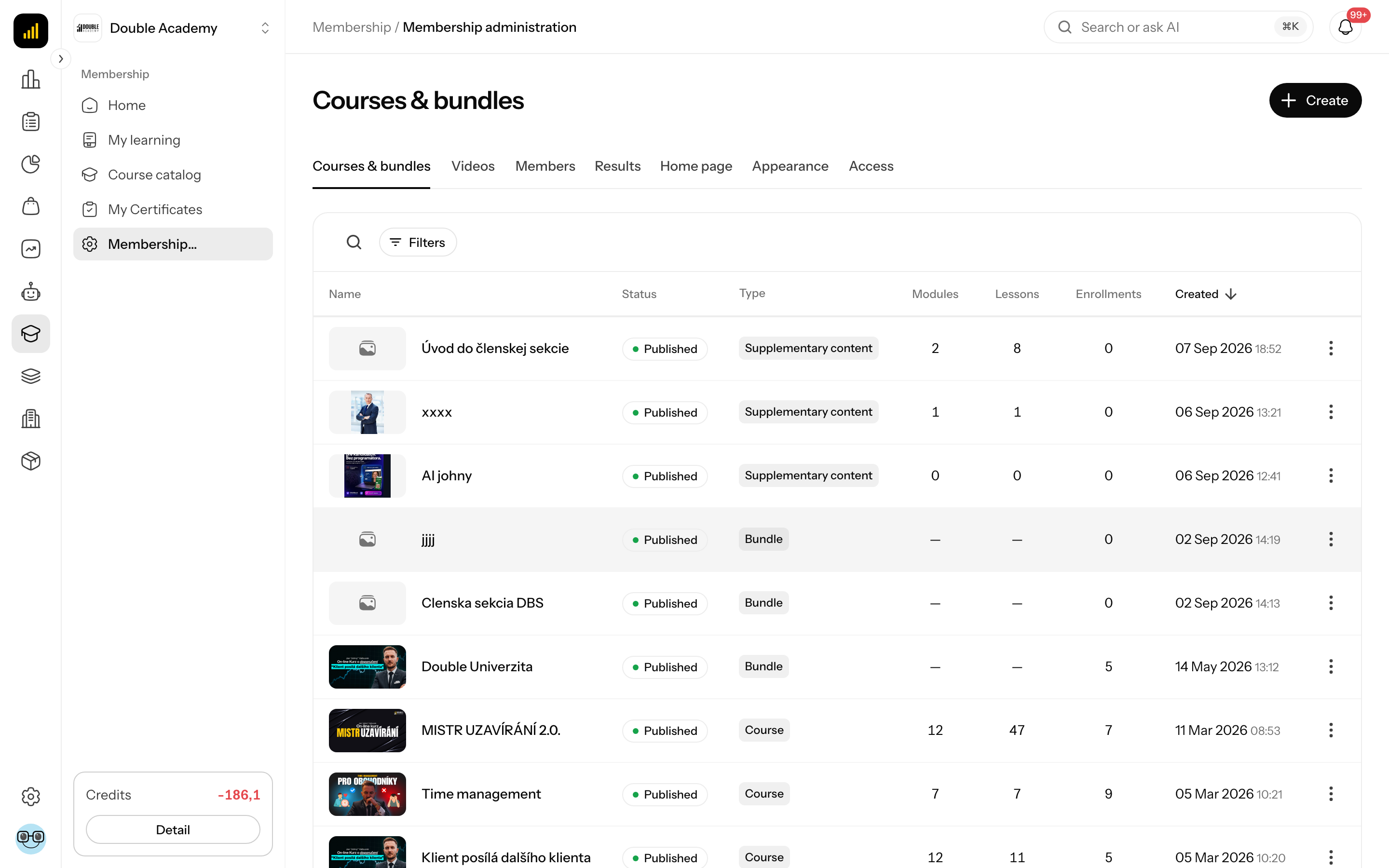
What I see on the screen
The Courses & bundles screen has these parts:
- Tabs under the heading — parts of membership administration: Courses & bundles, Videos, Members, Results, Home page, Appearance and Access. You see only those you have permission for.
- Top right, the Create button (only with Courses and content → Create). It opens a menu with three options:
| Option | Description in the menu | Where it is described |
|---|---|---|
| Course | A standalone course with modules and lessons. | this chapter |
| Bundle | Several courses sold as one, with a page of their own for members. | Bundles |
| Supplementary content | Extra content you place on the home page or in a bundle. Not sold on its own. | Supplementary content |
- Search above the table — searches the name.
- Filters (the button next to search) with two selects:
| Filter | Options |
|---|---|
| Type | All, Course, Bundle, Supplementary content |
| Status | All, Draft, Published |
Active filters show as chips above the table, where you clear them one by one or all at once. Supplementary content appears in the table only with Type: All or Type: Supplementary content.
- The table with columns:
| Column | What it means |
|---|---|
| Name | cover image and name of the course, bundle or supplementary content |
| Status | Draft (grey dot) or Published (green dot) |
| Type | Course, Bundle or Supplementary content |
| Modules | number of modules; "—" for a bundle |
| Lessons | number of lessons; "—" for a bundle |
| Enrollments | how many people have access to the item |
| Created | creation date |
| "…" | row action menu |
- The "…" menu in a row:
| Action | What it does | When you see it |
|---|---|---|
| Edit | opens the editor of the course, bundle or supplementary content | always |
| More info | shows the columns that did not fit on a narrow screen | narrow screens only |
| Delete | deletes the item permanently after confirmation | with Courses and content → Delete |
- Pagination under the table — 10 rows per page by default, newest first.
Clicking a row opens the same editor as Edit.
Course statuses
| Status | What it means for students |
|---|---|
| Draft | no member sees the course — it is not in the Course catalog and cannot be opened even via Preview; a new course starts in this status |
| Published | the course is in the Course catalog for members who do not have it yet; lessons can be opened by anyone with access to the course (bought it or had it assigned) |
You switch the status with the switch in the Details card (see How to publish a course).
How to create a course
You create a course in Membership with the Create button on the Courses & bundles screen.
Before you start:
- You need Courses and content → Create (permission matrix, module Membership).
- If the course should have an intro video, upload it to the Video library first. Videos are always picked from the library, never uploaded straight into a course.
- If you want to sell the course right away, you can prepare a product of type Course in Products beforehand. It is not required — the product can also be created straight from the course form.
Steps:
- In the left menu, click Membership → Membership administration.
- In the tabs under the heading click Courses & bundles.
- Top right, click Create.
- In the menu, click Course.
- The New Course page opens with a form. In the Details card fill in:
| Field | Required | What it means | Limits / default |
|---|---|---|---|
| Course Title | yes | the name students see in the catalog and in the player | max. 255 characters; without it you get Name is required |
| switch Draft / Published (right side of the card header) | no | whether students see the course right away | Draft by default |
| Cover Image | no | course image in the catalog and on the course card | image, max. 5 MB; drag it into the field or click and pick it |
| Description | no | text about the course that the student sees on the course page | formatted text |
- The other cards of the form are optional (they can also be filled in later in the editor):
| Card | What you set in it | Details |
|---|---|---|
| Learning settings | Sequential learning and Complete lessons automatically | How to set how students move through the course |
| Intro video | a library video on the course page | How to add a course intro video |
| Product | the product the course is sold through | How to sell a course (linking a product) |
| Links | external links for the course | How to add links to a course |
- At the bottom, click Save.
After saving, Successfully created appears and the course editor opens on the Content tab, where you add modules and lessons. In the Courses & bundles table the course has the status you set (Draft by default).
If you leave the New Course page with a filled-in but unsaved form, the app asks Unsaved changes — You have unsaved changes. Leaving will discard them. The Leave without saving button discards the changes.
How to check it works
- On the Courses & bundles screen find the course in the table (search by name helps).
- The Status column shows Draft — students do not see it yet. That is fine until you add content and publish the course.
What the course editor looks like
You open the course editor in Membership on the Courses & bundles screen by clicking the course row (or "…" → Edit). Right after a course is created it opens by itself.
- Header — the path Membership → Courses & bundles → course name, a status chip after the name (Draft / Published) and, with unsaved changes, an orange Unsaved changes chip.
- Right side of the header, the buttons:
- Preview — opens the course in a new tab the way a student sees it (only if you have Learning and my courses → View; a course in Draft does not open in preview, it shows Course not found.),
- Results — opens the course report (only with Reports → View).
- Editor tabs under the header:
| Tab | What it holds |
|---|---|
| Content | the course's modules and lessons |
| Settings | Details (title, status, cover image, description), Learning settings, Intro video, Links and at the bottom Delete course |
| Access & sales | the Product the course is sold through |
| Appearance | Course sidebar — the order of rows in the panel the student sees next to a lesson |
- The Save button top right above the tab content. It saves the Settings, Access & sales and Appearance tabs together. Modules and lessons on the Content tab are saved separately, right in their panel (see below).
If saving finds an error in the form (an empty title, for example), the editor switches to the Settings tab by itself so you can see the error.
How to add a module
A module in the course editor is a topic that lessons belong to. Students see modules in the player as Chapters.
Before you start: the course must exist (see How to create a course) and you need Courses and content → Create.
- In the left menu, click Membership → Membership administration.
- In the tabs under the heading click Courses & bundles.
- Click the course row. The course editor opens.
- In the tabs of the editor click Content.
- Below the list of modules, click Add Module.
- A panel Add Module slides in from the right. Fill in:
| Field | Required | What it means | Limits / default |
|---|---|---|---|
| Module Title | yes | the chapter name the student sees | max. 255 characters |
| Thumbnail | no | module image | image, max. 5 MB |
| Description | no | text about the module; the student sees it on the About module tab under the player | formatted text |
| Links | no | links for the module (Add link button, fields Link title, URL, Description) | the URL must be a valid address (e.g. https://…) |
- Click Save at the bottom of the panel.
After saving, Successfully saved appears, the panel closes and the module is added to the end of the list. If the Settings tab has unsaved changes, they are saved together with the module.
How to check it works
On the Content tab you see the module card with its name. Click the card to expand it — underneath is the Add Lesson button.
How to add a lesson
A lesson in the course editor is one concrete unit of learning — a video or a text. A lesson always belongs to one module.
Before you start:
- The course must have at least one module (see How to add a module).
- For a video lesson the video must already be uploaded to the Video library and have the status Ready or Playable. A video that is Uploading, Processing or in Error is not offered for selection.
- You need Courses and content → Create.
Steps:
- In the left menu, click Membership → Membership administration → Courses & bundles.
- Click the course row.
- In the tabs of the editor click Content.
- Click the module card to expand it.
- Below the module's lessons, click Add Lesson.
- A panel Add Lesson slides in from the right. Fill in:
| Field | Required | What it means | Limits / default |
|---|---|---|---|
| Lesson Title | yes | the lesson name in the chapter list | max. 255 characters; without it Lesson title is required; for a video lesson it is filled in from the video's name if empty |
| Description | no | short description; the student sees it on the Lesson tab under the player | text |
| Thumbnail | no | lesson image in the chapter list | image, max. 5 MB; without it a video lesson uses the video's thumbnail |
| Lesson Type | yes | Video, Text or Quiz | Video by default; Quiz does not work yet (Coming soon...) |
Fill in the content according to the Lesson Type:
- Video — in the Video part click Choose from library. The Choose a video from the library dialog opens. Go into a folder or search for the video and click it. The video appears in a card with a thumbnail and duration; the Change icon swaps it, the Delete icon removes it (this does not delete it from the library). Under the video you can add links for the video in the Links part (Add link). Without a selected video the lesson is not saved — Video is required appears.
- Text — write the lesson text in the Content editor.
Click Save at the bottom of the panel.
After saving, Successfully saved appears. The panel stays open in edit mode — you can change something else and save again. Close it with Cancel or the cross. The lesson is added to the end of the module and carries a chip with its type (Video / Text).
The "Open library" link
The Choose a video from the library dialog has an Open library link at the top right. It opens the Video library in a new tab — you can upload a video there, come back and pick it. If the library is empty, the dialog says No ready videos. Upload one in the video library first.
How to check it works
- On the Content tab the lesson is in the expanded module with a Video or Text chip.
- Click Preview at the top right (the course must be Published). In the new tab open the course and the lesson — the video must play.
How to edit a module or lesson
In the course editor on the Content tab you edit a module or lesson like this:
- Open the course editor (Membership → Membership administration → Courses & bundles → course row).
- In the tabs of the editor click Content.
- For a module, click the pencil icon Edit on the right of its card. For a lesson, expand the module first and click the pencil icon Edit in the lesson row.
- A panel Edit opens with the same fields as when adding.
- Change what you need and click Save.
Students see the change right after saving — if the course is published, they see it the next time they open the lesson.
Editing a text lesson
When you open a text lesson for editing, the Content field may be empty even though the lesson has text. If you click Save in that case, empty content is saved. When editing a text lesson, check the text first and paste it in again before saving.
How to change the order of modules and lessons
In the course editor on the Content tab you change the order by dragging:
- On the Content tab, grab a module by the six-dot icon (tooltip Move) on the left of its card.
- Drag it above or below another module and drop it. A blue line shows where it will land.
- Move a lesson the same way — by its Move icon in the lesson row, inside an expanded module.
The order is saved as soon as you drop (on error Error saving appears and the order reverts). A lesson can only be moved within its own module; it cannot be dragged into another module.
The order decides in which order the student sees the lessons — and, with Sequential learning on, in which order they unlock.
How to delete a module or lesson
In the course editor on the Content tab:
- For a module click the bin icon Delete on its card, for a lesson the bin icon in the lesson row.
- In the dialog Are you sure you want to delete this? click Delete.
Successfully deleted appears. Deleting a module also removes all its lessons. Students lose the lessons immediately and it cannot be undone. The videos stay in the Video library.
How to set how students move through the course
The Learning settings card in the course editor decides whether the student has to go in order and how a lesson is marked as completed.
- Open the course editor (Membership → Membership administration → Courses & bundles → course row).
- In the tabs of the editor click Settings.
- Expand the Learning settings card and turn on the switches you want:
| Switch | What it does | Default |
|---|---|---|
| Sequential learning | The next lesson unlocks only once the student has completed the previous one. Lessons follow their order across modules. | off |
| Complete lessons automatically | A lesson is marked complete on its own once the student has watched at least 95% of every video in it. Skipping ahead does not count, and a lesson with a video cannot be marked by hand. A lesson without a video the student marks by hand. | off |
- Top right, click Save.
With both on, the editor shows a note: Both are on: the next lesson unlocks once the student has watched 95% of the videos in the previous one (a lesson without a video is marked by hand).
What it means for the student:
- Without Complete lessons automatically the student marks a video with the Watched button under the player, or a lesson with the Mark as Completed icon in the Chapters list.
- With Complete lessons automatically the student sees a X% watched bar under the player and the Watched button is not shown.
- With Sequential learning a locked lesson shows Complete the previous video first.
How to add a course intro video
The Intro video is a video on the course page that the student sees before the first lesson — a course introduction, for example. It is set in the course editor.
Before you start: the video must be uploaded to the Video library and have the status Ready or Playable.
- Open the course editor (Membership → Membership administration → Courses & bundles → course row).
- In the tabs of the editor click Settings.
- Expand the Intro video card.
- Click Choose from library (the card says No video selected yet).
- In the Choose a video from the library dialog, click the video.
- Top right, click Save.
The selected video shows in a card with a thumbnail and duration. The Change icon swaps it, the Delete icon removes it from the course (it stays in the library). The change only applies after you click Save.
Only courses have an intro video. A bundle and supplementary content do not.
How to add links to a course
The Links card in the course editor (External links for this course) is for links the student sees with the course — a community, materials, booking a consultation.
- Open the course editor and in the tabs click Settings.
- In the Links card click Add link.
- Fill in Link title (required when a URL is filled in — otherwise Link title is required), URL (a valid address — otherwise Invalid URL) and optionally Description.
- Add another link with Add link again. Remove a link with the bin icon under it and confirm.
- Top right, click Save.
Completely empty link rows are dropped on save.
How to sell a course (linking a product)
A course is sold through a product. The product carries the price and the variants — one variant is one access length (for example 3 months, 12 months, lifetime). In the course editor you link the product on the Access & sales tab.
Before you start: you need Courses and content → Edit and, to create a product, Sales → Products → Create (see Products).
- Open the course editor (Membership → Membership administration → Courses & bundles → course row).
- In the tabs of the editor click Access & sales.
- In the Product card (This course has no product linked) click Link a product.
- The Select the course product panel opens with a list of products of type Course:
- click an existing product (an unpublished product carries an Unpublished chip; the Edit product icon in the row opens it for editing), or
- click New product — the product form opens with type Course and the course name pre-filled; after saving, the new product is linked to the course automatically.
- Top right, click Save.
The Product card then shows the product's name and the list of its variants (access lengths). If the product has no variants it says This product has no variants yet. The Change icon swaps the product, the Unlink product icon detaches it from the course.
What happens when someone buys the product:
- Once the order is paid, the buyer gets access to the course for the length of the variant they bought.
- If the buyer has no account yet, one is created and they get an email to set their password (see Settings → Access).
- A member who does not have the course finds it in the Course catalog; after clicking the course card they see the Buy course button. Without a linked product the button is not shown — the student only sees You need to purchase this course to access the content.
You can also sell the course through a funnel or a page with a form — see How to create and sell a course.
How to edit the course sidebar
The Course sidebar is the panel next to the player where the student sees the Chapters (modules and lessons). In the course editor on the Appearance tab you can add more rows to it and change their order. Add nothing here and the sidebar looks exactly as it does today.
- Open the course editor and in the tabs click Appearance.
- The Course sidebar card has the Sidebar items list. The Chapters row (The chapter and lesson list. It can be moved, not removed.) is always there.
- Click Add item and pick a type:
| Type | Fields | What the student sees |
|---|---|---|
| Supplementary content | Supplementary content — a pick from supplementary content | the supplementary content's lessons right in the panel |
| Link | Link title, URL, Button text (optional), Description (optional) — with one, the link unfolds in the sidebar | a link in the panel; with a description the text unfolds first |
- Change the order by dragging the dot icon on the left. This way you can, for example, put an intro link above Chapters.
- Remove a row with the bin icon and confirm Remove this row from the sidebar?
- Top right, click Save.
Supplementary content in the sidebar must be Published, otherwise the student does not see it. More in the Supplementary content chapter.
How to publish a course
You publish a course in Membership with the status switch in the course editor.
Before you start: the course should have at least one module with a lesson — an empty course can be published too, but the student finds nothing in it.
- Open the course editor (Membership → Membership administration → Courses & bundles → course row).
- In the tabs of the editor click Settings.
- In the Details card, at the top right, flip the switch from Draft to Published.
- Top right, click Save.
Successfully saved appears and the chip in the header changes to Published. The course immediately appears in the Course catalog of all members with access to the membership section who do not have access to the course yet. Anyone who already has it finds it in My learning — the Course catalog does not list courses a person already has.
Taking a course out of the catalog: flip the switch back to Draft and save. Students who have the course stop seeing it, but their access and progress stay stored — after publishing again they see it again.
How to check it works
- In the editor header, click Preview — the course opens in a new tab.
- Or in the left menu click Membership → Course catalog — the course must be there unless you already have access to it (then it is in My learning).
- Someone without the course sees a lock on the card; after clicking, You need to purchase this course to access the content. and, with a linked product, the Buy course button.
- How to give a specific person the course without a purchase is in the Members chapter.
How to delete a course
You delete a course in Membership in two ways. Both need Courses and content → Delete.
From the table:
- On the Courses & bundles screen, click "…" in the course row.
- Click Delete.
- In the dialog Are you sure you want to delete this course? This action cannot be undone. click Delete.
From the editor:
- In the course editor, click Settings in the tabs.
- At the very bottom, in the Delete course card (The course is removed permanently. This action cannot be undone.), click Delete.
- Confirm in the dialog.
Course deleted successfully. appears.
DANGER
Deleting a course cannot be undone. It removes modules, lessons, every student's access and their progress. Videos in the Video library stay. If you only want to take the course out of the catalog, switch it to Draft.
Who can do this
Permissions are set in the Permission matrix, module Membership, row Courses and content:
| What you want to do | Permission needed |
|---|---|
| see Courses & bundles and open the editor | Courses and content → View |
| create a course, module, lesson | Courses and content → Create |
| change a course, order, product, sidebar, publish | Courses and content → Edit |
| delete a course, module, lesson | Courses and content → Delete |
| the Preview button | Learning and my courses → View |
| the Results button | Reports → View |
Common questions and problems
I don't see the Create button. You are missing Courses and content → Create.
My video is not in the Choose a video from the library dialog. The list only shows videos with the status Ready or Playable. Check the video's status in the Video library — after uploading, Bunny is still processing it. Look in folders too, not only in Home.
The lesson does not save, it says "Video is required". With the type Video you must pick a video from the library. For a lesson without a video, change the Lesson Type to Text.
I created a course but the student does not see it. The course is probably in Draft — switch it to Published and save. If the student sees it but cannot open the lessons, they have no access to the course — assign it in Members or they have to buy it.
Preview says "Course not found." The course is in Draft. Preview only works for a published course.
The Buy course button is missing on the course page. The course has no linked product — link one on the Access & sales tab.
I can't move a lesson into another module. Dragging cannot do that. Create the lesson in the target module again (just pick the video from the library) and delete the original.
How do I add a quiz? The Quiz lesson type is still coming and cannot be used.
The app asks "Unsaved changes" when I leave. You have unsaved changes on the Settings, Access & sales or Appearance tab. Click Save, or choose Leave without saving.
Related
- How to create and sell a course — the whole path step by step
- Video library — uploading videos before building lessons
- Bundles — several courses sold together
- Supplementary content — extra content for a bundle or course
- Members — assigning a course to a student by hand
- Products — price and access lengths
- My learning — how the student sees the course