Profile and my account
What it is for
The Profile page holds the personal settings of your Doubleros account: name, profile photo, sign-in e-mail, e-mail language, password, the devices you are signed in on, and the app's appearance. There is one account for the whole platform — a change applies in every organization you belong to.
Where to find it
- At the very bottom of the sidebar click your avatar.
- In the menu click Profile.
The Profile page has four tabs under the heading: General, Security, Signed-in devices, Appearance.
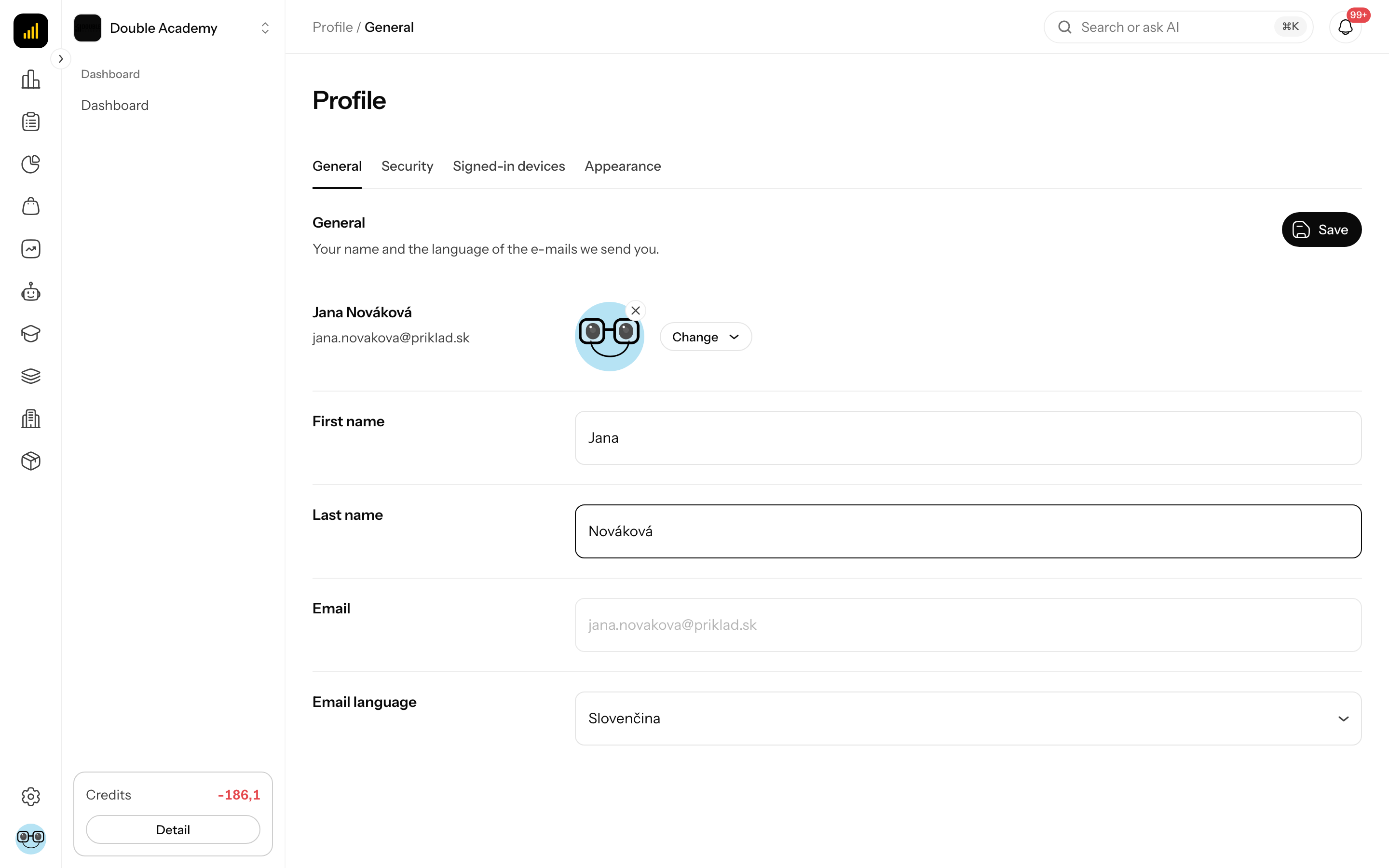
How to change my name and e-mail language
The General tab in Profile contains:
| Field | Required | What it means | Limits |
|---|---|---|---|
| First name | yes | first name your colleagues see | |
| Last name | yes | last name | |
| — | sign-in e-mail | cannot be typed over in the field; changed with the Change e-mail button — see below | |
| Email language | yes | the language of e-mails the app sends you | Slovenčina, Čeština, English |
- Open avatar → Profile → General.
- Change First name, Last name or Email language.
- Click Save at the top right of the section.
- Profile updated successfully! appears.
How to check it worked: the menu under your avatar shows the new name.
How to change my sign-in e-mail
Before you start: have access to the inbox of the new address and know your current password.
- Open avatar → Profile → General.
- Next to the Email field click Change e-mail.
- The Change e-mail side panel opens — We'll send a 6-digit code to the new address. Until you confirm it, you keep signing in with your current address.
- Fill in New e-mail.
- Fill in Current password.
- Click Send code.
- The panel switches to the code — Enter the 6-digit code we sent to (new address).
- Open the inbox of the new address and enter the 6-digit code (you can also paste it). The code is valid for 15 minutes and allows 5 attempts.
- Click Confirm.
- Your e-mail is now (new address). Use it the next time you sign in. appears. You stay signed in.
The original address receives an e-mail notice that the account's e-mail has changed. If you spot a typo in the new address before entering the code, click Edit the address in the panel. If the code did not arrive, click Send a new code once the countdown ends.
How to check it worked: the Email field on the General tab shows the new address and you sign in with it next time.
The Change e-mail button is not shown when:
- you sign in with Google — below the field it says Your e-mail is managed by your Google account and can be changed only there.;
- the account has no password (for example it was created for you) — below the field it says The e-mail of this account cannot be changed here.;
- you are signed in as another user (for example for support) — below the field it says Only the user can change their e-mail. It is not available while signed in as another user.
How to add or change the profile photo
At the top of the General tab are your photo (or initials), name and e-mail.
Uploading your own photo:
- Click the photo or the Add photo button (Change if you already have a photo).
- In the menu choose Upload photo.
- Choose a JPG, PNG or WebP image of at most 5 MB.
- In Crop photo pick a square area.
- Click Crop and upload. Profile photo saved. appears.
Picking an illustrated avatar:
- Click Add photo / Change and choose Pick an avatar.
- In Pick an avatar choose a Style (for example Adventurers, Illustrated, Robots).
- Click the picture you like. Shuffle shows more suggestions.
- Click Use.
Removing the photo: click the Remove photo icon by the photo. Profile photo removed. appears.
The photo is not saved with Save — it is saved at once.
How to change the password
- Open avatar → Profile → Security.
- Fill in New password — at least 8 characters, at least one uppercase letter, one lowercase letter and one digit.
- Fill in Confirm password — the same password again.
- Click Save.
- Password changed successfully! appears. You stay signed in.
The current password is not asked for. If you do not know the password and are not signed in, reset it — see Signing in and forgotten password.
How to sign out another device
The Signed-in devices tab in Profile lists the devices you are signed in on right now.
| Column | What it means |
|---|---|
| Device | browser and system; the current device is tagged This device |
| Signed in | when you signed in on the device |
| Last active | when you last used the device |
Signing out one device:
- Open avatar → Profile → Signed-in devices.
- In the device's row click Sign out.
- In Sign out the device? confirm with Sign out.
- The device was signed out appears.
Signing out every other device:
- On the same tab click Sign out other devices.
- In Sign out other devices? confirm with Sign out.
- The other devices were signed out appears. You stay signed in only on this device.
TIP
If you lost a device or do not recognise it, sign it out and change your password.
How to set list appearance and menu colours
The Appearance tab in Profile applies only to you, on all your devices.
| Setting | Options | What it does |
|---|---|---|
| Lists | Hide columns / Scroll sideways | what happens to table columns that do not fit the width |
| Organization colours | Organization / Default | whether the sidebar uses the colours your organization set or the app's default colours |
Click the option — it is saved at once.
The app language and light/dark mode are switched with the Language and appearance icon (cog) at the bottom of the sidebar — see Getting around the interface.
Who can do this
Every signed-in user edits their own profile. No permission is needed.
Common questions and problems
How do I change the e-mail I sign in with? With the Change e-mail button on the General tab — see "How to change my sign-in e-mail".
"The current password is not correct". The Current password field holds a different password from the one you sign in with. If you do not know it, reset it first — see Signing in and forgotten password.
"Another account already uses this e-mail address". Another account is already registered with the new address. Choose a different address.
"The code is not correct". Check the digits and use the code from the latest e-mail at the new address.
"The code has expired. Ask for a new one". More than 15 minutes have passed or you entered the code wrongly 5 times. Click Send a new code.
The code for the new address did not arrive. Check the Spam or Promotions folder and the address (Edit the address). Once the countdown ends, click Send a new code. If you see the message about too many codes, wait up to an hour.
"The image is too large. The maximum is 5 MB." Shrink the image or use another one.
"Upload a JPG, PNG or WebP image." Other formats (e.g. HEIC, GIF) are not supported — convert the image first.
"Passwords must match!" New password and Confirm password differ.
"Password must contain uppercase, lowercase and a number!" Add the missing kind of character.
The Signed-in devices tab says "Only the user sees and signs out their devices…". You are signed in as another user (for example during support) — only the account owner manages devices.
I changed the language but the app is still in the old one. Email language changes only the e-mail language. Switch the interface language with Language and appearance in the sidebar.