Groups
What it is for
A group is a named list of clients – for example Webinar attendees, Course buyers or VIP customers. You then work with the same set of people repeatedly: you filter clients by it and use it to define the audience of a live event.
A group is populated in two ways:
| How the group is populated | How it works |
|---|---|
| Manual | you add and remove clients by hand |
| Automatic | clients are included by rules (purchased a product, submitted a form, have a deal with a status…); manually added and excluded clients are exceptions |
Where to find it
- In the left menu, click CRM – the item expands.
- Click the Groups sub-item.
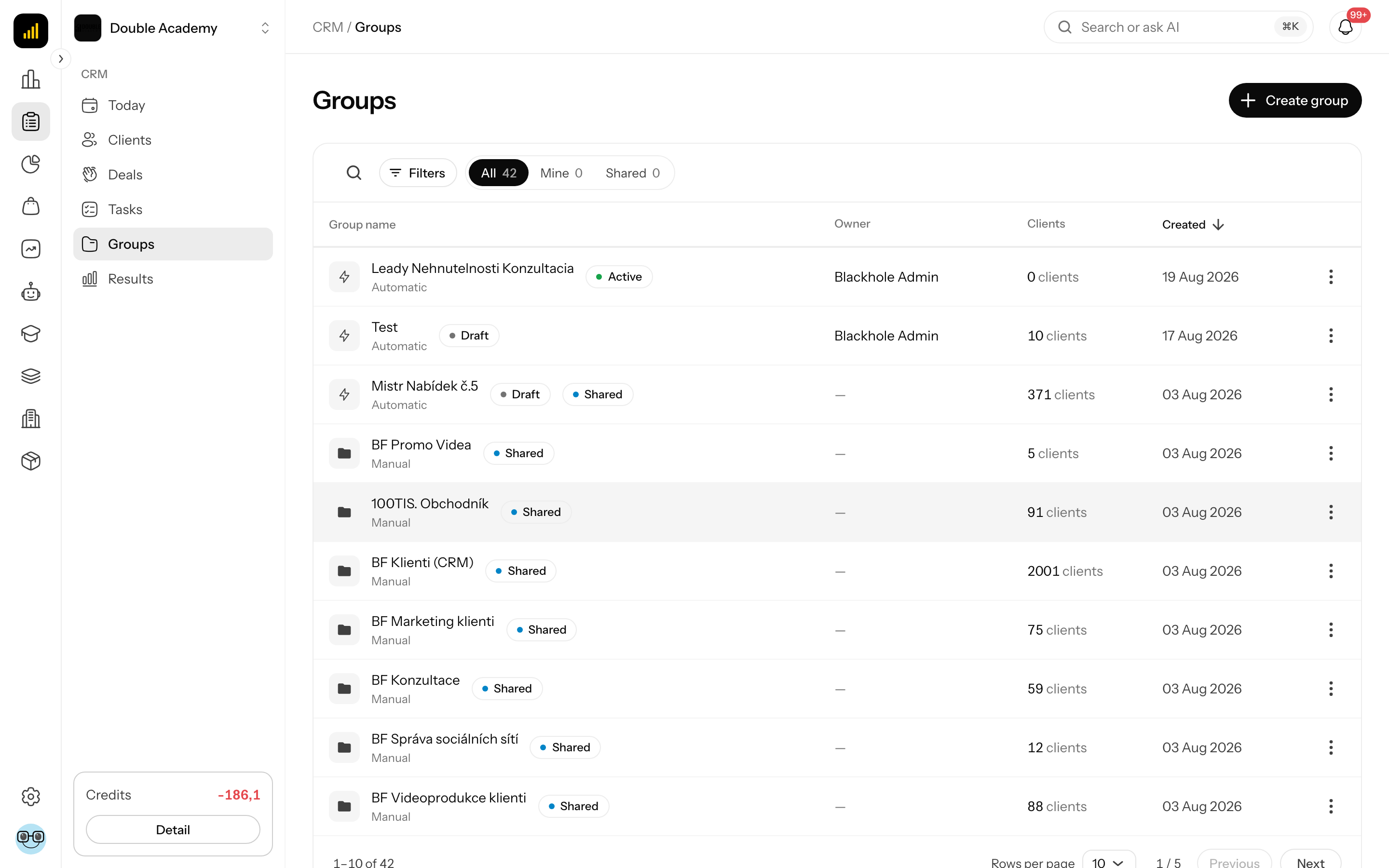
What I see in the group list
At the top right is the Create group button.
Tabs above the table:
| Tab | What it shows |
|---|---|
| All | groups you have access to |
| Mine | groups you own |
| Shared | groups shared with the whole organization or with you |
Table columns:
| Column | What it means |
|---|---|
| Group name | the name, below it Manual or Automatic; for an automatic group a status label; the Shared label if the group is shared with the organization |
| Owner | who created the group |
| Clients | the number of clients in the group |
| Created | creation date |
The “…” menu at the end of a row: Settings and Delete – only for your own groups or with full rights.
Click a row to open the group detail.
Search looks in the name, description and owner's name. Filters offer Mode (Manual / Automatic), Status, Owner, Sharing (Shared with organization / Private) and Created from / Created to.
Automatic group statuses
| Status | Meaning |
|---|---|
| Draft | the automatic group is created, the rules are not yet switched on |
| Active | automatic membership is on |
| Paused | automatic membership is off, the conditions remain saved |
A manual group shows no status.
How to create a manual group
Before you start: you need the Create (or Own) right on the Groups row. The clients you want to add must exist in CRM → Clients.
- In the left menu click CRM → Groups.
- At the top right click Create group. The Create group window opens.
- Fill in the fields according to the table; leave How the group is populated on Manual.
- Click Save.
| Field | Required | What it means | Limits / default |
|---|---|---|---|
| Group name | yes | how you recognise the group in lists | – |
| Purpose and description | no | what the group is for | – |
| How the group is populated | yes | Manual or Automatic | Manual by default |
| Shared | – | a switch; when on, it makes the group available to other people | off by default |
| Share with specific people | – | shown after Shared is switched on; Everyone = the whole organization with CRM access, or select specific members | Everyone by default; selecting a specific person removes Everyone and vice versa |
| Clients (optional) | no | clients you want to add right away | only when creating a manual group |
What happens after saving: Successfully created is shown, you are the group's owner and the group appears in the list.
How to check that it works: in CRM → Groups on the Mine tab is the new group and in the Clients column the number of added clients.
How to add clients to a manual group
- Open CRM → Groups and click the group's row.
- On the Clients tab of the detail, at the top right, click Add clients. The Add clients window opens.
- Search for and select clients in the field (you can select several).
- Click Add (number). Without a selected client the button is inactive.
Clients added to the group is shown. One client can be in several groups at once.
How to create an automatic group with rules
Before you start: the products, forms or statuses by which you want to include clients must exist in the organization. You need the Create (or Own) right on the Groups row.
- In the left menu click CRM → Groups.
- At the top right click Create group.
- Fill in the Group name, and optionally Purpose and description and sharing.
- In the How the group is populated field choose Automatic. The notice Save the group first… appears.
- Click Save and configure rules. The group is saved in the Draft status and the window stays open – the Add clients automatically part appears below the form.
- In the Add clients who field choose the condition type (table below) and fill in its values.
- For another condition click Add condition and repeat step 6.
- With several conditions choose in the Include clients matching field: All conditions or At least one condition.
- Switch on Enable automatic membership.
- Click Save automation. The button is inactive while any condition has no value selected.
- Close the window with the Cancel button.
Condition types:
| Condition | What you select | Note |
|---|---|---|
| Purchased a product | Products – one or more; a purchase of any one is enough | the whole catalogue is searched, including unpublished products (Unpublished label) |
| Purchased a specific product variant | Product variants | – |
| Submitted a form | Forms | – |
| Have a deal with status | Deal statuses | e.g. Lost |
For purchase conditions you can expand Refine purchase:
- Purchase validity – Only currently paid purchases (default), or Ever purchased, including refunds,
- Purchased from / Purchased until – only purchases from the given period (optional).
Without refinement Paid purchases, with no date restriction. applies.
What happens after saving: Automatic rules saved is shown and the group has the Active status. Membership is computed from the rules continuously – a new purchase or a submitted form shows in the group without any further step.
How to check that it works: open the group detail – on the Clients tab, under Current members, are the clients who meet the rules; in the Added by column they have Rules.
How to change a group's rules or settings
- Open CRM → Groups and click the group's row. The group detail opens.
- In the tabs under the heading click Settings.
- Change the Group name, Purpose and description, How the group is populated or sharing and click Save at the top right of the section. The button is inactive until you change something.
- For an automatic group click the Rules tab, adjust the conditions in the Add clients automatically part (Add condition, Remove condition) and click Save automation.
Instead of the detail you can click “…” → Settings in the group's row in the list – the Group settings window opens.
The Enable automatic membership switch toggles the Active / Paused status. The application says next to it: on – “After saving, clients are included according to these conditions.”; off – “After saving, automatic membership will be off. Your conditions will be kept.”
Switching a manual group to automatic
If you switch a manual group to Automatic and click Save and configure rules (in the window) or Save (on the Settings tab of the detail), the current members stay as manually added exceptions and clients who meet the rules join them. After saving on the Settings tab the Rules tab opens by itself, because a new automatic group has no rule yet.
What I see in the group detail
- Header: the name, the Manual/Automatic labels, for an automatic group its status (Draft, Active, Paused), the Shared label (also when the group is shared only with specific people), the number of clients and the description. At the top right is the Add clients button – only on the Clients tab and only for the owner or with the right to edit.
- On a wide screen the list of your groups is on the left for quick switching.
- Tabs under the heading: Clients; Rules (only an automatic group); Settings. Someone who may not manage the group sees About the group instead of Settings. Switching tabs does not add steps to the browser's back history – the back arrow returns to the group list.
The Clients tab:
- The member table with the columns Name, Status (contact status), Added on, Sales Rep and for an automatic group Added by (Rules, Manual inclusion).
- For an automatic group the Current members and Manual exclusions tabs above the table.
- Search (member's name, email, phone) and Filters: Contact status, Source, Sales Rep, product, Added by (automatic group only), Created from / Created to.
- An empty group says how to fill it, e.g. No clients in this group yet with the hint to use Add clients, or No client matches the rules yet for an automatic group.
- The “…” menu at the end of a member's row (only for those who manage the group).
Click a member's row to open the client detail.
The Rules tab (automatic group): with the right to manage the group it holds the conditions of the group to edit (see above). Others see the rule in words under Who belongs to the group – each condition with the names of the products, variants or forms it points at, and the purchase refinements.
The Settings tab: Owner, Group name, Purpose and description, How the group is populated, Shared, the Save button and at the bottom Delete group. Someone without the right to manage the group sees About the group instead: the owner, Sharing (Everyone in the organization with CRM access, the selected people or Owner only), how the group is populated, the number of clients and the creation date.
If the group does not exist or you have no access to it, Group not found is shown with the Back to groups button.
How to remove a client from a group
- Open the group detail – the Clients tab.
- At the end of the client's row click “…” and choose Remove client (manual group) or Exclude from group (automatic group).
- Confirm the window with the same button.
- In a manual group the client is removed from the group (the question Remove this client from the group?). The client stays in the CRM. Client removed from the group is shown.
- In an automatic group the client is excluded – the question reads Exclude this client from the automatic group? They will stay excluded until the exception is removed. The excluded client moves to the Manual exclusions tab and the rules no longer include them. The client was excluded from the group is shown.
How to return a client to the automatic rules
An exception is a manually added or manually excluded client in an automatic group.
- Open the detail of the automatic group – the Clients tab.
- Find the client – excluded ones under Manual exclusions, manually added ones under Current members (Added by: Manual inclusion).
- At the end of the row click “…” and choose Return to automatic rules.
The manual exception was removed is shown. From now on only the rules decide the client's membership. A client with an exception has only this option in the menu, not Remove client / Exclude from group.
How to set group sharing
- Open the group detail and click the Settings tab (or “…” → Settings in the list).
- Switch on the sharing switch (Share the group in the detail, Shared in the list window).
- In the field that appears (Share with specific people in the window) keep Everyone, or select specific team members.
- Click Save.
| Setting | Who sees the group |
|---|---|
| Shared off | the owner and those with the View right on the Groups row |
| Shared + Everyone | also everyone in the organization with CRM access |
| Shared + specific people | also the selected team members |
Only the owner or someone with the full Edit / Delete right can manage a group (change settings, add and remove clients, delete). Others can only see it.
How to delete a group
- Open CRM → Groups.
- In the group's row click “…” → Delete. Or open the group, click the Settings tab and under Delete group click Delete.
- Confirm the question Delete this group? The clients stay; only the group is removed. with the Delete button.
Deleting removes the group, its memberships, sharing and rules. The clients in the CRM stay untouched together with their deals and tasks.
WARNING
If the group is the audience of a live event, deleting it or changing its members also changes who has access to the event.
Who can do this
Permissions are set by an administrator in Organization → Permissions, CRM module, Groups row – see Permission matrix.
| Right | What it allows |
|---|---|
| Own | you work with groups you own and see groups shared with you |
| View | you see all groups of the organization including unshared ones and their members; the Groups tab in the client detail |
| Create | the Create group button |
| Edit | settings, rules, adding and removing clients also in other people's groups |
| Delete | deleting other people's groups too |
Common questions and problems
I do not see Settings or Delete in the “…” menu. The group is not yours and you do not have the full Edit / Delete right.
The Save automation button is inactive. Some condition has no product, variant, form or status selected. Fill it in, or remove the condition.
The message “The automatic group rule is incomplete or invalid”. A condition is incomplete. Check all conditions.
The message “A product, variant, form, or status used by the rule is not available in this organization”. Something the rule refers to has been deleted. Remove it from the condition.
The message “Population rules can only be configured for an automatic group”. The group is Manual. Switch How the group is populated to Automatic.
The message “You do not have access to manage this CRM group”. The group belongs to another owner.
A client meets the rules but is not in the group. Look at the Manual exclusions tab – if they are there, return them with Return to automatic rules. For purchases, check Purchase validity and the dates in Refine purchase.
When creating an automatic group, the Clients (optional) field is missing. The field is only for a manual group. Add a client to an automatic group manually via Add clients in the detail.