Telephone agents
What it is for
A Phone agent is a voice AI agent that takes calls — for example the ones your colleagues cannot pick up. It finds out what the caller needs, answers from your knowledge and, when needed, creates a callback task in the CRM. Calls run through the ElevenLabs service; the agent can take calls on a phone line, act as an online advisor through a link or on your website, and it can be tried in the browser.
Where to find it
In the left menu click Agents → Telephone agents. Open an agent's detail by clicking its row.
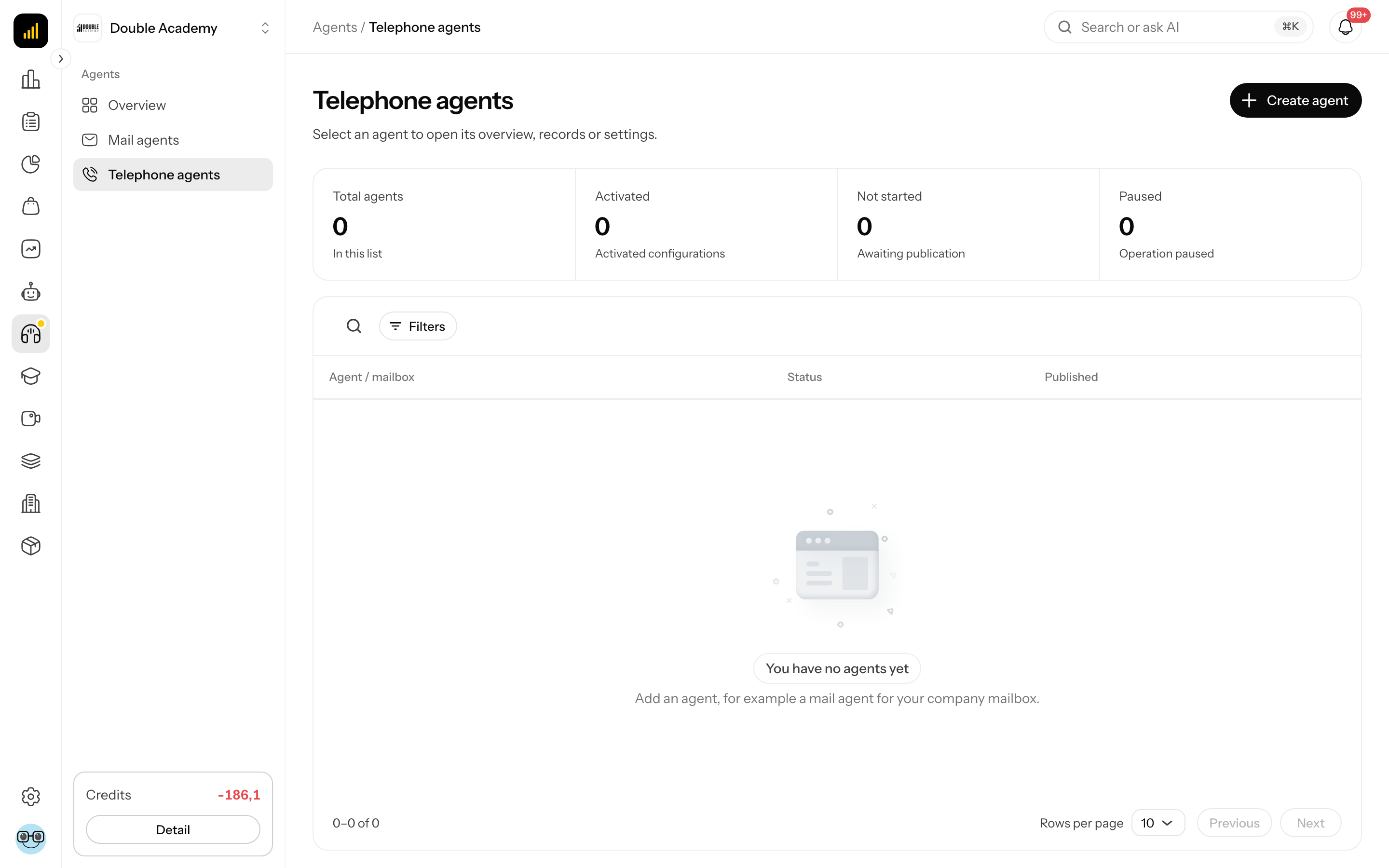
What I see on the screen
The Telephone agents list has a strip of totals (Total agents, Activated, Not started, Paused), the Search (field Search agents) and Filters (field Status) buttons above the table and the Create agent button at the top right.
| Column | What it means |
|---|---|
| Agent / mailbox | agent name; click it to open the detail |
| Mode / phone | the tags Phone on / off and Online on / off, with the assigned number below |
| Live calls · 30 days | Calls: …, Callbacks: … and the average duration |
| Responsible team member | who the agent assigns callbacks to |
| Status | operation status (see below) |
| Published | date of the first publication |
The phone agent detail has the breadcrumb Agents / Telephone agents / agent name in the header, the operation status on the right and channel tags under the header. Tabs:
| Tab | What it contains |
|---|---|
| Overview | setup progress, call statistics, workflow, outcomes, calls that need you |
| Call log | the list of all calls — see Call log |
| Settings | line, voice and greeting, advanced settings, channels — see Call settings |
| Agent setup | behavior, knowledge, test call, versions |
Without Requests → View you see only the Settings and Agent setup tabs.
Phone agent statuses
| Status | Meaning |
|---|---|
| Not running | the agent has not been published yet |
| Preparing | a publication is in progress |
| Published · no active line | the agent is published (tests and online links work) but has no phone line connected |
| Accepting calls | the agent is published and the line is connected |
| Paused | the line or the agent is paused |
| Needs attention | the publication or the line reports an error — see Settings |
What the Overview tab shows
The Overview tab of a phone agent contains:
- Setup progress — the steps Service connected, Agent purpose, Voice selected, Opening greeting, Responsible person, Current version published, each with the state Done or To do, the text … of … steps complete and Next: …. Clicking a step opens the matching place in the settings. Expand the list of steps with Show setup steps.
- The period switch 24 hours, 7 days, 30 days.
- The cards Received calls, Resolved by a colleague, Needs you (all time; click it to open the call log on the Needs you tab), Average duration. Statistics cover live operation only — test calls are excluded.
- Call workflow — how calls move through processing.
- Agent at a glance — purpose, channels, language, responsible team member, number of selected knowledge bases and the Browser test button. The data comes from the current draft; publishing puts it into operation.
- Recent calls — latest activity including tests.
- Call outcomes — calls by outcome.
- Needs you — calls waiting for a person; the All → link opens the call log.
How to create a phone agent
Before you start
- You need the Agent settings → Edit permission.
- To publish, an administrator must connect ElevenLabs in Organization → Integrations — see Organization settings. You can prepare the draft without it.
Steps
- In the left menu click Agents → Telephone agents.
- At the top right click Create agent.
- In the Create agent dialog fill in Agent name (at most 120 characters).
- Click the Phone agent card.
- Click Continue.
The agent is created as a draft and its Settings open. Continue with Call settings — fill in the voice, greeting, responsible team member, behavior and knowledge, test and publish.
How to check it worked
The agent is in the Agents → Telephone agents list with the status Not running. After publishing and a test you see it in the Overview under Recent calls.
How to rename a phone agent
- Open the agent via Agents → Telephone agents.
- Click the Settings tab.
- In the Agent number part click the pencil icon in the Line name field (Rename agent).
- Overwrite Agent name and click Save.
Can a phone agent be removed?
The app has no button for removing a phone agent. If you no longer want to use it, pause the line with Pause line in Settings and pause the online advisor — see Call settings.
Who can do this
| Task | Required permission (Permission matrix → Agents) |
|---|---|
| see the list, Settings and Agent setup | Agent settings → View |
| see Overview and Call log | Requests → View |
| create, edit, publish, pause, test | Agent settings → Edit |
Common questions and problems
The list is empty: “No telephone agents yet”. Create an agent with Create agent.
The status is “Published · no active line”. The agent works in tests and online but has no phone number. Assign a number in Settings → Phone number → Assign imported number.
The status is “Needs attention”. Open Settings — a red notice at the top gives the cause. After fixing it click Retry processing or Publish again.
The Overview shows no calls although I tested. The statistic cards count live calls only. You see tests in Recent calls and in the Call log.