Referrals
What it is for
Referrals is the overview for the programme administrator: all customers and people assigned to an ambassador, together with how many orders they placed and how much commission they brought the ambassador. It answers the question "who did which ambassador bring in, and how much did it earn".
Ambassadors themselves are managed in Users, commissions in Purchases.
Where to find it
In the left menu click Ambassador → Referrals.
The item is shown only if your role has the permission Referrals → View.
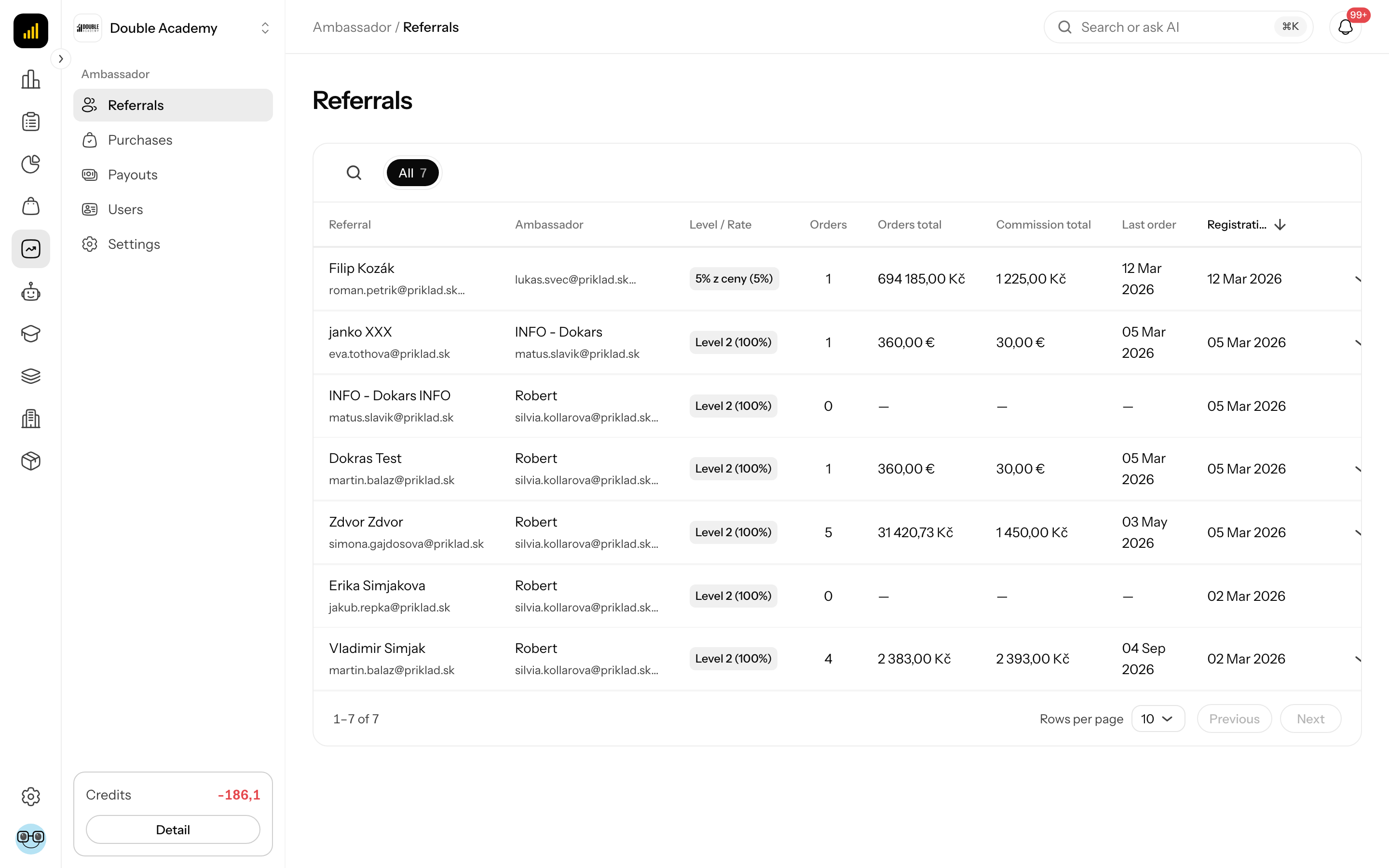
What I see on the screen
Above the Referrals table is the All tab with the total count and a magnifier icon (Search...) for searching. An active search is shown as a chip above the table; clear it with the cross.
| Column | Meaning |
|---|---|
| Referral | the assigned customer (name and e-mail) |
| Ambassador | the ambassador they are assigned to |
| Level / Rate | the ambassador's level and its percentage |
| Orders | the number of the customer's orders |
| Orders total | the total value of their orders |
| Commission total | the total of commissions from their orders |
| Last order | the date of the last order |
| Registration | when the customer was assigned to the ambassador |
Each row has a … menu (on a narrow screen with the item More info) and an arrow if the customer has orders. The arrow expands the list of orders with the columns Date, Order value and Commission. Clicking an order expands its products.
The table shows 10 rows per page, with pagination below it.
How a referral is created
A customer is assigned to an ambassador automatically when they:
- buy within 30 days of clicking the ambassador's affiliate link (in the same browser),
- sign up as a new ambassador through the link of another active ambassador.
The assignment is permanent — the customer's later orders also earn commission for the same ambassador. If the customer is already assigned, a new link from another ambassador does not change that.
How to assign a customer to an ambassador manually
Before you start
- The customer must be in the CRM as a client.
- The ambassador must exist.
- You need the permission to edit clients in the CRM.
Steps
- In the left menu click CRM → Clients and click the client in the list.
- In the client detail, in the Contact information card, click Edit next to the People supporting the client heading (see Clients).
- The Edit people supporting the client dialog opens. In the Ambassador field select the ambassador. Below the field is The selected ambassador is linked to the referral system.
- Click Save. The message Client relationships saved appears.
You can also pick the ambassador straight away when creating a client, in the new client dialog.
If the customer already has orders or commissions with an ambassador, the field is locked with the text The ambassador can no longer be changed because the referral has orders or commissions.
How to check it works
In Ambassador → Referrals search for the customer — the Ambassador column shows the selected ambassador.
Who can do this
| Task | Required permission (module Ambassador) |
|---|---|
| see Ambassador → Referrals | Referrals → View |
| manually approve a pending commission (in Purchases) | Referrals → Edit |
The administrator sets permissions in Organization → Permissions (see Permission matrix).
Common questions and problems
A customer bought through a link, but is not in Referrals. They bought in a different browser or after 30 days, the ambassador was not Active at the time, or the ambassador made the purchase themselves.
The customer is with a different ambassador than they should be. The first assignment decides. If the customer has no orders or commissions yet, change the ambassador in the CRM (see How to assign a customer to an ambassador manually).
Where are the ambassador statuses (Active, Pending)? In Users.