Sales
What it is for
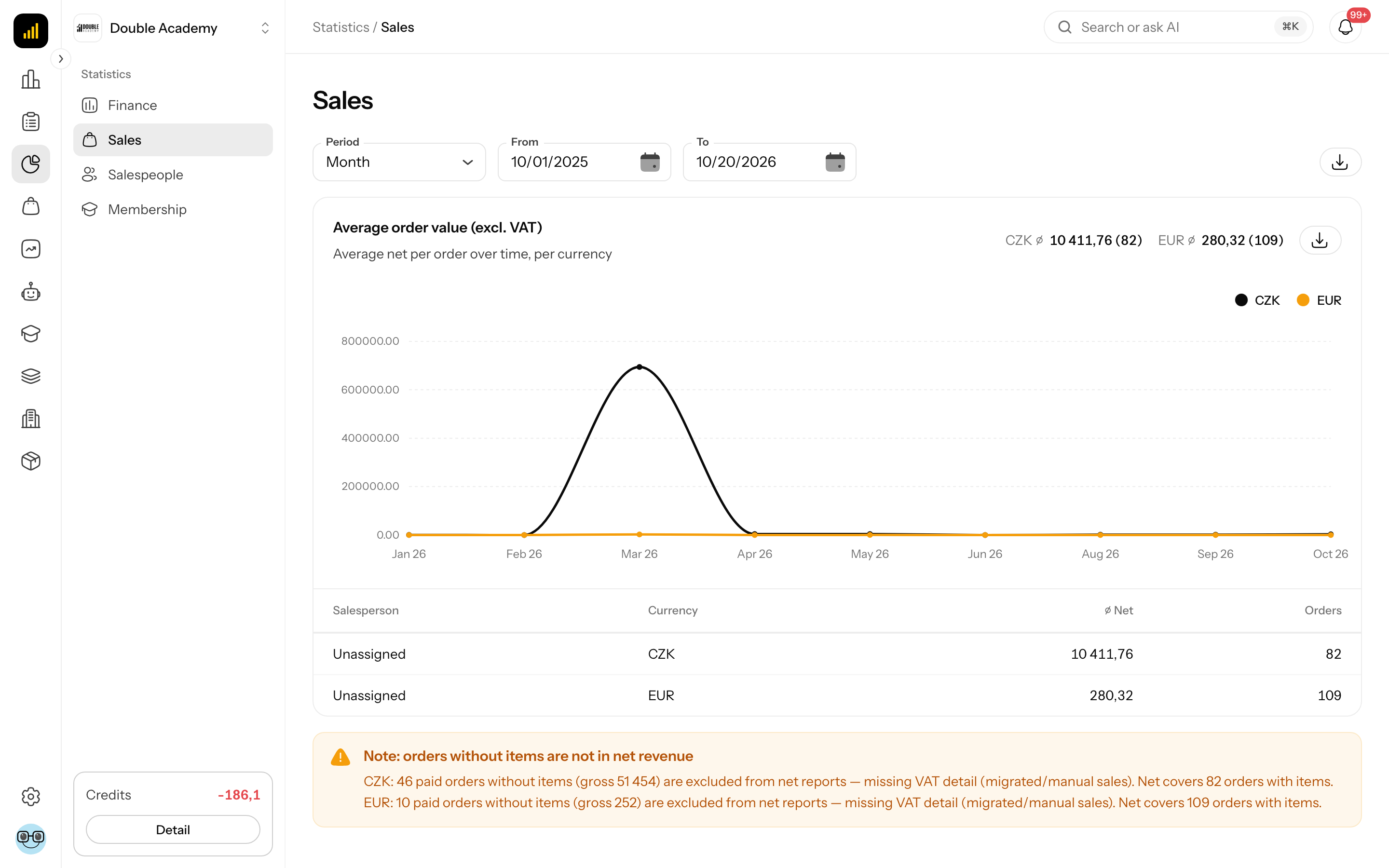
The Sales report in Statistics shows the average value of a paid order excluding VAT — how it develops over time and what it is for each salesperson. It helps you see whether customers buy more or less expensively and which salesperson closes larger orders.
Where to find it
In the left menu click Statistics, then Sales in the expanded list (address /dashboard/reports/finance?tab=sales). The page header reads Statistics / Sales.
Not to be confused with the Sales item of the main menu (orders, products) — this report is under Statistics.
Other reports in the same list: Finance, Salespeople, Membership.
Before you start: where the numbers come from
The Sales report counts only paid orders with line items in Sales → Orders (see Orders). For a split by salesperson, assign a salesperson in the order detail in the Sales rep card. Orders without one (typically every purchase through the e-shop, a form or a funnel) are in the Unassigned row.
To view the report you need the permission Statistics → View.
How to set the period of the Sales report
Above the card of the Sales report there is a row of filters:
| Field | What it does | Default |
|---|---|---|
| Period | grouping of the chart: Week, Month, Year | Month |
| From | first day of the period | first day of the month a year ago |
| To | last day of the period (inclusive) | today |
- In the left menu click Statistics → Sales.
- In the Period field choose Week, Month or Year.
- Pick a date in From and in To.
The card recalculates immediately. The period is not remembered — next time it is the last year again. An order belongs to the date it was created, not when it was paid.
What I see on the Sales screen
The Sales report has one card, Average order value (excl. VAT) (subtitle Average net per order over time, per currency), and below it, when relevant, the notice Note: orders without items are not in net revenue.
The card has three parts:
- Figures in the card header — per currency, e.g.
EUR ⌀ 120.50 (42): the average value excluding VAT and, in brackets, the number of paid orders in the period. Next to them is the Export CSV icon. - Line chart — the average order value in each week / month / year, one line per currency.
- Table by salesperson:
| Column | Meaning |
|---|---|
| Salesperson | team member assigned to the orders; Unassigned = orders without a salesperson |
| Currency | currency of the orders |
| ⌀ Net | average order value excluding VAT |
| Orders | number of paid orders |
With no paid orders in the period the card shows No data for the selected period.
How the average order value is calculated
In the Sales report each paid order in the period gets its amount excluding VAT from all its lines (line price after the discount-code share, less VAT at the line's rate). The average is the sum of these amounts divided by the number of orders, per currency. Orders imported from FAPI are included. Cancelled and refunded orders are not. Orders without items are not in the average at all — the notice under the card points that out.
How to export the Sales report to CSV
- In the Sales report set the period.
- Click the Export CSV icon in the card header, or the Export whole tab (CSV) icon on the right of the filter row.
Both give the same data (the report has one card). The file uses a semicolon separator and opens in Excel with Czech or Slovak settings. The icon is disabled while there is no data.
How to check that the Sales report works
- In the left menu click Sales → Orders and open a paid order that has line items.
- In the order detail, in the Sales rep card, click Assign sales rep (if it already has one, click the pencil icon), pick a team member and click Save.
- In Statistics → Sales set a period that contains the order's creation date.
- The salesperson appears in the table with at least one order in the Orders column.
Who can do this
| What you want to do | Permission needed |
|---|---|
| see the Sales report and export it | Statistics → View in the permission matrix |
The Statistics item appears in the left menu only when the organisation's plan includes the CRM module — without CRM it is hidden even with the Statistics → View permission.
Frequently asked questions and problems
Why are almost all orders "Unassigned"? Orders from the e-shop, forms and funnels get no salesperson automatically. Assign one by hand in the order detail.
Why does the report not match the average I calculate from Orders? The report excludes VAT and discounts, includes FAPI orders, leaves out orders without items and groups orders by creation date.
Where are the pipeline and the closing rate? In the Salespeople report.
Related
- Finance — revenue, target, products, clients
- Salespeople — salesperson performance in the CRM
- Orders — assigning a salesperson to an order