Home
What it is for
Home is the first page of Membership — what a member (student) sees after clicking Membership in the left menu. It shows where they left off in their learning and their courses. An organisation admin can replace the default overview with a custom home page (see Home page).
The other member pages are in the menu under Membership:
| Menu item | What the member finds there | Chapter |
|---|---|---|
| Home | an overview and the next step in learning | this chapter |
| My learning | all their courses and bundles with progress | My learning |
| Course catalog | published courses and bundles they do not have access to yet (to buy) | My learning |
| My Certificates | certificates for completed courses | My Certificates |
| Membership administration | admins only — creating courses, videos, members, results, settings | Courses & bundles |
Where to find it
- In the left menu, click Membership (the academic cap icon).
- In the expanded menu, click Home.
The page header reads Membership · Home.
The items Home, My learning, Course catalog and My Certificates are visible to anyone whose role has the permission Learning and my courses → View. Someone without this permission (for example an admin who does not study) lands straight in Membership administration after clicking Membership.
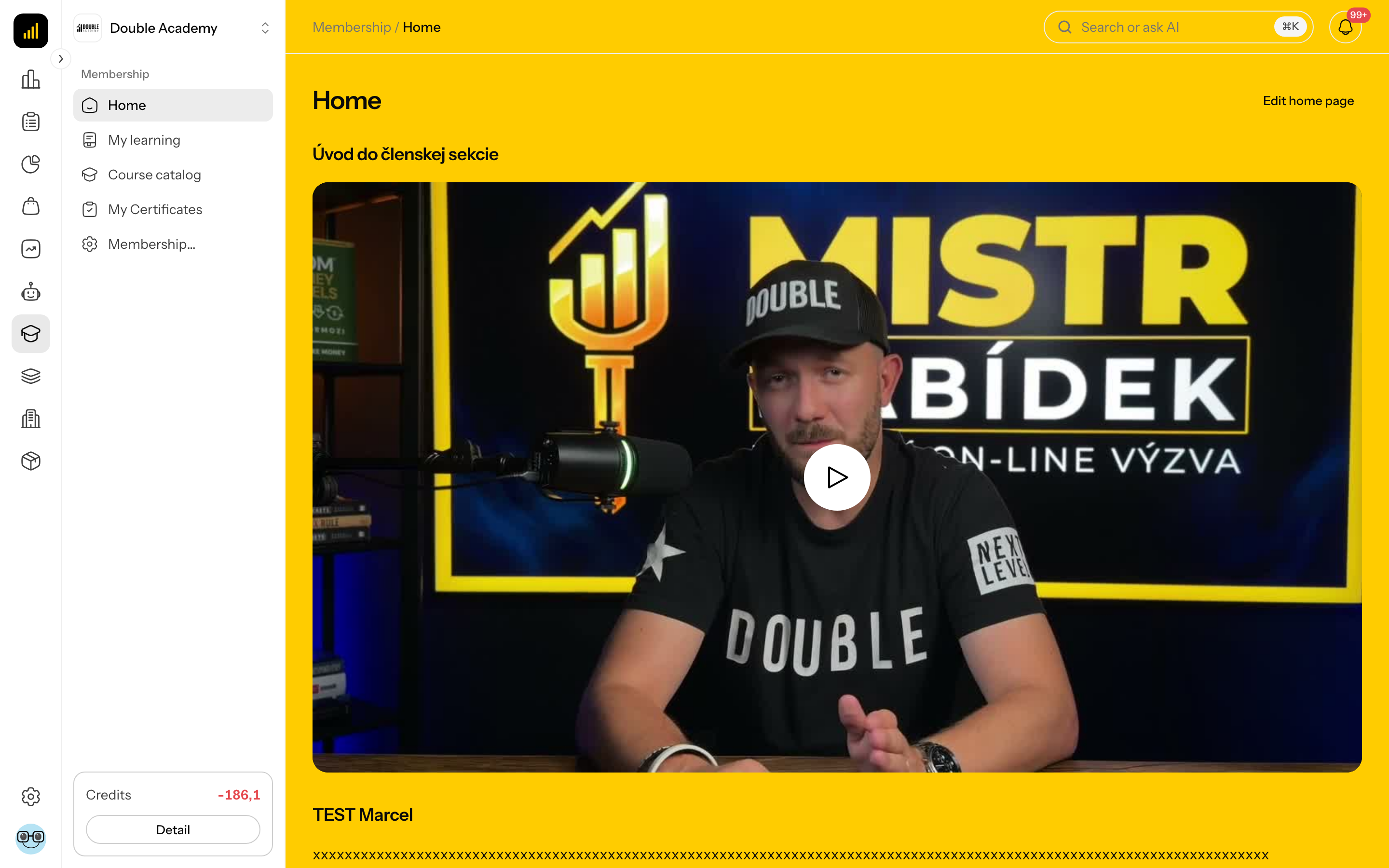
What I see on the screen
The default Home (when the admin has not switched on a custom home page):
- The heading Welcome to your membership — Your content and your next learning step, together.
- The next-step card — the course you last continued, with the button Continue learning (opens the last lesson you had open) or Start (if you have not started the course yet).
- My content — cards of your courses and bundles; the button All my learning opens My learning.
- If you have no course: You are not enrolled in any courses yet. and the button Browse Catalog, which opens the Course catalog.
A custom Home (when the admin has switched it on): a page built from sections the admin prepared — text, video, course tiles, links, promo cards. A course you have no access to may be shown locked on its tile, with a call to get access.
At the top right, admins with the permission Settings → Edit see the button Edit home page — it opens the editor in Settings.
How to continue where I left off
- In the left menu, click Membership → Home.
- In the next-step card, click Continue learning.
The lesson you had open last opens. For a bundle, the bundle page opens.
Who can do this
| What you want | Permission needed (Permission matrix, module Membership) |
|---|---|
| see Home and the member pages | Learning and my courses → View |
| the Edit home page button | Settings → Edit |
People who bought a course without an account get a role that has this permission (see Settings → Access).
Common questions and problems
Clicking Membership does not open Home but Courses & bundles. Your role does not have the permission Learning and my courses → View. If you also want to study, ask an admin to add it.
Home is empty. You have no access to any course. Buy a course in the Course catalog or ask an admin to assign one to you.
Where are the "Total Courses" and "Completed" statistics? The separate overview page no longer exists. The numbers of courses in progress, completed and not started are in the header of My learning.
Related
- My learning — courses, the catalog and learning itself
- My Certificates
- Home page — how an admin edits this page