How to launch a mail agent from scratch
What it is for
This walkthrough takes you all the way from an empty organization to a mail agent that reads the company mailbox and prepares replies for approval. The path goes through three places in the app: AI → Knowledge (sources), Agents → Mail agents (agent and mailbox) and the To approve tab (reviewing replies).
Before you start
| What you need | Why | Where |
|---|---|---|
| the Agents module in your subscription | without it Agents does not appear in the menu | Subscription |
| the Agents → Agent settings → Edit permission | to create and set up the agent | Permission matrix |
| the Agents → Approvals and sending → Edit permission for at least one person | someone must approve replies | Permission matrix |
| access to the company mailbox | Google Workspace, Microsoft 365 or IMAP/SMTP details | your e-mail provider |
| company sources | price list, FAQ, terms and conditions | files or website |
| AI credits | AI processing of e-mails uses the organization's credits | AI credits |
| company logo and details (for price quotes) | the quote PDF uses them | Organization → Settings |
Step 1: Prepare a knowledge base
The agent answers only from what is in the connected knowledge base. Without a processed base a new agent cannot start.
- In the left menu click AI → Knowledge.
- Add knowledge and fill it with sources (price list, FAQ, website information) — the steps are in Knowledge.
- Wait until the knowledge is processed.
TIP
If the mailbox holds at least three sent replies, the agent also learns a knowledge base from mail on its own after the mailbox is connected. A hand-made base with your price list is still more reliable.
Step 2: Create the agent
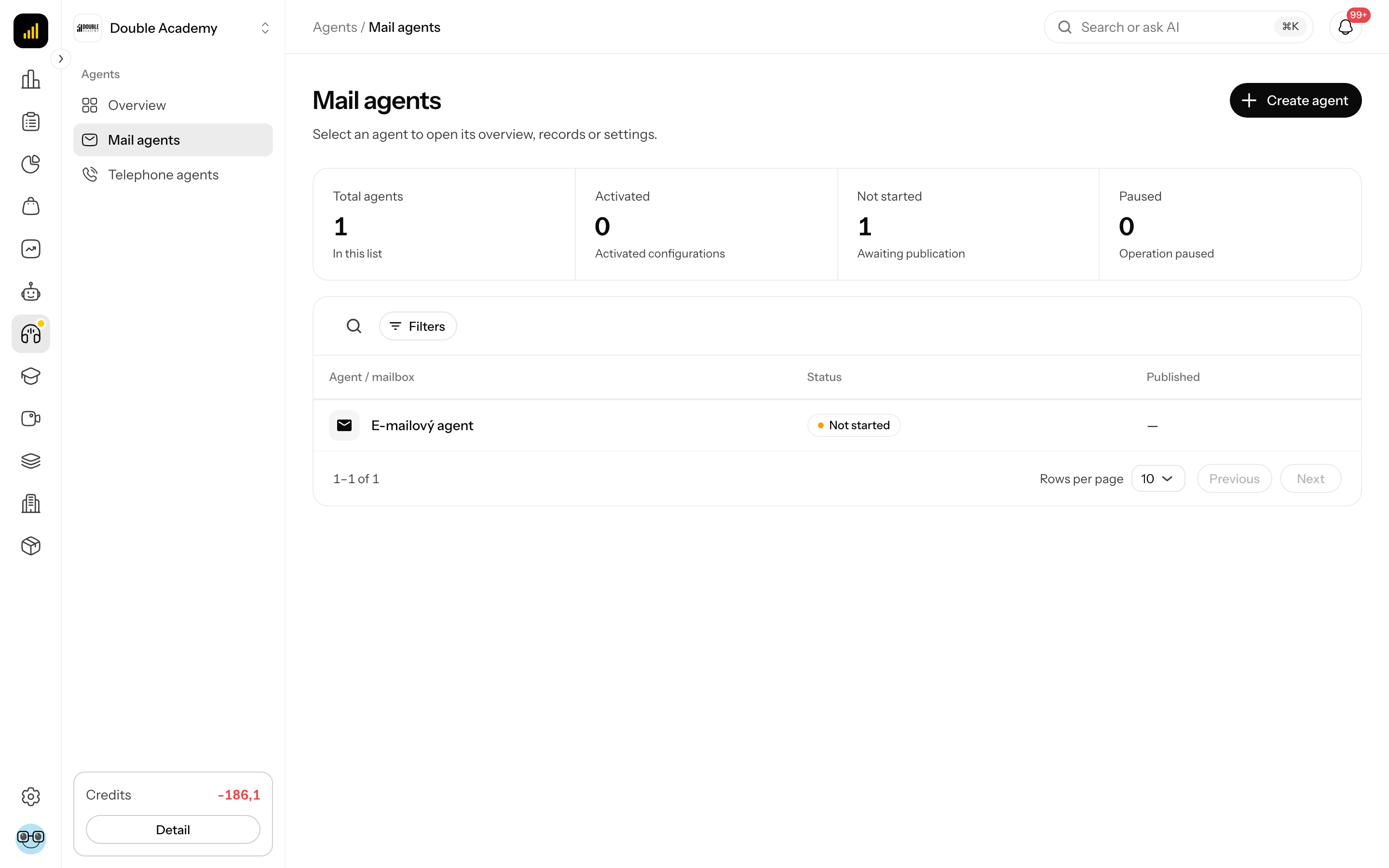
- In the left menu click Agents → Mail agents.
- At the top right click Create agent.
- Fill in Agent name (e.g. “Sales”).
- Keep the Mail agent card selected.
- Click Continue.
The agent's Settings open in the Mailbox connection section.
Step 3: Connect the mailbox
- Under E-mail provider choose Google Workspace, Microsoft 365 or IMAP / SMTP.
- For Google/Microsoft click Sign in with Google / Sign in with Microsoft and allow access. For IMAP/SMTP fill in Email address and Mailbox password, check the servers and click Test connection.
- Wait for Connected as … or The connection works - IMAP and SMTP answer. The mailbox is saved.
- Under What the agent watches check Watched folders (default
INBOX) and Check the mailbox. - Click Save.
After connecting, the agent reads the mail and pre-fills categories, style and signature (Analysing your mail …). Details: E-mail settings.
Step 4: Connect the knowledge base
- Open the agent's Agent tab and go to the Replies section.
- In Knowledge bases choose the base from step 1. It saves immediately.
- Check Reply style, Reply language, Form of address, Instructions for the agent and Signature.
- Click Save.
Step 5: Check sorting
- On the Agent tab go to the Sorting section.
- Check which categories are on and their Action.
- Check Always leave to me (complaints, payment disputes…).
- Click Save — this confirms the Sorting step.
Step 6: Set up approval
- Open the agent's Settings tab and go to the Approval section.
- In Approvers choose who gets notified (by default the person who created the agent is selected).
- Switch on the notifications you want (E-mail, Telegram, Daily summary at 8:00).
- Keep Send without approval off for now.
- Click Save.
Step 7: Start the agent
- Check the strip above the settings — it must say … You can start the agent. If it says Missing to start: …, complete the tab (Settings or Agent) with the red dot.
- In the agent header switch on the switch (or on the Overview tab click Start agent).
The status changes to Running.
How to check it worked
- From another address send a test question to the mailbox, e.g. about the price of a product from your price list.
- Wait for the check interval (or on the E-mails tab click Check mailbox).
- On the E-mails tab you see the e-mail with a category and the status To approve.
- On the To approve tab open the e-mail, check the Reply draft and Sources used: and click Approve and send.
- From the customer's side: the reply arrives at the test address from your company mailbox in the same thread.
Common problems on the way
| Problem | Solution |
|---|---|
| switching it on shows The setup is not complete yet: … and the Start agent button is disabled | complete the tab with the red dot in the settings (mailbox, knowledge base, sorting) |
| Without a processed knowledge base the agent does not answer questions… | go back to steps 1 and 4 |
| the e-mail is under Out of scope | the category has the action Ignore or is off; adjust Sorting |
| the draft has the reason Topic for a human | the topic is in Always leave to me; reply manually |
| no notification arrived | check Approvers and the channels switched on |