How to add a colleague with limited permissions
What it is for
This procedure takes you through the whole chain from scratch: you prepare a role with exactly the permissions your colleague needs, invite them to the organization and check that they see only what they should. You use the Organization → Permissions and Organization → Members screens.
Before you start
- You need Can work on the Permissions screen and on the Members screen (the Owner role has them). You can give the new role only what you have yourself.
- Have your colleague's e-mail at hand.
- Know what your colleague should work with (for example the CRM only) — you cannot give them modules your plan does not include (see Subscription).
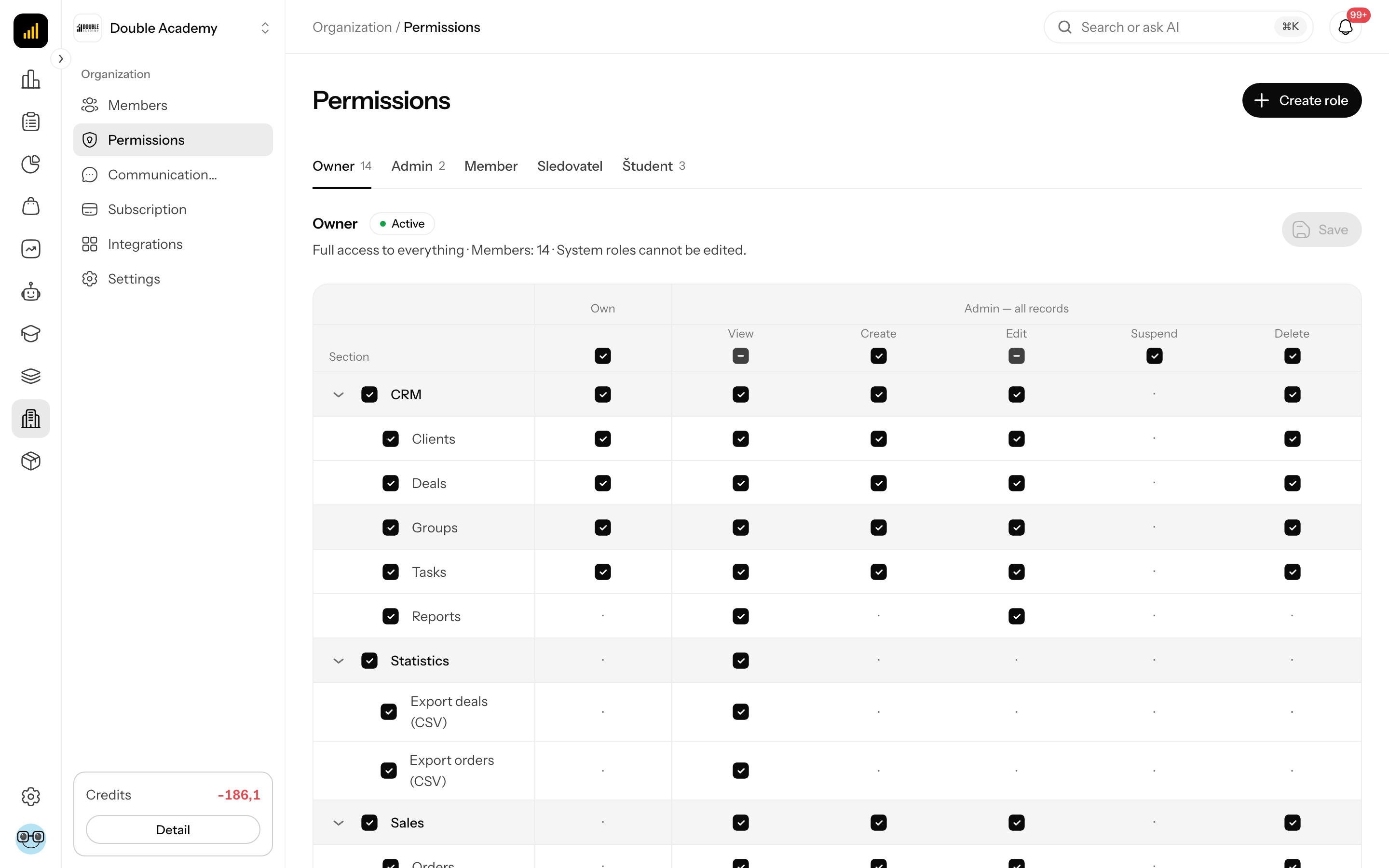
Step 1: Create the role
- In the left menu, click Organization → Permissions.
- Top right, click Create role.
- In the Create role dialog, enter a name (for example "Sales"), optionally a Description. In Start from pick Sales under Templates (the default is Member (member list only)) and leave the Active switch on.
- Click Create.
Details: Permissions → How to create a new role.
Step 2: Adjust the role's screens
- In the table of roles, click the new role's row. A panel slides in from the right.
- For each menu item choose No access, View only or Can work. Example for a salesperson who only works in the CRM: in the CRM card Can work for Today, Clients, Deals and Tasks, and No access for what they should not see (the Sales template also gives, for example, Orders, Assistants and Members).
- At the bottom of the panel, click Save.
The message Permissions updated successfully appears. What each choice means: Permission matrix.
Step 3: Invite your colleague
- In the left menu, click Organization → Members.
- Top right, click Create member.
- In the Invite member dialog, enter the Email and choose the role from step 1 in the Role field.
- Click Invite member.
Your colleague gets an e-mail with a link to the invitation and you find them on the Invited tab. Details: Members → How to invite a new member.
Step 4: Wait for the invitation to be accepted
While the invitation shows Awaiting acceptance, your colleague has no access yet — even if they already have a Doubleros account. The invitation is valid for 7 days; if the e-mail did not arrive or the invitation shows Expired, on the Invited tab click "…" → Resend invitation in their row.
Your colleague accepts the invitation on the page the link in the e-mail opens: without an account they create one with the same e-mail the invitation went to; with an account they sign in and click Accept invitation. Otherwise they do not become a member. Once accepted, the row leaves the Invited tab.
How to check it worked
- On the Organization → Members screen, your colleague is on the All tab (and Internal) with the right Role and Access Active.
- Ask your colleague to sign in and pick your organization in the organization switcher.
- In the left menu they must see only the items where their role has View only or Can work (in the example, the CRM only), plus Dashboard, which every member sees.
- If they see something extra or miss something, adjust the role's screens (step 2) and ask them to refresh the page.
Common problems
My colleague sees nothing after signing in. The role has No access everywhere, or it is Inactive. Check step 2.
I cannot limit my colleague to their own clients. There is no such level: Can work always means all records of the organization.
My colleague is External and still sees the CRM. Member type does not set permissions — only the role does.