To approve
What it is for
The To approve tab is the working inbox for reply drafts prepared by a mail agent. For each e-mail you see the original message, the agent's evaluation, the reply draft and, where relevant, a price quote. You can edit the draft, have it rewritten by AI, approve and send it, reject it or reply manually. The agent sends nothing without approval (unless automatic sending is switched on).
Where to find it
- In the left menu click Agents → Mail agents.
- Click the agent's row.
- Click the To approve tab. The number on the tab is the count of waiting e-mails.
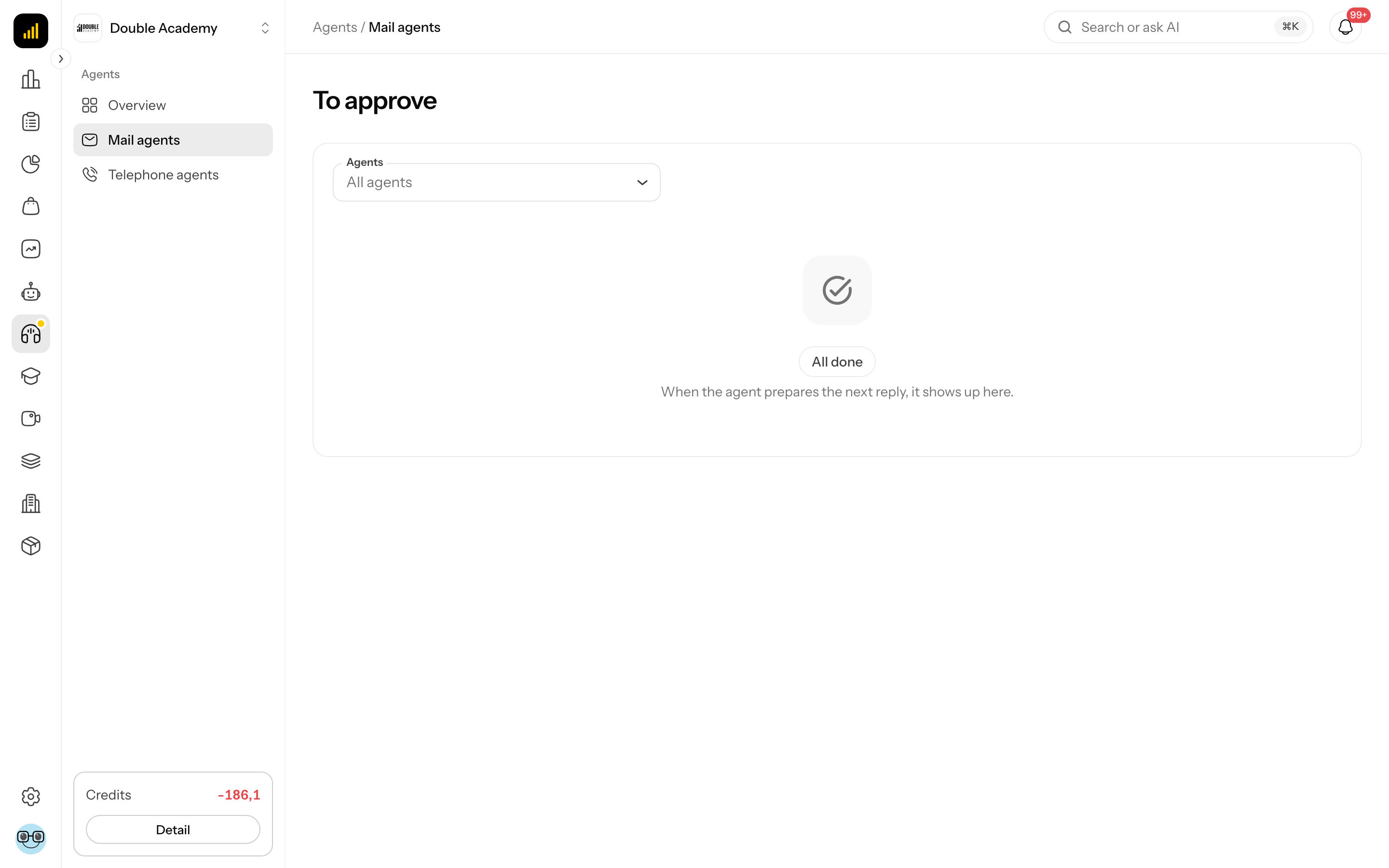
You also reach the same list from the Waiting for approval card on the Overview tab (the Show all link), from the Review button in the Processing workflow, from an e-mail window (Open for approval) and from notifications. The list across all agents has the Agents filter (All agents) above it and the tag … waiting for approval in the header.
What I see on the screen
The To approve tab has two parts: on the left the list of waiting e-mails, on the right the detail of the selected e-mail. On a phone the list shows first and the detail opens on click; go back with Back to the list.
Each list item shows the sender's name, the subject, the category, (with several agents) the agent name and the confidence in %. Confidence below the threshold set in Sorting → Evaluation confidence is highlighted. Below the list is pagination (… of …, Previous page, Next page).
The e-mail detail contains, from the top:
| Part | What it shows |
|---|---|
| notices | e.g. The agent is working on this e-mail..., the reason for handing over to a person, The email tries to steer the AI. Handle it manually., The email shows signs of fraud (e.g. a bank account change). |
| Agent evaluation | Confidence, High priority, Customer, Company, Phone, Request; at low confidence Confidence is below … %. Check whether the reply fits. |
| Original e-mail | thread messages, attachments |
| Reply draft | From: … -> …, editable text and Sources used: |
| rewrite field | Tell the agent what to change and the Rewrite button |
| Price quote | only for price requests: items (Item, Quantity, Unit price, Total), Unpriced items, Assumptions, the option Attach the quote as PDF, Preview PDF |
| Check before sending: | findings of the automatic check, e.g. The text contains a link to a foreign site. |
| bottom bar | Reject, Save draft, Approve and send |
On the right of the detail header is a three-dot icon — the More actions menu with Reply manually, Process again, Mark as spam and Close without reply. The items appear according to status and permissions: Process again only for an e-mail the agent handed to you or whose processing failed; if no item applies to you, the icon is missing.
How to approve and send a reply
Before you start — you need the Approvals and sending → Edit permission.
- Open the agent via Agents → Mail agents and click the To approve tab.
- In the list on the left click an e-mail.
- Read the Original e-mail and the Reply draft.
- If a Price quote is attached, check the items and keep or clear Attach the quote as PDF.
- Click Approve and send.
If the automatic check found a problem, the dialog Send the reply to the customer? opens with the text Some checks failed. Send the reply anyway? The decision is recorded. Send the reply by clicking Approve and send in this dialog.
What happens: you see The reply was approved and sent. The e-mail is sent from your company mailbox to the customer in the same thread, leaves the list and the next waiting one opens.
How to check it worked: on the E-mails tab the e-mail has the status Sent and its window shows Sent reply. You also find the reply in the Sent folder of your mailbox.
How to edit a reply draft
- In the e-mail detail on the To approve tab click into the Reply draft text and edit it.
- Click Save draft — the edited text is saved (Draft saved) and the e-mail stays for approval.
- Or click Approve and send right away — the edited text is sent.
Save draft becomes active only after you change the text. You need Requests → Edit.
How to have the draft rewritten by AI
- In the e-mail detail on the To approve tab find the field Tell the agent what to change below the draft.
- Write an instruction, e.g. “add a 10 % discount for orders until Friday”.
- Click Rewrite.
You see The agent is rewriting the draft and after a while a new draft. Rewriting is not possible while the draft holds an unsaved manual edit — save or discard it first. You need Requests → Edit. Rewriting uses credits.
How to reject a draft
- In the e-mail detail on the To approve tab click Reject at the bottom left.
You see Draft rejected - the e-mail stays without a reply. Nothing is sent to the customer. You find the e-mail on the E-mails tab under Rejected. You need Approvals and sending → Edit.
How to reply manually
- In the e-mail detail on the To approve tab open the More actions menu.
- Click Reply manually. The Your own reply card appears.
- Fill in Subject and Reply text (pre-filled from the draft if there is one).
- Click Send. In the Send the reply to the customer? dialog (The email will be sent from your mailbox to ….) click Send again.
The reply is sent from the company mailbox to the customer in the same thread and saved to Sent. The Your own reply card also appears when the agent prepared no draft (e.g. for a topic for a human). Cancel takes you back to the draft. You need Approvals and sending → Edit.
How to mark an e-mail as spam or close it without a reply
- In the e-mail detail on the To approve tab open the More actions menu.
- Click Mark as spam or Close without reply.
- In the confirmation click Confirm.
| Action | What happens |
|---|---|
| Mark as spam | the e-mail moves to spam and the agent does not reply |
| Close without reply | the e-mail is closed and the agent does not reply |
You need Requests → Edit.
How to process an e-mail again
When processing failed (Processing failed. You can run it again or reply manually.) or the agent handed the e-mail to you:
- In the e-mail detail click Process again in the red notice, or Process again in the More actions menu.
The agent processes the e-mail from the start. You need Requests → Edit.
How to resolve an uncertain send
If sending could not be confirmed, the detail shows It is not certain the email was sent. It was not found in the Sent folder.
- Look into the Sent folder of your mailbox.
- If the e-mail is there, click Confirm as sent.
- If it is not, click Send again.
Why the agent handed the e-mail to you
With the status Handle yourself the detail shows the reason. Most often:
| Reason | Meaning |
|---|---|
| Topic for a human | the e-mail belongs to a topic in Always leave to me |
| Suspicious content (attempt to steer the AI) | the e-mail contains instructions for the AI; handle it manually |
| Possible fraud | e.g. a bank account change |
| Processed knowledge is missing | the agent has no processed knowledge base connected |
| Not enough credits | the organization ran out of AI credits |
| The email is too long for automatic processing | reply manually |
| The draft reply needs a review before sending | the check found issues |
| The quote needs a review before sending | the quote check found issues |
| Capability not enabled | the e-mail's category is switched off in Sorting |
What the check findings mean
Before approval the agent checks the draft. Findings appear under Check before sending:, e.g.:
- The text mentions an amount that is neither in the quote nor in the knowledge.
- The text contains a link to a foreign site. / a foreign e-mail address / a phone number that is not yours / a bank account that is not yours
- A placeholder such as [name] is left in the text.
- The price of item … could not be verified in the knowledge.
- Some requested items have no price in the knowledge and are missing from the quote.
- The quote total is above the customer's budget.
You can edit and save a draft with findings, or send it anyway — the decision is recorded.
Who can do this
| Task | Required permission (Permission matrix → Agents) |
|---|---|
| see the To approve tab | Requests → View |
| edit and save a draft, Rewrite, Process again, Mark as spam, Close without reply | Requests → Edit |
| Approve and send, Reject, Reply manually | Approvals and sending → Edit |
Common questions and problems
The list is empty and shows “All done”. Nothing waits for approval. When the agent prepares the next reply, it shows up here.
I do not see Approve and send. You lack Approvals and sending → Edit. You can edit and save the draft; a colleague with this permission must approve it.
The buttons are disabled and I see “The agent is working on this e-mail...”. Wait until the agent finishes processing or rewriting.
The Rewrite button is disabled. The draft holds an unsaved manual edit.
“Write the reply” The reply text is empty.
I got no notification about a new draft. Notifications go only to the chosen Approvers and only through the channels switched on — see E-mail settings, section Approval.
Related
- Mail agents
- E-mail settings
- How to launch a mail agent from scratch
- Communication channels — approval in Telegram