Payouts
What it is for
Payouts is where the programme administrator handles ambassadors' requests to pay out commissions and records payouts the ambassador did not request. The app does not send money — it keeps a record of it. You make the transfer yourself outside the app.
Where to find it
In the left menu click Ambassador → Payouts.
The item is shown only if your role has the permission Payouts → View.
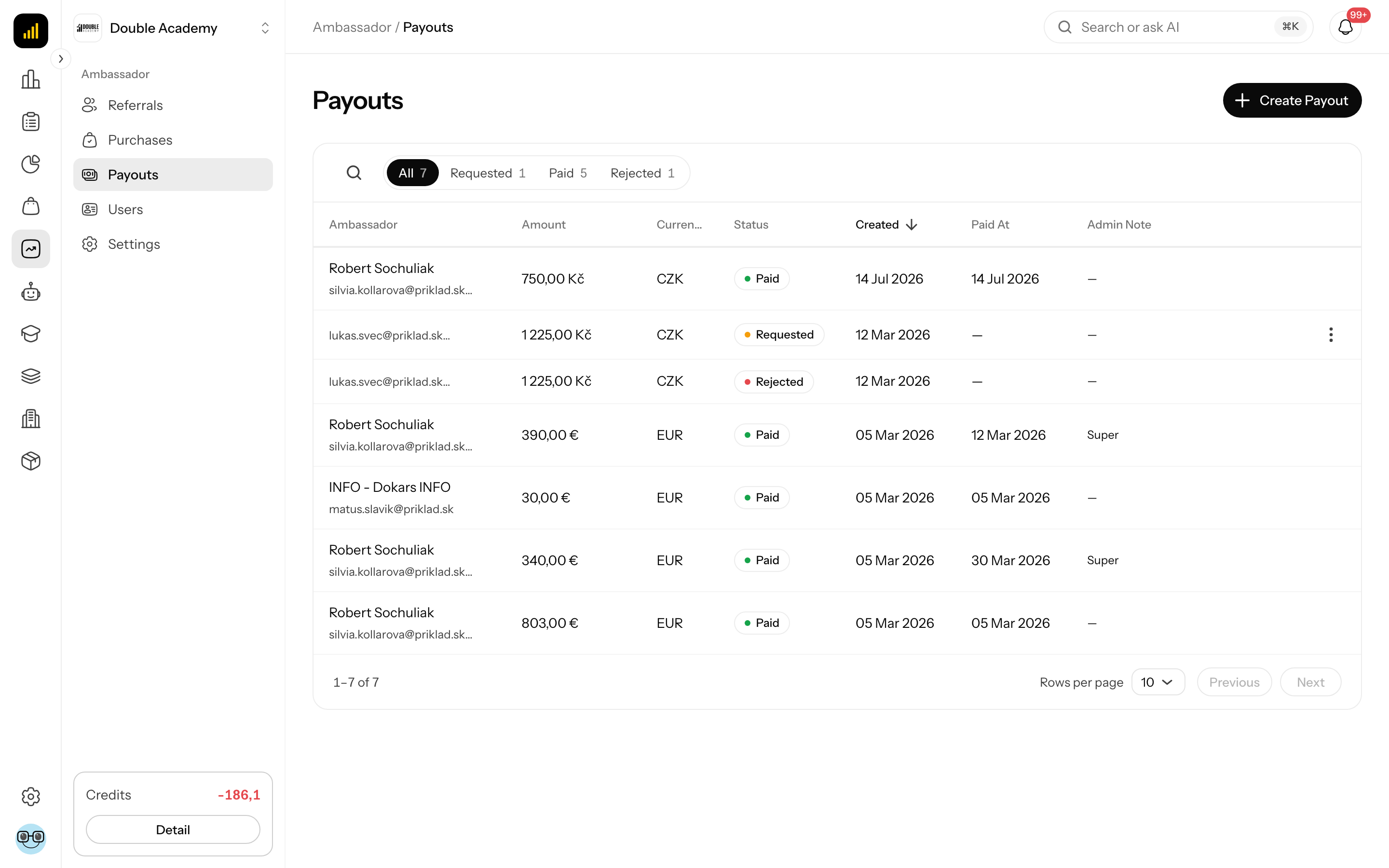
What I see on the screen
Top right is the Create Payout button (only with the permission Payouts → Create).
Above the table are tabs with counts and a magnifier icon (Search...) — it searches by the ambassador's first name, last name or e-mail:
| Tab | What it shows |
|---|---|
| All | all payouts |
| Requested | ambassadors' requests waiting to be handled |
| Paid | handled payouts |
| Rejected | rejected requests |
| Column | Meaning |
|---|---|
| Ambassador | the ambassador's name and e-mail |
| Amount | the payout amount |
| Currency | the payout currency |
| Status | Requested, Paid or Rejected |
| Created | when the payout or request was created |
| Paid At | when it was marked as paid |
| Admin Note | your note |
Each row has a … menu. For a payout with the status Requested (and with the permission Payouts → Edit) it contains Approve Payout and Reject Payout. The table shows 10 rows per page, with pagination below it.
How a payout works
- The ambassador requests a payout in My Wallet. It is always the whole available (approved) amount in one currency.
- The organization's notification e-mails receive the e-mail New payout request with a button leading to this screen.
- The request is in the Requested tab.
- You send the money to the ambassador outside the app.
- You mark the request with Approve Payout, or reject it with Reject Payout.
How to approve a payout request
Before you start
- You need the permission Payouts → Edit.
- You have sent the money to the ambassador (or will send it right away).
Steps
- In the left menu click Ambassador → Payouts.
- Click the Requested tab.
- In the request's row click … → Approve Payout.
- The Approve Payout dialog opens. Optionally fill in Admin Note (for example the transfer number).
- Click Approve Payout.
The message Payout approved! appears. The payout has the status Paid, the Paid At column shows today's date and the ambassador gets a notification. The approval is final.
How to check it works
The payout is in the Paid tab. The ambassador sees it in My Wallet as Paid and the amount has moved to Total Paid.
How to reject a payout request
- In the left menu click Ambassador → Payouts.
- Click the Requested tab.
- In the request's row click … → Reject Payout.
- In the Reject Payout dialog enter the reason in Admin Note — the ambassador will see it.
- Click Reject Payout.
The message Payout rejected! appears. The payout has the status Rejected, the commissions go back to the status Approved (the ambassador sees them in Available again and can request them later) and the ambassador gets a notification.
How to create a payout without a request
You can also record a payout yourself — for example when you paid the ambassador based on an agreement.
Before you start
- You need the permission Payouts → Create.
- The ambassador must be Active and have approved commissions in some currency.
Steps
- In the left menu click Ambassador → Payouts.
- Top right, click Create Payout.
- In the Create Payout dialog click the Select Ambassador field and type a name or e-mail. Only active ambassadors are offered.
- After you select the ambassador, a Currency field appears. Pick a currency — each one shows its available amount.
- Check the information Payout amount: … (all available funds in this currency).
- Optionally fill in Admin Note.
- Click Create Payout.
| Field | Required | Meaning | Limits |
|---|---|---|---|
| Select Ambassador | yes | who is being paid | only ambassadors with the status Active |
| Currency | yes | in which currency | only currencies with an available amount |
| Admin Note | no | a note visible to the ambassador | — |
The message Payout created! appears. The payout is created straight away with the status Paid for the whole available amount, all approved commissions in that currency are marked Paid and the ambassador gets a notification.
If the ambassador has no available amount in any currency, the dialog shows This ambassador has no available funds for payout.
Who can do this
| Task | Required permission (module Ambassador) |
|---|---|
| see Ambassador → Payouts | Payouts → View |
| approve or reject a request | Payouts → Edit |
| create a payout without a request | Payouts → Create |
The administrator sets permissions in Organization → Permissions (see Permission matrix).
Common questions and problems
I don't see Create Payout. The permission Payouts → Create is missing.
The row menu has neither Approve nor Reject. The payout does not have the status Requested, or the permission Payouts → Edit is missing.
The message "Only a requested payout can be processed". Someone else handled the request in the meantime. Refresh the page.
The message "No commission available for payout". The ambassador has no approved commissions in the chosen currency.
The message "Ambassador not found". The ambassador is not Active. Activate them in Users.
I don't receive e-mails about new requests. Add addresses in Organization → Settings, section Notification emails (see Organization settings).
Can only part of the amount be paid out? No. A payout always includes all approved commissions in the given currency.