VAT
What it is for
The VAT chapter explains how the app calculates VAT on orders and where it is set. You enter product prices including VAT. You give a product a tax class (for example Standard rate), the class holds a rate for every EU country, and the organization's VAT mode decides which of those rates is used on an order. A business from another EU country with a valid VAT ID gets reverse charge.
Where to find it
VAT is set in these places:
| What | Path in the app |
|---|---|
| The organization's VAT mode | left menu Organization → Integrations → in the list on the left Invoicing Provider → the VAT mode part |
| Tax classes and their rates | left menu Sales → Settings → in the list on the left Tax classes |
| Tax class of a product | left menu Sales → Products → the product → the Pricing part → the Tax class field |
| The organization's country (home country) | left menu Organization → Settings → Billing details → the Country field |
In Sales → Settings → Tax classes you also see, under the heading, the line VAT mode: with the current mode and the link Organization settings, which takes you to Organization → Integrations.
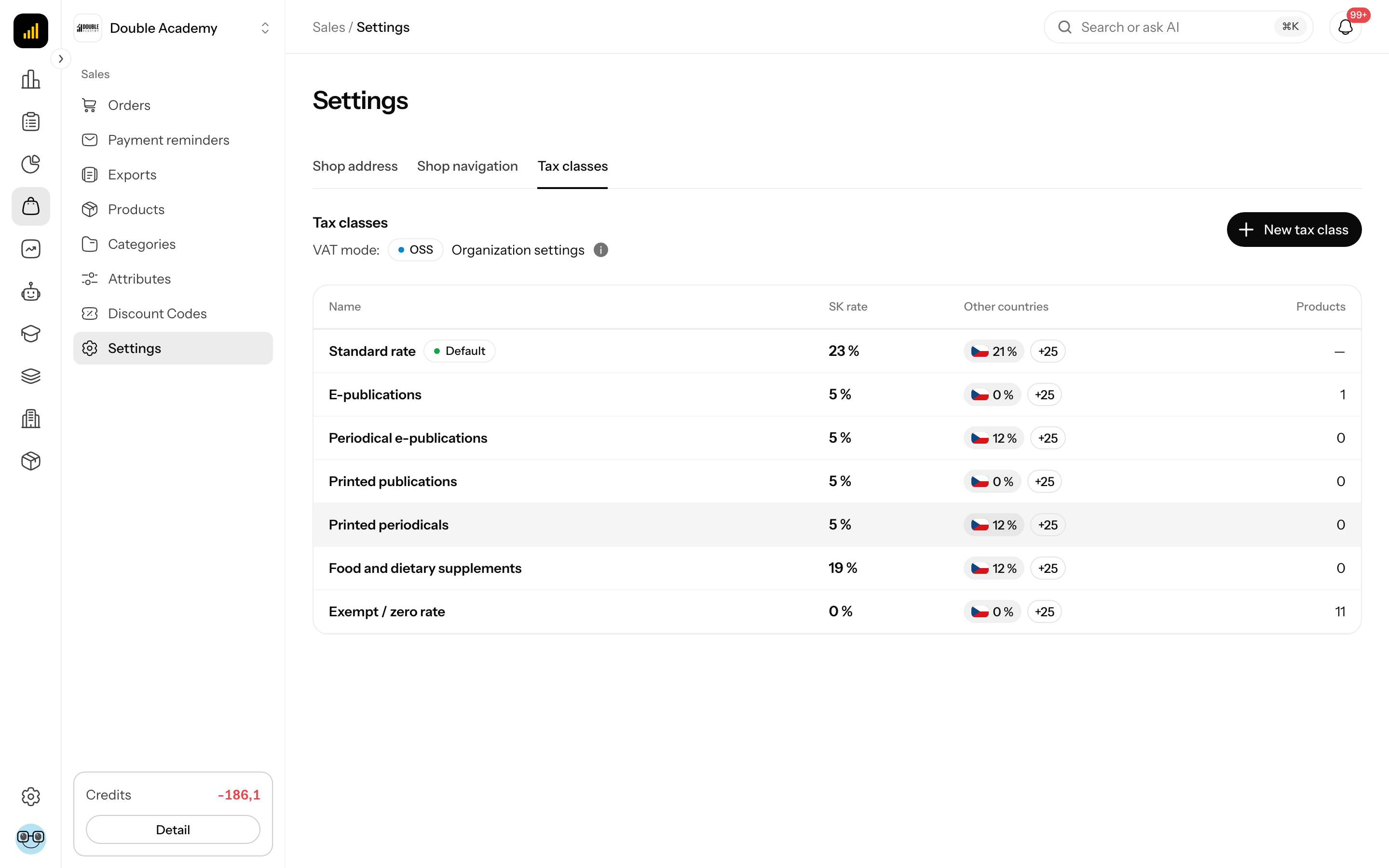
How the app calculates VAT on an order
For every order line the app:
- Takes the product's tax class. If the product is set to Default (…), it uses the organization's default class.
- Picks the country whose rate is used, by the VAT mode:
- Domestic and Not a VAT payer — always your organization's country,
- OSS — the country of the customer's billing address; if the class has no rate for it, the rate of your organization's country.
- If the class has a rate neither for that country nor for the organization's country, the legacy rate stored on the product is used (No rates yet — the product’s legacy rate is used.).
- Splits the price including VAT (after any discount) into the net amount and VAT. The amount the customer pays does not change with the rate — only the split into net and tax does.
- Stores the rate and the country on the line permanently. Changing the class, rate or mode later does not change finished orders or their documents.
Exceptions:
- Not a VAT payer — no line carries VAT; you sell without VAT.
- Reverse charge — the customer pays the price without VAT (the price is reduced by the VAT). See the section When reverse charge applies.
VAT modes
| Mode (as offered) | When to choose it | Which rate is used |
|---|---|---|
| Domestic — always your home country’s rate | you are a VAT payer and not in OSS (default) | the organization's country rate |
| OSS — rate by the customer’s country | you are registered for the One-Stop-Shop scheme | the rate of the country in the customer's billing address |
| Not a VAT payer — you sell without VAT | you are not a VAT payer | no VAT |
If no mode is set, the app calculates as Domestic.
How to set the VAT mode
Before you start
- You need the permission Organization → Settings → Edit. With View only, the field is disabled.
- Fill in the organization's Country in Organization → Settings → Billing details. If it is missing, the app takes Slovakia as the home country.
- Consult your accountant about the mode. The app reminds you under the field: Choose OSS only if you are registered for the One-Stop-Shop (OSS) scheme. If unsure, ask your accountant.
Steps
- In the left menu click Organization and then Integrations.
- In the tabs click Invoicing Provider.
- Scroll down to the VAT mode part.
- In the VAT mode field choose Domestic — always your home country’s rate, OSS — rate by the customer’s country or Not a VAT payer — you sell without VAT.
- Click Save below the VAT mode part. The button saves the whole Invoicing Provider block including the VAT mode.
The VAT mode applies to all purchases whatever invoicing provider is chosen (also with None).
What happens after saving
- The new mode applies to orders created after saving.
- Existing orders are not recalculated.
How to check that it works
- Open Sales → Settings → Tax classes. The VAT mode: line should show the new mode (Domestic, OSS or Not a VAT payer).
- After the next purchase open the order in Sales → Orders. The summary under the lines has a VAT regime row and each line shows its rate, for example VAT 23 % (SK).
How to assign a tax class to a product
- In the left menu click Sales → Products and open the product for editing.
- In the Pricing part find the Tax class field.
- Choose a class. Default (…) means the product follows the organization's default class and changes with it.
- Under the field you see Rates: … with the class's rates. The link Manage tax classes takes you to Sales → Settings → Tax classes.
- Save the product.
The product form is described in Products; creating and editing classes in Settings.
When reverse charge applies
Reverse charge applies automatically when all of these hold:
- the organization is not in the Not a VAT payer mode,
- the customer fills in the VAT ID (IC DPH (optional)) in the company details at checkout,
- the customer is from another EU country than your organization,
- the VAT ID is valid according to the VIES database.
The customer then sees Reverse charge — you pay the price without VAT and pays the price reduced by the VAT. On the order, VAT regime shows Reverse charge.
Other cases:
| Situation | Result |
|---|---|
| customer without a VAT ID | ordinary sale with VAT |
| business from the same country as you, or a country outside the EU | sale with VAT, VIES is not checked |
| the VAT ID has a wrong format | the order is not created; message The VAT number format is not valid |
| VIES does not know the VAT ID | the order is not created; message VAT ID … is not valid in the VIES database. Correct it, or remove it and buy with VAT. |
| VIES is not responding right now | the order is created with VAT |
Order currency and VAT
In Organization → Settings → Localization the Order currency part has the Currency selection field:
- Customer selects currency — the customer chooses one of the supported currencies.
- Automatically by country — the currency comes from the billing country via the table Billing country to currency mapping (rows Country (ISO) + Currency, added with Add country).
The currency does not affect which VAT rate is used — only the VAT mode does. If Automatically by country is chosen and the customer's country has no mapping, the order is not created (a message that no currency is configured for the billing country). Details in Organization settings.
Where I see VAT
- Order detail (Sales → Orders → the order) — on each line VAT 23 % or VAT 23 % (SK), in the summary the rows Incl. VAT 23 % (net …) and VAT regime (Domestic, OSS, Reverse charge, Not a VAT payer). See Orders.
- Invoices — VAT is taken onto the invoice from the order lines. See Invoicing.
- Statistics — all revenue is shown excluding VAT. See Finance.
Who can do this
| Task | Permission needed (Permission matrix) |
|---|---|
| see tax classes | Sales → Settings → View |
| create, change and delete tax classes | Sales → Settings → Edit |
| assign a tax class to a product | Sales → Products → Edit |
| see the VAT mode in integrations | Organization → Settings → View |
| change the VAT mode | Organization → Settings → Edit |
Common questions and problems
I changed a rate but old orders keep the previous one. That is intended — the rate is stored on the line when the order is made. The new rate applies to new orders only.
A customer from Czechia pays the Slovak rate. You are in Domestic mode. The customer's country rate applies only in OSS mode (and only if you are registered for OSS).
In OSS mode a customer from country X pays my country's rate. The product's class has no rate for country X. Add it in Sales → Settings → Tax classes (Add country).
A business from my own country with a VAT ID pays VAT. Reverse charge applies only to a business from another EU country.
A business from another EU country paid with VAT. It either did not fill in the VAT ID, or VIES was not responding at the time of purchase.
How do I get prices without VAT? Prices are always entered including VAT. If you are not a VAT payer, choose Not a VAT payer.
The VAT mode field is grey. You do not have Organization → Settings → Edit.
Where do I set VAT for shipping? Shipping is not set in the app.
Related
- Settings — creating and editing tax classes
- Products — tax class and prices of a product
- Orders — VAT on an order
- Invoicing — VAT on invoices
- Discount Codes — discounts and VAT
- Organization settings — organization country and order currency
- How to start selling a product