Signing in and forgotten password
What it is for
This chapter covers signing in to Doubleros, resetting a forgotten password, creating an account from the link sent after buying a course, and what to do when signing in fails.
Where to find it
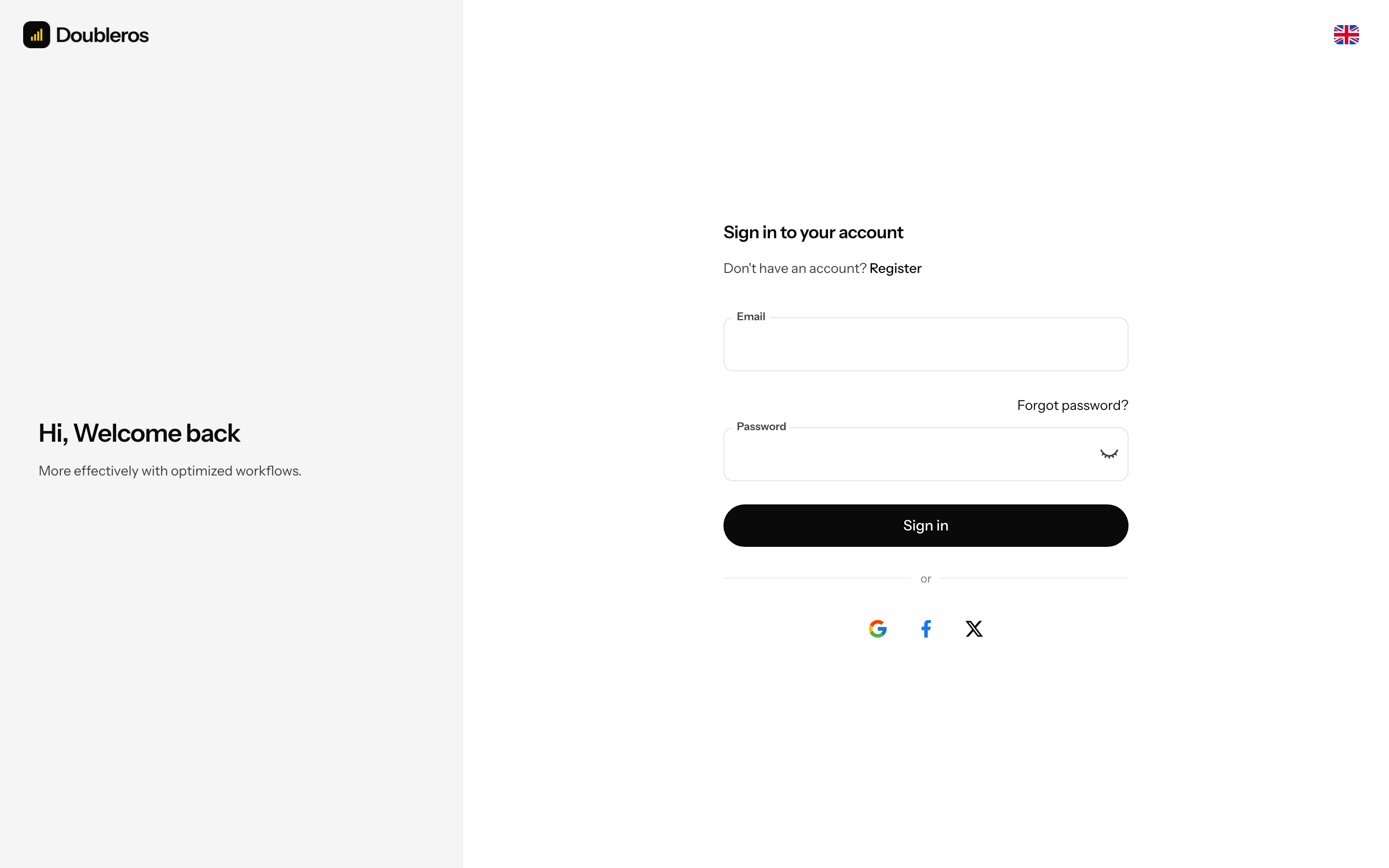
- Sign in to your account — the
/sign-inpage. It opens whenever you are not signed in and open any page of the app. - Forgot password? — the link below the Password field on the sign-in page (
/forgot-password). - Set new password — the second step on the Forgot your password? page, shown after you send your e-mail. You enter the code from the e-mail and the new password there.
- Create your account — the
/reset-passwordpage, opened from the link in the e-mail after buying a course.
How to sign in
Before you start: you need an account. If you have not confirmed your e-mail after signing up yet, that is fine — you confirm it with a code right when signing in (see below).
- Open Sign in to your account.
- Fill in Email.
- Fill in Password (the eye icon shows it).
- Click Sign in.
If you opened a page of the app from a link, you return to it after signing in. Otherwise Dashboard opens (or the Welcome to Doubleros screen if you do not yet belong to any organization — see First-run setup wizard).
If you did not confirm your e-mail after signing up, after the correct password the sign-in page switches to the Confirm your email step with Your email address isn't confirmed yet. Enter the code from the email, or send yourself a new one.
- A new code is sent only when no valid one is waiting — if your inbox has a code that is still valid (15 minutes), enter that one.
- Otherwise click Send a new code once the countdown ends.
- Enter the 6-digit code and click Confirm. The account is activated and the app signs you in.
More about the code: Sign-up and e-mail verification.
The Google, Facebook and X icons on the sign-in page are disabled — you can only sign in with e-mail and password.
How to reset a forgotten password
You set a new password with a 6-digit code we send you by e-mail.
- On Sign in to your account click Forgot password?
- On Forgot your password? fill in Email.
- Click Send code.
- The Set new password step appears with If an account exists for (your e-mail), we've sent it a 6-digit code… This answer is always the same — even if no account exists for the e-mail (for security reasons).
- Open the e-mail from Doubleros and enter the 6-digit code into the boxes (you can also paste it). The code is valid for 15 minutes and allows 5 attempts.
- Fill in New password — at least 8 characters, an uppercase letter, a lowercase letter and a digit.
- Fill in Confirm password — the same password again.
- Click Reset password.
- Your password has been changed. appears and the app signs you in straight away with the new password.
If you mistyped the e-mail, click Use a different email and start again from step 2. If the code did not arrive or has expired, click Send a new code once the countdown ends — the previous code then no longer works.
If your account was created with a course purchase and you have not set it up yet, you get no code. Instead you receive an e-mail with a link to create the account — follow "How to create an account from the e-mail after buying a course".
How to check it worked: after clicking Reset password the app opens.
TIP
Old password reset links from e-mails no longer work. If you open one, you see Password reset links are no longer valid. You set a new password with a 6-digit code we send you by email. Click Send code and follow the steps above.
How to create an account from the e-mail after buying a course
When a customer buys a course and has no account yet, they get the Password setup e-mail with a Create account button. The link in it is valid for 7 days.
- In the e-mail click Create account.
- The Create your account page opens with your name and e-mail.
- Fill in Password (at least 8 characters, uppercase and lowercase letter, digit).
- Tick the General Terms and Conditions (VOP) consent.
- Click Create account.
- Your account has been created. You can now sign in. appears. After signing in you get to the course.
If the link has expired you see The account creation link is invalid or has expired. Request a new one via "Forgot password" on the sign-in page. On Forgot your password? enter your e-mail and click Send code — since the account is not set up yet, you get a new e-mail with the Create account link (not a code).
What to do when the app asks you to agree to the terms
When Doubleros publishes a new edition of its terms of service, a Terms of service window with the version and effective date appears after signing in.
- Click Read the terms of service and read them.
- Click I agree and continue.
You cannot continue in the app without agreeing. Sign out leaves the window without agreeing.
How to change the password when I know it
A signed-in user changes the password in avatar → Profile → Security — see Profile and my account.
Who can do this
Anyone with an account can sign in and reset the password. No permission is needed.
Common questions and problems
| Message or situation | What it means | What to do |
|---|---|---|
| Invalid email or password | the e-mail or password is wrong | check for typos and Caps Lock; otherwise reset the password |
| Too many requests. Please try again later. | too many attempts arrived in the last minute (more than 10 sign-ins, more than 5 password reset requests) | wait a minute and try again |
| Confirm your email appears after the password | the e-mail has not been confirmed yet | enter the code from the e-mail or send a new one — see "How to sign in" |
| Invalid password reset code | the code does not match or is not from the latest e-mail | check the digits; after a new code is sent only that one works |
| The password reset code has expired or was entered wrongly too many times. Please request a new one. | more than 15 minutes passed or 5 wrong attempts | click Send a new code |
| Too many codes have been requested for this e-mail address. Try again later. | 5 codes were sent to the address within an hour | wait up to an hour and try again |
| Passwords must match! | New password and Confirm password differ | type the same password in both fields |
| Password reset links are no longer valid… | you opened an old link from an e-mail | click Send code and reset the password with a code |
| I sign in but only see Welcome to Doubleros | you do not belong to any organization | create an organization or enter an invite code — see First-run setup wizard |
| I sign in but see Your organization access is suspended | an admin has suspended your access | contact the organization administrator |
| I see fewer items than a colleague | you have a different role | not a bug — see Permission matrix |
| the password reset code did not arrive | typo in the e-mail, spam, or no account for this e-mail | check Spam; via Use a different email try the e-mail you signed up with; after the countdown Send a new code |
| an e-mail with a Create account link arrived instead of a code | the account was created with a purchase and is not set up yet | click the link in the e-mail — see "How to create an account from the e-mail after buying a course" |