Discount Codes
What it is for
A discount code is a piece of text (for example SUMMER25) that a customer enters when buying to get a discount. The discount can be a percentage or a fixed amount, it can be valid for a limited period and a limited number of uses, and it can apply to selected products only. Codes work in the online shop cart and in the purchase window of forms and funnels.
Where to find it
In the left menu click Sales (the shopping bag icon) and then the sub-item Discount Codes. The screen header reads Sales / Discount Codes.
You see the Discount Codes sub-item only if your role has the permission Sales → Discount Codes → View.
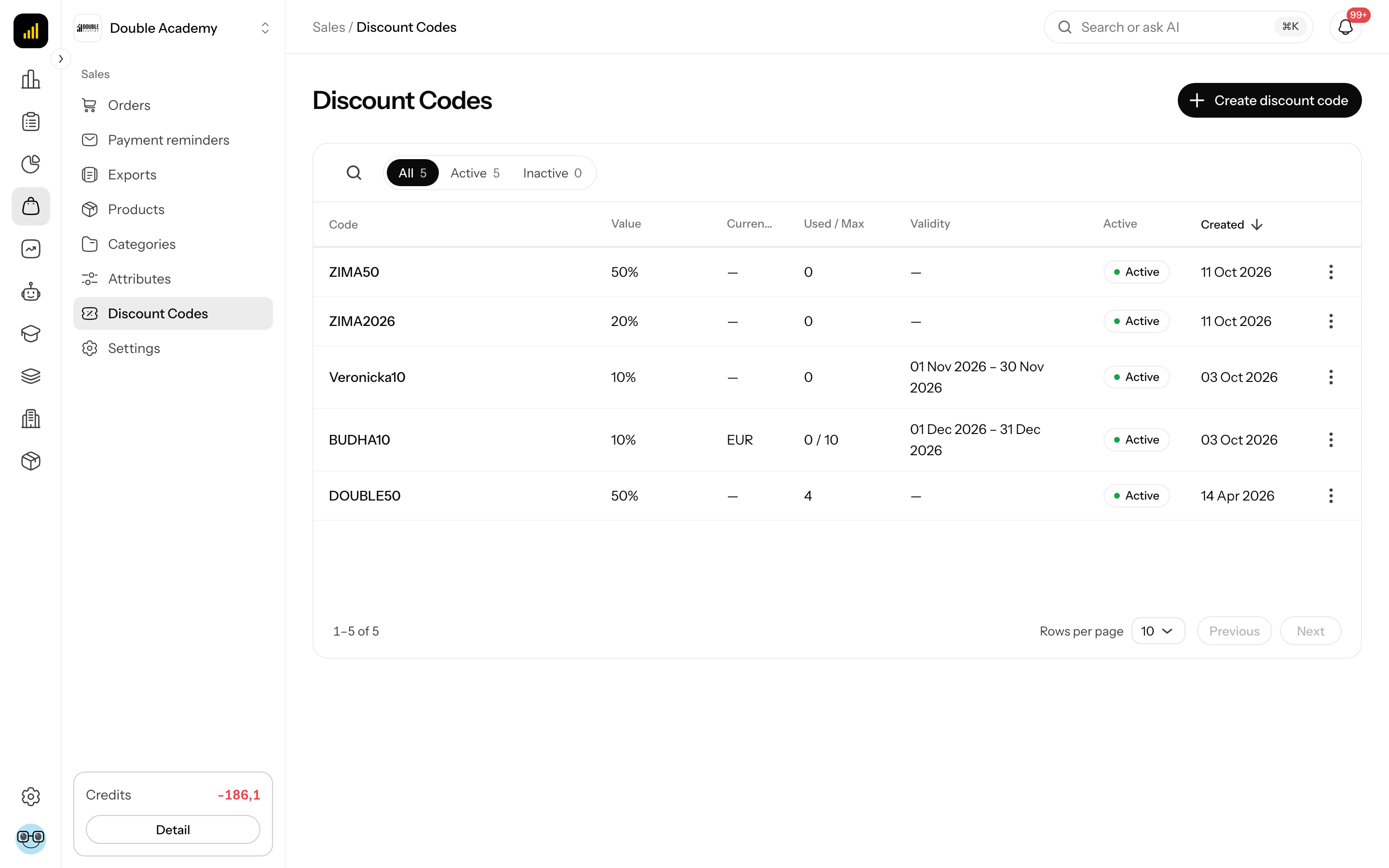
What I see on the Discount Codes screen
The Discount Codes screen shows a table of all the organization's codes, newest first.
- Top right is the Create discount code button (only with the Create permission).
- Above the table on the left are the tabs All, Active and Inactive with the number of codes. They filter by the Active switch of the code — not by the validity dates.
- Above the table on the right is a magnifier icon (Search...). Clicking it opens a search field; it searches the code text, ignoring upper and lower case. An active search is shown as a chip above the table and can be cleared.
- Below the table is pagination: Rows per page and the arrows Previous / Next.
| Column | Meaning |
|---|---|
| Code | the text the customer enters |
| Value | a percentage (e.g. 20%) or the amount of a fixed discount |
| Currency | currency of a fixed discount; — for a percentage |
| Used / Max | how many times the code was used / the allowed maximum (only the count when there is no maximum) |
| Validity | from – to; ∞ means no limit on that side, — no limit at all |
| Active | Active or Inactive according to the code's switch |
| Created | the date the code was created |
At the end of each row is a "…" menu with Edit, More info (shows columns that did not fit on a narrow screen) and Delete. Actions you have no permission for are not shown. Clicking a row opens the code for editing (only with the Edit permission).
How to create a discount code
Before you start
- You need the permission Sales → Discount Codes → Create.
- For a fixed amount discount, be clear which currency customers pay in. A fixed code works only in an order in the same currency. The currencies you sell in are the organization's Supported currencies (see Organization settings).
- If the code should apply to some products only, those products must exist in Sales → Products (see Products).
Steps
- In the left menu click Sales → Discount Codes.
- Top right, click Create discount code. The Create Discount Code window opens.
- In Code type the code text, for example
SUMMER25. - In Type choose Percentage or Fixed amount.
- In Value enter the percentage or the amount.
- For Fixed amount, choose the discount currency in Currency. For a percentage the Currency field is disabled.
- To limit the number of uses, enter Max uses. An empty field means unlimited.
- If the code should be valid only for a period, pick Valid from and/or Valid until.
- If the code should apply to some products only, start typing a product name in Applies to products (Search product…) and pick the product. You can pick several products.
- Leave the Active switch on (it is on by default).
- Click Create. The message Successfully saved appears and the code shows up in the table.
| Field | Required | Meaning | Limits / default |
|---|---|---|---|
| Code | yes | the text the customer enters | at most 50 characters; must be unique in the organization |
| Type | yes | Percentage or Fixed amount | default Percentage |
| Value | yes | percentage or amount of the discount | percentage 0.01 – 100; amount at least 0.01, at most 2 decimal places |
| Currency | yes for a fixed amount | currency in which the fixed discount applies | list of all platform currencies (not only the organization's supported currencies); disabled for a percentage |
| Max uses | no | how many orders may use the code | whole number from 1; empty = unlimited |
| Valid from | no | from when the code is valid | empty = immediately |
| Valid until | no | until when the code is valid | the code stops working at the start (midnight) of the chosen day; empty = no end |
| Applies to products | no | products the discount is calculated from | empty = all products; at most 500 products |
| Active | – | on/off switch of the code | on by default |
Valid until is the last day + 1
The date in Valid until is saved as midnight at the start of that day. If the code should still work for the whole of 31 August, set Valid until to 1 September.
What happens after saving
- The code works immediately (if it is Active and within its validity period).
- Nothing is sent to customers — you have to tell them about the code yourself (e-mail, web page, campaign).
- The Used / Max column starts at 0.
How to check that it works
- Open your shop (the address is in Sales → Settings → Shop address, see Settings) or the page with the form you sell through.
- Put a product the code applies to into the cart and go on to the cart or purchase window.
- Type the code into the Discount code field and click Apply.
- You should see Discount code SUMMER25 applied (… off) and a Discount row in the summary.
- If an error message appears, see the sections When a discount code does not work and Common questions and problems below.
Cancel the test order in Orders if you do not pay it — otherwise it keeps holding one use of the code.
How the customer uses a discount code
The customer enters the code themselves, in two places:
- in the online shop cart — the Discount code field and the Apply button,
- in the purchase window of a form or funnel — the same Discount code field. Forms that only collect a contact or make a reservation have no discount code field.
Letter case does not matter: summer25 and SUMMER25 are the same code at checkout.
The discount is recalculated on the server when the order is created, so a customer cannot fake the amount in the browser. In the order detail you then see a Discount row with the code, and on each line the discount was taken from, the line's share of it.
How the discount is calculated
- Percentage — the given percentage of the total of the lines the code applies to.
- Fixed amount — the given amount is subtracted, never more than the lines the code applies to cost. It works only in an order in the same currency as the code.
- Limit to products — if anything is selected in Applies to products, the discount is calculated only from those products in the order; other lines are at full price. The discount is spread over the eligible lines by their share of the price. The limit applies to the whole product with all its variants — a code cannot be limited to a single variant.
- Prices include VAT; the discount lowers the price including VAT and VAT is worked out from it afterwards (see VAT).
- One code can be used per order.
How to edit a discount code
Before you start
You need the permission Sales → Discount Codes → Edit.
Steps
- In the left menu click Sales → Discount Codes.
- Find the code (tabs or the Search... magnifier).
- Click the code's row, or click "…" at the end of the row and choose Edit. The Edit Discount Code window opens with the same fields as when creating.
- Change what you need.
- Click Save. Successfully saved appears.
The change applies to new purchases from the moment you save. Orders that already used the code do not change — the discount is stored in them permanently.
How to switch a discount code off temporarily
The quickest brake when a campaign must stop now:
- Sales → Discount Codes → click the code's row (or "…" → Edit).
- Turn off the Active switch.
- Click Save.
The code moves to the Inactive tab and a customer who enters it gets the message This discount code is inactive. Turning the switch back on restarts it; the use count is kept.
How to limit a discount code to products
- Sales → Discount Codes → open the code for editing (or create a new one).
- In Applies to products type part of a product name and pick it from the list.
- Repeat for more products. Remove a product with the cross on its chip.
- Click Save (for a new code Create).
If you leave the field empty, the code applies to all products. If a customer enters the code in a cart that holds none of the selected products, they get This discount code does not apply to any of the selected products.
A deleted product in the code
If you delete one of the selected products later, a warning appears under the field: The code is limited to a deleted product. Such a product cannot be ordered; remove it, or the code keeps being limited to it. Remove the deleted product from the field and save. If it was the only selected product, the code would otherwise work on nothing.
How to delete a discount code
Before you start
You need the permission Sales → Discount Codes → Delete.
Steps
- Sales → Discount Codes.
- At the end of the code's row click "…" and choose Delete.
- In the Delete window with the text Are you sure want to delete click Delete (or Cancel if you change your mind).
- Successfully deleted appears and the code disappears from the table.
A deleted code stops working at once. Orders it was used in keep their discount. After deleting you can use the same code text for a new code. If you only want to pause a code, switch it off with Active instead — deleting cannot be undone.
When a discount code does not work
When entering the code, the customer sees one of these messages:
| Message the customer sees | Reason | What to do |
|---|---|---|
| Discount code with ID … was not found | the code does not exist (typo) or was deleted | check the code text in the table |
| This discount code is inactive | the Active switch is off | turn it on in the code |
| This discount code is not yet valid | the Valid from date has not come yet | wait or change Valid from |
| This discount code has expired | Valid until has passed | move Valid until |
| This discount code has reached its maximum number of uses | Used reached Max | raise Max uses or clear it |
| This discount code is not valid for the selected currency | the fixed discount is in a different currency than the purchase | create a second code for the other currency |
| This discount code does not apply to any of the selected products | the cart holds no product from Applies to products | add the product to the code or clear the field |
| Failed to verify discount code | the check failed (e.g. a connection problem) | try again |
How uses are counted
- A use is counted when an order is created with the code — before it is paid.
- If an unpaid order is cancelled, the use is given back to the code.
- An order the customer never pays and nobody cancels keeps holding the use. For codes with a low Max uses, cancel unpaid orders in Orders.
Who can do this
Permissions are set in roles in the permission matrix, row Sales → Discount Codes (see Permission matrix):
| Permission | What it allows |
|---|---|
| View | see the Discount Codes sub-item and the table of codes |
| Create | the Create discount code button |
| Edit | open a code by clicking its row and the Edit action |
| Delete | the Delete action in the "…" menu |
Common questions and problems
I do not see the Create discount code button. Your role lacks Sales → Discount Codes → Create. Ask the organization's administrator.
Clicking a row does nothing. You do not have the Edit permission; you can only view.
The Currency field is grey. The type Percentage is selected — a percentage does not need a currency. Switch Type to Fixed amount.
Currency also offers currencies I do not sell in. The Currency field in the discount code dialog lists every platform currency, not only the organization's Supported currencies. Choose the currency customers really pay in — a fixed code in another currency works nowhere.
Saving shows "Currency is required for fixed discount codes". You chose Fixed amount but no Currency.
Saving shows "Percentage discount must be between 0.01 and 100". The Value of a percentage code is more than 100.
Saving shows "Discount code "SUMMER25" already exists". A code with the same text already exists in the organization. Choose another text or edit the existing code.
"This field is required" appears under a field. Code is missing, Value is negative, or Max uses is lower than 1.
Saving a code with an empty Value or a value of 0 fails. The discount code dialog does not stop an empty Value, but the server accepts only a value of at least 0.01 and refuses to save with an error message. Enter a positive number in Value.
I sell in EUR and CZK and want a fixed discount in both. Create two codes (e.g. SUMMER-EUR and SUMMER-CZK) — a fixed discount works in one currency only. A percentage code works in every currency.
The code is in the Active tab but does not work. The tab only follows the Active switch. Check the Validity and Used / Max columns and the table in the section When a discount code does not work.
Used shows more than I have paid orders. A use is counted when the order is created, not when it is paid (see the section How uses are counted).
Can a deleted code be restored? No. Create a new one with the same text.
Related
- Products — the prices the discount is calculated from
- Orders — where the discount shows and where to cancel unpaid orders
- VAT — how VAT is calculated after a discount
- Settings — the shop address for testing a code
- How to start selling a product
- Permission matrix