Purchases
What it is for
Purchases is the list of all ambassador commissions. Each row is one order an ambassador brought in: who brought it, who bought, what amount the commission is calculated from, how much it is and what status it is in. This is also where you manually approve a pending commission.
Where to find it
In the left menu click Ambassador → Purchases.
The item is shown only if your role has the permission Purchases → View.
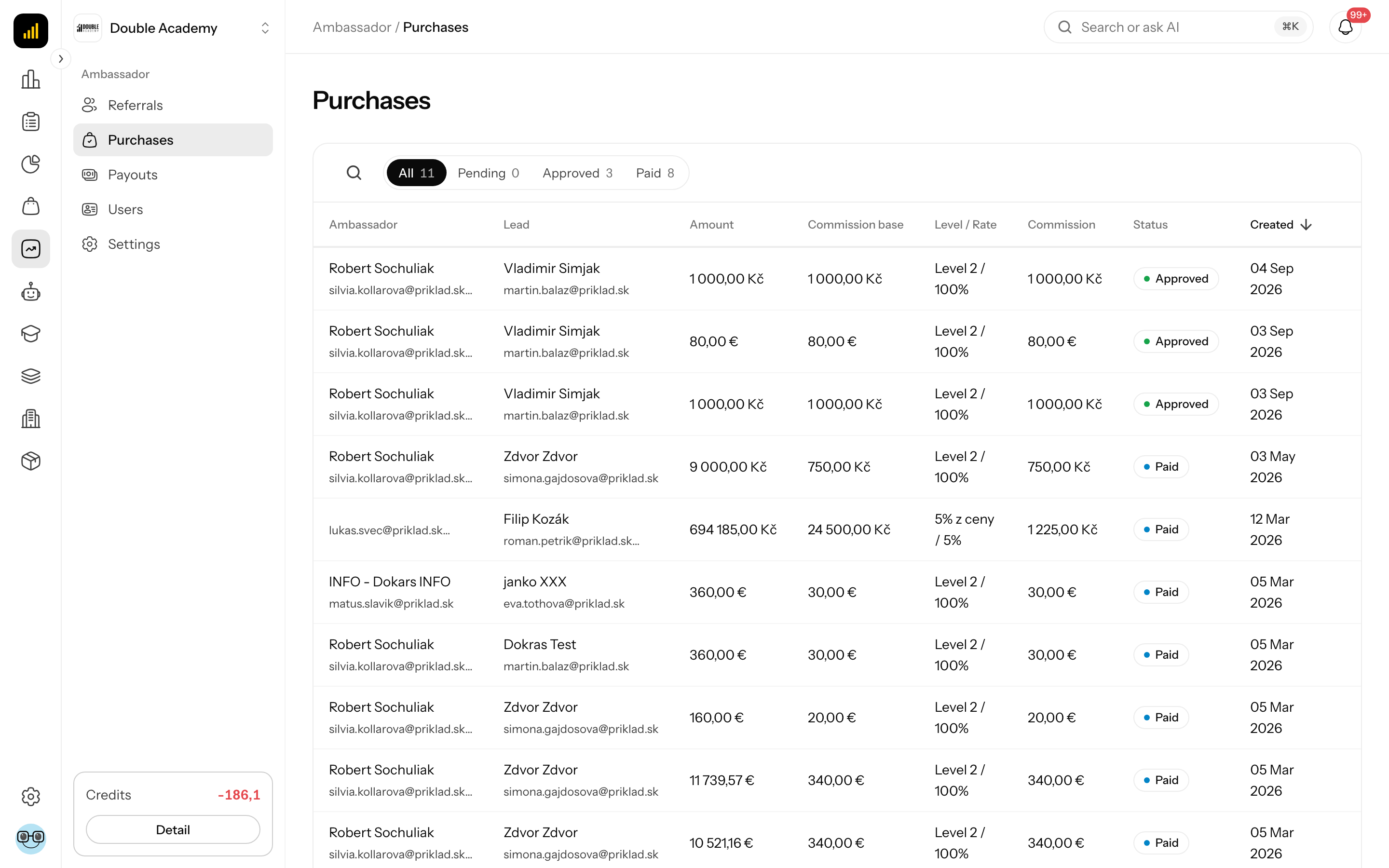
What I see on the screen
Above the Purchases table are tabs with counts:
| Tab | What it shows |
|---|---|
| All | all commissions |
| Pending | commissions from unpaid orders |
| Approved | commissions ready to be paid out |
| Paid | commissions included in a payout |
Next to the tabs is a magnifier icon (Search...) for searching.
| Column | Meaning |
|---|---|
| Ambassador | who brought the order (name and e-mail) |
| Lead | who bought (name and e-mail) |
| Amount | the total value of the order |
| Commission base | the amount the commission is calculated from (only products enabled for ambassadors) |
| Level / Rate | the ambassador's level and percentage at the time of the order |
| Commission | the commission amount |
| Status | Pending, Approved, Paid or Cancelled |
| Created | when the commission was created |
At the end of a row:
- a green tick icon Approve — only for a Pending commission and only if you can approve,
- a … menu (on a narrow screen with the item More info),
- an arrow — expands the order's products.
The table shows 10 rows per page, with pagination below it.
Commission statuses
| Status | When it happens |
|---|---|
| Pending | the customer created an order but has not paid yet |
| Approved | the order was paid (automatically), or you approved the commission manually |
| Paid | the commission is in a payout request or in a created payout |
| Cancelled | the order was cancelled before the customer paid it |
If a payout request is rejected, its commissions go back to the status Approved.
How the commission is calculated
Commission = Commission base × the rate of the ambassador's level.
- Commission base includes only products that have the Ambassador column ticked on the variant. For each such product its Ambassador base is used if set, otherwise the price paid after discount (see Products).
- The rate is stored at the time of the order. A later change of the level or rate does not affect commissions already created.
- A commission is created only if the ambassador is Active at the time of the order and the result is greater than 0.
How to approve a commission manually
Normally there is nothing to do — the commission is approved on its own when the customer pays. Use manual approval when the order was settled another way (for example paid outside the app) and you want the ambassador to be able to have the commission paid out.
Before you start
- You need the permissions Payouts → Edit (shows the Approve icon) and Referrals → Edit (allows the approval).
- The commission must have the status Pending.
Steps
- In the left menu click Ambassador → Purchases.
- Click the Pending tab.
- In the commission's row click the green tick icon Approve.
The message Commission approved! appears. The commission moves to the status Approved, the amount is added to Available in the ambassador's wallet and the ambassador gets a notification.
WARNING
An approval cannot be undone.
How to check it works
The commission is in the Approved tab. In Ambassador → Users → the ambassador's detail → the Ambassador tab, the amount is in Available.
Who can do this
| Task | Required permission (module Ambassador) |
|---|---|
| see Ambassador → Purchases | Purchases → View |
| approve a commission manually | Payouts → Edit and Referrals → Edit |
The administrator sets permissions in Organization → Permissions (see Permission matrix).
Common questions and problems
I don't see the Approve icon on a pending commission. The permission Payouts → Edit is missing.
An error appears after clicking Approve. The permission Referrals → Edit is missing, or the commission changed status in the meantime — the message Only a pending commission can be approved.
An order through a link is not here. No commission was created: the customer was not assigned to the ambassador, the ambassador was not Active, no product in the order has the Ambassador column ticked on the variant, or the level has a 0 % rate.
The commission is Cancelled. The order was cancelled before it was paid. The commission will not be paid out.