Organization settings
What it is for
The Settings page of the Organization module holds the basic data of the whole organization: name, logo and links for public pages, languages and currencies, billing details, notification e-mails and the text of automatic e-mails to customers. Most of it is filled in once at the start. Payment gateways, invoicing systems and other connections are on a separate page, Organization → Integrations. Invite codes for new members are on the Organization → Members page — see Members.
Where to find it
Organization → Settings in the sidebar.
The cog icon next to the organization in the organization switcher opens the same page.
What I see on the screen
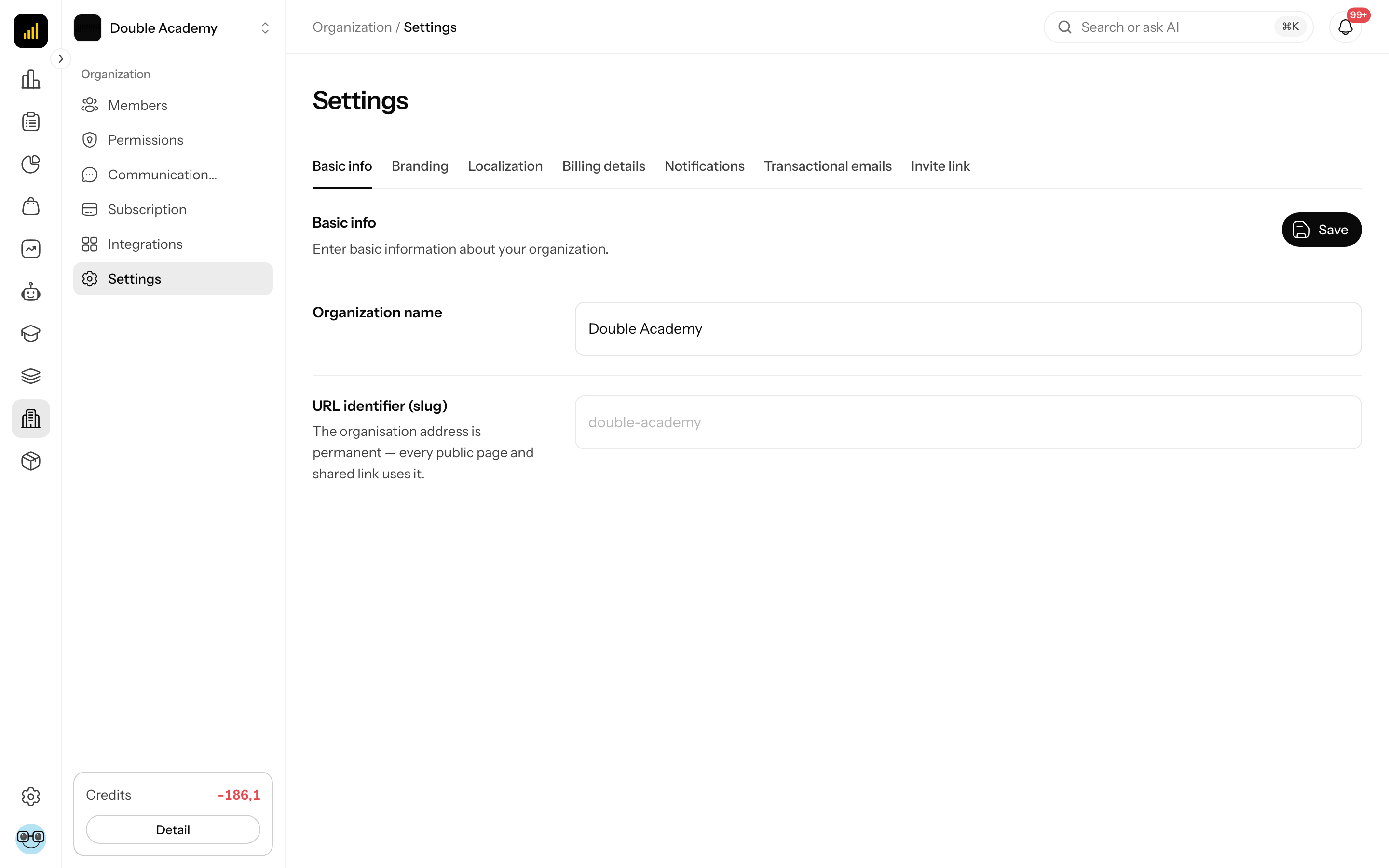
The organization Settings page has tabs under the heading: Basic info, Branding, Localization, Billing details, Notifications, Transactional emails. The content of the selected tab is below the tabs. All tabs share one Save button at the top right — it saves the changes from all tabs at once. A tab with an error is marked with a red dot.
How to change the organization name
- Open Organization → Settings → Basic info.
- Change Organization name.
- Click Save.
- Organization was successfully updated appears.
URL identifier (slug) is read-only: The organisation address is permanent — every public page and shared link uses it. It cannot be changed after the organization is created.
How to set the logo, terms and footer
The Branding tab decides how the organization appears in the eshop and the app.
| Field | What it means | Limits |
|---|---|---|
| Organization logo | shown in the shop header and the sidebar | upload by clicking or dragging into Click or drag to upload |
| Sidebar background color | custom background color of the sidebar | empty = the theme's default color |
| Sidebar text color | color of the sidebar labels and icons | empty = the theme's default color |
| Buy button background color | color of the buy / add-to-cart button in your eshop | |
| Buy button text color | text and icon color of that button | |
| About organization | short description in the shop footer | max. 5000 characters |
| Terms & Conditions | link to your terms | paste a URL or upload a PDF with Upload PDF |
| Privacy Policy | link to your privacy policy | paste a URL or upload a PDF |
| Footer links | custom links (e.g. Contact, About us) | each link has a Link name and a URL (both required); add another row with the + icon, remove a row with the bin icon |
| Social networks | links to your profiles | Facebook, Instagram, X (Twitter), LinkedIn, YouTube, TikTok |
Steps:
- Open Organization → Settings → Branding.
- Logo: click into Organization logo (or drag a file onto it), choose an image, adjust the crop and click Save in the crop window. Logo uploaded successfully appears. The logo is saved at once. Replace an uploaded logo with Change and remove it with the cross in the field's corner (Logo removed).
- Fill in the other fields.
- Click Save.
How to check it worked: open the organization's public shop — the logo is in the header, the description, terms and links in the footer.
How to set languages and currencies
The Localization tab contains:
| Field | Required | What it means |
|---|---|---|
| Default language | yes | main content language of the organization |
| Supported languages | yes, at least one | content languages (Slovenčina, Čeština, English, Deutsch, Magyar, Polski) |
| Default currency | yes | main currency |
| Supported currencies | yes, at least one | currencies you sell in |
| Order currency → Currency selection | yes | Customer selects currency or Automatically by country |
- Open Organization → Settings → Localization.
- In Supported languages and Supported currencies add or remove items.
- Set Default language and Default currency.
- Click Save.
A new currency means new prices
A product price is entered separately for each supported currency. After adding a currency, fill in the price in it on every product you want to sell in it — see Products.
How to set the order currency by country
The Order currency section is the organization's shared rule for every purchase, regardless of payment gateway or invoicing system.
- Customer selects currency — the customer picks one of the supported currencies at checkout.
- Automatically by country — the currency is derived from the customer's billing country.
With Automatically by country:
- Under Billing country to currency mapping click Add country.
- In Country (ISO) type the two-letter country code (e.g. SK, CZ).
- In Currency choose the currency (only supported currencies are offered).
- Add more countries the same way; remove a row with the bin icon (Remove mapping).
- Click Save.
Every mapped currency must be supported and products must have a price in it.
How to fill in billing details
The Billing details tab has three parts:
- Company info — Company name, Company ID, Tax ID, VAT ID,
- Billing address — Street, City, ZIP code, Country,
- Contact — Phone, Contact email,
and the Account number field — used in payment reminders as the transfer details (the {bankAccount} variable). When empty, the line with the account number is hidden in the e-mail.
- Open Organization → Settings → Billing details.
- Fill in the details.
- Click Save.
In the settings of an existing organization all these fields are optional; Contact email must be a valid address.
How to add notification e-mails
The Notifications tab contains the Notification emails list — addresses the app sends alerts to.
- Open Organization → Settings → Notifications.
- Type an address into Add email and press Enter.
- Remove an address with the cross next to it.
- Click Save.
Error messages: Invalid email format, This email is already added.
How to edit the e-mails customers receive
The Transactional emails tab sets who automatic e-mails to customers come from and what they say.
At the top are two fields:
| Field | What it means |
|---|---|
| Sender name | the name the customer sees as the sender |
| Reply-to address | when a customer replies, the reply goes to this address; must be a valid e-mail |
Below them are the System templates, grouped. Each group shows how many templates are enabled.
| Group | Templates | When you see it |
|---|---|---|
| Order and payment | Order confirmation, Payment confirmation, Invoice, Order cancellation | always |
| Advance invoice | Proforma invoice | only when invoicing through FAPI |
| Payment reminders | reminders a day before the due date, on the due date, 1, 3 and 7 days overdue | only when invoicing through FAPI |
| Instalments | Instalment received, Instalment failed | only when selling in instalments |
| Membership | Course access, Course access ending soon, Course access expired, Password setup | always |
| Team | Team invitation — the e-mail with the link to accept the invitation, sent when you invite someone to the organization (the link is valid for 7 days) | always |
Editing a template:
- Open Organization → Settings → Transactional emails.
- Click a group heading to expand it, then click a template to expand it.
- Use the switch in the template's row to turn it on (Enabled) or off (Disabled). Password setup cannot be turned off (Always sent) — a buyer without an account could not get into the membership area without it. Team invitation is always sent as well.
- If the organization supports several languages, pick the language you are editing in Template language.
- Edit Email subject and Email body. The prepared system copy is shown; editing it saves custom organization copy.
- You can insert variables into the text (e.g. the customer's name, order number, order total) — click a variable below the editor. Hovering shows what the variable means.
- Each template has a Standard template preview showing what the e-mail looks like. The server renders the preview from the same template as the real e-mail, with sample data (nothing is sent), and it takes your text, logo and colours as they stand in the form, even if you have not saved them yet. If it does not load, The preview could not be loaded. Try again in a moment. appears.
- Click Save.
Restore default copy brings back the system text. A disabled e-mail can be prepared in advance — it starts going out once you switch it on.
A customer gets the e-mail in their own language when the organization supports it, otherwise in the default language.
Who can do this
Permissions are set in Organization → Permissions in the Organization module:
| Action | Permission needed |
|---|---|
| open Organization → Settings | Settings → View |
| change and save settings | Settings → Edit |
With only View you see every field, but cannot type in them and the Save button is missing.
Common questions and problems
I can't see the Save button. You only have permission to view the settings.
Where is the Invite link tab? It is no longer in settings. Invite codes are in Organization → Members → Invite codes — see Members.
The top says "This organization's access has been suspended due to an inactive subscription." The organization's subscription is not active — see Subscription.
I'm looking for the payment gateway, FAPI, iDoklad or MailerLite settings. They are on the separate Organization → Integrations page.
I can't see the Advance invoice and Payment reminders templates. They are shown only to an organization invoicing through FAPI.
"Enter a valid reply-to email address." Reply-to address is not a valid e-mail.
"Select at least one currency" / "Select at least one language". The organization needs at least one supported currency and one supported language.
"Enter a valid unique two-letter country code and a supported currency for every row." In Billing country to currency mapping a row has an empty or wrong country code, a country appears twice, or the currency is not among the Supported currencies.
"Failed to update organization". Saving failed. Try again; if it persists, report it.
Related
- Members — who has access to the organization, invite codes
- Permissions — member roles
- Subscription
- Shop settings
- Products — prices per currency
- First-run setup wizard