Members
What it is for
The Members screen in Membership administration shows who has access to which course and bundle, and lets you assign access by hand, extend it, limit it to a period or take it away.
Access to a course comes about in three ways:
| Way | Where it is set |
|---|---|
| purchase of a product linked to the course or bundle | Courses & bundles, Bundles |
| manual assignment on this screen | this chapter |
| form automation (enrolment in a course after a form is submitted) | Forms |
All three show up here — every enrolment has the same controls.
Where to find it
- In the left menu, click Membership (the graduation cap icon).
- Click Membership administration.
- In the tabs under the heading click Members.
The page heading reads Membership · Members. The item is shown only to people with Students → View.
Not to be confused with Organization → Members
The Organization → Members screen manages people in the organization and their roles. The Membership → Membership administration → Members screen manages their access to courses.
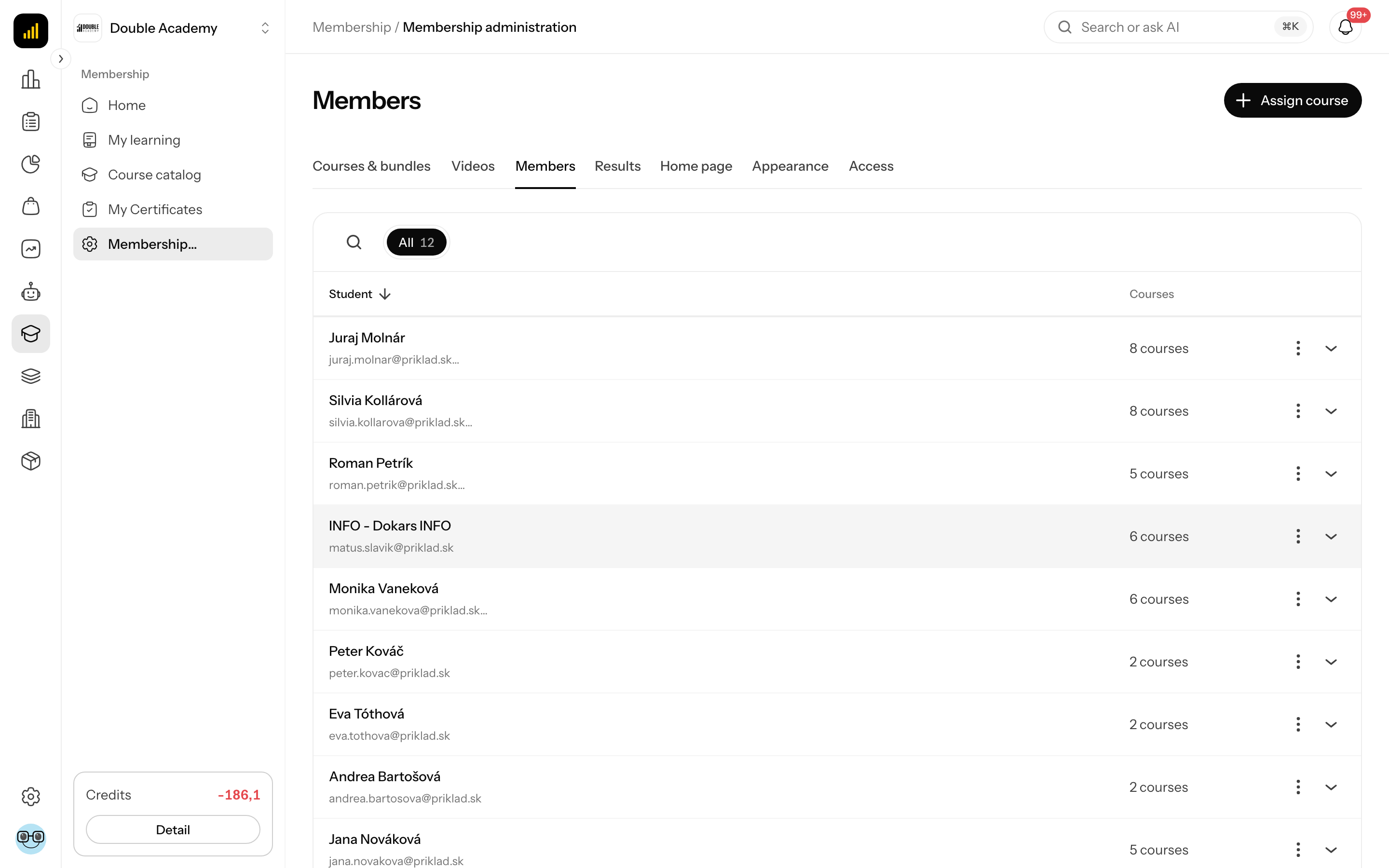
What I see on the screen
- Top right, the Assign course button (only with Students → Create).
- The All tab with the number of people, and search (the Filters button → search field) — it searches name and email.
- The table — one row = one person who has at least one course:
| Column | What it means |
|---|---|
| Student | name and email; without a name Not specified |
| Courses | how many courses they have (e.g. "3 courses") |
| "…" and the arrow | action menu and expanding the course list |
- The "…" menu in a person's row:
| Action | What it does | When you see it |
|---|---|---|
| Detail | opens the user detail with their courses and lesson-by-lesson progress | always |
| More info | hidden columns on a narrow screen | narrow screens only |
| Delete | takes away the person's access to all courses | with Students → Create; only someone who also has Students → Delete can actually carry it out |
The expanded row (click the row or the arrow) shows the person's courses:
- bundles as a group with a Bundle chip, the number of courses and the courses below it,
- standalone courses below the bundles.
Each course shows its cover image, name, progress and an access chip.
Statuses and access chips
The access chip in the expanded row on the Members screen sums up status and validity:
| Chip | Colour | What it means |
|---|---|---|
| Lifetime access | green | access with no expiry date |
| a date range, e.g. "1 Oct – 31 Dec 2026" | grey | time-limited access with more than 30 days left |
| Expires in X days | orange (≤ 30 days), red (≤ 7 days) | access ends soon |
| Expires tomorrow / Expires today | red | access is ending |
| Expired + date | red | access has ended, the course does not open for the student |
| Revoked | red | you took the access away by hand |
Enrolment statuses (the Status field when editing access):
| Status | Who sets it | What it means |
|---|---|---|
| Active | you or the system | the student has access |
| Revoked | you | access taken away, the record and progress stay |
| Completed | the system, when the student completes the course | access continues, the course is done |
| Expired | the system after the Access until date | access has ended |
If you have Students → Edit, clicking the chip opens Edit access.
How to assign a course or bundle to a student
Manual assignment on the Members screen gives a person access without a purchase — typically a colleague, a client as part of a service, or a tester.
Before you start:
- The person must be a member of your organization (in Organization → Members). If they are not, invite them first — see Members of the organization. A non-member does not appear in the selection.
- Their role must have Learning and my courses → View, otherwise they do not see the membership section.
- The course or bundle must be Published — courses and bundles in the Draft state are not offered in Select Courses at all.
- You need Students → Create.
Steps:
- In the left menu, click Membership → Membership administration.
- In the tabs under the heading click Members.
- Top right, click Assign course.
- The Enroll user dialog opens. Fill in:
| Field | Required | What it means | Limits / default |
|---|---|---|---|
| Select User | yes | a member of the organization | start typing a name or email (Start typing to search...) |
| Select Courses | yes | one or more courses and bundles | a bundle has a Bundle label under its name; courses the person already has are grey with an Enrolled chip |
| Lifetime access | — | switch: access without an end | on by default |
| Access from | no | The course opens on this day. Empty = right away. | today by default |
| Access until | yes, if Lifetime access is off | the last day of access | must not be before Access from; without it Pick an expiry date or switch on lifetime access |
| Length from a product variant | no | the length from a variant of the course's product, fills in Access until | only with one selected course whose product has variants |
| Access length | no | Custom range, 3/6/12 months, Lifetime | only for a course without a product |
- Click Enroll.
What happens:
- Enrolled in X course(s) appears. If the person already had one of the courses, X course(s) skipped (already enrolled) appears as well.
- The person receives an email that the course has been made available, with a link to the membership section.
- The course appears in their My learning — they don't have to pay or confirm anything. If you set Access from in the future, the course opens on that day.
- For a bundle they get every course in the bundle.
Time-limited access
If you sell the course in variants (e.g. 3 and 12 months), pick one course and choose the variant in Length from a product variant — the Access until date is calculated from Access from. The student then shows up under that variant in Results.
How to check it works
- On the Members screen search for the person and expand their row — the course is there with an access chip.
- After signing in, the person sees the course in Membership → My learning.
How to extend or change access
Editing access on the Members screen changes the dates and status of one enrolment.
Before you start: you need Students → Edit.
- On the Members screen expand the person's row.
- Click the access chip next to the course (or "…" next to the course → Edit access). For a bundle use "…" next to the bundle → Edit access — The change also applies to every course granted by this bundle.
- The Edit access panel slides in from the right. Change:
- Lifetime access (turning it on removes the end date),
- Access from, Access until, or Length from a product variant,
- Status — Active or Revoked.
- Click Save.
Access updated appears. Extending after expiry: set a new Access until and Status Active.
Courses inside a bundle have no menu of their own — the access of the whole bundle is edited.
How to take away access
On the Members screen you have these options. The menu with deletion shows with Students → Create, but the deletion itself requires Students → Delete (otherwise it ends with Failed to delete). Changing the status requires Students → Edit.
| What you want | Steps | Result |
|---|---|---|
| block a course temporarily | access chip → Edit access → Status: Revoked → Save | chip Revoked, progress stays, can be set back to Active |
| remove one course | expand the row → "…" next to the course → Delete → confirm | the enrolment is deleted |
| remove a whole bundle | "…" next to the bundle → Remove whole bundle → confirm | The bundle “…” will be removed, along with the X courses the student got from it. |
| remove everything | "…" in the person's row → Delete → confirm | The user will lose access to all courses. This action cannot be undone. |
After deleting, Successfully deleted appears. The person stays a member of the organization, they only lose the courses.
WARNING
Deleting an enrolment does not refund money. If the person bought the course, handle the refund separately.
Who can do this
Permission matrix, module Membership, row Students:
| What you want to do | Permission needed |
|---|---|
| see Members and their courses | Students → View |
| assign a course (and see the menu with deletion) | Students → Create |
| edit access (dates, status) | Students → Edit |
| delete an enrolment, a bundle or all of a person's courses | Students → Delete |
Common questions and problems
I can't find the person in Select User. They are not a member of the organization. Invite them in Organization → Members and then assign the course.
A course is greyed out in the selection. The person already has it (Enrolled chip).
A course is not in Select Courses at all. The course is a Draft. The selection only offers published courses and bundles — publish the course first in Courses & bundles.
I don't see Length from a product variant. Several courses are selected (Variant lengths are offered when a single course is picked.), or the course has no product (This course is not sold as a product — pick a date or a length below.).
The student has the course but cannot open it. Check the access chip (Expired, Revoked, Access from in the future) and whether the course is Published.
The person is not in the list even though they bought the course. The list only shows people with at least one enrolment. Check that the order is paid and that the product is linked to the course.
Related
- Courses & bundles — what you give students access to
- Bundles — assigning a whole bundle
- Results — students' progress in a course
- Members of the organization — inviting a person into the organization
- Settings — the role of buyers without an account