Call log
What it is for
The Call log lists every call a phone agent took — from the phone line, from the online advisor and from browser tests. For each call you see the summary, the caller's request, the recording, the transcript, what the agent did (e.g. created a callback task) and the costs. Calls that need a person are handled here.
Where to find it
- In the left menu click Agents → Telephone agents.
- Click the agent's row.
- Click the Call log tab.
You also reach the calls waiting for you from the agent's Overview (the Needs you card).
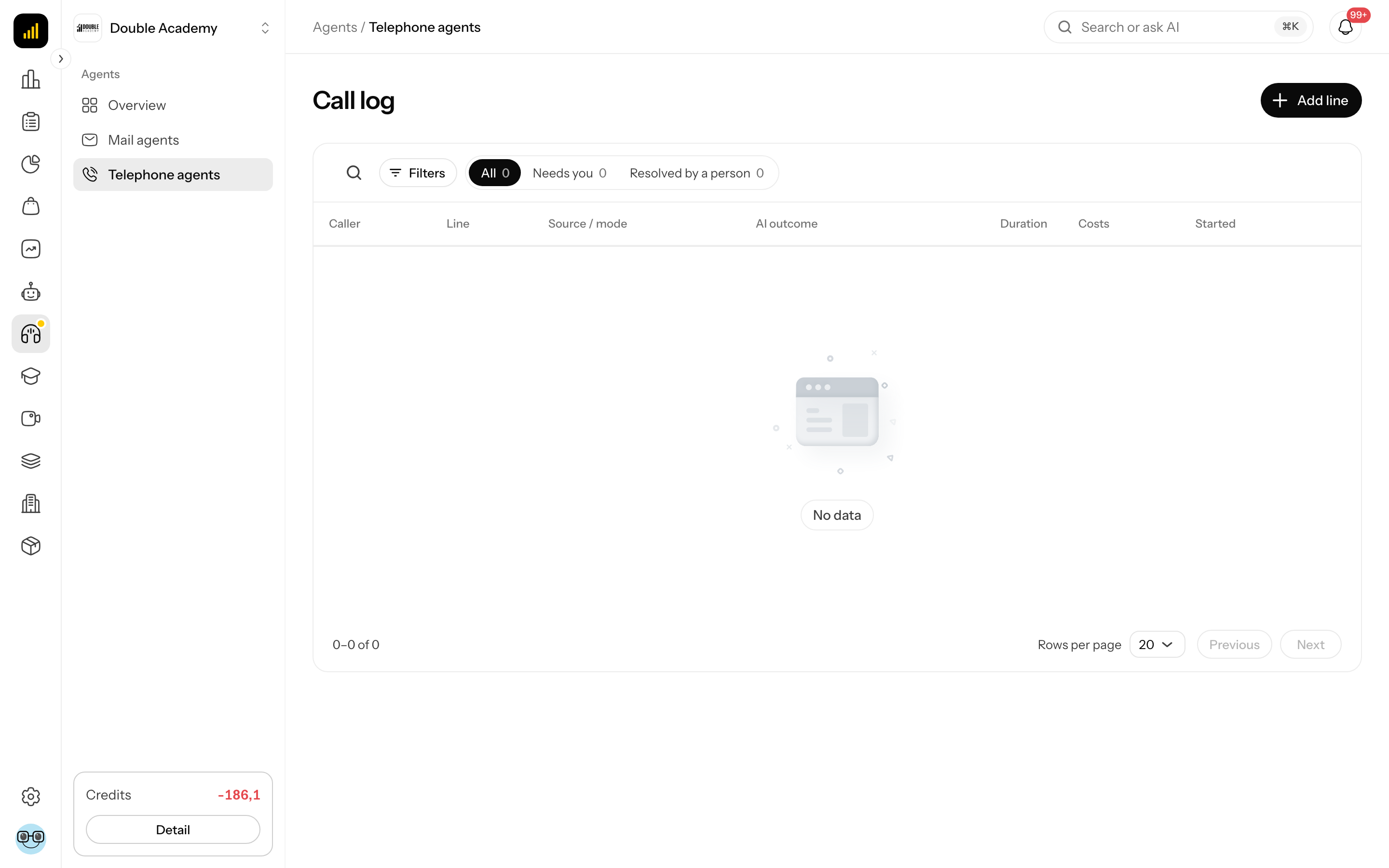
What I see on the screen
The Call log has tabs above the table:
| Tab | What it contains |
|---|---|
| All | all calls |
| Needs you | unresolved calls waiting for a person: callback requests, failed or unprocessed calls and calls where a contact must be added or reviewed |
| Resolved by a person | calls someone marked as resolved |
Search searches the field Search callers or summaries. In the list across agents, Filters also offers the Line field (All lines).
| Column | What it means |
|---|---|
| Caller | the name from the CRM or the number; Unknown caller when the number is unknown; Browser call for a test |
| Line | which agent took the call |
| Source / mode | Phone or Browser, Live or Test |
| AI outcome | how the call ended (see below) |
| Duration | call length |
| Costs | call costs and billing state |
| Started | when the call began |
Clicking a row (or the Open call details icon at the end of the row) slides in the call detail panel from the right. The action buttons (Call back, Open contact, Open task, Assign contact, Retry processing, Mark follow-up resolved) are in the bottom bar of the panel; they appear according to the call and your permissions.
What call outcomes mean
| Outcome | Meaning |
|---|---|
| Answered by AI | the agent handled the request itself |
| Call back | the caller wants someone to get back; the agent creates a task |
| No request | the call had no specific request |
| Completed | the call was marked as resolved |
| Call in progress | the call is running now |
| Not analyzed yet | the call has not been evaluated yet |
| Failed | processing of the call failed |
CRM contact state: Contact required, Multiple matching contacts, Needs review, Team member unavailable, No follow-up needed.
What the call detail contains
The call detail in the Call log shows the caller, number, line name, date and duration in its header (with the Test tag for tests). It contains:
- Call summary and Request, or Requested callback time.
- Recording — a player. Without a recording you see Recording unavailable.
- Transcript — turns of Agent and Caller. Click a turn to move playback to that point.
- caller details — Request, Requested callback time, Caller, Phone number, Email; below the transcript Conversation language and ElevenLabs cost · USD.
- What the agent did — e.g. Callback task created, Contact linked.
- Costs — a breakdown (ElevenLabs – voice platform, Language model, Post-call analysis …) with the state Awaiting billing, Partial costs or Complete.
Summaries and transcripts are removed when their retention period ends — you then see Summary is pending or no longer retained. Set the period in Call settings.
How to handle a call that needs you
Before you start — you need Requests → Edit. To work with contacts and tasks you also need permission to view Clients and Tasks in the CRM.
- Open the agent → Call log → the Needs you tab.
- Click a call. The detail opens.
- Read the Call summary and Request.
- Click Call back — your device opens a dialler with the caller's number.
- If the agent created a task, click Open task and work with it in the CRM window.
- When done, click Mark follow-up resolved.
How to check it worked: the call leaves the Needs you tab and appears under Resolved by a person with the outcome Completed.
How to link a call to a CRM contact
- Open the call detail in the Call log.
- Click Assign contact. The Assign contact dialog opens.
- In the Contact field start typing a name or e-mail and pick the contact.
- Click Save.
Assign contact is not offered for test calls or for calls that already have a task. Open the contact with Open contact.
How to retry processing a call
If the detail reports Some processing steps failed. You can retry safely.:
- In the bottom bar of the call detail click Retry processing.
The button is in the bar for every call if you have Requests → Edit; retrying is safe even when processing did not fail.
Who can do this
| Task | Required permission |
|---|---|
| see the call log and call detail | Agents → Requests → View |
| Assign contact, Retry processing, Mark follow-up resolved | Agents → Requests → Edit |
| Open contact, Assign contact | additionally CRM → Clients → View |
| Open task | additionally CRM → Tasks → View |
Common questions and problems
The list has no calls. The agent has not taken a call yet. Try it with a test call in Agent setup → Test call.
“Contact cannot be changed after a task has been created, or belongs to another organization.” The call already has a task — the contact cannot be changed.
“Provider deletion is not confirmed. Retention will retry.” After the retention period the deletion at ElevenLabs could not be confirmed; the system retries on its own.
I do not see Call back. The caller's number is unknown (e.g. a browser test).