Sign-up and e-mail verification
What it is for
Your Doubleros account is your identity across the whole platform. One account (e-mail and password) gets you into every organization you belong to. Signing up creates the account; confirming the e-mail activates it — you confirm it with a 6-digit code we send you. You cannot sign in without confirming.
Where to find it
- The sign-up page is at
/sign-up. On the Sign in to your account page the link Don't have an account? Register leads to it. - If someone invited you to an organization, the invitation link is in the invitation e-mail; sign-up opens from it.
- The Confirm your email step (entering the code) appears right on the sign-up page as soon as you submit the form. You do not go to a separate page and you do not click anything in the e-mail.
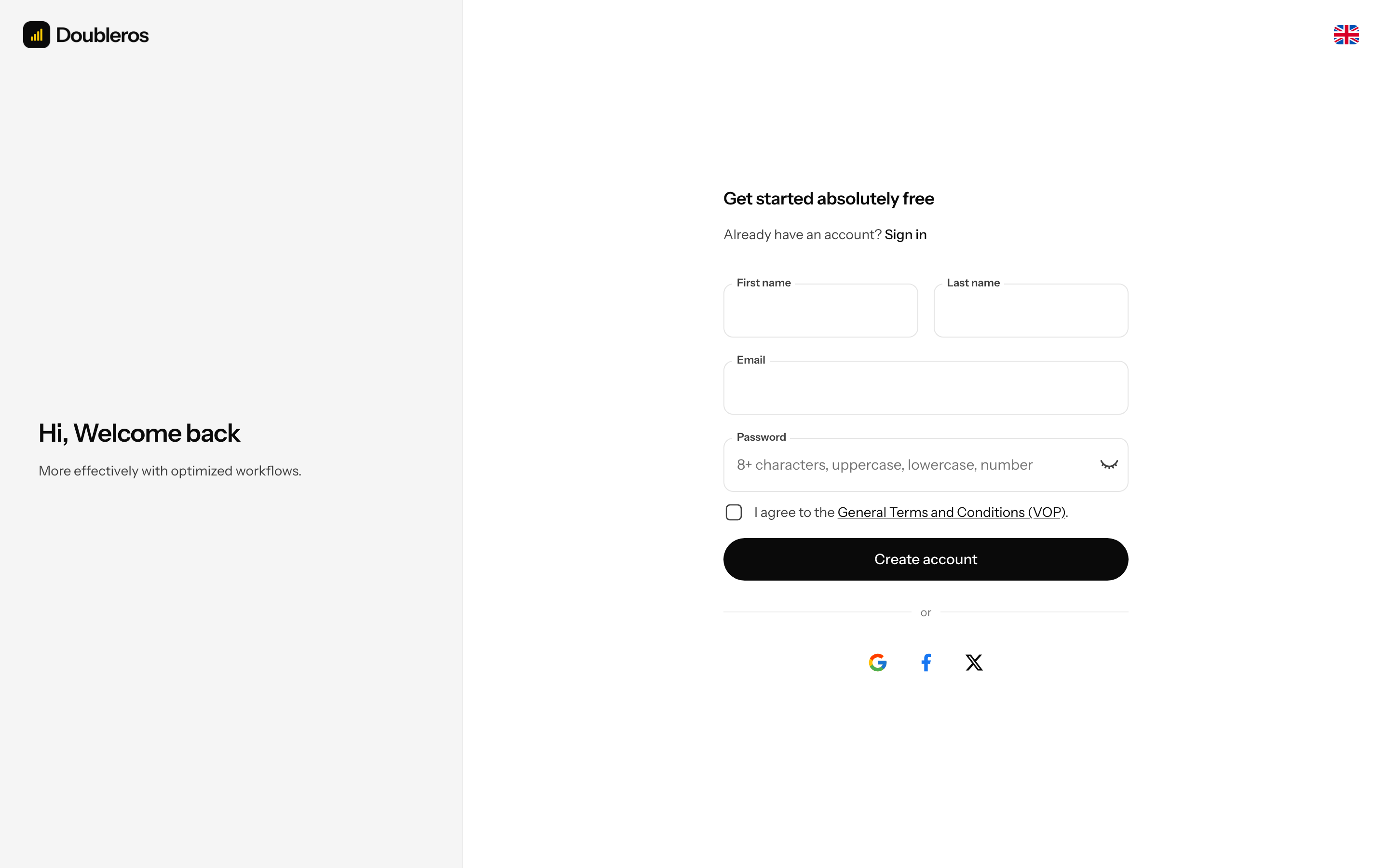
What I see on the sign-up page
The page is headed Get started absolutely free with the link Already have an account? Sign in below. The form has the fields First name, Last name, Email, Password with a strength indicator (Weak / Strong), a checkbox agreeing to the General Terms and Conditions (VOP) and the Create account button.
How to sign up
Before you start: use an e-mail you can access — the 6-digit code is sent there. If someone invited you to an organization, use exactly the e-mail the invitation was sent to.
- Open the sign-up page (from the sign-in page via Register).
- Fill in First name and Last name.
- Fill in Email.
- Choose a Password (rules in the table below). The eye icon shows or hides it.
- Tick I agree to the General Terms and Conditions (VOP). Click the document name to open the terms.
- Click Create account.
- The Confirm your email step appears on the same page — We've sent a 6-digit code to (your e-mail). Enter it to activate your account.
- Open the e-mail from Doubleros and type the 6-digit code into the boxes. You can also paste the code (Ctrl+V / Cmd+V) — it fills the boxes by itself.
- Click Confirm.
- The account is activated and the app signs you in straight away — no need to sign in again.
Below the code boxes is the reminder The code is valid for 15 minutes and allows 5 attempts. If you reload the page in the meantime, the code step stays while the code is valid.
| Field | Required | What it means | Limits |
|---|---|---|---|
| First name | yes | your first name | |
| Last name | yes | your last name | |
| yes | sign-in e-mail that receives the verification code | valid format; must not already be registered | |
| Password | yes | password for signing in | at least 8 characters, at least one uppercase letter, one lowercase letter and one digit |
| VOP consent | yes | agreement with the platform's terms | the account is not created without it |
The language of the e-mails the app sends you is set from the language the page is open in. You can change it later in your profile.
How to check it worked: after confirming the code you see the Welcome to Doubleros screen — continue with the first-run setup wizard.
How to sign up through an organization invitation
When an admin invites you to an organization, you get an e-mail with a link to the invitation.
- Click the invitation link in the e-mail. The invitation page opens — it shows the organization, the role and the date the invitation is valid until (7 days from sending).
- If no account exists yet for the address in the invitation, the page offers the Create account button. Click it.
- The sign-up page opens with the e-mail prefilled. The e-mail cannot be changed — the invitation only works for the address it was sent to.
- Fill in First name, Last name, Password, tick the VOP consent and click Create account.
When signing up through an invitation the e-mail is not verified and no code is needed — the account is activated at once, the app signs you in and you are a member of the organization with the role the admin chose. The invitation is used up by this; the link admits nobody else.
If you already have an account, the invitation page offers the Sign in button (the e-mail is prefilled). After signing in you return to the invitation and become a member by clicking Accept invitation; you can also Decline it. If you are signed in with a different account than the one the invitation was sent to, sign out first. Waiting invitations also appear in the You have pending invitations block on the start page after you sign in.
If you sign up through a join link with an invite code (/sign-up?code=…), after signing up and confirming your e-mail the app joins you to the organization with that code by itself — you do not enter the code.
How to request a new code
The code is valid for 15 minutes and you can enter it wrongly at most 5 times. After that it stops working and you need a new one.
- In the Confirm your email step wait until the Send a new code in … s button finishes counting down (no new code can be sent for the first 60 seconds after one was sent).
- Click Send a new code.
- We've sent you a new code. The previous one no longer works. appears.
- Enter the code from the latest e-mail and click Confirm.
At most 5 codes per hour can be sent to one e-mail address.
How to finish a sign-up you did not confirm
If you closed the code step or never entered the code, the account exists but is not active.
- Open Sign in to your account.
- Fill in the e-mail and password you used to sign up and click Sign in.
- After the correct password the sign-in page switches to the Confirm your email step with Your email address isn't confirmed yet. Enter the code from the email, or send yourself a new one.
- A new code is sent only when no valid one is waiting. If the code from sign-up is still valid, enter it; otherwise send a new one with Send a new code.
- Click Confirm — the account is activated and the app signs you in.
TIP
Old verification links from e-mails no longer work. If you click an old link, the sign-in page opens — sign in and confirm the e-mail with a code as described above.
Who can do this
Anyone can sign up. No permission or invitation is needed.
Common questions and problems
The code did not arrive. Check your Spam or Promotions folder. Check that the address in We've sent a 6-digit code to … has no typo — if it does, click Return to sign in and sign up again with the right address. If nothing arrives within a few minutes, click Send a new code once the countdown ends.
"Invalid verification code". The code does not match. Check the digits and use the code from the latest e-mail — after a new code is sent, the previous one no longer works.
"The verification code has expired or was entered wrongly too many times. Please request a new one." More than 15 minutes have passed or you entered the code wrongly 5 times. Click Send a new code.
"Too many codes have been requested for this e-mail address. Try again later." 5 codes were sent to the address in the last hour. Wait (up to an hour) and request a code again.
"Enter all 6 digits of the code". The code is incomplete — add the missing digits.
"User with this email already exists". An account with this e-mail already exists. Sign in; if you do not know the password, use Forgot password? — see Signing in and forgotten password.
"Your consent is required to continue". You did not tick the VOP consent.
"The terms of service have changed. Reload the page and agree to the current edition". A new edition of the terms was published while the form was open. Reload the page and submit again.
"Password must contain uppercase, lowercase and a number!" / "Password must be at least 8 characters!". Add an uppercase letter, a lowercase letter, a digit and make it at least 8 characters.
"This email has already been verified". The account is already active — sign in.
I clicked a verification link from an old e-mail and the sign-in page opened. Links no longer work. Sign in with your e-mail and password and confirm the e-mail with a code — see "How to finish a sign-up you did not confirm".
Signing up with Google, Facebook or X does not work. These icons are disabled on the page — sign-up is only possible with e-mail and password today.
Related
- First-run setup wizard — what comes after sign-up
- Signing in and forgotten password
- Members — inviting more people