Membership
What it is for
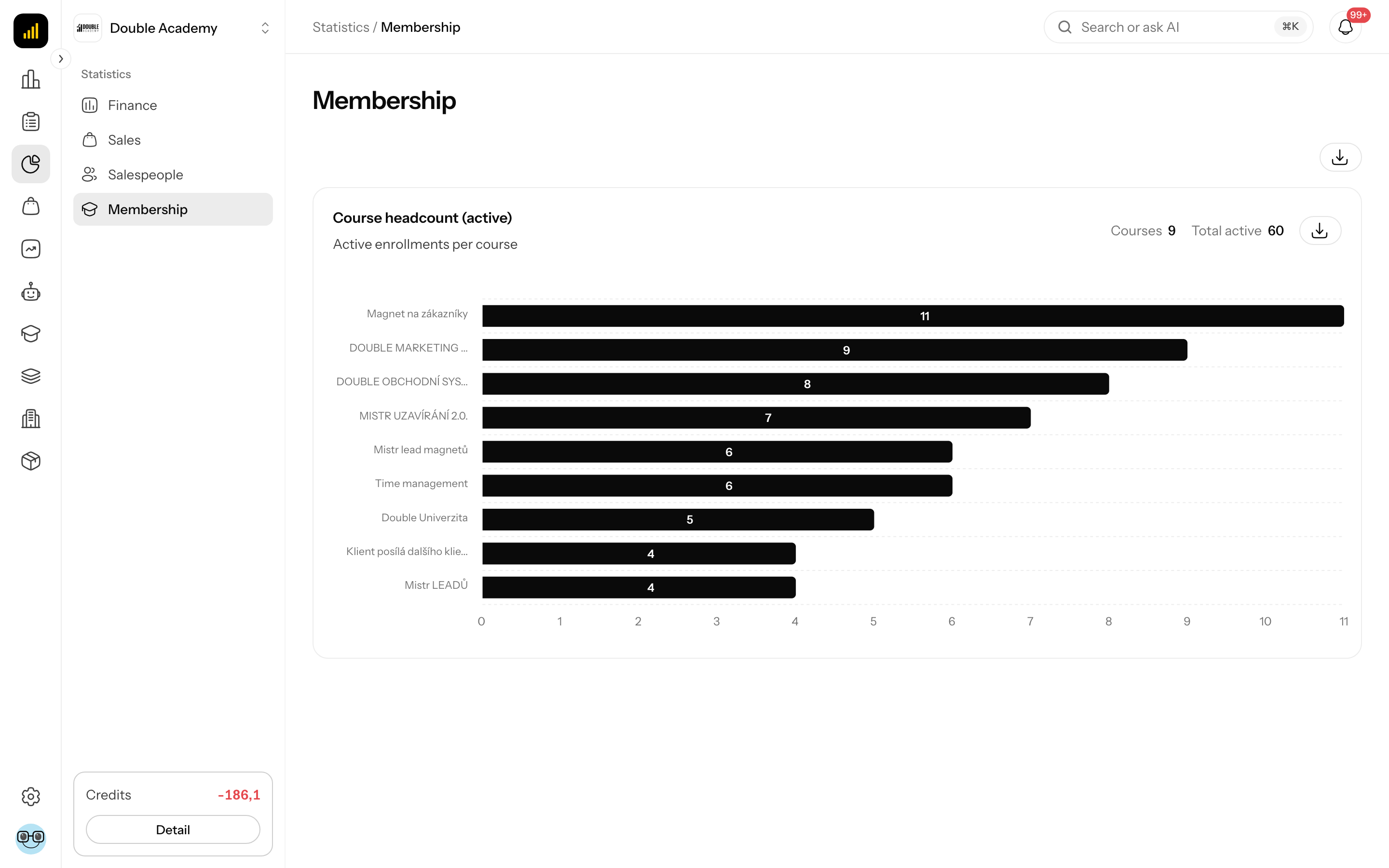
The Membership report in Statistics shows how many active students each course has right now. It is a quick occupancy overview — which courses people actually have and which are empty.
Where to find it
In the left menu click Statistics, then Membership in the expanded list (address /dashboard/reports/finance?tab=academy). The page header reads Statistics / Membership.
Not to be confused with the Membership item of the main menu (course management) — this report is under Statistics.
Before you start: where the numbers come from
The Membership report counts students' active enrolments in courses (see Members). An enrolment is created, for example, when a course order is paid or when a student is added by hand. A course's add-on content is not shown separately.
To view the report you need the permission Statistics → View.
What I see on the Membership screen
The Membership report has no period filter — it always shows the current state. At the top right is the Export whole tab (CSV) icon.
Below it is the card Course headcount (active) (subtitle Active enrollments per course):
- figures in the card header: Courses (how many courses have at least one active student) and Total active (sum of active enrolments),
- a horizontal bar chart Active — one bar per course, largest first.
Courses without an active student appear neither in the chart nor in the export.
How the number of active students is counted
In the Membership report each course counts its enrolments in the active status. A student enrolled in two courses counts in each, so Total active is the number of enrolments, not of distinct people. Enrolments in any status other than active are not counted.
How to export the Membership report to CSV
- In the left menu click Statistics → Membership.
- At the top right click the Export whole tab (CSV) icon.
A file downloads with the course and its active count, largest first. The file uses a semicolon separator. The icon is disabled when no course has an active student.
How to check that the Membership report works
- In the membership area give a student access to a course (see Members).
- Open Statistics → Membership (or reload the page).
- The course's Active count goes up by 1.
Who can do this
| What you want to do | Permission needed |
|---|---|
| see the Membership report and export it | Statistics → View in the permission matrix |
The Statistics item appears in the left menu only when the organisation's plan includes the CRM module — without CRM it is hidden even with the Statistics → View permission.
Frequently asked questions and problems
A course is missing from the report. It has no active student.
The figure does not match the number of people. The report counts enrolments — one person in several courses is counted several times.
Can I see the state at a past date? No, the report shows only the current state.
Related
- Members — student enrolments and access
- Finance — revenue including course sales
- Salespeople