Calendar
What it is for
The Calendar shows CRM tasks laid out by due date in a monthly overview. At a glance you see which days are packed and which are free, and you change a task's due date by dragging it with the mouse.
These are the same tasks as in the List and Board views – the calendar is just a different view. Tasks without a due date are not shown in the calendar.
Where to find it
- In the left menu, click CRM – the item expands.
- Click the Tasks sub-item.
- In the tabs under the heading click Calendar.
The address of the screen is /dashboard/crm/my-tasks/calendar.
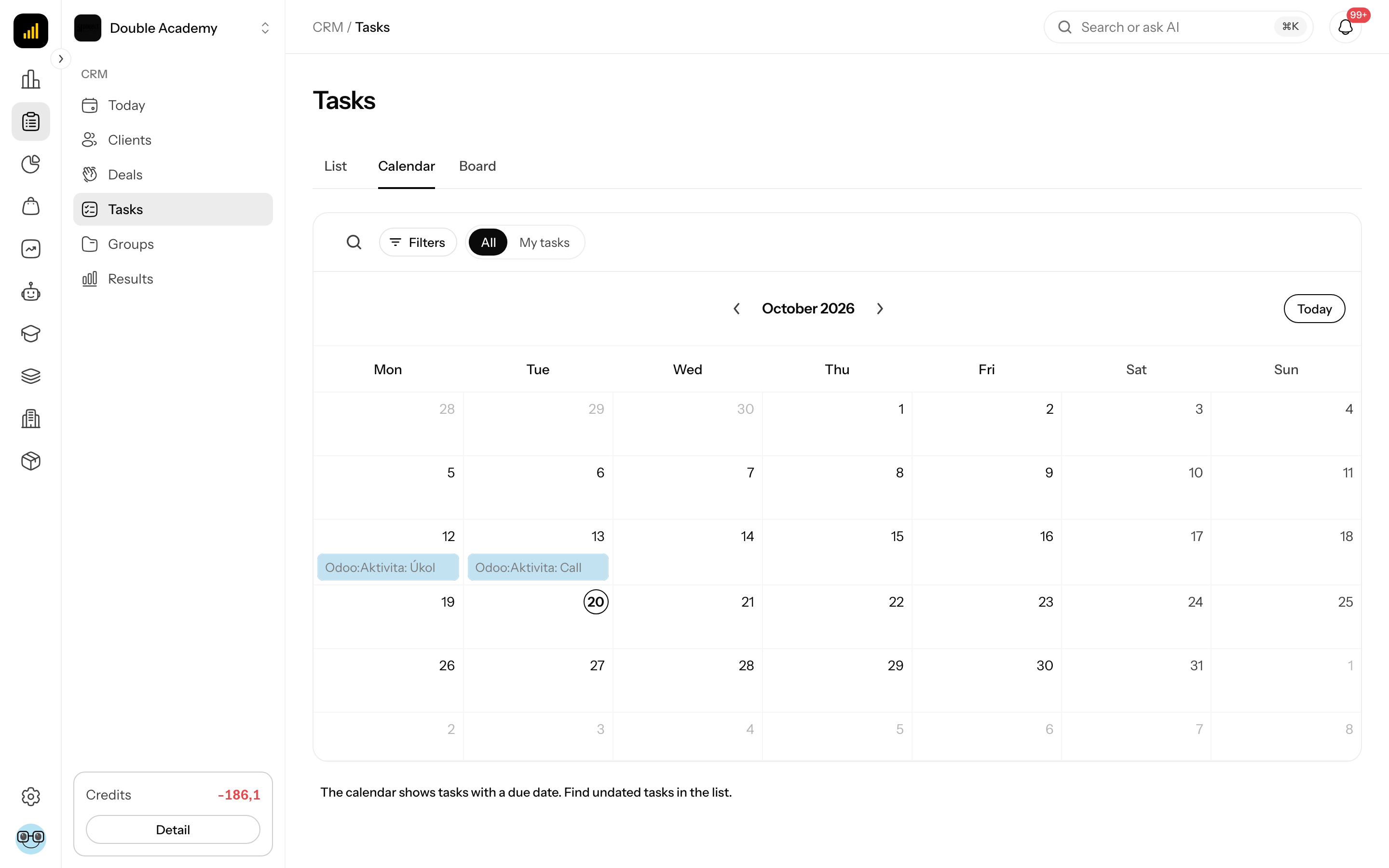
What I see in the Calendar
- Tabs All (the whole team's tasks, only with the View right) and My tasks.
- Search and Filters – the same as in the task list (Status, Client, Assignee). Filters carry over between the List, Calendar and Board views.
- Calendar bar: the month name, arrows to the previous and next month and the Today button that returns you to the current month.
- Month grid (on a computer and tablet): the week starts on Monday. On a phone a list of one week's tasks is shown instead of the grid and the arrows move by week. Tasks are coloured by status: blue = To Do, orange = In Progress, green = Done. A task with a specific time shows the time before its title.
- If a day has more than three tasks, the first three are shown and the rest is hidden under a link with the number; click it to expand.
- Below the calendar is the link The calendar shows tasks with a due date. Find undated tasks in the list. – it switches to the List with the same filters.
How to open a task from the Calendar
- Open CRM → Tasks → Calendar.
- Use the arrows in the bar to find the month.
- Click the task. The task detail opens, where you change the title, status, assignee, description or due date – see Tasks.
How to change a task's due date by dragging
Before you start: you need the Edit right on the Tasks row. Without it tasks in the calendar cannot be moved.
- Open CRM → Tasks → Calendar.
- Grab the task with the mouse.
- Move it to another day and drop it.
The new due date is saved automatically. An all-day task stays all-day, a task with a time keeps its time. If the change fails, the task returns to its original place and an error message is shown.
How to check that it works: reload the page – the task is on the new day; in the List view it has the new Due Date.
How to create a task from the Calendar
Before you start: you need the Create right on the Tasks row, and the client the task concerns must exist in CRM → Clients.
- Open CRM → Tasks → Calendar.
- Click an empty spot in the day you want to plan the task for.
- The Create task window opens with the Due Date prefilled for that day.
- Fill in the Title and Client, and other fields as needed – see Tasks.
- Click Create.
The task appears in the calendar immediately.
Who can do this
Permissions are in Organization → Permissions, CRM module, Tasks row – see Permission matrix.
| Right | What it allows in the Calendar |
|---|---|
| Own | you see your tasks (the My tasks tab) |
| View | you also see colleagues' tasks (the All tab) |
| Create | creating a task by clicking a day |
| Edit | moving tasks to another day |
Common questions and problems
A task is missing from the calendar. It has no due date, or a filter or the My tasks tab hides it. Check the active filter chips and find the task in the List view.
A task cannot be moved. You lack the Edit right on the Tasks row.
Clicking a day does not open the Create task window. You lack the Create right.
Can I switch to a weekly or daily view? No. The task calendar has no view switcher. On a computer it is always monthly, on a phone always a weekly list.