Exports
What it is for
The Exports screen moves paid orders into the POHODA accounting program. You create an XML file with the orders of a chosen period, import it into POHODA and upload POHODA's response back. Doubleros stores from it the numbers of the invoices POHODA created.
The screen is useful only when POHODA is selected as the Invoicing Provider. Exporting orders to CSV is a different feature — the export button directly in the Orders list.
Where to find it
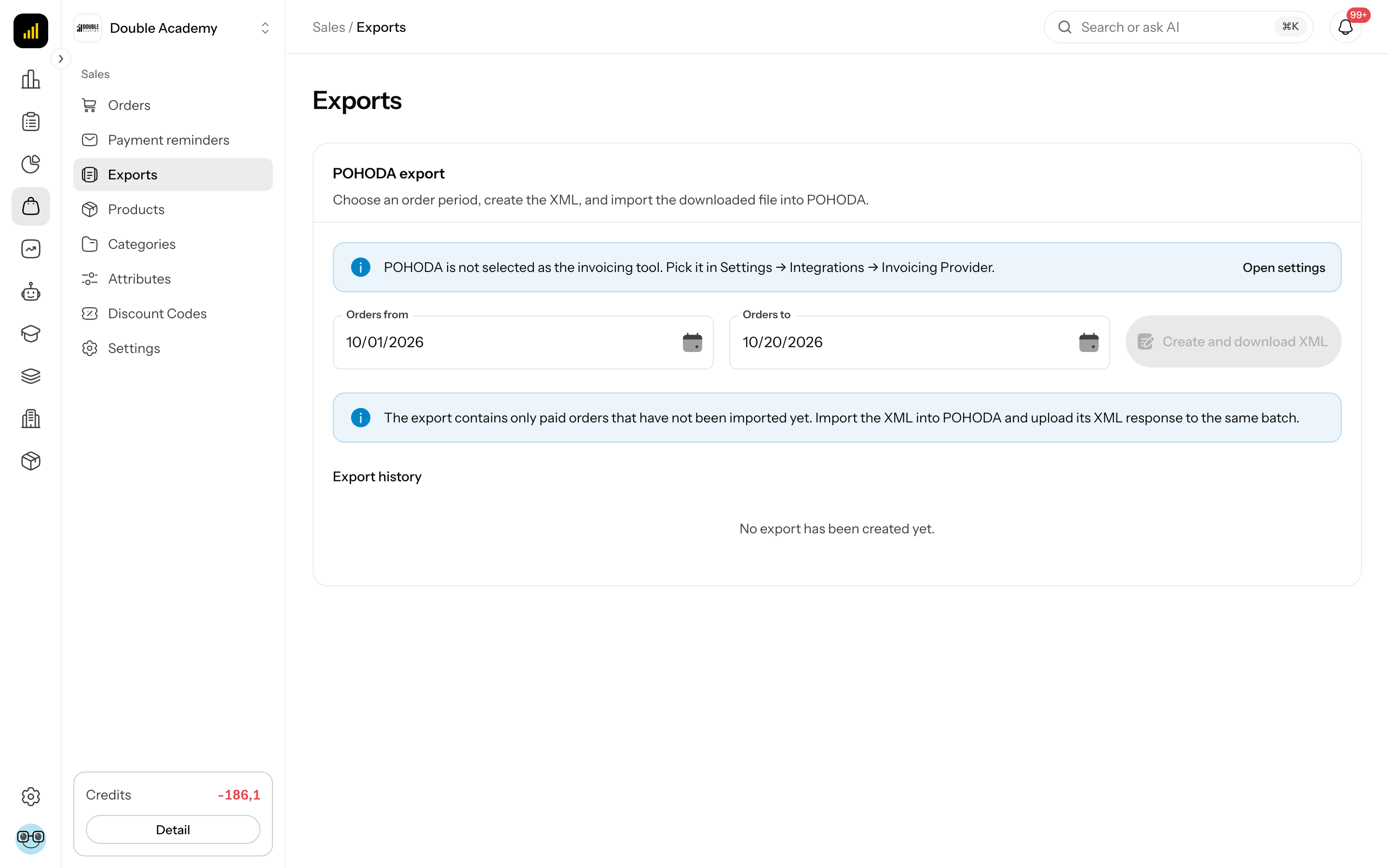
In the left menu click Sales → Exports. The page holds the POHODA export card.
Before you start
- POHODA is selected and saved in Organization → Integrations → Invoicing Provider (see Invoicing).
- The organization's company ID is filled in under Organization → Settings → Billing details.
- You have paid orders in the organization's default currency.
- Sales → Exports set to Can work (to create and download the export) and Sales → Orders → Edit (to upload the response).
What I see on the screen
The POHODA export card contains:
| Part | What it means |
|---|---|
| Orders from, Orders to | the period the orders are taken from; from the start of the month to today by default |
| Create and download XML | creates a new export batch and downloads the XML at once |
| blue box | The export contains only paid orders that have not been imported yet. Import the XML into POHODA and upload its XML response to the same batch. |
| Export history | the list of created batches |
Each row in Export history shows the file name, the status, the creation date and the counts N of M imported, K errors. The row has Download and Upload response buttons.
Batch statuses
| Status | Meaning |
|---|---|
| Generated | the XML is created, POHODA's response has not been uploaded yet |
| Partial | the response is uploaded, some orders could not be imported into POHODA |
| Imported | all orders of the batch are in POHODA; Upload response is no longer offered |
| Failed | the response is uploaded and POHODA could not import any order of the batch |
How to create an export for POHODA
- In the left menu click Sales → Exports.
- In Orders from pick the first day of the period.
- In Orders to pick the last day of the period.
- Click Create and download XML.
- The browser downloads the XML file; The POHODA XML export was created. appears and the batch is added to Export history with the status Generated.
The export includes only paid orders created in the chosen period that are not yet in another batch waiting for the POHODA response and have not been imported into POHODA yet. Orders whose import failed in POHODA go into the next export again. One batch can hold at most 500 orders.
How to upload the response from POHODA
- In POHODA import the downloaded XML (XML import in POHODA).
- POHODA creates an XML response with the import result; save it.
- In Doubleros click Sales → Exports.
- In Export history find the same batch and click Upload response.
- Select the response file (
.xml). - Response processed: N invoices, K errors. appears and the batch status changes.
The response must belong to the same batch you downloaded the XML from.
How to download an older batch again
- In the left menu click Sales → Exports.
- In Export history click Download on the batch.
How to check it works
- After uploading the response the batch shows Imported and N of N imported, 0 errors.
- In POHODA check the issued invoices for the period.
- A further export for the same period no longer contains the same orders.
Who can do this
| Action | Required permission (permission matrix) |
|---|---|
| see Exports in the menu and the batch history | Sales → Exports set to View only |
| create and download the XML | Sales → Exports set to Can work |
| Upload response | Sales → Orders → Edit |
| find out whether POHODA is selected (the box with a link to the settings) | Organization → Settings → View |
Without the export permission the card shows You do not have permission to export orders. and the fields are disabled. With View only the screen is read-only (a Read only badge): the form for creating an export and the Upload response button are not shown, and the batch history is available.
Common questions and problems
The “Create and download XML” button is disabled. Either POHODA is not selected (the card shows POHODA is not selected as the invoicing tool. Pick it in Settings → Integrations → Invoicing Provider. with an Open settings button), or Orders to is before Orders from (Invalid range), or you lack the export permission.
Message “There are no eligible paid orders to export.” The chosen period has no paid order that is not already in another batch or imported into POHODA. Widen the period, or upload the POHODA response to the existing batch.
Message “Fill in the organization's company ID before exporting to POHODA.” Add the company ID in Organization → Settings → Billing details.
Message “One POHODA export can contain at most 500 orders. …” Narrow the period and make several batches.
Message “The POHODA export currently supports orders in the organization's default currency only.” Orders in another currency cannot be exported to POHODA; narrow the period or book them by hand.
Message “An order without items cannot be exported to POHODA.” An order (for example an imported one) has no items. Narrow the period so it is left out.
Message “This POHODA response belongs to a different export batch.” or “The uploaded file is not a valid POHODA response.” Upload the response on the right batch and make sure it is POHODA's XML response, not the original export.