Payment reminders
What it is for
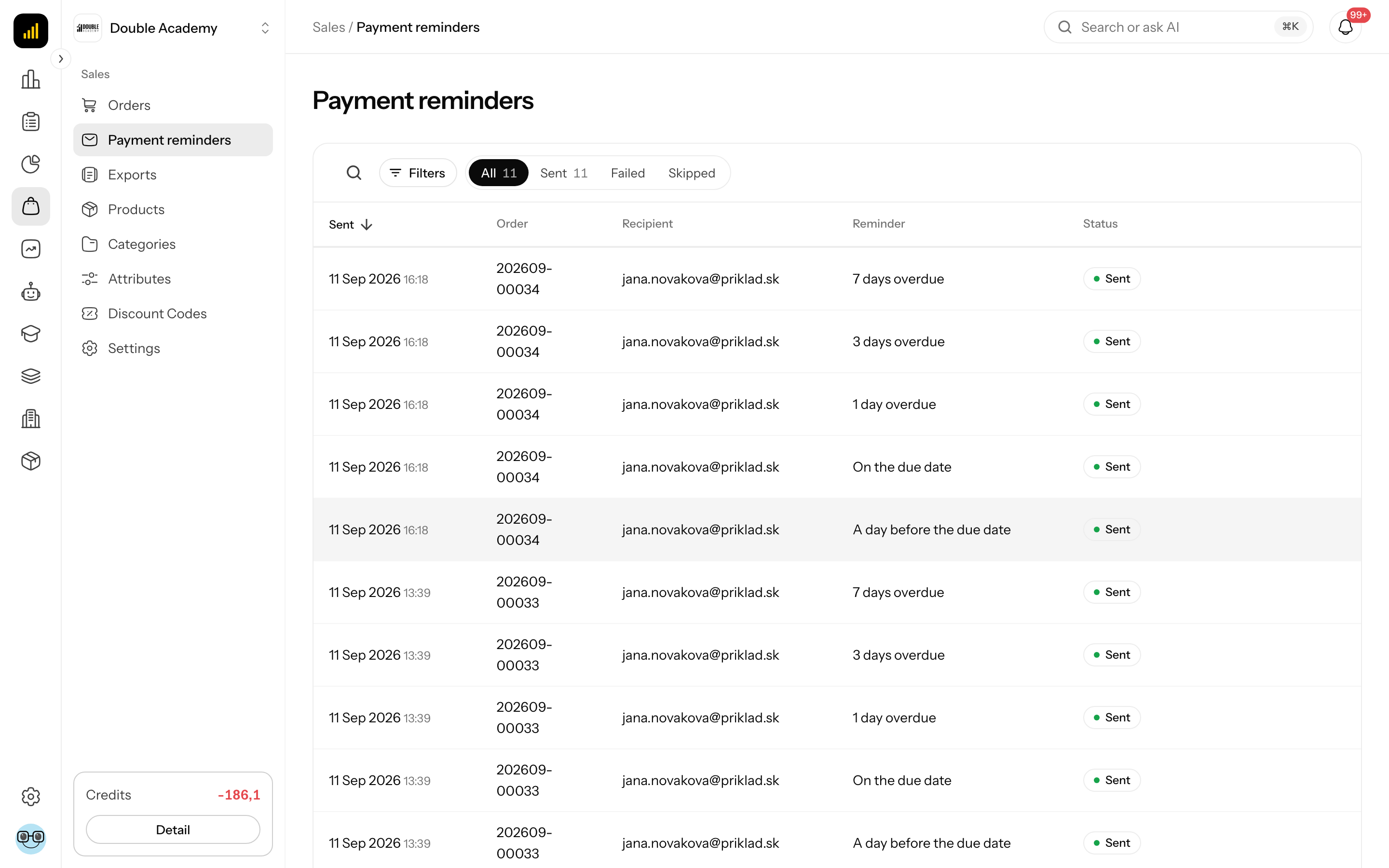
The Payment reminders screen logs every reminder email the app sent customers about unpaid proforma (advance) invoices. Reminders go out automatically in five waves around the proforma's due date and carry its PDF. Here you check who got a reminder and when — and above all which one failed or was skipped, and why.
Where to find it
In the left menu click Sales, then Payment reminders in the expanded list (address /dashboard/store/order?tab=reminders).
The reminders of a single order are also in the order detail, in the Payment reminders card (see Orders).
Before you start: when reminders are sent
Reminders are never sent by hand — the Payment reminders screen has no send button. The app sends them by itself when all of these hold:
- The organization has an invoicing provider connected that can confirm whether a document is paid (FAPI) — see Invoicing.
- A proforma invoice was issued for the order and is neither paid nor cancelled.
- The order is Awaiting payment and is not a one-click upsell.
- In Organization → Settings → Transactional emails the email for that wave is enabled (e.g. Reminder — a day before the due date). How to enable it is in Invoicing.
- The order was created after reminders were first enabled. Older orders are deliberately left alone so that enabling reminders does not start chasing old advances settled long ago.
To view the screen you need Sales → Orders → View.
Reminder waves
Reminders are sent relative to the proforma invoice's due date:
| Wave (column Reminder) | When it goes out | Email in transactional emails |
|---|---|---|
| A day before the due date | one day before the due date | Reminder — a day before the due date |
| On the due date | on the due date | Reminder — on the due date |
| 1 day overdue | one day after the due date | Reminder — 1 day overdue |
| 3 days overdue | three days after the due date | Reminder — 3 days overdue |
| 7 days overdue | seven days after the due date — the last one | Reminder — 7 days overdue |
Further rules:
- Reminders go out only between 9:00 and 18:00 (Prague time zone); the check runs every hour.
- Right before sending, the app asks the invoicing tool whether the customer has paid in the meantime. If so, the reminder does not go out.
- A customer gets at most one reminder per order per day.
- Each wave can be enabled or disabled on its own. A disabled wave is skipped without a record.
- Each wave belongs to its one day only. If it does not go out that day (the wave was disabled, failed or the PDF was missing), it is not sent late the next day — the next wave comes instead.
- For orders from a particular form, the form's email rule in its automations can change the reminder.
- For instalment sales the reminder is about the first instalment's proforma and states that instalment's amount.
What I see on the Payment reminders screen
The Sales → Payment reminders screen has:
- Status tabs All, Sent, Failed, Skipped — with counts.
- Search Search by email or order number… and the Filters button.
- The table with pagination (Rows per page 10, 25, 50, 100).
| Column | Meaning |
|---|---|
| Sent | date and time the app processed the reminder |
| Order | the order number — click it to open the order detail |
| Recipient | the email address the reminder went to |
| Reminder | the wave, e.g. 3 days overdue |
| Status | Sent, Failed or Skipped; for failed and skipped the reason is shown under the status |
Rows have no … menu — the only action is the link to the order.
Reminder statuses
| Status | Meaning | What to do |
|---|---|---|
| Sent | the email was handed over for sending | nothing |
| Failed | the email could not be sent even after retries | the app tries the wave again at the next hourly check, but only on the same day (until 18:00); if it keeps failing, check the customer's email on the order |
| Skipped | the reminder did not go out because the proforma PDF could not be obtained (the technical reason Proforma PDF is not available in storage is shown under the status) | check the document in the invoicing tool; the app retries every hour on the same day; an email without the PDF would not help the customer |
Sent means the email left the app — not that the customer read it.
How to find the reminders of one order or one customer
- In the left menu click Sales → Payment reminders.
- Type the customer's email or the order number into Search by email or order number….
Faster: open the order in Sales → Orders and look at its Payment reminders card.
How to filter reminders by wave and date
- In Sales → Payment reminders click Filters.
- In the Filter data window choose Reminder (All or one of the five waves).
- Set From and To (sending date). If To is before From, Invalid range is shown.
- Click Done. Reset clears all filters.
Active filters appear as chips above the table (e.g. Sent from); the cross removes them.
How to stop reminders
- For one order: cancel the order (Sales → Orders → detail → Change status → Cancelled) or mark it paid. Cancelling also cancels the proforma invoice and the reminders stop.
- For the whole organization or one wave: in Organization → Settings → Transactional emails turn off the Reminder — … emails (see Invoicing).
How to check that reminders work
- Make sure FAPI is connected and at least one reminder wave is enabled.
- Create a test order paid by bank transfer (a proforma invoice is issued) and do not pay it.
- On the day before the due date (between 9:00 and 18:00) Sales → Payment reminders shows a row A day before the due date with status Sent.
- The order's History card shows Reminder sent: A day before the due date.
Who can do this
| What you want to do | Right needed |
|---|---|
| see the Payment reminders screen and the card in an order | Sales → Orders → View |
| enable or disable reminders and edit their text | the right to edit organization settings (see Organization settings) |
Common questions and problems
Why did no reminder go out? Most often: the waves are not enabled in transactional emails, the order was created before reminders were enabled, the invoicing provider is not FAPI, the order has no proforma invoice, or it is already paid or cancelled.
The customer paid and still got a reminder. A bank transfer reaches the invoicing tool with a delay. The app checks the document status before every reminder, but if FAPI has not matched the payment yet, the reminder can still go out.
Why is a reminder "Skipped"? The app could not obtain the proforma PDF from the invoicing tool — the reason Proforma PDF is not available in storage is shown under the status. Check that the document exists in the invoicing tool.
Can I send a reminder by hand or again? No. For an instalment you can send a new payment request only with Send proforma in the order's Instalments card, if the instalment has no proforma yet.
Where do I change the proforma's due period? In the invoicing provider settings (see Invoicing).
Related
- Orders — the Payment reminders and History cards in the detail
- Invoicing — proforma invoices, due dates, enabling reminders
- Instalment sales
- Organization settings