Settings
What it is for
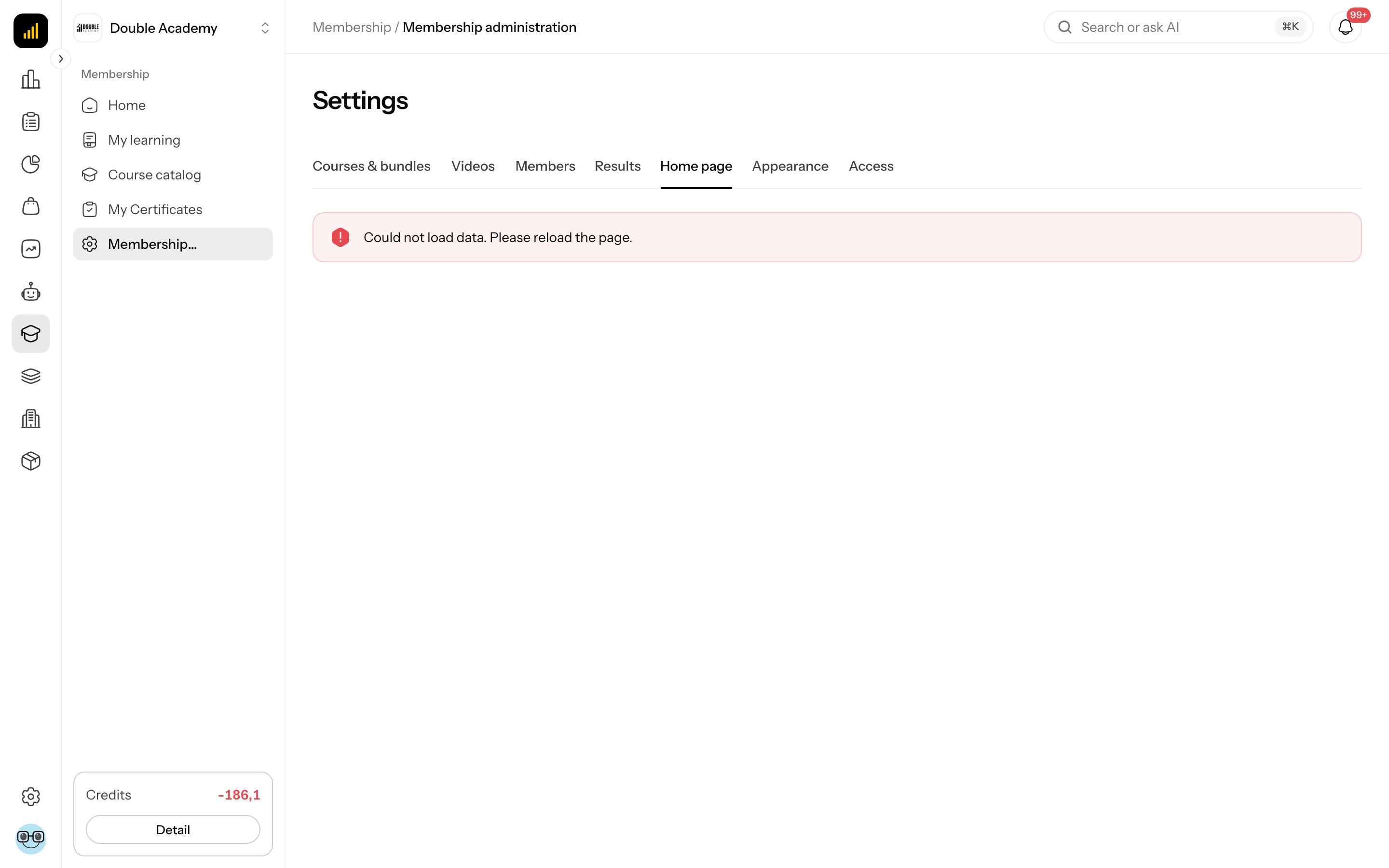
The Settings of Membership have three parts:
| Part | What you set in it |
|---|---|
| Home page | a custom membership home page built from sections — described in its own chapter, Home page |
| Appearance | colours, font and heading size for every page members see |
| Access | which role a person gets when they buy a course and have no account yet |
Where to find it
- In the left menu, click Membership (the graduation cap icon).
- Click Membership administration.
- In the tabs under the heading click Home page, Appearance or Access.
The page heading reads Membership · Settings. The items under Settings are shown only to people with Settings → View.
Work in progress is not lost when you switch between Home page, Appearance and Access. When you leave the page with unsaved changes, the app asks Unsaved changes.
How to set the membership appearance
The Membership section appearance part of Settings (Colours, font and heading size for the whole membership section. Anything you leave empty stays as it looks today.) changes the look of the pages members see: Home, My learning, Course catalog, My Certificates, course and lesson pages. Administration pages (editor, tables) do not change.
Before you start: you need Settings → Edit.
- In the left menu, click Membership → Membership administration.
- In the tabs under the heading click Appearance.
- In the Colours part set what you want to change:
| Field | What it colours |
|---|---|
| Page background | the background of membership pages |
| Card background | the background of course cards and sections |
| Heading colour | headings |
| Description colour | body text and descriptions |
| Text colour on cards | text inside cards |
| Button colour | button background |
| Button text colour | text on buttons |
| Accent (progress, active items) | progress bars and active items |
- In the Typography part pick the Font (System, Inter, Poppins, Montserrat, Roboto, Open Sans, Lato, Playfair Display, DM Sans) and the Heading size (Smaller, Normal, Larger).
- Watch the result in the Preview part (a sample heading, text, course card and button).
- Top right, click Save.
If the chosen colours have low contrast, a warning appears: These colour pairs have low contrast — text on them will be hard to read: with a list of the pairs. You can still save, but we recommend adjusting the colours.
The Reset button (to the right of the Colours heading) returns the colours and font to their original state — then click Save.
How to check it works
In the left menu click Membership → Home or My learning — the pages have the new colours and font.
How to set access for course buyers
The Access for course buyers part of Settings decides which role a person gets when they buy a course or bundle and have no account yet.
How it works: When someone buys a course and has no account yet, one is created for them, they become a member of the organization with the selected role and receive an email to set their password. Only roles with access to the membership section are offered. After setting the password the buyer lands straight in Membership, where the bought course is waiting.
Before you start: you need Settings → Edit. If you want a role of your own, create it first in Permissions and give it Learning and my courses → View — otherwise it does not appear in the list.
- In the left menu, click Membership → Membership administration.
- In the tabs under the heading click Access.
- In the Buyer role row open the select and choose:
- Automatic — role “Študent” — The automatic role is created on the first purchase and can only access the membership section. Existing members keep their role., or
- one of your roles with access to the membership section (its description is shown under the name).
- Top right, click Save.
Successfully saved appears. The setting applies to future purchases. People who already are members of the organization keep their role — they get the bought course on their existing account.
If the configured role has since become unavailable (it was changed so it no longer has access to the membership section), the select shows The configured role is no longer available — pick another.
How to check it works
- Make a test purchase of a course with an email that has no Doubleros account yet.
- After payment, a message to set the password must arrive at that email.
- In Organization → Members a new member with the selected role appears.
- In Membership → Membership administration → Members that person has the bought course.
Who can do this
Permission matrix, module Membership, row Settings:
| What you want to do | Permission needed |
|---|---|
| see Home page, Appearance, Access | Settings → View |
| change and save | Settings → Edit |
Without Settings → Edit the fields are disabled and Access shows You do not have permission to change this setting.
Common questions and problems
Where do I set the certificate design? A custom certificate template is not set in the app. The certificate uses the organization's name, logo and colour, if they are set.
Where do I set sequential learning or the intro video? On the specific course — see Courses & bundles.
Where do I set the course price? In the product — see Products.
Access says "Could not load the course buyer access setting." Reload the page. If the error persists, report it.
My role is not in the list. Only active custom roles with Learning and my courses → View are offered. System roles (Owner, Admin, Member) are never offered. Add the permission to the role in the Permission matrix.
The buyer did not get the email to set a password. The email is only sent to a person who had no account yet. Someone with an account signs in with their own password and finds the course in My learning.
Related
- Home page — a custom membership home page
- Permissions — roles
- Members — assigning a course by hand
- Courses & bundles — settings of individual courses