Knowledge
What it is for
A knowledge item (called a knowledge base in older guides) is a folder of material your AI assistants answer from — documents, pasted text, web pages, audio and video, or videos from Membership. Each item you add is called a source. The system reads the source, splits it into passages, builds a knowledge index from it and prepares the knowledge for the agent.
The assistant then answers from the content of the knowledge you assign to it when you create it in Assistants. One knowledge item can serve several assistants at once.
Where to find it
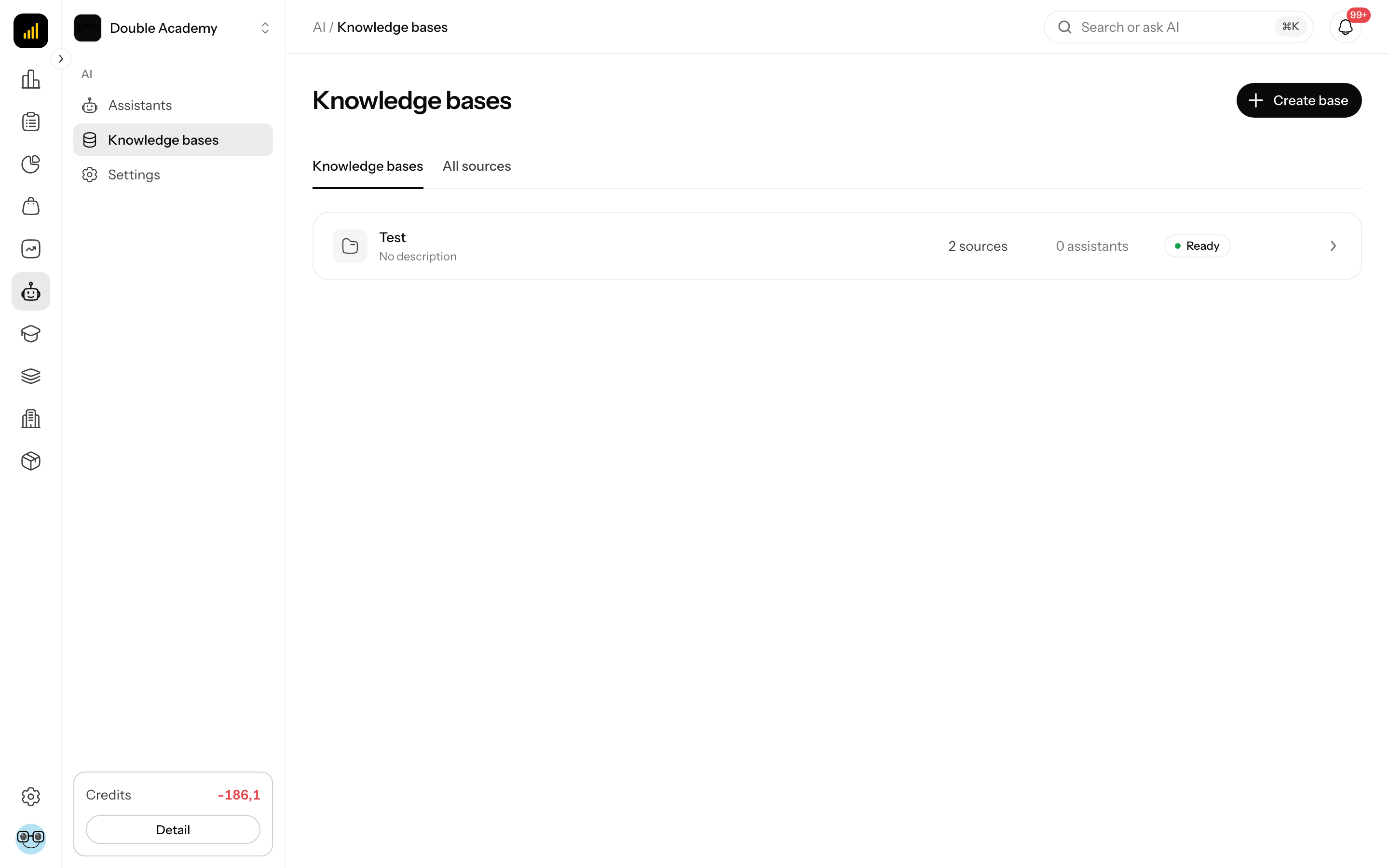
In the left menu, click AI and then the sub-item Knowledge.
The page is a single table of your knowledge. Sources from all knowledge at once are no longer on a separate page — you find the sources in the detail of each knowledge item. The older All sources address redirects you to the list of knowledge.
You only see Knowledge in the menu if you have the right to view knowledge (see the Who can do this section below).
How knowledge works from start to finish
Working with knowledge always follows the same order:
- Add knowledge — just a name and a description.
- Add sources — files, text, web pages, audio/video or a video from Membership.
- Wait for processing — the source goes through Waiting in queue → Reading and checking content → Building the knowledge index → Verifying understanding quality.
- Check the result — the source is either Ready, Awaiting approval or Reindex required. A source that is awaiting approval is approved with Approve if its content is fine.
- Connect the knowledge to an assistant — in Assistants when you create an assistant.
Knowledge appears in the selection when you create an assistant only once it has at least one source in the Ready status. Sources that are still processing or awaiting review do not block the other ready sources.
What I see in the list of knowledge
The Knowledge page shows a table with one row per knowledge item:
| Column | Meaning |
|---|---|
| Name | the name of the knowledge (a link to its detail); the description below it, if it has one |
| Sources | how many sources the knowledge contains |
| Assistants | how many assistants use it |
| Status | the overall readiness of the knowledge (table below) |
On a narrow screen some columns are hidden behind the Details icon at the end of the row. Above the table there is a search and below it pagination. Click the name to open the knowledge detail. The list refreshes by itself while any knowledge is processing.
Until you have any knowledge, the page shows You do not have any knowledge yet with the text Add knowledge and fill it with sources for your assistants. If the list cannot be loaded, you see Could not load knowledge. with a Retry button.
What readiness knowledge has
The status of a knowledge item is calculated automatically from the readiness of its sources:
| Status | When the knowledge has it |
|---|---|
| No sources | the knowledge has no source |
| Processing | at least one source is being processed |
| To reindex: {count} (otherwise Reindex required) | for some source, processed content or agent knowledge is missing |
| Awaiting approval | processing is done, but at least one source awaits approval |
| Ready | all sources are ready |
| Readiness not verified | readiness could not be determined right now |
Knowledge that has at least one ready source can be connected to an assistant — the assistant answers only from the ready sources.
How to add knowledge
Before you start: you need the right to create knowledge. Without it you do not see Add knowledge.
- In the left menu, click AI → Knowledge.
- In the top right, click Add knowledge.
- In the Add knowledge dialog, fill in the fields (table below).
- Click Create.
| Field | Required | Meaning | Limits |
|---|---|---|---|
| Name | yes | what the knowledge is called in the list and in the assistant selection | max. 120 characters; must be unique within the organisation |
| Description | no | what the knowledge is for | max. 500 characters |
After creation, Knowledge created appears and the app takes you straight to the detail of the new knowledge. It shows No sources.
How to check that it works: the knowledge is in the table with the status No sources and 0 in the Sources column.
What I see in the knowledge detail
Open the knowledge detail in AI → Knowledge by clicking its name. From top to bottom it contains:
- Header — the path AI › Knowledge › name with the readiness status. In the top right are Rename, Delete, Reprocess all sources and Add source (each only with the matching right).
- A yellow reindex warning if some sources have no processed content or agent knowledge, e.g. Sources to reindex: 2 of 5. Processed content or agent knowledge is missing.
- Transcription notice if audio and video transcription is not available (see the Frequent questions and problems section below).
- Sources — a grid of cards for all sources of the knowledge.
The knowledge detail refreshes by itself while any source is processing.
How to add a source to knowledge
Before you start:
- You need the right to edit knowledge. Without it you do not see Add source.
- The knowledge must already exist — see How to add knowledge.
- A video from Membership must be uploaded to the Video library.
Steps:
- In the left menu, click AI → Knowledge.
- Click the name of the knowledge you want to add the source to.
- In the top right, click Add source. The Add source dialog opens.
- Pick the source type with one of four tiles: File, Audio or video, Text or Web page. File is selected by default. A video from Membership is added with the separate From Doubleros · Academy button above the tiles — see How to add a video from Membership.
- Fill in the fields for the source type (sections below).
- In Language, keep Detect automatically, or pick Slovenčina, Čeština or English.
- Click Upload and process (for several files Upload and process sources).
While a file uploads you see Uploading: {x}%, for several files Uploading file {n} of {total}: {x}%. On success, Source queued for processing appears (for several files The selected sources were queued for processing), the dialog closes and the source appears under Sources with its processing progress.
A tile with a lock is unavailable and the confirm button is disabled for it — the yellow notice in the dialog explains why (see the Frequent questions and problems section below).
How to check that it works: follow the progress on the source card (e.g. Building the knowledge index · 60%). When the source becomes Ready, the status of the knowledge in the header changes to Ready.
Type File — documents
| Field | Required | Meaning | Limits |
|---|---|---|---|
| Select files | yes | one or more documents | PDF, DOCX, PPTX, TXT, MD, HTML, CSV, JSON, SRT and VTT subtitles; each file max. 100 MB |
| Source name | no | the name of the source in the knowledge | for a single file it is prefilled with the file name without extension; max. 255 characters |
| Language | no | language of the content | default Detect automatically |
Select files opens the file picker; after picking, the button changes to Add more files and above it you see {count} files selected. Remove a file from the list with the cross next to it.
When you pick several files, Source name disappears and the dialog says Each file will be created as a separate source and named after the file.
Type Audio or video
| Field | Required | Meaning | Limits |
|---|---|---|---|
| Select files | yes | a recording or video | MP3, WAV, M4A, MP4, MOV, WEBM; each file max. 100 MB |
| Source name | no | the name of the source in the knowledge | prefilled with the file name; max. 255 characters |
| Language | no | language spoken in the recording | default Detect automatically |
The system transcribes the recording. Only the audio is processed — images, charts and screen demonstrations are not analysed.
Type Text
| Field | Required | Meaning | Limits |
|---|---|---|---|
| Source name | yes | the name of the source in the knowledge | max. 255 characters |
| Paste text | yes | the content itself, e.g. copied terms and conditions | max. 5,000,000 characters |
| Language | no | language of the text | default Detect automatically |
Type Web page
| Field | Required | Meaning | Limits |
|---|---|---|---|
| Source name | yes | the name of the source in the knowledge | max. 255 characters |
| Public URL | yes | the address the system downloads | must start with http:// or https://; max. 2,000 characters |
| Language | no | language of the page | default Detect automatically |
The system downloads the page once, during processing. If the page changes later, the content in the knowledge does not update by itself — use Process again. The page must be public without a login, its content may be at most 10 MB and the system follows at most 3 redirects. The same URL cannot be added twice within the organisation.
How to add a video from Membership
Before you start:
- You need the right to edit knowledge and also the right to view Courses and content in Membership. Without it you do not see From Doubleros · Academy in the dialog.
- The video must be uploaded and processed in the Video library.
Steps:
- In the left menu, click AI → Knowledge and open the knowledge.
- In the top right, click Add source.
- In the dialog, click From Doubleros · Academy. The From Doubleros · Academy dialog opens.
- Click Choose a library video and click the video in the library.
- If the video has captions, the field Existing caption language appears. Keep Prepare source automatically, or pick specific captions.
- Click Add video to knowledge base.
On success the app shows The source is in the knowledge base. Adding it again does not change the existing snapshot.
What happens in the background:
- With specific captions selected, those timed captions are used. The video is not copied and no transcription starts.
- With Prepare source automatically the system uses available captions, and if the video has none, it tries to transcribe its audio. In that case you see This video has no available captions. The system will attempt to transcribe its audio automatically.
- Transcription can consume AI services. A video for transcription may be at most 100 MB.
Who will see the content
The video content follows the permissions of the knowledge, regardless of who has access to the course. Only add content you may share this way.
How to check that it works: the source appears under Sources with the academy icon. In the Source detail window, the video can be played on the Source content tab.
What I see on a source card
Every source under Sources in the knowledge detail is a card in a grid. On the card you see:
- The icon and type of the source (e.g. the file format) and the name of the source.
- The readiness of the source — a coloured label (table below).
- Last processed — the date and time, or — if the source has not been processed yet.
- Processing progress — a bar at the bottom of the card while the source is processing.
Click the card to open the Source detail window. Editing, downloading, approving, reprocessing and deleting a source are in the Actions menu at the top of that window.
What readiness a source has
| Label on the card | Meaning |
|---|---|
| Ready | the source content and the agent knowledge are processed and the assistant answers from them |
| Processing | the source is being processed right now; the status refreshes by itself |
| Reindex required | processed content or agent knowledge is missing — use Reindex source or Process again |
| Awaiting approval | the content is processed, but its use awaits approval |
| Readiness not verified | readiness could not be determined right now |
The detail (separately Source content and Agent knowledge) is on the Overview tab of the Source detail window — see Source detail.
Stages during processing: Waiting in queue, Acquiring video content, Transcribing audio, Reading and checking content, Building the knowledge index, Verifying understanding quality. If processing fails, a Processing error appears on the other tabs of the Source detail window (except Overview).
What the Actions menu in the source detail offers
Open a source by clicking its card and, at the top of the Source detail window, click Actions. The menu contains only the items you can use for that source with your rights:
| Item | What it does | When you see it |
|---|---|---|
| Edit source | opens the dialog to change the title, role and description | with the edit right |
| Download | downloads the original file | only for sources uploaded as a file |
| Advanced analysis | shows the Advanced analysis tab | when the source has a processed revision |
| Approve | activates the revision waiting for review | with the edit right and only for a revision waiting for review |
| Process again | starts new processing | with the edit right; not during Waiting to process and Processing |
| Delete | permanently deletes the source | with the delete right |
The source detail is described in the chapter Source detail.
How to approve a source that is awaiting approval
Before you start: you need the right to edit knowledge. The source must have a revision waiting for review (the Awaiting approval label).
- In the left menu, click AI → Knowledge and open the knowledge.
- Click the source card to open the Source detail window.
- On the Source content tab, compare the text with the original.
- If the content is fine, at the top of the window click Actions → Approve.
After approval, Source version approved appears. The approved revision becomes active and assistants start answering from it. If the content is not fine, do not approve the source — fix the original file, delete the source and upload it again, or try Process again.
How to check that it works: the source has the Ready label.
How to process a source again
Use reprocessing when processing failed, stopped, the web page has changed, or the source is marked Reindex required.
- In the left menu, click AI → Knowledge and open the knowledge.
- Click the source card to open the Source detail window.
- At the top of the window, click Actions → Process again. For a source marked Reindex required you can also use Reindex source on the Overview tab.
Source queued for processing appears and a new revision of the source is created. Until the new revision is ready, assistants use the previous active revision. For a text source, the originally pasted text is processed. If the start fails, Could not start reprocessing appears. Repeated clicks while the source is being queued are ignored.
How to reprocess all sources of a knowledge item
Use bulk reprocessing, for example, after the reindex warning appears for several sources.
Before you start: you need the right to edit knowledge. The button is disabled if the knowledge has no sources or all of them are waiting in the queue or already processing. Processing may use AI credits.
- In the left menu, click AI → Knowledge and open the knowledge.
- In the top right, click Reprocess all sources.
- In the window, read how many sources will be queued (Sources to reprocess: {count}.) and how many will be skipped (Sources already processing will be skipped ({count}).).
- Click Start reprocessing.
After queueing, the window shows the result Queued: {x}. Skipped: {y}. Could not queue: {z}. and a list of sources that could not be queued. Processing continues in the background; you can close the window with Close and follow the progress on the source cards.
How to edit the title, role and description of a source
- In the left menu, click AI → Knowledge and open the knowledge.
- Click the source card to open the Source detail window.
- At the top of the window, click Actions → Edit source. The Edit source dialog opens.
- Change the fields and click Save.
| Field | Required | Meaning | Limits |
|---|---|---|---|
| Title | yes | the name of the source | max. 255 characters |
| Material role | yes | what the source is for the assistant: Unclassified, Knowledge, Methodology, Case study, Communication profile, Workflow | default Unclassified |
| Description | no | a note about the source | max. 1,000 characters |
The dialog notes: Only the description and classification change. Content is not reprocessed, and a material role never automatically becomes an assistant instruction. After saving, Source metadata saved. appears.
How to download the original file of a source
- In the left menu, click AI → Knowledge and open the knowledge.
- Click the source card to open the Source detail window.
- At the top of the window, click Actions → Download.
Download is only available for sources uploaded as a file. Text, web pages and videos from Membership have no original file.
How to rename a knowledge item
- In the left menu, click AI → Knowledge and open the knowledge.
- In the top right, click Rename.
- In the Rename dialog, overwrite Name (required, max. 120 characters, unique within the organisation).
- Click Save.
Knowledge renamed. appears. The dialog changes only the name; the description cannot be edited there. Connected assistants keep using the knowledge.
How to delete a source
- In the left menu, click AI → Knowledge and open the knowledge.
- Click the source card to open the Source detail window.
- At the top of the window, click Actions → Delete.
- In the Delete confirmation (The source and all processed data will be permanently deleted.), click Delete.
Successfully deleted appears. Assistants stop answering from this source. Deletion cannot be undone.
How to delete a knowledge item
- In the left menu, click AI → Knowledge and open the knowledge.
- In the top right, click Delete.
- In the Delete confirmation (This knowledge and all its sources will be permanently deleted.), click Delete.
Successfully deleted appears and you return to the list of knowledge. All sources and stored files of the knowledge are deleted with it. Assistants that answered from it lose this knowledge. Deletion cannot be undone.
DANGER
Before deleting a knowledge item, check the Assistants column in the list. If it is greater than 0, the assistants lose the knowledge they answered from.
Who can do this
Rights are set in Organization → Permissions in the matrix under the AI module, in the Knowledge bases row.
| What you want to do | Right needed |
|---|---|
| see the Knowledge menu, knowledge detail, sources and downloads | View |
| add knowledge | Create |
| add a source, rename knowledge, Reprocess all sources, edit a source, Approve, Process again | Edit |
| delete a source or knowledge | Delete |
| add a video with From Doubleros · Academy | Edit on Knowledge bases + View on Membership → Courses and content |
The organisation must have the AI module enabled. Details in the chapter Permission matrix.
Frequent questions and problems
Why don't I see Add knowledge, Add source or Delete? You lack the corresponding right — see the Who can do this section.
Why is the Audio or video tile locked? The dialog shows Audio and video transcription is not available yet. Audio and video transcription is configured by the platform operator, not by your organisation. Documents, text and web pages work without it. Contact Doubleros support.
Why are all source types locked? The dialog shows Knowledge source processing requires setup. Knowledge processing is not yet set up on the platform. Contact Doubleros support.
What does "A knowledge base named … already exists." mean? The name of a knowledge item must be unique within the organisation. Pick another one.
What does "This URL is already included in the organization's knowledge bases." or "This content already exists in the organization's knowledge bases." mean? The same source is already in one of the organisation's knowledge items. Look through the sources of the individual knowledge in AI → Knowledge.
What does "This file type is not supported or does not match its actual content." mean? The file is not in a supported format, or its extension does not match its content (e.g. a renamed file). Save it again in the correct format, for example as PDF.
What does "The file exceeds the maximum allowed size." mean? The file is larger than 100 MB. Split it into smaller parts.
What does "2 of 5 files were uploaded…" mean? One of the files failed during a bulk upload. Files already uploaded stay in the knowledge, the rest stay selected in the dialog — click Upload and process sources again.
What does "This source is already being processed." mean? A source that is processing cannot be processed again. Wait until processing finishes.
What does "Only a revision awaiting review can be approved." mean? The source has changed status in the meantime. Refresh the page.
What does "The source changed. Refresh the catalog and reopen the editor." mean? Someone else edited the source in the meantime. Refresh the page and open Edit source again.
A web page ended up as Processing failed. What now? On the tabs of the Source detail window other than Overview there is a Processing error with a code. Most often: URL_FETCH_FAILED — the page returned an error; URL_PRIVATE_ADDRESS_FORBIDDEN — the address is not public; URL_CONTENT_TYPE_UNSUPPORTED — the address does not serve text, HTML, PDF, JSON, DOCX or PPTX; URL_CONTENT_TOO_LARGE — the content is over 10 MB; URL_REDIRECT_LIMIT — too many redirects. Fix the address: delete the source and add it again with the correct URL.
What does "The video exceeds the current 100 MB limit." mean? The video to transcribe is larger than 100 MB. Add captions to the video in the Video library — captions are used without transcription.
What does "No downloadable video file is available yet…" mean? The video in the Video library is not processed yet or has no MP4 available. Wait for the video to finish processing and try Process again.
Why is my knowledge not offered when I create an assistant? The knowledge has no source in Ready. Wait for processing, or approve a source that is Awaiting approval or reindex it.
The knowledge shows a "Sources to reindex" warning. What now? Some sources have no processed content or agent knowledge. Use Reprocess all sources in the knowledge detail, or open a single source and click Reindex source.
I see "Readiness not verified" instead of readiness. The app cannot tell right now whether the source is up to date. In the Source detail window use Retry and try again in a moment.
Why is the text of the "What this source is about" block in Czech? The content summary on the Source content tab of the Source detail window is always shown in Czech in the app; the block headings are in the app language.
Related chapters
- Source detail — source content, verification, analysis and history
- Assistants — how to connect knowledge to an assistant
- AI settings
- Ros (AI helper)
- Video library — videos and captions for Membership sources
- AI credits — transcription and analysis consume credits
- Permission matrix