How to launch a phone agent from scratch
What it is for
This walkthrough takes you all the way from an empty organization to a phone agent that takes calls on your line or acts as an online advisor on your website. The path goes through Organization → Integrations (ElevenLabs connection), AI → Knowledge (sources) and Agents → Telephone agents (agent, test, publishing, line).
Before you start
| What you need | Why | Where |
|---|---|---|
| the Agents module in your subscription | without it Agents does not appear | Subscription |
| an ElevenLabs account with an API key | ElevenLabs processes the calls; usage is billed in your ElevenLabs account | ElevenLabs |
| (for a line) a Twilio number imported into ElevenLabs | the agent takes calls on this number | ElevenLabs / Twilio |
| the Agents → Agent settings → Edit permission | to create, set up and publish | Permission matrix |
| access to Organization → Integrations | an administrator connects ElevenLabs | Organization settings |
| at least one team member as the responsible person | receives callbacks | Organization → Members |
Step 1: Connect ElevenLabs
- In the left menu click Organization → Integrations.
- Expand the ElevenLabs section and click Connect ElevenLabs.
- In the Connect ElevenLabs dialog paste the ElevenLabs API key, leave Webhook signing secret empty for now and click Save. The section shows the text Configure the transcription and call initiation failure webhook using your public HTTPS backend URL and this path: with the webhook path.
- In ElevenLabs create a webhook on your public HTTPS address with this path and copy its signing secret.
- In the ElevenLabs section click Update connection, add the Webhook signing secret and click Save. An empty ElevenLabs API key field keeps the stored key.
While the webhook secret is missing, the app reports The API key is saved. Add the webhook secret to complete the connection. The connection applies to all phone agents of the organization.
Step 2: Prepare knowledge
- In the left menu click AI → Knowledge.
- Add knowledge with the information the agent should answer (prices, courses, memberships, opening hours) — see Knowledge.
Step 3: Create the agent
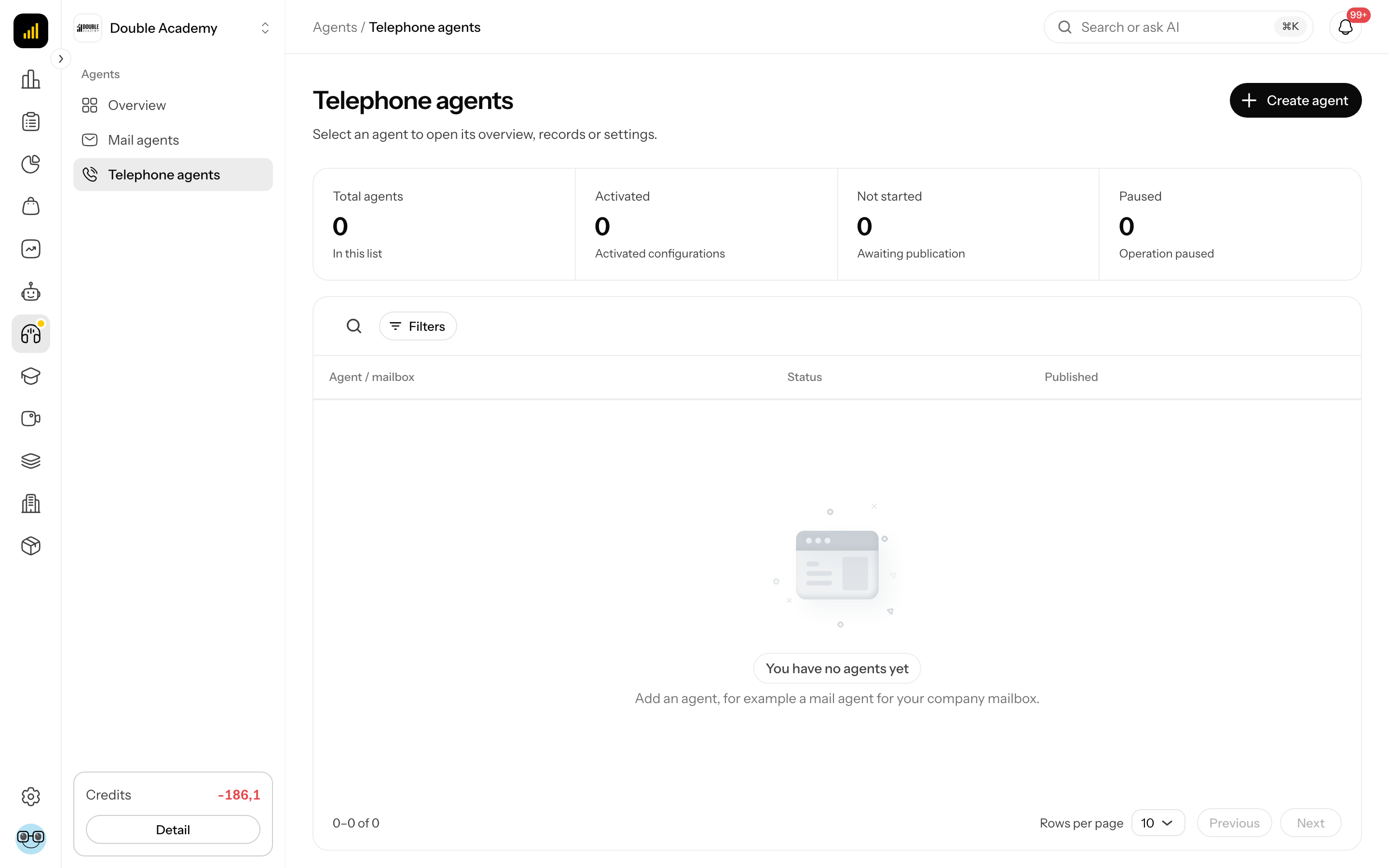
- In the left menu click Agents → Telephone agents.
- At the top right click Create agent.
- Fill in Agent name, click the Phone agent card and Continue.
Step 4: Set the voice, greeting and responsible team member
On the Settings tab:
- Under Voice and greeting choose Voice, Conversation language and Speaking speed.
- Write the Greeting — introduce the AI assistant and explain recording.
- Under Advanced agent settings choose Responsible team member, Greeting language and Time zone.
- Set the retention of Recording and transcript and Summary and caller details.
Step 5: Set behavior and knowledge
On the Agent setup tab:
- Fill in Purpose and Rules and boundaries.
- Under Knowledge search choose Our knowledge base and in Customer-facing knowledge select the base from step 2. (Or choose ElevenLabs, upload the base with Upload and, once it is Ready, tick Use during calls.)
- Click Save draft.
Step 6: Test in the browser
- On the Agent setup tab, under Test call, click Create test and link, keep the defaults and confirm.
- When the test is Ready, click Try agent and Start conversation.
- Ask questions the agent should know the answer to. If it answers wrongly, adjust Rules and boundaries or the knowledge, save and create a new test.
Step 7: Publish
- Click Publish and confirm Publish in the dialog.
- Wait until the step Current version published shows Done.
Step 8: Switch on a customer channel
- Phone line: on the Settings tab, under Phone number, click Assign imported number, choose the number, save and Publish again. With your carrier, forward unanswered calls to this number.
- Online advisor: under Online advisor click Enable and under Customer links and website click Create customer link (for a website choose Website iframe and fill in Allowed websites).
How to check it worked
- The agent's status in Agents → Telephone agents is Accepting calls (line) or Published · no active line (online/test only).
- Call the agent's number or open the customer link — from the customer's side the agent answers and says the Greeting.
- After the call open the Call log — the call has a Call summary, a Transcript and an AI outcome. If the caller asked for a callback, the call is on the Needs you tab.
Common problems on the way
| Problem | Solution |
|---|---|
| Publish is disabled | ElevenLabs is not connected — step 1 |
| Complete the voice, greeting and responsible team member before publishing. | step 4 |
| Configure the webhook signing secret before publishing. | add the webhook secret — step 1 |
| Save your agent changes first. New tests use the saved settings. | click Save draft |
| the agent does not know the answers | no base selected in step 5, or the base is not processed |
| status Published · no active line | assign a number and publish — step 8 |