Payment Gateway
What it is for
The Payment Gateway is the service your customers use to pay an order online — by card, by bank transfer through their bank, or by any other method the gateway offers. Doubleros supports three gateways: Stripe, GoPay and Comgate. An organization always has one active gateway; every form, funnel and the shop of the organization pay through the same one.
Without a gateway an order can still be created, but the customer cannot pay it online.
Where to find it
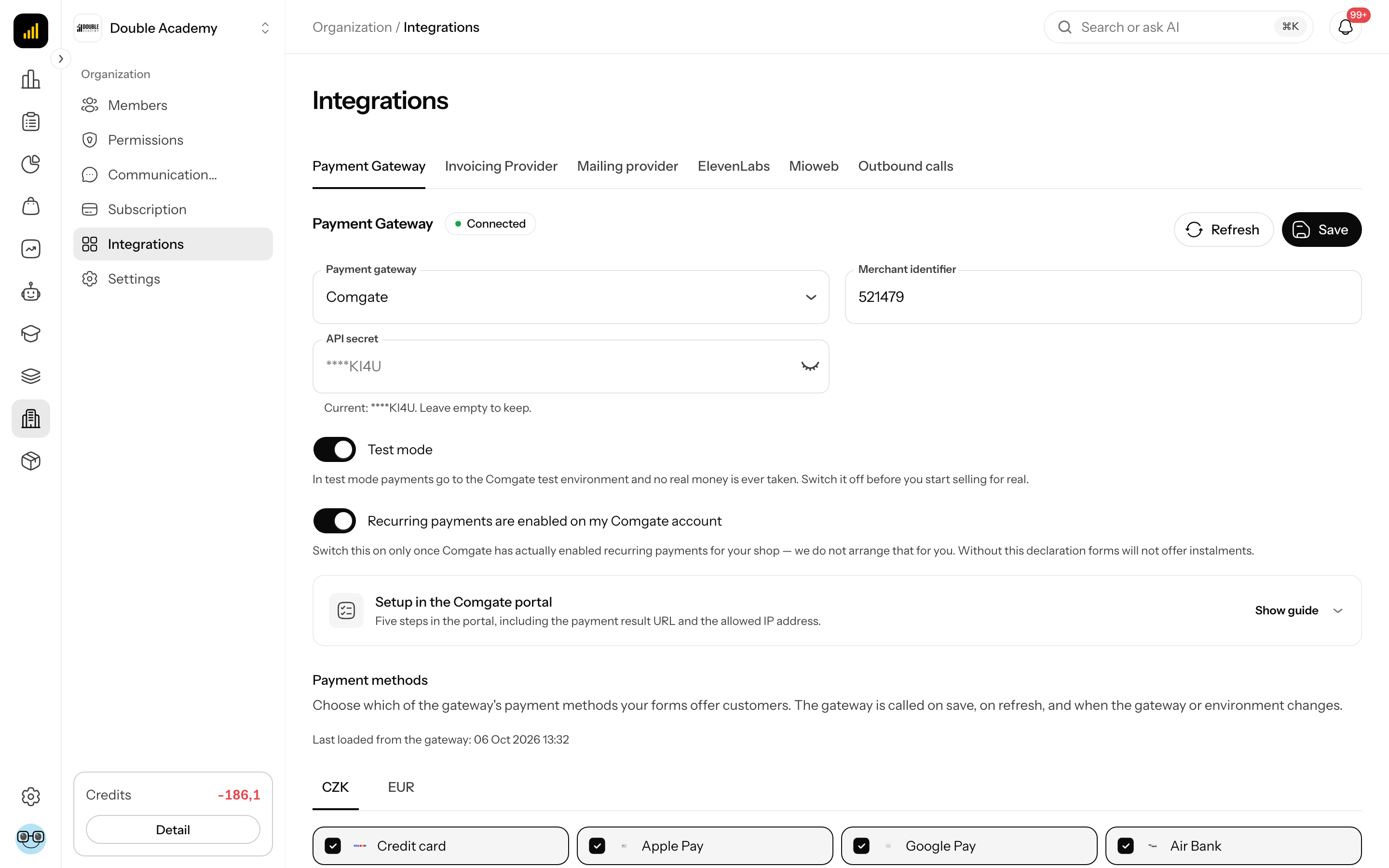
In the left menu click Organization → Integrations. The Integrations page has the integrations as tabs under the heading; click Payment Gateway. Next to the name is a Connected or Not connected label.
Direct address: /dashboard/organization/integrations?integration=payment.
Before you start
Have the following ready before connecting a gateway:
- An account with the gateway — a contract with Stripe, GoPay or Comgate and access to their admin. Doubleros does not open the gateway account for you; it uses your own, and the money goes straight to your account.
- Supported currencies — in Organization → Settings → Localization, the Supported currencies field. Payment methods are loaded per currency; an organization with no currency gets the error The organization has no currency configured, payment methods cannot be loaded. Orders can be paid in EUR and CZK.
- Permission — Organization → Settings → Edit in the permission matrix (see the Who can do this section below).
What I see on the screen
The Payment Gateway panel has three parts:
| Part | What it contains |
|---|---|
| Gateway choice and credentials | the Payment gateway field and, below it, the fields of the chosen gateway |
| Payment methods | which of the gateway's payment methods your forms offer, per currency |
| Buttons at the bottom | Refresh (loads the payment methods from the gateway) and Save |
The Payment gateway field offers None, Stripe, GoPay and Comgate.
Secret keys are shown masked once saved. Below the field is the text *Current: ***1234. Leave empty to keep. — if you leave the field empty, the stored key does not change. The eye icon on the right of the field shows the key you are typing.
How to connect Stripe
Before you start: get your Secret key from the Stripe Dashboard. You create the webhook in Stripe during the steps.
- In the left menu click Organization → Integrations.
- In the tabs click Payment Gateway.
- In the Payment gateway field select Stripe.
- Paste the Stripe Secret key into Stripe Secret Key.
- A Stripe Webhook URL box with an address appears below the fields. Click the copy icon on the right — Copied to clipboard appears.
- In the Stripe Dashboard create a new webhook endpoint with this address. Select the events listed in the box:
checkout.session.completedandcheckout.session.expired. If you also offer payment methods with delayed confirmation (for example bank payments in Stripe), addcheckout.session.async_payment_succeededandcheckout.session.async_payment_failedtoo — Doubleros processes them. - Copy the new webhook's Signing secret from Stripe and paste it into Stripe Webhook Secret.
- Click Save at the bottom of the panel.
After saving, Organization was successfully updated appears and Doubleros immediately loads the payment methods from Stripe. The label next to Payment Gateway turns to Connected once both keys are filled in.
| Field | Required | What it means | Limits / default |
|---|---|---|---|
| Stripe Secret Key | yes | the Secret key of your Stripe account | masked after saving; empty field = keep the stored one |
| Stripe Webhook Secret | yes | the webhook signing secret from Stripe | without it Doubleros cannot verify messages from Stripe and orders are not marked as paid |
| Stripe Webhook URL | — | the address you enter in Stripe | read-only, copied with the icon |
WARNING
Without a webhook the customer pays, but Doubleros learns about the payment only through its periodic check with the gateway. Always set the webhook so the order turns Paid right away.
How to connect GoPay
Before you start: get your GoID, Client ID and Client secret from GoPay. Use the GoPay sandbox credentials for testing.
- In the left menu click Organization → Integrations.
- In the tabs click Payment Gateway.
- In the Payment gateway field select GoPay.
- In GoPay environment select Sandbox (testing) or Production.
- Fill in GoID, Client ID and Client secret.
- If you will sell in instalments and GoPay has already enabled recurring payments for you, switch on Recurring payments are enabled on my GoPay account (see below).
- Click Save.
| Field | Required | What it means | Limits / default |
|---|---|---|---|
| GoPay environment | yes | Sandbox (testing) = test payments without money, Production = live payments | the credentials must belong to the chosen environment |
| GoID | yes | your shop's identifier at GoPay | a number, e.g. 8123456789 |
| Client ID | yes | the login ID for the GoPay API | — |
| Client secret | yes | the password for the GoPay API | masked after saving; empty field = keep the stored one |
| Recurring payments are enabled on my GoPay account | no | your declaration that GoPay has enabled recurring payments | off by default; without it instalments cannot be switched on for forms |
With GoPay no notification address is set in its admin — Doubleros sends it with every payment.
The “Recurring payments are enabled on my GoPay account” switch
The switch turns nothing on at GoPay — it is your confirmation. The text next to it says: Switch this on only once GoPay has actually enabled recurring payments for your GoID — we do not arrange that for you. Besides the permission itself, have the recurring-payment wording on the checkout approved and switch on Account updater (without it most instalments eventually fail on an expired card). While this switch is off, instalments cannot be turned on for any form.
How to connect Comgate
Before you start: in the Comgate portal open your shop's settings, the Shop connections tab, and get the Shop connection identifier and Password.
- In the left menu click Organization → Integrations.
- In the tabs click Payment Gateway.
- In the Payment gateway field select Comgate.
- Paste the Comgate Shop connection identifier into Merchant identifier. Note: this is not the MID value from the shop settings.
- Paste the connection's Password into API secret.
- Leave Test mode on while you test; switch it off before you start selling for real.
- If you will sell in instalments and Comgate has enabled recurring payments for you, switch on Recurring payments are enabled on my Comgate account.
- Click Save.
- After saving, expand the Setup in the Comgate portal box (it is open by itself on the first setup) and do the five steps it lists in the Comgate portal (see the next section).
| Field | Required | What it means | Limits / default |
|---|---|---|---|
| Merchant identifier | yes | the Comgate Shop connection identifier | not the MID |
| API secret | yes | the connection's Password | masked after saving; empty field = keep the stored one |
| Test mode | no | payments go to the Comgate test environment, no real money is taken | switch off before selling for real |
| Recurring payments are enabled on my Comgate account | no | your declaration that Comgate has enabled recurring payments | off by default; without it forms will not offer instalments |
What to set in the Comgate portal
The Setup in the Comgate portal box in the Payment Gateway panel walks you through five steps. In the Comgate portal open your shop's settings, the Shop connections tab, edit the connection (or add a new one) and set:
| Step in the box | What to do in the Comgate portal |
|---|---|
| Identifier and password | copy the Shop connection identifier and Password into the fields in Doubleros |
| Enabled payment establishment type | choose HTTP POST protocol - backend; with any other choice Comgate refuses the payments |
| Url for payment result transfer | paste the address the box shows (copied with the icon); without it the customer pays but the order stays unpaid |
| IP whitelist | paste the server IP address the box shows; if the box shows no IP, tick Allow all IPs |
| Url paid, cancelled and pending | can stay as they are — Doubleros sends its own return addresses |
WARNING
The payment result address contains a security token created only when you save. Until you save the settings, the box says The full notification URL, including its security token, is shown after you save the settings. Until the address is filled in the Comgate portal, orders are marked as paid only by the periodic check with the gateway, with a delay.
How to choose the payment methods the customer sees
The Payment methods section of the Payment Gateway panel decides which of the gateway's payment methods your forms offer to customers. The list is a stored copy of what the gateway allows — Doubleros does not ask the gateway every time a form opens, only on save, when you click Refresh, and when the gateway or environment changes.
- In the left menu click Organization → Integrations → Payment Gateway.
- In the Payment methods section select the currency tab (for example EUR or CZK).
- Click a tile to switch the payment method on or off (the checkbox on the tile shows the state). Bank-transfer tiles show Banks: N — banks cannot be switched off one by one, the customer picks the bank at the gateway.
- Repeat for the other currencies.
- Click Save.
Below the section title is the time Last loaded from the gateway: ….
| Message in the section | What it means and what to do |
|---|---|
| Fill in the gateway credentials above and save — … | the gateway is not saved yet; fill in the details and click Save |
| Payment methods have not been loaded yet. … | click Refresh |
| The saved payment methods no longer match the gateway (since …). Load them again. | something changed in the gateway admin; click Refresh and then Save |
| The payment methods shown belong to a different gateway setup than the one selected. … | you changed the gateway or environment; fill in the credentials, click Refresh or Save |
| The gateway allows no payment method for this currency. | allow payments in this currency in the gateway admin |
| No payment method is enabled for … — customers will have nothing to pay with. | switch on at least one tile |
The “Refresh” button
Refresh at the bottom of the panel reloads the payment methods from the gateway. If you have changed the gateway or environment in the fields and not saved yet, Refresh shows what the new gateway offers but stores nothing — Payment methods were loaded from the gateway. They are not saved yet — save the settings. appears. Otherwise Payment methods were loaded from the gateway. appears.
The button is disabled while no gateway is saved (or while the new gateway's credentials are not filled in) and while saving.
How to change the gateway
An organization can have one gateway only. A change applies to every form, funnel and the shop at once.
- In the left menu click Organization → Integrations → Payment Gateway.
- In the Payment gateway field select the new gateway.
- Fill in its fields (steps above).
- Click Refresh — you see the new gateway's payment methods (not saved yet).
- Switch on the payment methods you want.
- Click Save.
Orders created before the change stay tied to the original gateway. If you sold in instalments through GoPay or Comgate and the new gateway has no confirmed recurring payments, the forms with instalments stop offering them.
How to disconnect the gateway
- In the left menu click Organization → Integrations → Payment Gateway.
- In the Payment gateway field select None.
- Click Save.
Customers can then no longer pay online.
What the customer sees
- In the order form (in a form, a funnel or the shop) the customer picks a payment method from the tiles switched on for the currency they buy in. Card is preselected.
- After confirming the order, Doubleros redirects them to the gateway page. The gateway page opens in Slovak, Czech or English according to the customer's language.
- After paying they return to the thank-you page. Whether the order is paid is decided by the message from the gateway (webhook / notification), not by the customer's return.
- An order with a total of 0 (for example after a 100% discount) is marked paid at once, without the gateway.
How to check it works
- Use test keys with Stripe, the Sandbox (testing) environment with GoPay, and Test mode switched on with Comgate.
- Place a test order on a published sales form and pay it with the gateway's test card.
- In the left menu open Sales → Orders. The order should turn Paid within seconds. If it stays Awaiting payment, check the webhook (Stripe) or the Url for payment result transfer (Comgate).
- After the test switch the gateway to live details (Production, Test mode off, live Stripe keys) and click Save.
Who can do this
| Action | Required permission (permission matrix) |
|---|---|
| see the Payment Gateway panel | Organization → Settings → View |
| change the gateway, keys, payment methods, Refresh, Save | Organization → Settings → Edit |
With View only, the fields are disabled and Refresh and Save are off.
Common questions and problems
The customer paid but the order is still “Awaiting payment”. Most often the webhook (Stripe) or the Url for payment result transfer (Comgate) is missing, or Stripe Webhook Secret holds a different key than the webhook in Stripe. Doubleros learns about the payment later through its periodic check with the gateway, but set up the notifications so it happens at once.
Message “Settings were saved, but the payment methods could not be read from the gateway. …” The details were saved, but the gateway returned no list of payment methods — usually because of wrong credentials or the wrong environment (sandbox vs. production). Fix them and click Refresh.
Error “Payment methods could not be read from the gateway (…). Check the gateway credentials.” The gateway refused the login for the listed currencies. Check the keys and whether your gateway account allows that currency.
Why can't I switch instalments on in a form? With GoPay and Comgate the Recurring payments are enabled on my GoPay account / Recurring payments are enabled on my Comgate account switch must be on. Nothing needs confirming with Stripe. See Instalment sales.
Can I have Stripe and GoPay at the same time? No. The organization has one active gateway; the choice of payment method happens within it.
I changed the payment methods in the gateway admin and the form does not show them. Doubleros uses the stored copy. Click Refresh and then Save.
Related
- Invoicing — invoices and proforma invoices for orders
- Instalment sales — recurring card payments
- Orders — the payment status of an order
- How to start selling a product — the whole path from zero
- Organization settings — currencies and languages