Home page
What it is for
The Home page is the first page a member sees after clicking Membership → Home. By default it shows an overview with where to continue learning and the member's courses. In the settings you can replace it with a custom home page built from sections — text with a video, course tiles, link tiles, promo cards for a webinar, images, buttons, dividers.
The same editor is used to build the bundle page (see Bundles).
Where to find it
- In the left menu, click Membership → Membership administration.
- In the tabs under the heading click Home page.
Or: on the Membership → Home page, click Edit home page at the top right (visible only to someone with the permission Settings → Edit).
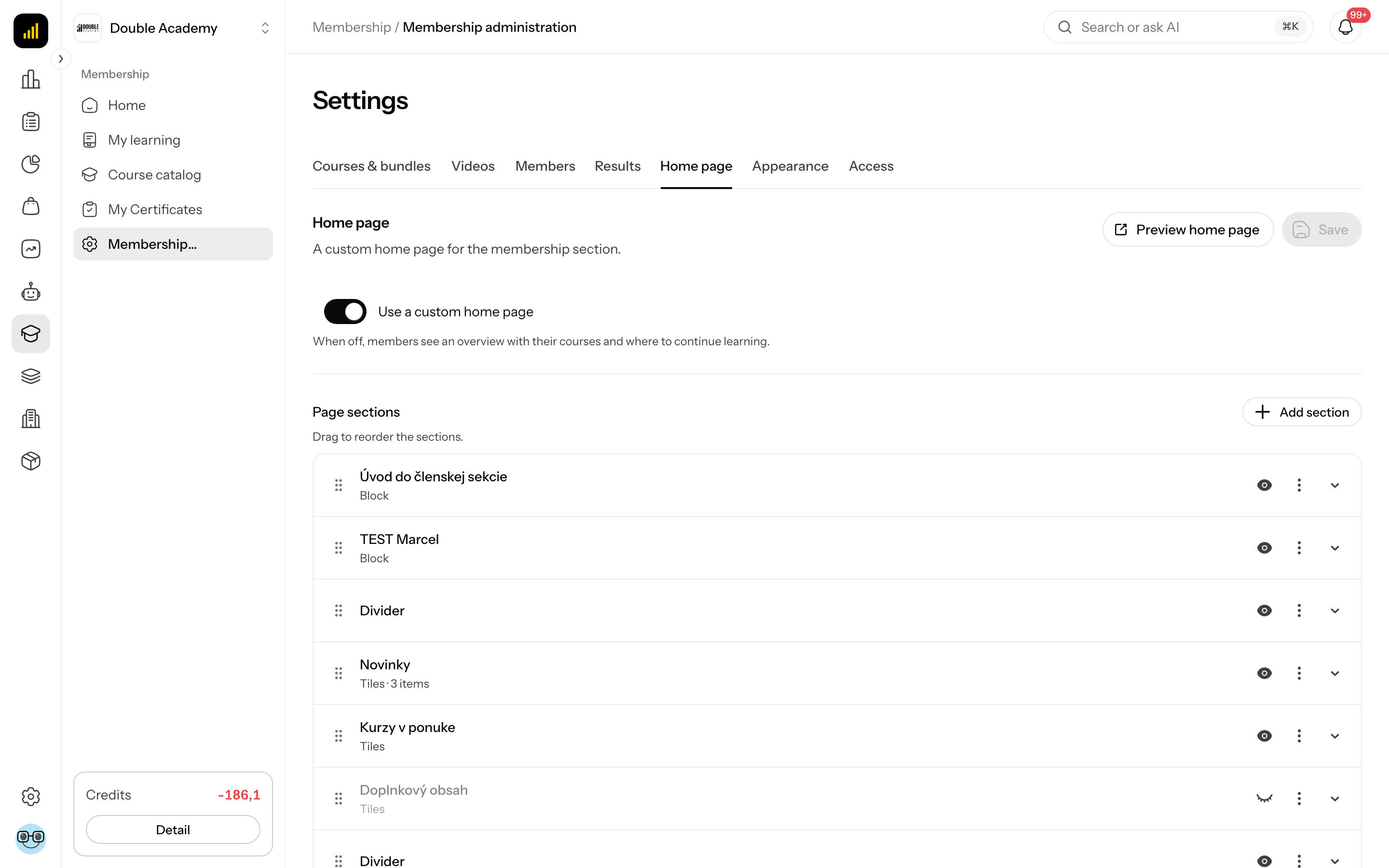
What is on the screen
The Home page editor (A custom home page for the membership section.) has:
- At the top right the buttons Preview home page (opens the Home page in a new tab; with unsaved changes it is called Preview saved home page and shows the last saved state) and Save (active only when you change something).
- The switch Use a custom home page — When off, members see an overview with their courses and where to continue learning.
- Page sections (Drag to reorder the sections.) — the list of sections and the Add section button. A home page that has never been saved opens with a ready-made set: a Block (welcome), Tiles with the source In progress and Tiles with the source My courses.
A section row shows its type and heading. On the row are:
| Control | What it does |
|---|---|
| the dots icon on the left | grab and drag — changes the order of sections |
| click on the row | expands the section editor (one is open at a time) |
| the eye icon (Hide / Show) | hides the section without deleting it; a hidden section is not shown to members |
| "…" → Duplicate | creates a copy of the section right below it |
| "…" → Delete | removes the section after the confirmation Remove this section? |
An expanded section has what the section contains at the top (Heading, text or tiles, Buttons), and the Appearance group below it (width, background, padding, and for tiles also how they look).
Section types
The Add section menu offers these types:
| Type | Description in the menu | When to use it |
|---|---|---|
| Block | Text, buttons, a video or an image. Fill in only what you want; a video or image on its own runs full width. | a welcome, an intro video, text with an image beside it |
| Tiles | Courses, links, events, images and videos in a grid. Build it by hand, or let it fill itself with the member's courses. | courses, link tiles, promo cards, a banner, a video gallery |
| Text block | Just text, with no video or image beside it. | a paragraph, instructions, an announcement |
| Divider | A line and some space between two sections. | separating two parts of the page |
Important: a new Tiles section is added with the source My courses — it shows the member's courses by itself. To put your own tiles in it (a link, a promo card, an image, a particular course), first switch What to show to My own pick. Only then does Section content appear with the Add item button.
How to turn on a custom home page
Before you start: you need the permission Settings → Edit (module Membership). Without it the fields are disabled and Save cannot be clicked.
- In the left menu, click Membership → Membership administration.
- In the tabs under the heading click Home page.
- Turn on the switch Use a custom home page.
- Edit the sections (the steps below).
- Click Save at the top right.
Members see the custom page only when the switch is on and the page has at least one section. Otherwise they see the default overview.
How to check it works
Click Preview home page, or in the left menu Membership → Home.
How to create a link tile
A link tile is a card (image, title) that opens another web address when clicked — for example your website, a Facebook group, Calendly or a page with a recording.
Before you start: have the full address the tile should lead to (it starts with https://) and, if you want one, an image for the tile (5 MB at most).
- In the left menu, click Membership → Membership administration.
- In the tabs under the heading click Home page.
- In Page sections click Add section and choose Tiles. The section is added at the end of the list and opens straight away. (If you already have a Tiles section with your own pick, just click it to expand it and continue with step 6.)
- In Heading type what goes above the tiles (e.g. Useful links). Optional.
- Under What to show click My own pick.
- Under Section content click Add item and choose Link.
- Fill in the item row:
- Link title — the text on the tile (e.g. Our Facebook group),
- URL — the full address, e.g.
https://facebook.com/groups/…, - Tile width — how many grid columns the tile takes (1 column by default),
- Open in a new tab — on (the default): the link opens in a new tab and the member does not leave the membership section,
- the image — drag a file into the upload area or click it and pick a file.
- Add more tiles by repeating steps 6–7.
- If you want, set Tile appearance (e.g. Card or Overlay), Layout and Columns (how many tiles sit side by side) in the Appearance group.
- Check that the Use a custom home page switch is on.
- Click Save at the top right.
Watch out: a Link tile without a URL is dropped when you save — after saving it is gone from the editor and from the members' page.
How to check it works
Click Preview home page. The tile is in the section and opens the address when clicked.
Link, Promo card, Page or Image?
| I want… | Choose the item |
|---|---|
| a plain tile linking to another web address | Link |
| a card that looks like a course, with a description and a badge (e.g. the webinar date) | Promo card |
| a tile leading to another screen of the app (e.g. certificates) | Page |
| an image or banner that leads somewhere when clicked | Image with Link on click filled in |
| a button under the text or under the tiles | a section button, see How to add a button to a section |
How to add a promo card (e.g. for a webinar)
A promo card (A course-shaped card that leads outside the membership — an upcoming event or a webinar, say.) looks like a course tile: it has an image, a title, a description and a badge at the top right. The whole card is the link; it has no button.
- In the left menu, click Membership → Membership administration.
- In the tabs under the heading click Home page.
- Expand a Tiles section whose What to show is set to My own pick. If you have none, click Add section → Tiles and in it My own pick.
- Under Section content click Add item and choose Promo card.
- Fill in:
- Link title — the card title (e.g. Live webinar: How to sell),
- URL — where the card leads (e.g. the webinar sign-up), starting with
https://, - Description — a short sentence under the title,
- Top-right badge — e.g. 12 October or Free,
- Open in a new tab — on by default,
- the card image.
- Click Save at the top right.
Watch out: a card without a URL is dropped when you save. When the event is over, remove the card with the bin icon (or hide the whole section with the eye icon) and save.
How to add an image or banner with a link
- In the left menu, click Membership → Membership administration.
- In the tabs under the heading click Home page.
- Expand a Tiles section with My own pick (or add a new one: Add section → Tiles → My own pick).
- Under Section content click Add item and choose Image.
- Upload the image into the upload area (5 MB at most).
- In Link title describe what the image shows (Used as the image alt text.).
- In Link on click type where the image should lead: a full address
https://…, or an app path such as/dashboard/academy. If the image should not lead anywhere, leave it empty. - Once the link is filled in, Open in a new tab appears — turn it on or off.
- For a full-width banner: in the Appearance group set Columns to 1 and Tile appearance to Image.
- Click Save at the top right.
An image without an uploaded file is dropped when you save.
How to add a tile leading to a page of the app
The Page item leads to another Doubleros screen, for example the member's certificates.
- In a Tiles section with My own pick click Add item and choose Page.
- Fill in Link title and Path — the address of the screen without the domain, e.g.
/dashboard/academy/certificates. To find the path, open the screen and copy the part of the browser address bar from/dashboardon. - Upload an image if you want one.
- Click Save at the top right.
A page always opens in the same tab. An item without a Path is dropped when you save.
How to put particular courses or a video on the home page
- In a Tiles section with My own pick click Add item.
- Choose:
- Course — start typing the course title (Start typing a title…) and pick it from the list,
- Supplementary content — the same, you pick the supplementary content,
- Video — click Pick a video, choose a video from the video library and fill in Link title.
- For courses set Unavailable: Lock with a call to action (a member without access sees the course locked, with a prompt to get access) or Hide (a member without access does not see it).
- Click Save at the top right.
A course you do not pick from the list, and a video with no video picked, are dropped when you save.
How to show courses the member can buy
- Click Add section and choose Tiles.
- Under What to show click From the catalogue.
- Set Count (how many courses at most) and Type: Everything, Courses or Course Bundles.
- In Heading type e.g. You might also like.
- Click Save at the top right.
The section shows published courses and bundles the member does not own yet, so every member sees a different offer.
How to add a button to a section
Every section except a Divider has buttons. In a Block they sit by the text, in the other sections under the section content.
- Expand the section by clicking its row.
- Under Buttons click Add button.
- Fill in Button label (e.g. Book a consultation).
- In Target choose where the button leads:
- App page — type the path into Path, e.g.
/dashboard/academy/certificates, - Link — type the full address
https://…into URL, - Course — start typing the course title and pick it.
- App page — type the path into Path, e.g.
- If you want, set Background colour and Text colour. Empty = the look set for the membership section.
- Click Save at the top right.
The first button is the prominent one, the rest are quieter — drag to reorder. Six per section at most. A button with no target is shown too; it just leads nowhere.
How to put two sections side by side
- Expand the first section and in the Appearance group set Width to 1/2.
- Expand the section right below it and set its Width to 1/2 as well.
- Click Save at the top right.
Sections sit side by side as long as they fit in a row: 1/2 + 1/2, 2/3 + 1/3 or 1/3 + 1/3 + 1/3. On a phone every section is always full width.
How to add and edit a section (all fields)
- In the Home page editor click Add section.
- Choose the section type. The section is added at the end and opens straight away.
- Fill in the section's fields (tables below).
- Click Save at the top right.
Fields common to every section except the Divider:
| Field | What it means |
|---|---|
| Heading | Shown above the section. Leave it empty for no heading. |
| Buttons | Add button — Button label, Target (App page with the field Path, Link with a URL, or Course), Background colour, Text colour. Six per section at most. |
| Appearance → Width | 1/1, 2/3, 1/2, 1/3 — Section width on desktop. On a phone every section is always full width. |
| Appearance → Background | None, Subtle, Card, Accent |
| Appearance → Padding | None, Small, Medium, Large |
| Appearance → Alignment | Left, Center (not for a Block) |
A Block also has:
| Field | What it means |
|---|---|
| Text | the formatted text of the section |
| Media | Video (the Pick a video button, from the video library), Image (upload an image; optionally Link on click and, once a link is filled in, Open in a new tab) or None |
| Media position | Media on the left, Media on the right, Media above the text, Media below the text (only when a medium is chosen) |
A Text block also has: Text.
In the Text field (of both the Block and the Text block) the editor bar has Font and Font size: select the text, open the list and pick a font or a size, or type a size into the box and press Enter. Next to them is Line spacing (pick from the list or type your own value, e.g. 1.3), which applies to the whole paragraph the cursor is in, or to every selected paragraph. Default brings back the look set for the membership section. Enter breaks the line within the paragraph (line spacing tightens it), pressing Enter twice starts a new paragraph.
A Divider has only Padding (the size of the gap).
How to set up tiles (all fields)
A Tiles section shows a grid of tiles. What goes in it is decided by What to show (My own pick = you choose the content by hand. The other options fill the section automatically from what the member owns.):
| Source | What it shows | Further fields |
|---|---|---|
| My own pick | items you add by hand | Section content → Add item |
| My courses (default for a new section) | the courses the member owns | Count, Sorting (Most recent, By title) |
| In progress | courses the member has started | Count |
| From the catalogue | published courses and bundles the member does not own yet (an offer to buy) | Count, Type (Everything, Courses, Course Bundles) |
| Supplementary content | supplementary content the member owns | Count |
When you switch from My own pick to an automatic source, the items added by hand are not shown. A bundle page offers only My own pick and Courses in the bundle.
Items in My own pick (Add item). The required field is listed — an item without it is dropped when you save:
| Item | Fields | Required |
|---|---|---|
| Course | pick a course (Start typing a title…) | the course |
| Supplementary content | pick supplementary content | the supplementary content |
| Promo card | Link title, URL, Description, Top-right badge (e.g. 12 October), Open in a new tab, an image | URL |
| Link | Link title, URL, Open in a new tab, an image | URL |
| Page | Link title, Path (a page of the app, e.g. /dashboard/academy/certificates), an image | Path |
| Image | an image, Link title (Used as the image alt text.), Link on click (an https://… address or an app path; empty = the image leads nowhere), with a link filled in also Open in a new tab | the image |
| Video | Pick a video from the video library, Link title | the video |
Only the Promo card has a description; Link and Page have no description field.
For each item you set Tile width — 1 to 4 columns: how many grid columns the tile takes (a wider tile makes a mosaic). Reorder items by dragging the dots icon, remove them with the bin icon (Remove this item?). If the content has been deleted since, the item says This content no longer exists.
Unavailable (only when the section contains courses or supplementary content): What happens to content the member has no access to: it either shows with a call to action, or does not show at all. The options are Lock with a call to action and Hide. It is not set for the sources My courses and In progress (the member owns everything there).
Tile appearance in the Appearance group:
| Field | Options |
|---|---|
| Tile appearance | Card (image with the title and description below), Image (the image only), Overlay (text over the image), Row (a small image with text beside it), Icon |
| Layout | Grid, List (one under another), Carousel (scrolls sideways) |
| Columns | 1–5 — how many tiles sit side by side on desktop (not set for List) |
| Ratio | the image aspect ratio: 16:9, 4:3, 1:1, 3:4 or Auto |
| Show on tile | title, description, progress (courses only), details |
| Spacing | Small, Medium, Large |
How to reorder, hide or delete a section
In the Home page editor:
- Order — grab the section by the dots icon on the left and drag it.
- Hide — click the eye icon; the section stays in the editor, members do not see it. Switch it back on with Show.
- Duplicate — "…" → Duplicate.
- Delete — "…" → Delete and confirm.
After each change, click Save at the top right. When you delete every section, the page stays empty (No sections yet.) and members see the default overview.
Who can do this
Permission matrix, module Membership, row Settings:
| What you want to do | Permission needed |
|---|---|
| open Settings → Home page | Settings → View |
| change and save the home page | Settings → Edit |
The bundle page is edited by someone with Courses and content → Edit.
Common questions and problems
I cannot see the Add item button. The Tiles section has an automatic source set in What to show (e.g. My courses). Click My own pick.
A tile disappeared after saving. It was missing its required field: the URL of a Link or Promo card, the Path of a Page, the uploaded image of an Image, the picked video of a Video, the picked course of a Course. Add it again and fill the field in.
A link tile does not open a new tab. Turn on Open in a new tab on the item. A Page always opens in the same tab.
I saved the page but members still see the overview. Check the Use a custom home page switch and that the page has at least one section that is not hidden.
The Save button is disabled. You have not changed anything, or you lack the permission Settings → Edit.
A course on a tile is locked. The member has no access to the course. If you do not want to show it, choose Unavailable → Hide.
The preview shows an old version. The preview shows the saved state — click Save first.
Related
- Home — how a member sees the page
- Settings — appearance and buyer access
- Bundles — the bundle page
- Supplementary content
- Video library