Today
What it is for
The Today screen is your personal CRM home screen. It shows only your figures, your tasks and your deals – not totals for the whole team. Open it in the morning to see what is overdue, what needs doing today and how you are doing against your monthly target.
Nothing is created or edited on the Today screen. Every row is a link that takes you to the place where you continue working with the task or the deal.
Where to find it
- In the left menu, click CRM – the item expands.
- Click the first sub-item, Today.
The address of the screen is /dashboard/crm/dashboard.
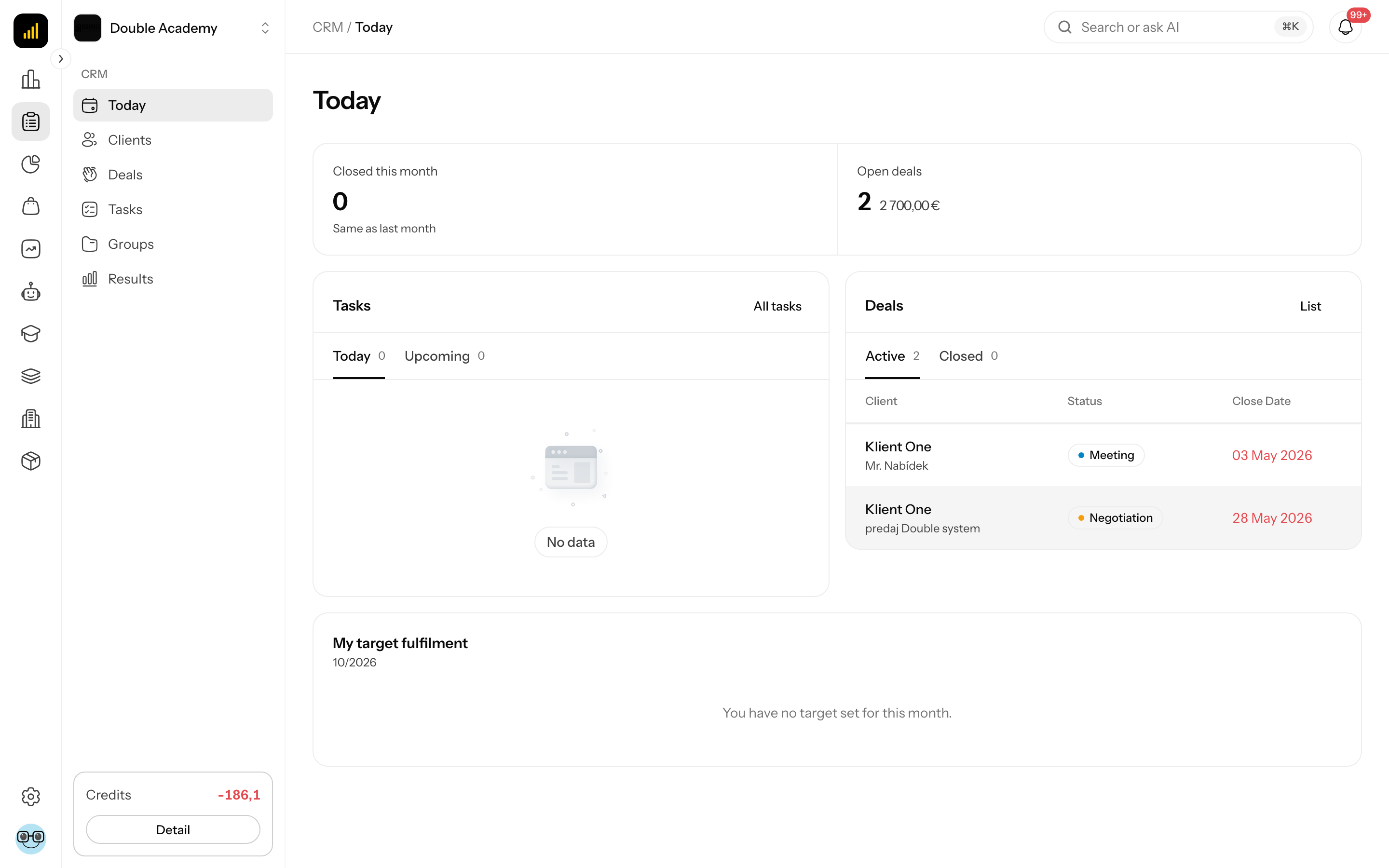
What I see on the Today screen
From top to bottom the Today screen has four parts.
| Part | What it shows |
|---|---|
| Statistics strip | Closed this month and Open deals |
| Tasks card | your unfinished tasks in the Today and Upcoming tabs |
| Deals card | your deals in the Active and Closed tabs |
| My target fulfilment card | a radial gauge of target fulfilment for the current month |
On a computer the Tasks and Deals cards sit side by side, on a phone one below the other.
What Closed this month and Open deals mean
The statistics strip on the Today screen counts only deals of which you are the Owner.
| Figure | What it counts |
|---|---|
| Closed this month | the number of your deals that reached the Won status since the 1st day of the current month; after the number comes their value in each currency |
| Open deals | the number of your deals that are neither Won nor Lost; after the number comes their value in each currency |
Under Closed this month there is a comparison with last month, for example “+2 vs last month”. If you closed as many as last month, it shows Same as last month. A positive difference is green, a negative one red.
A deal is counted in the month in which it was marked as won – later edits do not change that.
How to see which tasks I have today
- Open CRM → Today.
- In the Tasks card keep the Today tab selected.
- Go through the list. Each row shows the client name, the task title and the due date.
The Today tab contains your unfinished tasks (status other than Done) due today or earlier – so it includes all overdue tasks. Overdue tasks have a red Overdue label – for an all-day task with the number of days late (for example “Overdue 3d”), today's tasks have an orange Today label. For a task with a specific time, the time is shown as well.
The number next to the tab is the total number of such tasks. If at least one of them is overdue, the number is red.
The Upcoming tab shows your unfinished tasks due from tomorrow over the next 7 days.
TIP
The card shows at most 10 tasks. The number next to the tab, however, shows the real count. Open the full list with the All tasks button at the top right of the Tasks card – it opens CRM → Tasks on the My tasks tab.
How to open a task from the Today screen
- Open CRM → Today.
- In the Tasks card click the task row.
- The detail of the client the task belongs to opens, directly on the Tasks tab.
- On the client's board click the task card – its detail opens, where you change the status, due date or description. The procedure is in the Tasks chapter.
How to see which deals I have in progress
- Open CRM → Today.
- In the Deals card keep the Active tab selected.
The Active tab shows your deals that are neither Won nor Lost, sorted by expected close date (nearest first). The table has these columns:
| Column | What it means |
|---|---|
| Client | the client name and below it the name of the deal |
| Status | the current stage of the deal |
| Close Date | the expected close date; red if it has already passed |
The Closed tab shows your deals closed as won in the current month. Both tabs show at most 10 rows; the number next to the tab is the real count.
Clicking a row opens the client detail on the Deals tab. The List button at the top right of the card opens the full list CRM → Deals.
How to read My target fulfilment
The My target fulfilment card on the Today screen compares the value of your deals closed as won in the current month with your personal monthly target with the Paid metric. Below the heading is the current month in MM/YYYY format.
- Each currency for which you have a target has its own radial gauge.
- The middle shows the fulfilment percentage; it can be more than 100 %.
- Below the gauge are the actual value and the target, for example “€1,200 / €5,000”.
- Colour: green from 100 %, orange from 60 %, otherwise red.
If you have no target for the current month, the text You have no target set for this month. is shown. A currency you sell in but have no target for gets no gauge.
Targets are set by someone with the right to manage targets in CRM → Results → Targets – see the Targets chapter.
Who can do this
The Today screen is visible to everyone who has View or Own ticked in the permission matrix in the CRM module on the Deals row. The All tasks button is shown only to those who have View or Own on the Tasks row. Permissions are set by an administrator in Organization → Permissions – see Permission matrix.
Common questions and problems
The Today item is missing from the menu. You have no right to deals (neither View nor Own). Ask the organization administrator to adjust your role.
I do not see my colleagues' tasks on the Today screen. That is intended – the screen shows only tasks assigned to you. The whole team's tasks are in CRM → Tasks on the All tab.
A task without a due date does not appear on the Today screen. Both the Today and Upcoming tabs work with the due date. Find a task without a due date in CRM → Tasks.
I won a deal but do not see it in Closed this month. Only deals where you are listed as Owner are counted. Check the owner in the deal detail.
Target fulfilment shows 0 % although I have a target. The gauge compares against a target with the Paid metric in the same currency. A target with the Sold metric or in another currency is not shown on the Today screen.