Recordings
What it is for
Recordings are recordings of live events. Anyone who could not attend an event can watch it later, and you can use a recording as a video in a course lesson.
Each recording is also a video in the Video library — in the Event recordings folder. Changing its name, folder or chapters therefore works the same as for any other video.
Where to find it
In the left menu click Live events → Recordings.
The item appears only if your role has the permission Recordings → View.
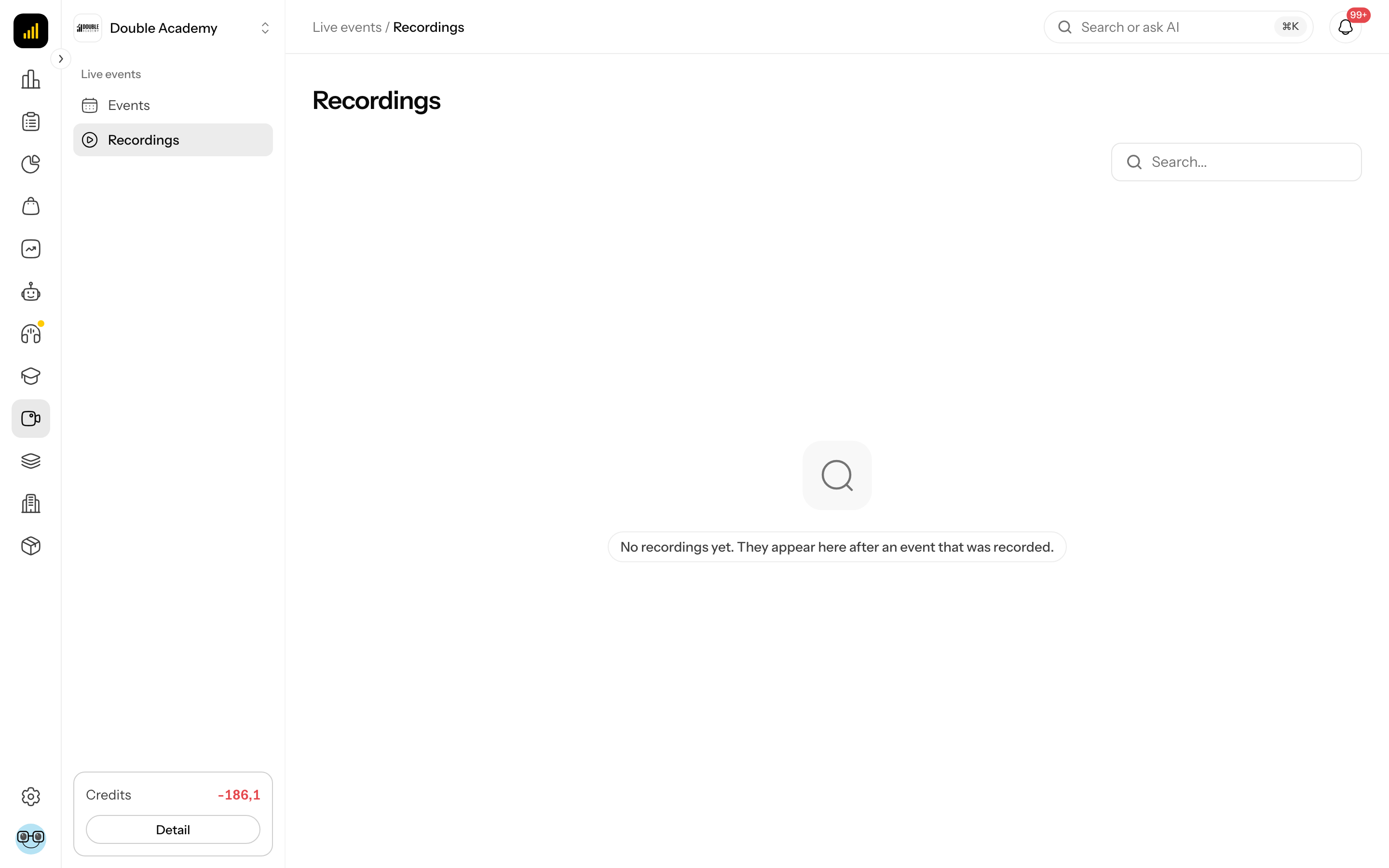
What I see on the screen
The Recordings screen looks the same as the video library:
- at the top right is the Search field — it searches recording names and event titles at the same time,
- below it are the recording cards (thumbnail, name, length and status, if the recording is not finished yet),
- below the cards is pagination (shown only when there are more than 10 recordings). A page first shows 10 recordings; in the pagination you can choose 12, 24 or 48.
A recording's name is made of the event title and the time the recording started, for example CRM webinar — 6. 8. 14:05. This way several recordings of one event can be told apart.
Each card has a … button with a menu:
| Action | What it does | When it is available |
|---|---|---|
| Edit | opens the video detail (the same as in the video library) | once the video has been handed over to the library |
| Statistics | opens the video's viewing statistics | once the video has been handed over to the library |
| Delete | permanently deletes the recording and the video | with the permission Recordings → Delete and when the recording is not being recorded or processed right now |
Clicking a card opens the video detail (like Edit) — only once the video has been handed over to the library; otherwise nothing happens.
If there is no recording, you see No recordings yet. They appear here after an event that was recorded. If the search found nothing, you see Nothing matches that.
How a recording is made
A recording is made in one of two ways:
- Record this event automatically is on for the event — the recording starts by itself after a click on Start event (see How to create an event).
- The presenter clicks Record during the broadcast and later Stop recording (see How to record during the broadcast).
After the recording is stopped or the event ends, the recording is saved and handed over to the video library. You can tell by the label on the recording's card:
| Label on the card | Meaning |
|---|---|
| Processing | the recording is still running, being saved or being handed over to the video library |
| no label | the recording is finished and can be played and used |
| Error | processing failed |
Processing usually takes a few minutes, depending on the length of the recording.
How to use a recording in a course lesson
Before you start
- The recording must be finished (its card in Recordings has neither the Processing nor the Error label).
- The course and module must exist (see Creating courses).
- A new lesson needs Courses and content → Create, changing an existing one Courses and content → Edit (module Membership).
Steps
- In the left menu click Membership → Membership administration → Courses & bundles.
- Click the course row and in the tabs of the editor click Content.
- Expand the module and click Add Lesson (or open an existing lesson).
- Leave the Lesson Type at Video.
- In the Video part click Choose from library. In the Choose a video from the library dialog open the Event recordings folder (or search for the recording by name) and click it.
- Click Save at the bottom of the panel.
Details: Creating courses → How to add a lesson.
How to check it works
Open the course the way a student sees it, go to the lesson and play the video. If the course is not published yet, students do not see it — see Creating courses → How to publish a course.
How to change a recording's name or folder
- In the left menu click Live events → Recordings.
- Click the recording's card, or … → Edit.
- The video detail from the video library opens. Change the name, folder or chapters (see Video library).
- Save the changes in the video detail.
The change shows in the video library too — it is the same video.
How to delete a recording
Before you start
- You need the permission Recordings → Delete.
- The recording must not be being recorded or handed over to the library right now (the Processing label).
- If the video is used in a lesson, detach it from the lesson first.
Steps
- In the left menu click Live events → Recordings.
- On the recording's card click … → Delete.
- In the Remove this recording? dialog read the warning Recording “name” will be deleted for good — including the video in the video library. If it is used in a lesson, detach it there first.
- Click Delete (Cancel takes you back without a change).
The message Recording removed appears.
Deletion cannot be undone
The recording, the video in the video library and at the video provider, and the original recording file are all deleted. It cannot be restored.
Deleting an event does not delete its recordings — they are deleted only here.
Who can do this
Permissions are set by an administrator in Organization → Permissions, module Live Events, row Recordings (see Permission matrix).
| Task | Permission needed |
|---|---|
| see the Live events → Recordings menu and the list of recordings | Recordings → View |
| delete a recording | Recordings → Delete |
| open the detail or statistics of a recording's video | Courses and content → View (module Membership) |
| save changes in the video detail (name, folder, chapters) | Courses and content → Edit (module Membership) |
| start or stop recording during an event | Events → Edit |
Common questions and problems
The recording did not appear after the event. Check whether Record this event automatically was on or whether someone clicked Record. Processing takes a few minutes; reload the page later.
The card has no Edit or Statistics. The video has not been handed over to the library yet (the Processing label), or processing failed (the Error label).
Clicking Edit shows “Something went wrong”. Your role lacks Courses and content → View in the Membership module, without which the video detail does not open.
There is no Delete in the menu. The permission Recordings → Delete is missing, or the recording is still being recorded or processed.
The message "The recording is still being made or transferred. Try again once it is finished." Wait until the Processing label disappears and try again.
The message "This video is used in N lesson(s). Detach it there before deleting." Remove the video from the lessons and try again.
The recording has the Error status. Processing failed. You can delete the recording; if you need it, contact Doubleros support.
Related
- Events — turning on automatic recording
- How to broadcast — recording during a broadcast
- Video library — further work with the video
- Creating courses — using the video in a lesson