Deals
What it is for
A deal is one specific piece of business with a client – from the first contact to payment or loss. It has a status (stage), a value in one or more currencies, an owner and an expected close date. On a deal you write notes, plan tasks, send the client a sales form and store documents.
Deals are created:
- manually – with the Create deal button,
- automatically from a form – when a client fills in a form on the website, in a funnel or on a landing page, a deal in the New status is created, named after the funnel, page or form (the steps of one funnel on the same day are merged into one deal),
- automatically from a purchase – an e-shop order creates a deal or joins an existing one; after payment the deal switches to Won by itself.
Where to find it
- In the left menu, click CRM – the item expands.
- Click the Deals sub-item.
The deals of one client are also in the client detail on the Deals tab – see Clients.
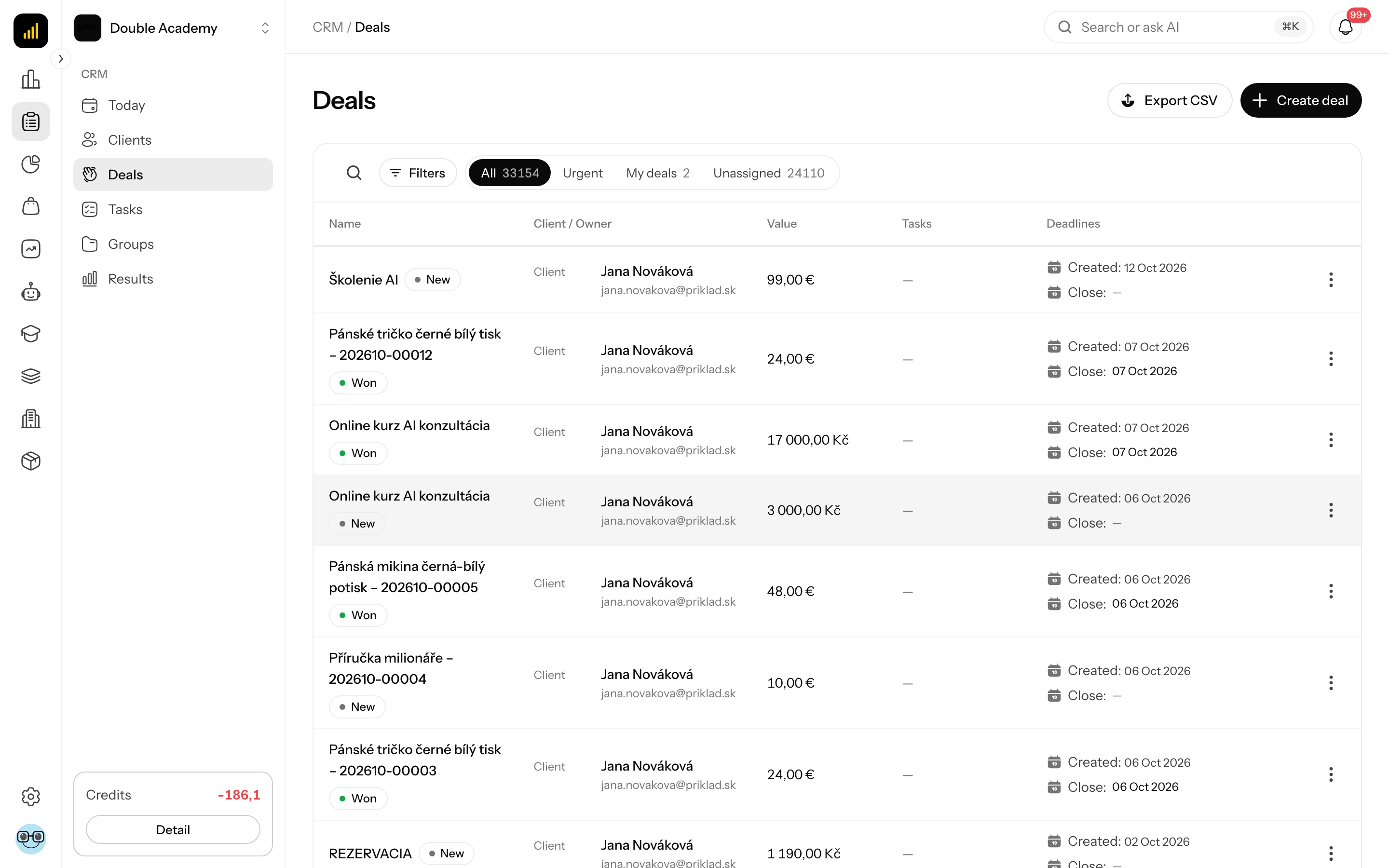
Deal statuses
| Status | When to use it |
|---|---|
| New | the deal has just been created and not yet handled |
| Meeting | a meeting is agreed or has taken place |
| Follow-up | waiting for the client's response |
| Negotiation | price and terms are being negotiated |
| In Progress | agreed, delivery is being worked on |
| Delivery | being handed over to the client |
| Won | the deal is won – final status, cannot be changed |
| Lost | the deal did not work out – requires a loss reason |
The statuses are not a mandatory sequence – you can move a deal to any of them. Two transitions ask for confirmation: to Won (confirmation) and to Lost (loss reason).
What I see in the Deals list
At the top right are the Export CSV button (only with the export right) and the Create deal button.
Tabs above the table (the number is the number of deals):
| Tab | What it shows |
|---|---|
| All | all deals, newest first |
| Urgent | deals sorted by the urgency of open tasks (those with overdue tasks first) |
| My deals | deals you own |
| Unassigned | deals without an owner |
Table columns:
| Column | What it means |
|---|---|
| Name | the deal name and below it a coloured status label; click the label to change the status |
| Client / Owner | the client's name and email (click to open the client detail) and below it the owner |
| Value | the deal amount in each currency |
| Tasks | “done / all” tasks; a red label “number overdue” = overdue tasks, a green “number today” = tasks due today; a dash = no tasks |
| Deadlines | Created: creation date; Close: expected close date, for a won or lost deal the actual date; when overdue it is red with the number of days |
The “…” menu at the end of a row: Edit, More info (columns hidden on a narrow screen), Delete (only with the right to delete).
Click a row to open the deal detail. Below the table is pagination (10 rows by default).
How to search and filter deals
- Open CRM → Deals.
- To search, click the magnifier icon Search and type the deal name, client name, salesperson name, product or SKU.
- For filters click Filters. The Filter data window opens.
- Set the filters and click Done.
| Filter | What it selects |
|---|---|
| Status | one specific status, or All |
| Client | deals of one client |
| Owner | deals of one team member (not available on the My deals and Unassigned tabs) |
| Product | deals with the selected product |
| Currency | deals with a value in the given currency |
| Amount from / Amount to | value range |
| Task state | Has an open task, Has an overdue task, Task due today, No open task |
| Created from / Created to | creation date |
| Expected close from / Expected close to | expected close date |
Active filters are shown as chips under the bar; Reset cancels them all.
How to create a deal
Before you start:
- the client must exist in CRM → Clients – if not, add them first (Clients),
- the currencies in which you enter the value are the organization's Supported currencies (Organization → Settings, see Organization settings),
- you need the Create right on the Deals row.
Steps:
- In the left menu click CRM → Deals.
- At the top right click Create deal. The Create deal window opens.
- Fill in the fields according to the table.
- Click Create.
| Field | Required | What it means | Limits / default |
|---|---|---|---|
| Name | yes | how you recognise the deal in the list, e.g. “Annual licence” | – |
| Client | yes | who the deal is with; start typing a name or email | in the client detail it is prefilled and the field is not shown |
| Status | yes | the initial stage | New by default |
| Value | no | the deal amount; there is a separate field for each supported currency (with the currency symbol) | an empty field = no value in that currency |
| Owner | no | the team member running the deal | you by default; members with a CRM right can be selected |
| Expected close date | no | when you expect it to close | – |
If you pick the Won or Lost status when creating, the application asks for confirmation or a loss reason before saving (see below).
What happens after saving: Successfully created is shown and the deal appears in the list and in the client detail.
How to check that it works: on the My deals tab (if you are the owner) the new deal is at the top; in the client detail on the Deals tab the count goes up.
How to change a deal's status
In the list:
- Open CRM → Deals.
- In the Name column click the coloured status label.
- Choose the new status in the menu.
In the deal detail:
- Click the deal's row.
- In the window header next to the name click the status label with the arrow.
- Choose the new status.
For ordinary statuses the change is saved immediately and Successfully saved is shown. For the transition to Won and Lost continue with the following sections.
How to close a deal as won
- Change the deal's status to Won (in the list or in the detail).
- The Close as won? window appears with the text “This action is irreversible and the deal's value will be counted into the statistics. Do you want to continue?”
- Click Close as won. If you change your mind, click Cancel.
What happens: the deal gets a won date, its value is counted into Closed this month on the Today screen and into target fulfilment. The status can no longer be changed – the label is locked and in the deal detail on hover shows A won deal is closed and its status can no longer be changed. In the detail the Task and Sale buttons disappear.
TIP
A deal for which the client paid an order switches to Won by itself – you do not have to do it manually.
How to mark a deal as lost
- Change the deal's status to Lost.
- The Loss reason window opens.
- In the Reason field choose one of: Price, Competitor, Bad timing, No budget, No response, Not interested, Other.
- Optionally fill in Note (optional).
- Click Confirm.
Without a reason Select a loss reason is shown and the status does not change. You can reopen a lost deal later by changing its status to any other.
What I see in the deal detail
The detail opens as a large window over the list (full screen on a phone).
Header: the name, the status label (click to change), the value and creation date, on the right a pencil icon (Edit) and a cross (Close).
At the top left are the activity buttons: Note, Task, Sale, Documents. For a won or lost deal only Note and Documents remain.
On the right:
- Client – name and email,
- Details – Owner, Value, Close, Created,
- Current tasks – the deal's open tasks; click to open the task detail,
- product overview: Planned products and Purchases linked to this deal (if any).
Below the buttons is the timeline: deal creation, status changes, notes, tasks, shared and submitted forms, orders, payments and documents. For a long history expand it with the Show more button.
At the bottom are the Delete and Close buttons.
How to edit a deal
- Open CRM → Deals.
- Open the Edit deal window in one of two ways:
- in the deal's row click “…” → Edit, or
- click the row (the detail opens) and in the detail click the pencil icon at the top right.
- Change the Name, the Value in individual currencies, the Owner or the Expected close date. Change the status with the label in the window header.
- Click Save.
The client of an existing deal cannot be changed. If you picked the wrong client, create a new deal and delete the original one.
How to add a note to a deal
- Open the deal detail.
- Click Note. The Add note window opens.
- Type the text; selecting text shows the formatting toolbar.
- Click Save.
The message Note added is shown and the note appears in the timeline. On your own note you see Edit and Delete links in the timeline – you cannot edit or delete other people's notes.
How to plan a task on a deal
- Open the deal detail (it must not be Won or Lost).
- Click Task. The Create task window opens with the client prefilled.
- Fill in the Title, and optionally Assignee, Description and Due Date – see Tasks.
- Click Create.
The task is linked to the deal: it appears in Current tasks, in the timeline and in the Tasks column of the list.
How to send the client a sales form (Sale)
The Sale action creates a personal link to your published form. When the client buys through the link, the order is assigned to this deal and the deal's owner becomes the order's salesperson.
Before you start: you need a published sales form with a product (see Forms) and the Edit right on the Deals row.
- Open the deal detail (it must not be Won or Lost).
- Click Sale. The Add sale window opens.
- In the Form field select the form (only published forms are offered).
- Click Save.
- A shared form entry with a link appears in the timeline. Click Copy link (it changes to Link copied!) and send the link to the client by email or message. With Open link you can view it.
The link contains the client's email, first name and last name, so the form is prefilled.
How to check that it works: when the client submits the form, an entry about the submitted form appears in the timeline and Purchased is shown instead of the link. After the order is paid, the deal switches to Won by itself. The link can be used only once.
WARNING
The Send by email link does not work yet – it only shows the message This feature is coming soon. Send the link to the client yourself.
How to add a document to a deal
- Open the deal detail.
- Click Documents. A window with this deal's documents opens.
- Click the Click or drop a file field, or drag the file into it with the mouse.
The same rules apply as for client documents: PDF, TXT, JPG, PNG, WEBP, DOCX, XLSX, PPTX without macros, at most 20 MB, at most 100 documents per deal. Deal documents are visible only to users with access to this deal. You can upload and delete with the Edit right on the Deals row.
How to delete a deal
In the list:
- Open CRM → Deals.
- In the row click “…” → Delete.
- Confirm the question Are you sure you want to delete? with the Delete button.
In the detail: click Delete at the bottom and confirm Are you sure you want to delete this deal?
Deletion is permanent. If the deal did not work out, it is better to mark it as Lost with a reason – the reason is kept and you can evaluate it.
How to export deals to CSV
Before you start: you need the Export deals (CSV) right (in the permission matrix in the Statistics module).
- Open CRM → Deals.
- At the top right click Export CSV.
- The file
deals.csvdownloads; open it in Excel or Google Sheets.
The export contains all deals you have access to – the filters and search on the screen are not applied to the export. With the Own right you export only deals you own. The file has English column names (e.g. name, status, value, currency, owner_name, contact_email, expected_close_at, lost_reason, created_at). If the export fails, Export failed is shown.
Who can do this
Permissions are set by an administrator in Organization → Permissions, CRM module, Deals row – see Permission matrix.
| Right | What it allows |
|---|---|
| Own | deals you own; the My deals tab |
| View | all deals, the All and Unassigned tabs |
| Create | the Create deal button |
| Edit | editing, status changes, notes, Sale, documents |
| Delete | Delete in the list and in the detail |
| Export deals (CSV) | the Export CSV button |
Common questions and problems
The status label cannot be clicked. The deal is Won. This status is final. An attempt to change it shows A won deal cannot be moved to another status.
The Value field is missing in the window. The organization has no Supported currencies set. Set them in Organization → Settings.
The Task and Sale buttons are missing in the detail. The deal is won or lost.
I do not see my form in the Add sale window. Only published forms are offered. Publish the form first.
I do not see the Export CSV button. You lack the Export deals (CSV) right.
When creating, “This field is required” is shown at Client. Select the client from the list – just typing the name is not enough.
Why do I have so many “New” deals? Every form submission creates a deal. Go through them on the Unassigned tab and assign an owner.