How to create and sell a course
What it is for
This guide takes you along the whole path from an empty Membership to a course a student can see and buy: uploading videos → creating the course → modules and lessons → publishing → bundle or product → selling or assigning by hand → checking it from the student's side.
Example: you want to create a course called "Photography basics" and upload your videos into it.
Before you start
| What you need | Why | Where you set it |
|---|---|---|
| Courses and content → View, Create, Edit | building the course and uploading videos | Permission matrix, module Membership |
| Students → Create | assigning the course by hand (step 8) | same place |
| Sales → Products → Create | creating the product the course is sold through (step 7) | same place, module Sales |
| Learning and my courses → View | the course Preview and checking My learning and the Course catalog (step 9) | same place, module Membership |
| the videos on your computer, ideally MP4 (H.264) | they play soonest after upload | — |
| a plan of the course: modules and which video goes into which lesson | each lesson = one video or one text | — |
Step 1 — Upload the videos to the Video library
Videos are never uploaded straight into lessons. They first have to be in the Video library.
- In the left menu, click Membership (the graduation cap icon).
- Click Membership administration.
- In the tabs under the heading click Videos.
- Top right, click New folder, type "Photography basics" into Folder name and click Save. (A folder is optional but keeps things tidy.)
- Click the new folder's tile so you are inside it.
- Top right, click Upload video and drag all the course's videos into the dialog (or pick them by clicking) — several at once is fine.
- Watch the Uploading X of Y panel at the bottom right. Do not close the browser tab until the upload finishes. You can move around the app's pages.
- Wait until the chip on the video changes from Processing to Playable, or until the chip disappears altogether — the video is then ready in every quality. A video marked Playable can already be put into a lesson.
Details: Video library.
Step 2 — Create the course
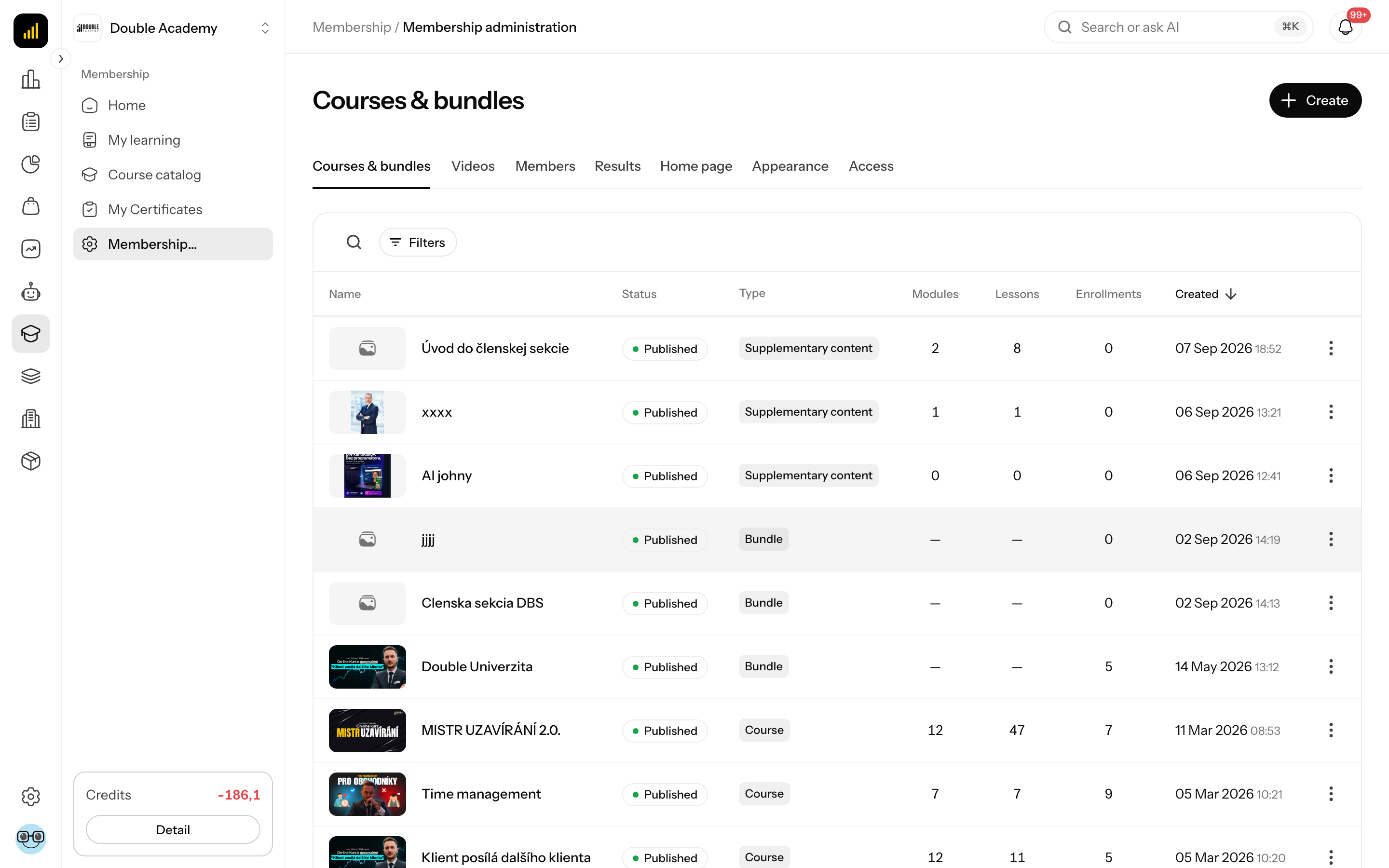
- On the Membership administration page click, in the tabs under the heading, Courses & bundles.
- Top right, click Create and in the menu Course.
- On the New Course page, in the Details card, fill in Course Title: "Photography basics".
- Upload a Cover Image (max. 5 MB) and write a Description.
- Leave the status switch at the right of the Details card header on Draft — nobody sees the course yet.
- At the bottom, click Save.
Below the Details card, the New Course page also has the Learning settings, Intro video, Product and Links cards. You can fill them in right away or later in the course editor (steps 5 and 7).
The course editor opens on the Content tab. Details: Courses & bundles.
Step 3 — Add modules
- In the course editor, Content tab, click Add Module.
- In the Add Module panel fill in Module Title (e.g. "1. Exposure"), optionally Thumbnail and Description.
- Click Save.
- Repeat for every module. Change the order by dragging the Move icon.
Step 4 — Add lessons and give them videos
For each lesson:
- Click the module card to expand it.
- Click Add Lesson.
- Leave the Lesson Type on Video.
- Click Choose from library. In the Choose a video from the library panel (it always opens at Home) click the "Photography basics" folder and then the video. If the Lesson Title is still empty, it is filled in with the video's title — you can overwrite it.
- Optionally add a Description and links for the video in the Links part.
- Click Save. The panel stays open — close it with the cross or Cancel.
You add a text lesson (without a video) with Lesson Type Text and the text in the Content field.
Details: Courses & bundles.
Step 5 — Set learning and the intro video (optional)
- In the course editor, click Settings in the tabs.
- In the Learning settings card turn on Sequential learning if the student should go in order, and Complete lessons automatically if a lesson should be marked on its own after 95% of the video has been watched.
- In the Intro video card click Choose from library and pick the course introduction.
- Top right, click Save.
Step 6 — Publish the course
- In the course editor, Settings tab, Details card: switch Draft to Published.
- Top right, click Save.
The course is now in the Course catalog for members who do not have access to it yet. Its lessons, however, can only be opened by someone with access to the course — that comes from a purchase (step 7) or an assignment (step 8).
Step 7 — Set up selling (product or bundle)
A standalone course:
- In the course editor, click Access & sales in the tabs.
- In the Product card click Link a product.
- In the Select the course product panel click New product. The product form has the type Course and the course name pre-filled.
- Set the price and the variants — each variant is one Course access length with its own price (e.g. 3 months, 12 months, Lifetime). See Products.
- Save the product — it links to the course by itself.
- In the course editor, top right, click Save.
As part of a bundle (several courses for one price): create a bundle, add the course to it and link the product to the bundle instead of the course — see Bundles.
Where the course is sold:
- right in the app — a member who does not have the course yet finds it in Membership → Course catalog; after clicking the course card they see the Buy course button,
- on a website or in a funnel — put the product on a sales page, see Funnels and Forms.
Once the order is paid, the buyer gets access for the length of the variant bought. Someone without an account gets one created and receives an email to set their password — which role they get is set in Settings → Access.
Step 8 — Give access without a purchase (optional)
For a colleague, a client or yourself as a test:
- In Membership administration, click Members in the tabs.
- Top right, click Assign course.
- In the Enroll user dialog start typing a name or email into Select User and pick the person (they must be a member of the organization). In Select Courses pick the course — only courses in the Published state are offered (step 6).
- Leave Lifetime access on, or turn it off and set Access until.
- Click Enroll.
The person gets an enrolment email (unless you have switched that email off) and sees the course in My learning. Details: Members.
Step 9 — Check it works (student's view)
- In the course editor header, click Preview — the course opens in a new tab the way a student sees it.
- If you assigned the course to yourself (step 8), click Membership → My learning in the left menu. On the course card click Start, then on the course page click Start course — the first lesson opens and the video must play.
- To check selling, sign in as a person who has no access to the course (or ask a colleague). In Membership → Course catalog the course must show a lock. After clicking the course card there must be the text You need to purchase this course to access the content. and the Buy course button.
- The Course catalog lists only published courses the signed-in person has no access to yet. If you assigned the course to yourself, you no longer see it in the Course catalog — it is in My learning.
- After the first sale or assignment you see the student in Results and in Members.
Common problems
| Problem | Cause and fix |
|---|---|
| the video is not in the Choose a video from the library panel | it is still processing — wait for the Playable chip, or until the chip disappears |
| the lesson does not save, Video is required | with the Video type, pick a video from the library |
| the course is not in the Course catalog | it is a Draft (step 6), or you already have access to it — then it is in My learning |
| the course is not offered in Select Courses when assigning | the course is a Draft — publish it first (step 6) |
| Preview is missing in the editor header | you lack the Learning and my courses → View permission |
| Buy course is missing on the course | the course has no product — step 7 |
| I can't find the person in Select User | they are not a member of the organization — invite them in Organization → Members |
| the buyer does not see the course | the order is not paid, or the product is not linked to the course |