Organizations and switching between them
What it is for
In Doubleros an organization is a separate space with its own data — its own clients, products, orders, projects, courses and members. One user account can belong to several organizations, for example when you work for more than one company. The organization switcher decides which one you are working in.
Where to find it
On a computer the organization switcher sits at the top of the sidebar panel (name and logo of the current organization). On a phone it is in the top bar.
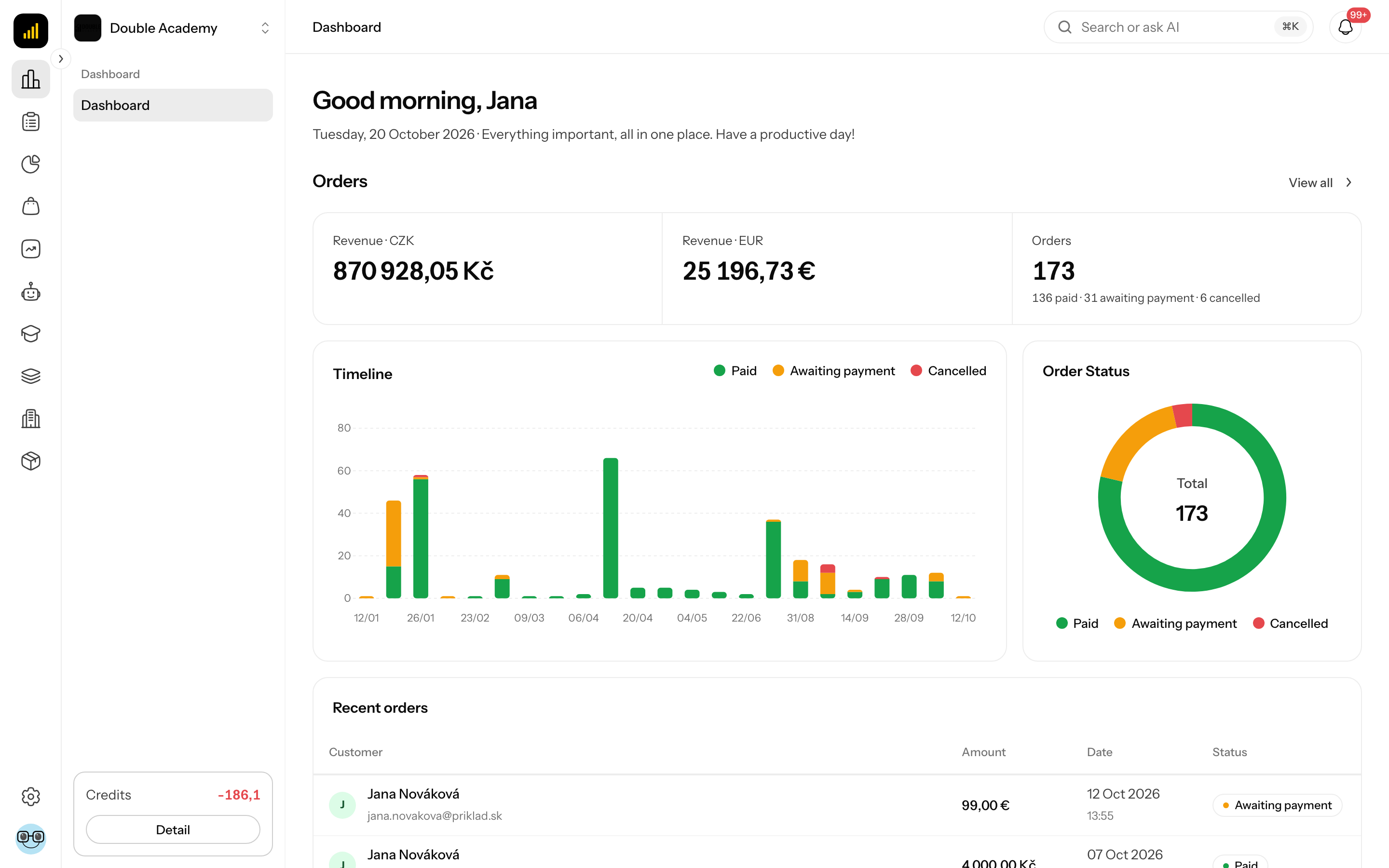
What I see in the organization switcher
Clicking the organization name opens a menu:
| Element | What it means |
|---|---|
| list of organizations | every organization you are a member of; the current one is highlighted |
| tag next to the name | the name of your role in that organization (for example Owner, Admin, Member or a custom role) |
| cog icon | switches to the organization and opens its Settings; shown only where you have permission for organization settings |
| Join an organization | opens the screen for entering an invite code |
| Create organization | opens the Create organization wizard |
How to switch to another organization
- Click the organization switcher at the top of the sidebar panel.
- Click the name of the organization in the list.
After switching, the whole app content changes — the sidebar, clients, products, projects and the numbers on Dashboard belong to the selected organization.
How to check it worked: the switcher shows the new organization's name and the menu contains the modules that organization has switched on.
How to create another organization
Before you start: all you need is a signed-in account. No permission in an existing organization is required.
- Click the organization switcher.
- Click Create organization.
- Go through the five wizard steps — Basic info, Localization, Billing details, Notifications, Integrations — and click Create at the end.
The fields of each step, required data and error messages are described in First-run setup wizard.
How to check it worked: the message Organization created successfully! appears and the new organization shows up in the switcher. You are in it with the Owner role.
How to join an existing organization
There are three ways into another organization:
- An e-mail invitation — an admin invites you in Organization → Members. If you already have an account, you get an e-mail with a link to the invitation and become a member by clicking Accept invitation (valid for 7 days). If you do not, you create one on the invitation page — see Sign-up and e-mail verification.
- An invite link — an admin sends you the link from Organization → Members → Invite codes. It leads to sign-up or sign-in, and then the app joins you with the code by itself.
- An invite code — in the switcher click Join an organization, paste the admin's code into Invite code and click Join organization.
The invite code procedure and its error messages are in First-run setup wizard.
What is separate between organizations and what is shared
Separate is all data: clients, deals, tasks, products, orders, projects, websites, funnels, forms, courses, live events, ambassadors, settings, credits, subscription and the member list. Data of one organization cannot be shown in another or together with another.
Shared is only your account: first and last name, profile photo, password, e-mail language and signed-in devices. A change in your profile therefore applies in every organization.
Why I have different permissions in each organization
In Doubleros a role is assigned per organization. You can be Owner with full access in one and have a limited role in another. Permissions do not carry over between organizations. Your role is changed by an admin of that organization — see Permissions.
Who can do this
- Any signed-in user can switch organizations, create a new organization and join one with a code.
- The settings icon next to an organization in the switcher appears if you have View or Edit for Settings in the Organization module of the permission matrix.
- Invite codes and links are created by a member with Organization → Members → Create on the Invite codes tab — see Members.
Common questions and problems
A client or product I had yesterday is suddenly gone. First check the organization switcher — you are probably in a different organization.
An organization I belong to is missing from the switcher. You have either been removed from it or an admin has suspended your access. Contact that organization's admin.
After signing in I only see the "Welcome to Doubleros" screen. You do not belong to any organization. Create your own or enter an invite code — see First-run setup wizard.
Joining shows "You are already a member of this organization". You already belong to it — pick it in the switcher.