Tasks
What it is for
A task is a specific next step – call the client, send a quote, prepare a contract. It always belongs to a client, can be linked to a deal, has an assigned team member and a due date (all day or a specific time).
Tasks have three views showing the same tasks with shared filters:
| View | What it is best for |
|---|---|
| List | daily work – search, filters, bulk edit |
| Calendar | planning over time – see the Calendar chapter |
| Board | overview by status – moving cards between columns |
Where to find it
- In the left menu, click CRM – the item expands.
- Click the Tasks sub-item. The List view opens.
- Switch the view in the tabs under the heading: List, Calendar, Board.
Filters you set in one view carry over to the others.
Task statuses
| Status | Meaning |
|---|---|
| To Do | the task is waiting |
| In Progress | it is being worked on |
| Done | finished; the task no longer counts as open or overdue |
A task is overdue when its due date has passed and it is not Done. In the list it has a red due date with a clock icon.
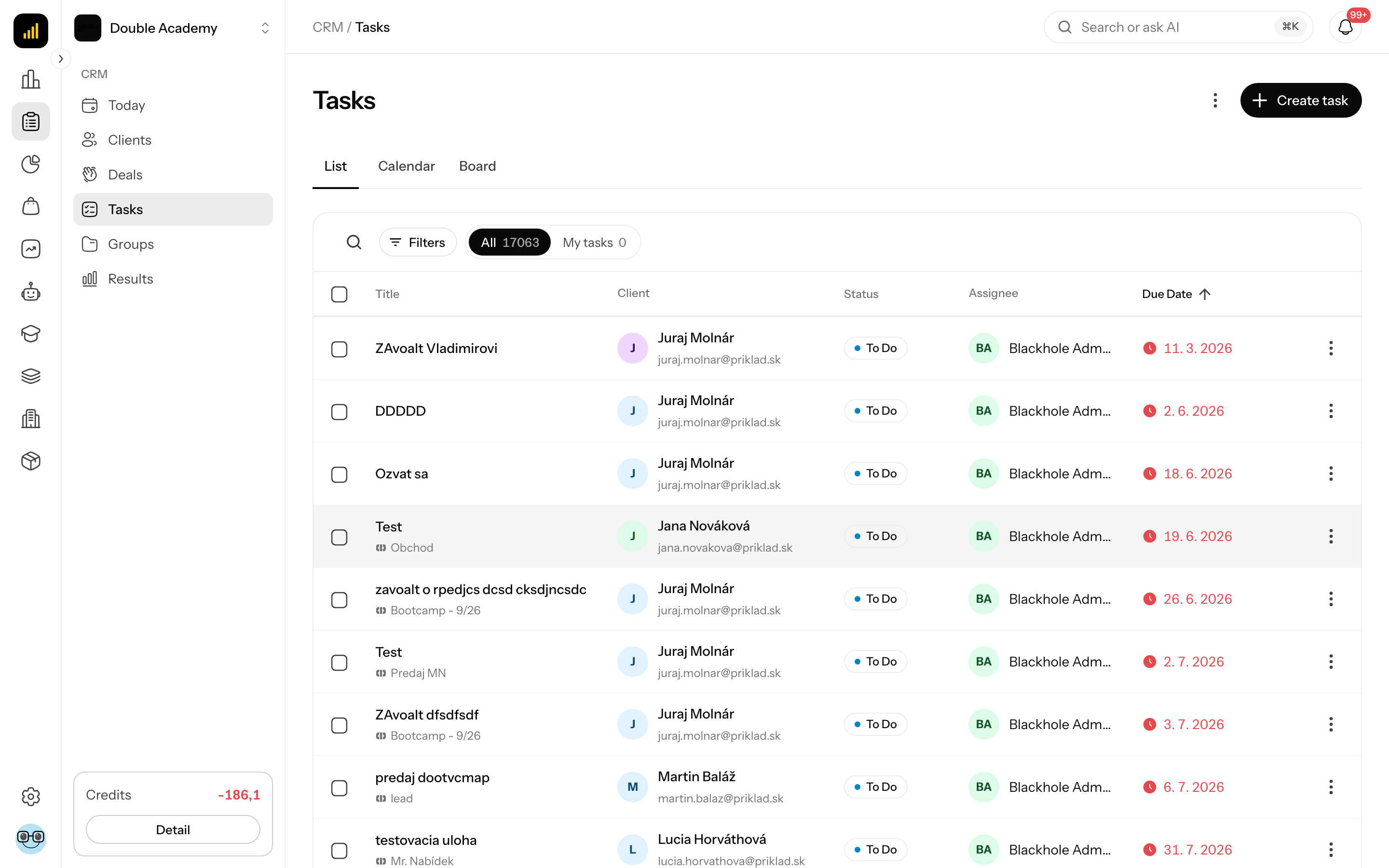
What I see in the List view
At the top right are the three-dot icon Bulk actions and the Create task button.
Tabs above the table:
| Tab | What it shows |
|---|---|
| All | the whole team's tasks (only with the View right) |
| My tasks | tasks assigned to you |
Table columns:
| Column | What it means |
|---|---|
| checkbox | selection for bulk edit; the header checkbox = Select all on page |
| Title | the task title; below it the name of the deal if the task is linked to one (a link) |
| Client | the client's name and email; click to open the client detail |
| Status | To Do, In Progress, Done |
| Assignee | who is to carry out the task; a dash = nobody |
| Due Date | date and possibly time; red = overdue |
By default tasks are sorted by due date (nearest first). Click the Title, Status or Due Date header to change the sorting.
The “…” menu at the end of a row: Edit (opens the task detail), More info (columns hidden on a narrow screen), Delete.
Click a row to open the task detail. Below the table is pagination (10 rows by default).
How to search and filter tasks
- Open CRM → Tasks.
- To search, click the magnifier icon Search and type part of the task title or description, the client's name or email, or the assignee's name or email (at most 100 characters).
- For filters click Filters. The Filter data window opens.
- Set the filters:
- Status – All statuses, To Do, In Progress, Done,
- Client – tasks of one client,
- Assignee – tasks of one team member (only on the All tab).
- Click Done.
Active filters are shown as chips under the bar; Reset cancels them.
How to create a task
Before you start:
- the client the task concerns must exist in CRM → Clients,
- you need the Create right on the Tasks row.
Steps:
- In the left menu click CRM → Tasks.
- At the top right click Create task. The Create task window opens.
- Fill in the fields according to the table.
- Click Create.
| Field | Required | What it means | Limits / default |
|---|---|---|---|
| Title | yes | what needs doing, e.g. “Call about the quote” | at most 255 characters |
| Client | yes | who the task concerns; start typing a name or email | in the client and deal detail it is prefilled and the field is not shown |
| Assignee | no | who is to carry out the task | you by default; the field is visible only to those with the View right on tasks; clearing it leaves the task without an assignee |
| Description | no | details; selecting text shows the formatting toolbar | – |
| Due Date | no | the task date | today's date by default; clear it with the cross (task without a due date) |
| All-day task | – | a switch shown after a due date is entered | on by default |
| Time | yes, if All-day task is off | the specific time of the task | time zone Prague / Bratislava |
What happens after saving: Successfully created is shown. If you assigned the task to someone else, they receive a notification that the task was assigned to them.
How to check that it works: the assigned colleague sees the task on the My tasks tab and on the CRM → Today screen if it is due today or earlier.
You can also add a task:
- in the client detail on the Tasks tab with the Create task button (the client is prefilled),
- in the deal detail with the Task button (the task is linked to the deal),
- in the Calendar view by clicking a day (the due date is prefilled).
What I see in the task detail
Open the task detail by clicking a row in the list, a card on the board or an event in the calendar.
- Header: the title (click to edit it), the status label with an arrow (click to change the status), the creation date, a cross to close.
- Description: a text editor; if the description is missing, it shows Add description....
- Assignee and Due Date (with the All-day task switch and the Time field).
- Created by: who entered the task and, for a task linked to a deal, Deal: with the name and status of the deal (a link).
- At the bottom: Delete, Close, Save.
How to edit a task
- Open the task detail (click the row, card or event).
- Depending on what you change:
- Title: click the title, rewrite it and press Enter (Esc cancels the change). It is saved immediately.
- Status: click the status label and choose a new one. It is saved immediately.
- Assignee: choose another team member. It is saved immediately; the new assignee receives a notification.
- Description and Due Date: change them and click Save. The task detail closes after saving.
- After saving, Successfully saved is shown.
If All-day task is off and you do not fill in the time, Select a task time. is shown. An invalid date reports Enter a valid date.
How to move a task on the board
The Board view has three columns: To Do, In Progress, Done.
- Open CRM → Tasks and click Board in the tabs.
- Grab a task card with the mouse and move it to another column.
- Drop it. The status is saved automatically.
Click a card to open the task detail. Above the board are the same tabs and filters as in the list and the Create task button.
TIP
The board shows the current page of tasks. Use pagination to see more. The order of cards within one column does not change by dragging.
How to bulk edit tasks
Bulk edit sets the same due date, status or assignee for several tasks at once.
- Open CRM → Tasks (the List view).
- Tick the tasks on the left, or use the header checkbox to select all on the page.
- At the top right click the three-dot icon Bulk actions.
- Choose Bulk edit (number). Without selected tasks the item is inactive.
- In the Bulk edit window fill in only the fields you want to change:
- Due Date (with All-day task and Time),
- Status – Don't change by default,
- Assignee.
- Click Save (it becomes active only after you fill in at least one field). The Confirm bulk edit window appears with the list of changes.
- Click Save. The Back button returns you to editing.
After saving, number tasks updated. is shown. Empty fields stay unchanged. The selection applies only to the current page – it is cleared when you change the page, filter or sorting. So you can edit at most as many tasks at once as fit on one page (at most 100). With the Own right only tasks assigned to you are changed; the other selected tasks are skipped – the number in the message is the number actually updated.
How to delete a task
- In the list click “…” → Delete in the task's row, or click Delete in the task detail.
- Confirm the Delete window with the text This action cannot be undone. with the Delete button.
The deleted task disappears from the list, calendar, board and from the deal.
Who can do this
Permissions are set by an administrator in Organization → Permissions, CRM module, Tasks row – see Permission matrix.
| Right | What it allows |
|---|---|
| Own | you see only the My tasks tab; you edit, move on the board and delete only tasks assigned to you; bulk edit changes only your tasks |
| View | the All tab, the Assignee filter, the Assignee field when creating |
| Create | the Create task button, creating by clicking in the calendar |
| Edit | editing any task, moving in the calendar, bulk edit |
| Delete | deleting any task |
Common questions and problems
I do not see the All tab. You have only the Own right. Colleagues' tasks are visible only to those with View.
The Assignee field is missing in the Create task window. Without the View right the task is always assigned to you.
A card on the board cannot be moved. You lack the Edit (or Own) right on the Tasks row. With the Own right you can move only your own tasks.
The fields in the task detail are grey and cannot be changed. The task belongs to someone else and you have only the Own right.
Bulk edit is inactive. First tick at least one task.
Bulk edit reports “Failed to save the bulk edit.” The server rejected the edit – most often because the chosen Assignee is no longer an active team member, or you have neither Edit nor Own on the Tasks row. Check the assignee and try again.
The message “This time does not exist during the spring clock change. Choose another.” On the night of the clock change some times do not exist (e.g. 2:30). Choose another time.
Where is bulk delete? Bulk actions offer only Bulk edit. Delete tasks one by one.