How to run a live event and invite an audience
What it is for
The guide How to run a live event and invite an audience takes the organiser from preparing the audience to a finished recording: you prepare who should see the event, create the event, send the invitation, broadcast it and reuse the recording. It touches the modules Organization (permissions), CRM (groups), Live events and Membership (video library).
Before you start
- Your organization's plan must include Live events — otherwise there is no Live events in the menu.
- You need the permissions Events → Create and Edit (module Live Events), and for the permissions step also Permissions → Edit.
- Have a computer with a camera and microphone and a current browser.
- Viewers must have a user account in the app and be members of the organization. A contact without an account cannot join.
Step 1: Give viewers the permission to watch events
- In the left menu click Organization → Permissions.
- In the role tabs click the role the viewers have.
- In the matrix, in the Live Events module, tick the View column in the Events row.
- Top right, next to the role name, click Save.
In detail: Permission matrix.
Step 2: Prepare the audience (only if the event is not for everyone)
If only some people should see the event, prepare one of these options:
- a role these people have,
- a CRM group — its contacts must be linked to user accounts,
- or pick them directly by name in step 3.
Step 3: Create the event
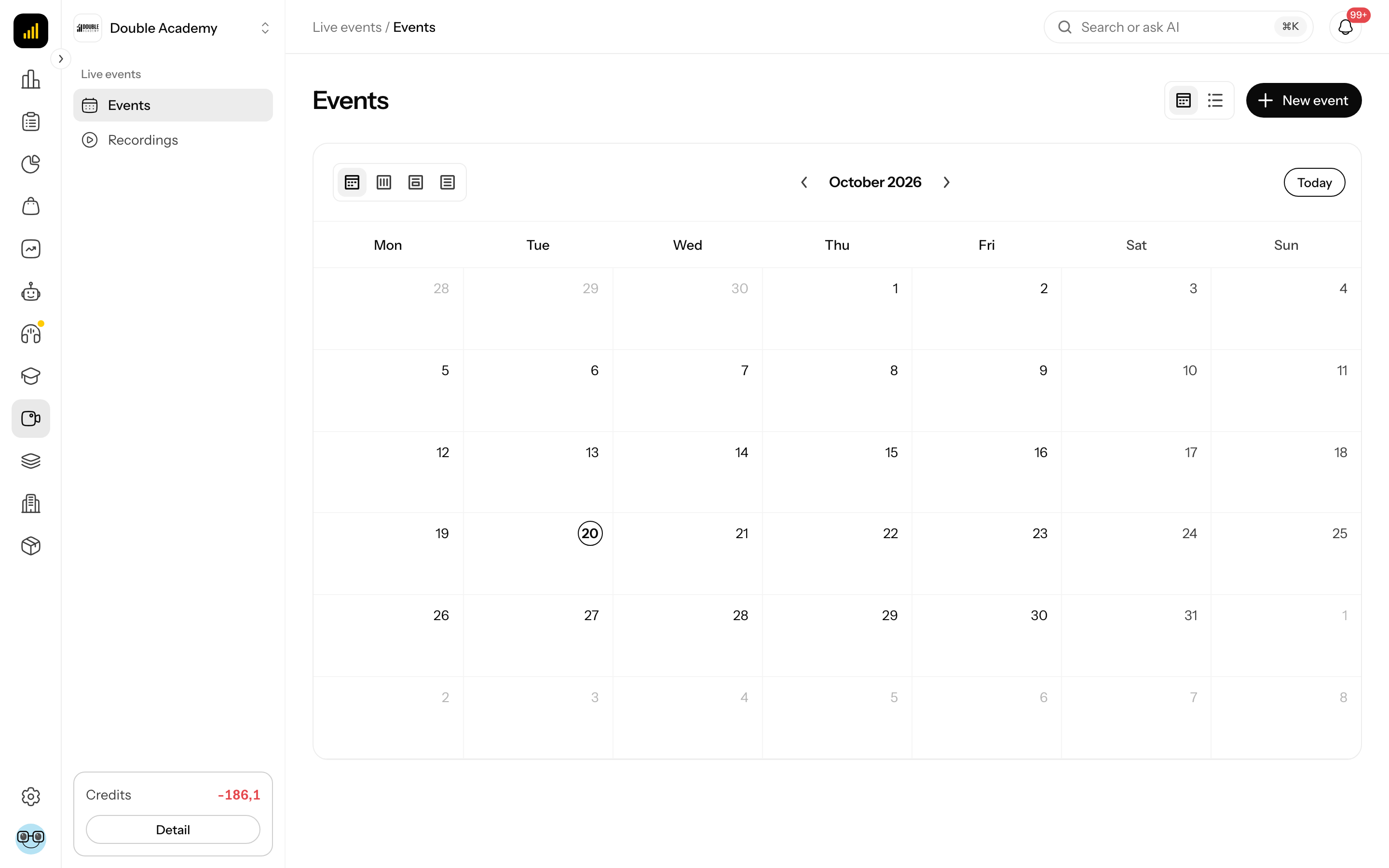
- In the left menu click Live events → Events.
- At the top right click New event.
- Fill in the Title and Description, choose the Event type (Broadcast or Group call), Starts at and Ends at.
- Leave the Status at Scheduled.
- In Who can watch choose All members, or Selected members only and add the audience in the Roles, groups or people field. Check the text below the field — Covers N members.
- If you want a recording, turn on Record this event automatically.
- Click Create.
In detail: Events → How to create an event.
Step 4: Send the invitation
The app does not send invitations by itself.
- In Live events → Events switch to the List view.
- In the event's row click … → Copy link.
- Send the link to the audience by e-mail or another way, with the date and time.
Whoever opens the link signs in and lands on the event page. The chat is open even before the start (in the Scheduled status). Anyone who is not in the event's audience sees only Event not found.
Step 5: Test your equipment before the start
- About 15 minutes before the start open the event page (by clicking the event in the calendar).
- Below the picture click Start video and Unmute, and Share screen if needed. Until you click Start event, only you see yourself (the Preview — only you label).
In detail: How to broadcast.
Step 6: Broadcast the event
- At the start time click Start event (for a group call Start the call and then Join the call).
- During the event watch the Chat and moderate via Participants as needed.
- At the end click End and confirm with End.
WARNING
A Scheduled event that nobody starts before its planned end switches to Cancelled automatically a few minutes after its planned end.
Step 7: Use the recording
- After the end wait a few minutes for processing.
- In the left menu click Live events → Recordings — the recording no longer has the Processing label.
- To make the recording available to those who missed it, put it into a video lesson of a course — the recording is in the Video library in the Event recordings folder. Steps: Recordings → How to use a recording in a course lesson. The recording is then visible to students who have access to that course.
In detail: Recordings.
How to check it works
- Before the event: ask one viewer to open the link. They must see The broadcast has not started yet (not Event not found).
- During the event: the viewer sees the picture and the LIVE label.
- After the event: there is a new recording in Live events → Recordings.
Who can do this
| Step | Permission needed |
|---|---|
| viewers' permissions | Permissions → Edit |
| creating the event | Events → Create |
| broadcasting, recording | Events → Edit |
| watching | Events → View + being in the audience |
| recordings | Recordings → View |
Common questions and problems
After opening the link a viewer sees "Event not found". They are not in the event's audience, or the event is a Draft — check step 3, points 4 and 5, and with a CRM group the link between the contact and the account.
A viewer does not see Live events in the menu. Step 1 is missing.
Viewers see an empty picture. The event is Live but you have no source turned on. Click Start video or Share screen.