Mail agents
What it is for
A Mail agent is an AI assistant for the company e-mail mailbox. It sorts incoming e-mails and filters out spam, and prepares replies to customer questions and price quotes from your price list. It sends nothing without your approval unless you switch on automatic mode yourself.
The Mail agents page lists all mail agents; an agent's detail gives you its overview, the list of processed e-mails, the approval inbox and its settings.
Where to find it
In the left menu click Agents → Mail agents. The number next to the menu item shows how many e-mails wait for approval across all mail agents.
Open one agent's detail by clicking its row in the list.
What I see on the screen
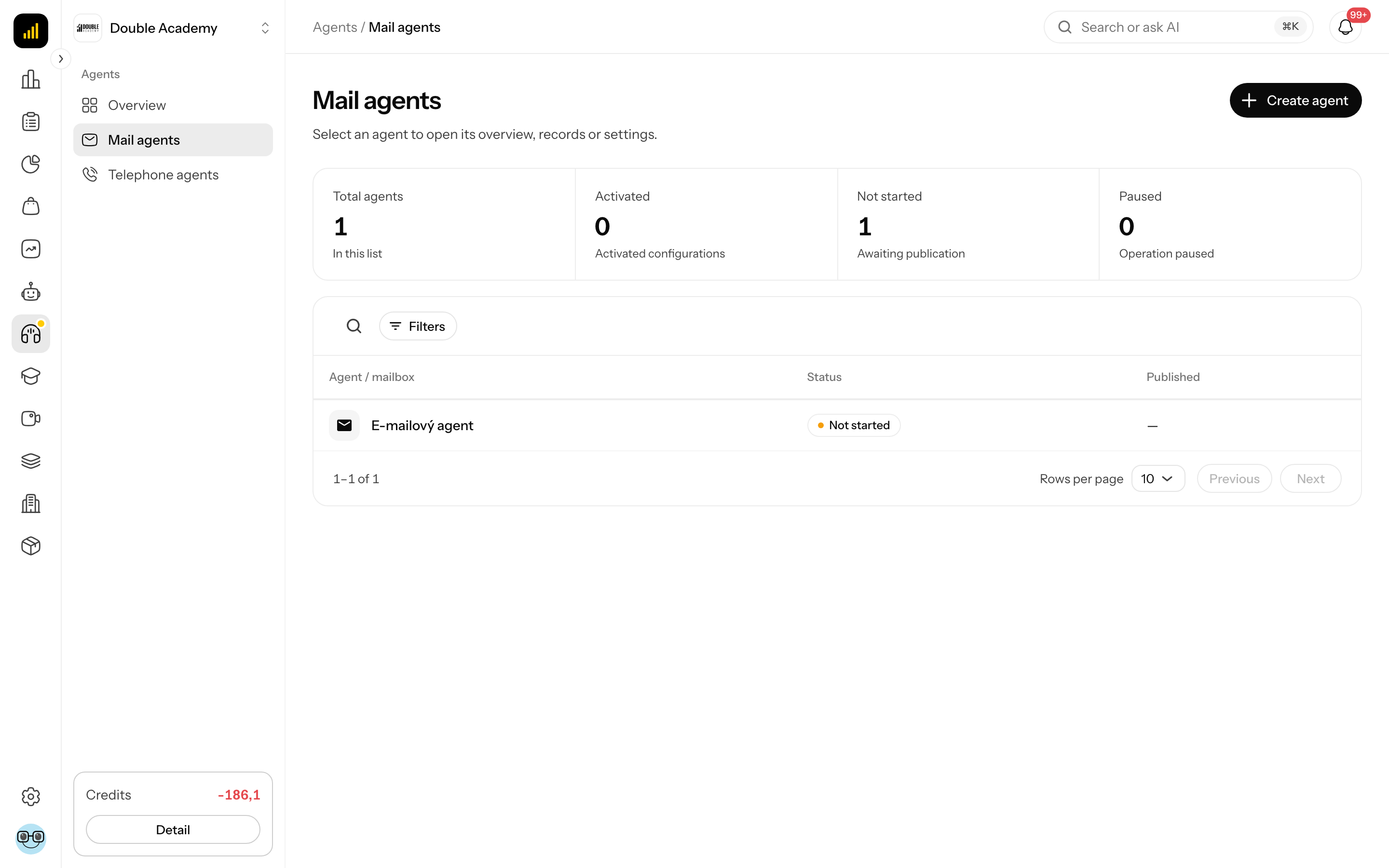
The Mail agents list is built like the agents overview: a strip of totals (Total agents, Activated, Not started, Paused), the Search and Filters buttons above the table and the Create agent button at the top right. The table shows the columns Agent / mailbox, Status and Published.
The mail agent detail has the breadcrumb Agents / Mail agents / agent name in its header and these controls on the right:
| Control | What it does |
|---|---|
| status label | Not set up, Being set up, Ready to start, Not started, Running or Paused |
| switch | switches the agent on or off; the tooltip shows Start agent or Pause agent |
| bin icon | Remove agent (only with the delete permission) |
| pencil icon | Rename agent |
| Check mailbox | only on the E-mails tab: the agent checks its mailbox right away |
While a new agent is being set up, a progress strip appears under the header (e.g. The mailbox is connected, downloading e-mails, Sorting e-mails: … of …, Analysing the mailbox: …).
Detail tabs:
| Tab | What it contains |
|---|---|
| Overview | statistics, the processing workflow, what the agent is doing now, what waits for approval |
| To approve | reply drafts waiting for you; the number on the tab is their count — see To approve |
| E-mails | all e-mails the agent processed |
| Settings | mailbox connection, sorting, replies and approval — see E-mail settings |
Without Requests → View you see only the Settings tab.
What the Overview tab shows
The Overview tab of a mail agent shows what the agent does and with what result.
- Agent setup — while the agent has not started, a card at the top lists the setup steps (Mailbox and name, Knowledge base, Replies, Sorting, Review and start), each step's state (Done, Required, Recommended), the text … of … steps done and the Start agent button. The data below then comes only from e-mails the agent read during setup — it has not answered anything yet.
- Statistics period — the switch Today, 7 days, 30 days. It applies to all numbers below.
- Number cards: Processed e-mails, Waiting for approval (from all mailboxes), Sent replies (after your approval), Processing time (average per e-mail).
- Processing workflow — the path of e-mails: Received → Evaluated (AI sorting) → Relevant (with the out-of-scope count) → Reply draft → To approve (with the Review button) → Sent.
- Live strip — Processing now with the step (Reading the e-mail, Evaluation and category, Searching the sources, Writing the reply draft), or The agent is waiting for new e-mails, or The agent is paused - new e-mails are not processed.
- The Processed e-mails chart and the Categories card — e-mails by category.
- Waiting for approval — the latest drafts to approve with the Show all link.
- Latest agent activity — a timeline of events, e.g. Reply draft ready, Reply sent, The agent handed the e-mail to you, A step failed.
What the E-mails tab shows
The E-mails tab of a mail agent lists every e-mail the agent processed.
Tabs above the table: All, To approve, Sent, Out of scope, Rejected. Search searches the sender or subject; Filters filters by Category (and, in the list across agents, by Agent).
| Column | What it means |
|---|---|
| Sender | sender name and address |
| Subject | e-mail subject |
| Agent | which agent processed the e-mail and its mailbox; the column appears only in the list across several agents, not in one agent's detail |
| Category | where the agent sorted the e-mail, e.g. Price quote, Business question, Other, Newsletter / spam |
| Confidence | how sure the agent is of its evaluation |
| Status | e-mail status (see below) |
| Received | when the e-mail arrived |
| E-mail status | Meaning |
|---|---|
| Being sorted | the agent is sorting the e-mail |
| Processing | the agent is writing a reply draft |
| To approve | the draft waits for approval |
| Sent | the reply went out |
| Out of scope | the e-mail is not the agent's job (e.g. a newsletter, an ignored category) |
| Rejected | the reply draft was rejected |
| Before the agent started | the e-mail arrived before the start and the agent has not processed it |
| Handled before the start | the e-mail was handled before the agent began working |
Clicking a row opens a window with the original e-mail, the draft or the sent reply (Sent reply) and the Processing timeline. If the e-mail waits for approval, the window has the Open for approval button, which takes you to the To approve tab. Close the window with Close.
How to start a mail agent
Before you start
- The agent needs a connected mailbox, at least one enabled category and, for categories that reply, a processed knowledge base — see E-mail settings.
- You need the Agent settings → Edit permission.
Steps
- In the left menu click Agents → Mail agents.
- Click the agent's row.
- In the header on the right switch on the switch next to the status label. Or on the Overview tab, in the Agent setup card, click Start agent (the button becomes active only when everything required is done).
After starting you see Agent … is running and the status changes to Running. From then on the agent checks the mailbox at the set interval, sorts new e-mails and prepares replies for approval. If Also process older e-mails is on, it also processes e-mails from the chosen period (by default the last 7 days).
How to check it worked
On the Overview tab the live strip shows Processing now or The agent is waiting for new e-mails. Send a test inquiry to the mailbox from another address; after a while it appears on the E-mails tab and the reply draft on the To approve tab.
How to pause and restart an agent
- In the left menu click Agents → Mail agents and open the agent.
- In the header switch off the switch (tooltip Pause agent).
You see Agent … is paused and the status Paused. A paused agent does not check the mailbox or process new e-mails; the e-mails stay in the mailbox. Switching it on again lets the agent continue.
How to check the mailbox manually
- Open the agent via Agents → Mail agents.
- Click the E-mails tab.
- At the top right click Check mailbox.
You see Mailbox check started. The button is disabled when the agent is not running — only a running agent checks its mailbox.
How to rename an agent
- Open the agent via Agents → Mail agents.
- In the header click the pencil icon (Rename agent). A dialog opens.
- Overwrite the Agent name field (at most 120 characters).
- Click Save.
You see Agent renamed. The name changes in the list and in the header.
How to remove a mail agent
Before you start — you need the Agent settings → Delete permission. Without it you do not see the bin icon.
- Open the agent via Agents → Mail agents.
- In the header click the bin icon (Remove agent).
- In the Remove agent …? dialog read what gets deleted and click Remove agent.
DANGER
The agent disappears from the app and cannot be restored. Its mailbox is disconnected and its stored e-mails, requests and the knowledge bases it learned from mail are deleted. The mails stay in the mailbox itself.
If you only want to stop the agent for a while, pause it with the switch instead.
Who can do this
| Task | Required permission (Permission matrix → Agents) |
|---|---|
| see the list and settings | Agent settings → View |
| see Overview, E-mails, To approve | Requests → View |
| create, start, pause, rename, check the mailbox | Agent settings → Edit |
| remove an agent | Agent settings → Delete |
Common questions and problems
The tooltip at the switch says “Starting still needs the settings in the tab with the red dot.” and clicking it shows “The setup is not complete yet: …”. The new agent is missing something required (a connected mailbox, at least one enabled category and, for categories that reply, a processed knowledge base). The Start agent button in the Agent setup card is disabled then. Open the Settings or Agent tab, whichever has the red dot, and complete the missing part.
The Check mailbox button is disabled. The agent is not running. Start it first.
The table shows “No mailbox connected”. The agent has no mailbox yet. Connect it in Settings → Mailbox connection.
“Agent or record not found.” is shown. The agent was removed or belongs to another organization. Go back to Agents → Mail agents.
The agent is running but processes nothing. Check that the Watched folders in Settings → Mailbox connection are right and that the sender is not in Never process. On the E-mails tab, under Out of scope, you see the e-mails the agent skipped on purpose.
The agent used up credits. AI processing uses the organization's credits. When credits run out, the e-mail is marked with the reason Not enough credits — see AI credits.