Permissions
What it is for
The Permissions screen manages your organization's roles. A role is a named set of permissions — for example Sales, Marketing or Lecturer. Every member of the organization has exactly one role and may do in the app only what that role allows.
When you later change a role's permissions, the change applies at once to every member who holds the role.
Where to find it
- In the left menu, click Organization (the building icon).
- In the expanded list, click Permissions.
The screen heading reads Organization · Permissions.
Only people whose role gives them the Permissions screen (at least View only) see the Permissions item in the menu.
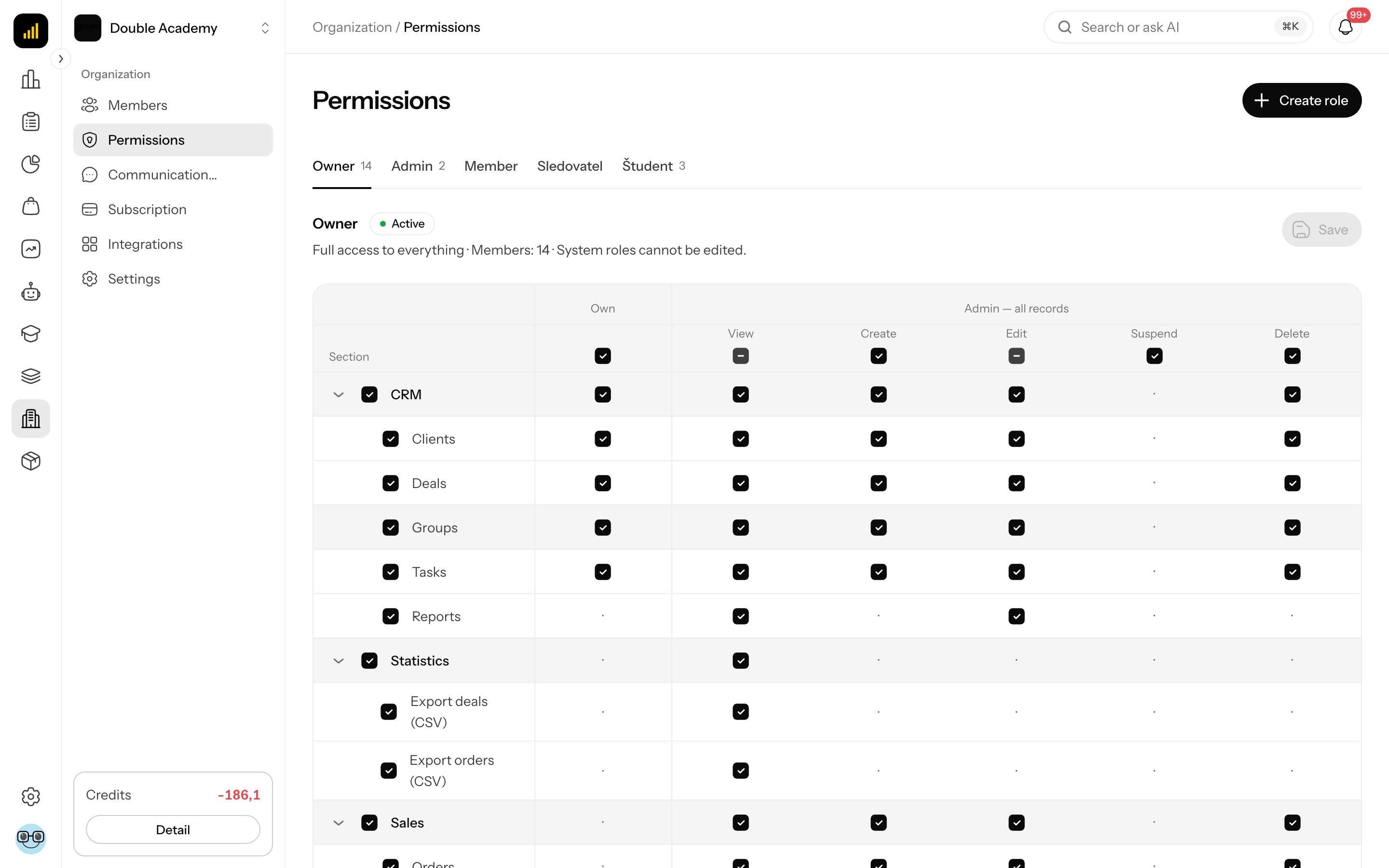
What I see on the screen
The Permissions screen is a table of roles sorted by name. Top right is the Create role button (if you have Permissions → Create).
Table columns:
| Column | What it shows |
|---|---|
| Role name | the role name with its description below; the system role has a lock icon |
| Type | the System label for the system role, otherwise empty |
| Members | how many members hold the role |
| Status | Active or Inactive |
| ⋮ (three dots) | the role's action menu |
The ⋮ menu has these items:
| Item | What it does | When you see it |
|---|---|---|
| Permissions | opens the panel with the role's screens and access levels | always; without edit access the panel is read-only |
| Edit | opens the Edit role dialog | you Edit content on the Permissions screen and the role is not a system role |
| Delete | deletes the role | you Edit content on the Permissions screen and the role is not a system role; disabled while the role has members |
Clicking a row slides in a wide panel from the right with the role's screens — the same as ⋮ → Permissions. At the top of the panel is the role name; next to it, if you may edit the role, the Active / Inactive switch (otherwise just a label). Below is an info bar and the menu items grouped like the left menu, each with the columns No access, View only and Can work. At the bottom are Cancel and Save; if you cannot edit, or the role is the system role, only Close. The panel is described in Permission matrix.
The role open in the panel is stored in the page address — after a refresh, or when you share the link, the panel of the same role opens.
Roles every new organization has
On the Permissions screen a new organization has three roles. Their names are always in English:
| Role | What it allows | What you can do with it |
|---|---|---|
| Owner | the owner's system role; always has every permission, including features added later | cannot be edited, renamed, deleted or have its permissions changed |
| Admin | every screen of your plan at Can work, except Permissions and Subscription, which are at View only (who may do what, and what the organization pays, stay with the owner) | an ordinary role — can be edited and deleted |
| Member | only the Members screen at View only | permissions can be changed, but it cannot be renamed or deleted — new members get it when you pick no role while inviting |
How to create a new role
Before you start:
- you need Can work on the Permissions screen;
- decide what the role should be allowed to do — go through the Permission matrix;
- you cannot give a role more than you have yourself: a screen at a higher level than your own role holds is refused with "You cannot grant more than you have yourself" and the screens are listed.
- In the left menu, click Organization → Permissions.
- Top right, click Create role.
- The Create role dialog opens. Fill in the fields:
| Field | Required | What it means | Limits / default |
|---|---|---|---|
| Role name | yes | the name you pick when assigning the role to members | max. 100 characters; must be unique in the organization |
| Description | no | what the role is for; shown under the role name | max. 500 characters |
| Start from | — | what the new role takes over: a template (Admin, Sales, Marketing, Support, Lecturer, Student, Member (member list only)) or, under Copy of an existing role, one of your roles | Member (member list only) by default; the screens are copied once and you adjust them afterwards |
| Active | — | switch; an active role grants its members their access | on by default |
- Click Create.
The message Successfully created appears and the new role appears in the table. The role has the screens of what you picked in Start from; templates offer only screens your plan includes, and screens you do not hold yourself are refused.
- In the table, click the new role's row. A panel with the role's screens slides in from the right.
- For each menu item choose No access, View only or Can work (see Permission matrix).
- At the bottom of the panel, click Save.
The message Permissions updated successfully appears.
How to check it worked
- On the Organization → Members screen, give the role to a member (see Members), ideally a test account.
- Sign in as that member (or ask them to check) and refresh the page.
- The left menu must show exactly the items you gave View only or Can work, plus Dashboard, which every member sees.
How to edit a role's name, description or active state
- In the left menu, click Organization → Permissions.
- In the role's row, click ⋮ (three dots) on the right.
- In the menu, click Edit.
- In the Edit role dialog, change the name, the Description or the Active switch. (Start from is only in the Create role dialog.)
- Click Save.
You can also switch Active in the header of the role's panel (⋮ → Permissions); it is saved with Save there.
The message Successfully saved appears. The Member role cannot be renamed (its description and switch can be changed); trying gives the error "The role Member cannot be renamed: new members join with it by default". The system role Owner has no Edit item in the menu.
What an inactive role means
In Permissions, the Active switch (in the Edit role dialog or in the header of the role's panel) turns the whole role on and off.
DANGER
When you switch a role to Inactive, every member holding it immediately loses all permissions in the organization — the app answers every action with "Insufficient permissions for this organization". The role can still be assigned and its permission setup stays saved.
Use an inactive role to take a whole group of people out at once (for example seasonal contractors). To take out a single person, use suspending access instead.
How to delete a role
Before you start: you need Can work on the Permissions screen. The role must have no members — first move them to another role on the Organization → Members screen.
- In the left menu, click Organization → Permissions.
- Find the role in the table. Its Members column must read 0.
- In the role's row, click ⋮ (three dots) on the right, then Delete.
- In the confirmation dialog ("Are you sure you want to delete?"), click Delete.
The message Successfully deleted appears and the role disappears from the list. Deleting cannot be undone.
You cannot delete:
- the system role Owner (there is no Delete item in the menu),
- the Member role — error "The role Member cannot be deleted: new members join with it by default",
- a role with members — the Delete item is disabled,
- a role a Bootcamp uses for new participants — error "A Bootcamp uses this role for new participants. Change its role in the Bootcamp settings first."
Who can do this
Access is set in the Permission matrix, screen Organization → Permissions:
| What you want to do | Level needed on the Permissions screen |
|---|---|
| see the Permissions screen, the list of roles and what a role grants | View only |
| create, edit and delete a role, change its screens | Can work |
The Owner role always has everything. Assigning roles to members falls under the Members screen at Can work (see Members).
Common questions and problems
The panel has no Save button and the choices cannot be changed. Either you only have View only on the Permissions screen, or the open role is the system role (Owner) — its access does not change, it always has everything. Create your own role.
Error "You cannot grant more than you have yourself". You tried to give the role a screen at a higher level than you hold. Ask someone with more access, or lower the listed screens.
The Delete item is grey. The role has members. On the Organization → Members screen, filter them with Filters → Role, change each one's role, then delete the role.
Error "Role with name … already exists". The organization already has a role with that name. Pick another name.
Can a person have two roles? No. A member has one role in the organization. If they need a combination of permissions, create a role that covers it.
Members with a role suddenly see nothing. Check the Status column in the table. If it says Inactive, edit the role and turn Active on.
Why are Owner, Admin and Member in English? That is how the app creates them with a new organization. You can rename Admin; Owner and Member you cannot.
Related
- Permission matrix — setting a role's screens and levels
- Members — giving a role to a person
- Subscription — the plan decides which modules the matrix offers