How to set up an AI assistant with your own knowledge base
What it is for
This procedure takes you from nothing to an AI assistant that answers from your own documents, texts, web pages or videos. It goes through two screens: AI → Knowledge (the material) and AI → Assistants (the assistant). Each step links to the chapter with the details.
The order is fixed: you cannot create the assistant until you have knowledge with at least one processed source.
Before you start
- The organization's plan includes the AI module.
- In Organization → Permissions, your role has in the AI module:
- for knowledge (the row is shown as Knowledge bases) View, Create and Edit,
- for Assistants Create and Edit,
- for Conversations Own or View (so you can chat with the assistant).
- You have your material ready: documents, text, a web page address, audio/video or a video from Membership.
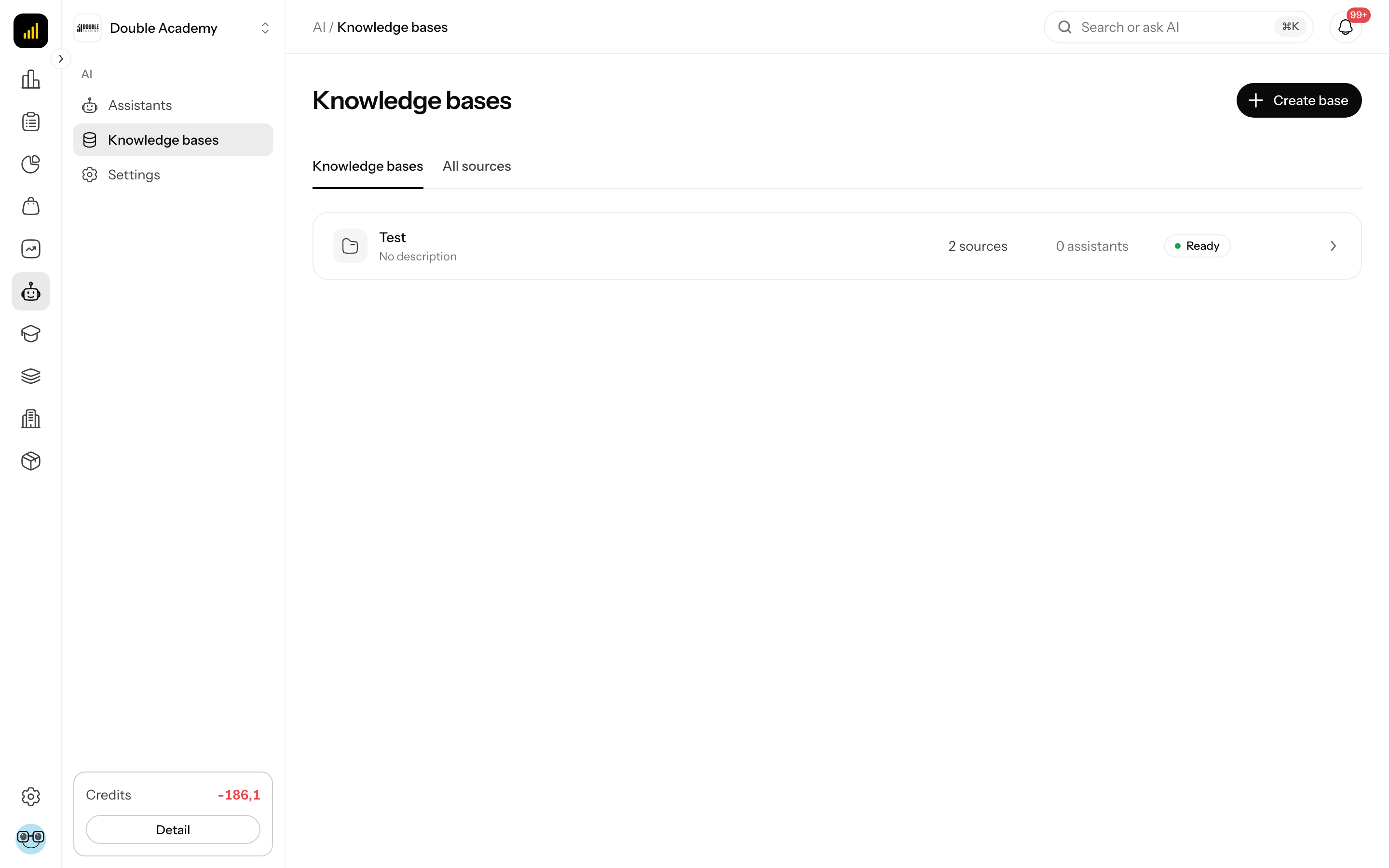
Step 1: Add knowledge
- In the left menu click AI → Knowledge.
- Top right, click Add knowledge.
- Fill in Name (required, at most 120 characters, unique in the organization) and optionally Description.
- Click Create. Knowledge created appears and the knowledge detail opens with the No sources status.
Details: Knowledge.
Step 2: Add sources and let them be processed
- In the knowledge detail click Add source at the top right.
- Choose the type: File, Audio or video, Text, Web page — or the From Doubleros · Academy button for a video from Membership.
- Fill in the data and click Upload and process. Source queued for processing appears.
- Wait until the source goes through Waiting in queue → Reading and checking content → Building the knowledge index → Verifying understanding quality.
- Check what the label on the source card shows:
- Ready — the source can be used, continue with step 3.
- Awaiting approval — click the source card and in the Source detail window click Actions → Approve if the content is fine.
- Reindex required — in the Source detail window click Reindex source (or in the knowledge detail click Reprocess all sources).
- If processing failed, in the Source detail window click Actions → Process again, or upload the source in another form.
Details on source types, limits and content review: Knowledge and Source detail.
Step 3: Create the assistant
- In the left menu click AI → Assistants.
- Top right, click Create assistant.
- In the 1. Select knowledge bases card choose the knowledge from step 1 in the Attached knowledge field. If you don't see it, click Refresh list — knowledge is offered only once it has at least one source in the Ready status.
- In the 2. What should it help with? card fill in What should the assistant do?.
- (Optionally) under More settings choose Questionnaire and diagnostic assistant.
- Click Create and try.
Details: Assistants.
Step 4: Try and refine the assistant
- In the assistant workspace, in the Test replies tab, ask several real questions.
- If the answers are off, switch to Edit with AI in the chat and write what to change — or in the Settings panel on the right change, for example, Rules and instructions, Communication tone or Name and click Save.
- For a diagnostic assistant fill in Diagnostic objective, Information it must collect and Completion rule — otherwise the Enable assistant button is disabled.
- (Optionally) in the Settings panel, under Answer quality checks, add test questions with expected answers and run the evaluation (it consumes credits).
Step 5: Enable the assistant for the organization
- At the top right click Enable assistant.
- "Assistant published to the organization" appears and Open live chat shows at the top right.
Until you enable the assistant, only you see it.
How to check it worked
- In the left menu click AI → Assistants — the assistant is listed.
- Click its card and ask a question. If Show source links is on, you will see Sources from your knowledge under the answer.
- Ask a colleague with the conversations permission to open the assistant too.
How to maintain the assistant
- New or changed material: add a source to the knowledge (step 2). Once processed, every assistant using the knowledge starts using it without any further publishing.
- Change of behavior: AI → Settings → Edit next to the assistant → changes → Publish changes.
- Temporary switch-off: AI → Settings → Pause.
- Return to an older version: in the workspace More settings → Versions and comparison → Restore as a new draft.
Details: AI settings.
Common questions and problems
When creating the assistant, "First add and process at least one high-quality source." is shown and the Create and try button is disabled. No knowledge has a source in the Ready status yet. Finish step 2 and click Refresh list.
When enabling, "All attached knowledge sources must finish processing before the assistant can be tested or published." appears. A source in attached knowledge is still being processed. Wait for it to finish.
The assistant answers that the information is not in its sources. The source is missing, is awaiting approval or reindexing, or its text is hard to read — check it on the Source content tab in Source detail.