Settings
What it is for
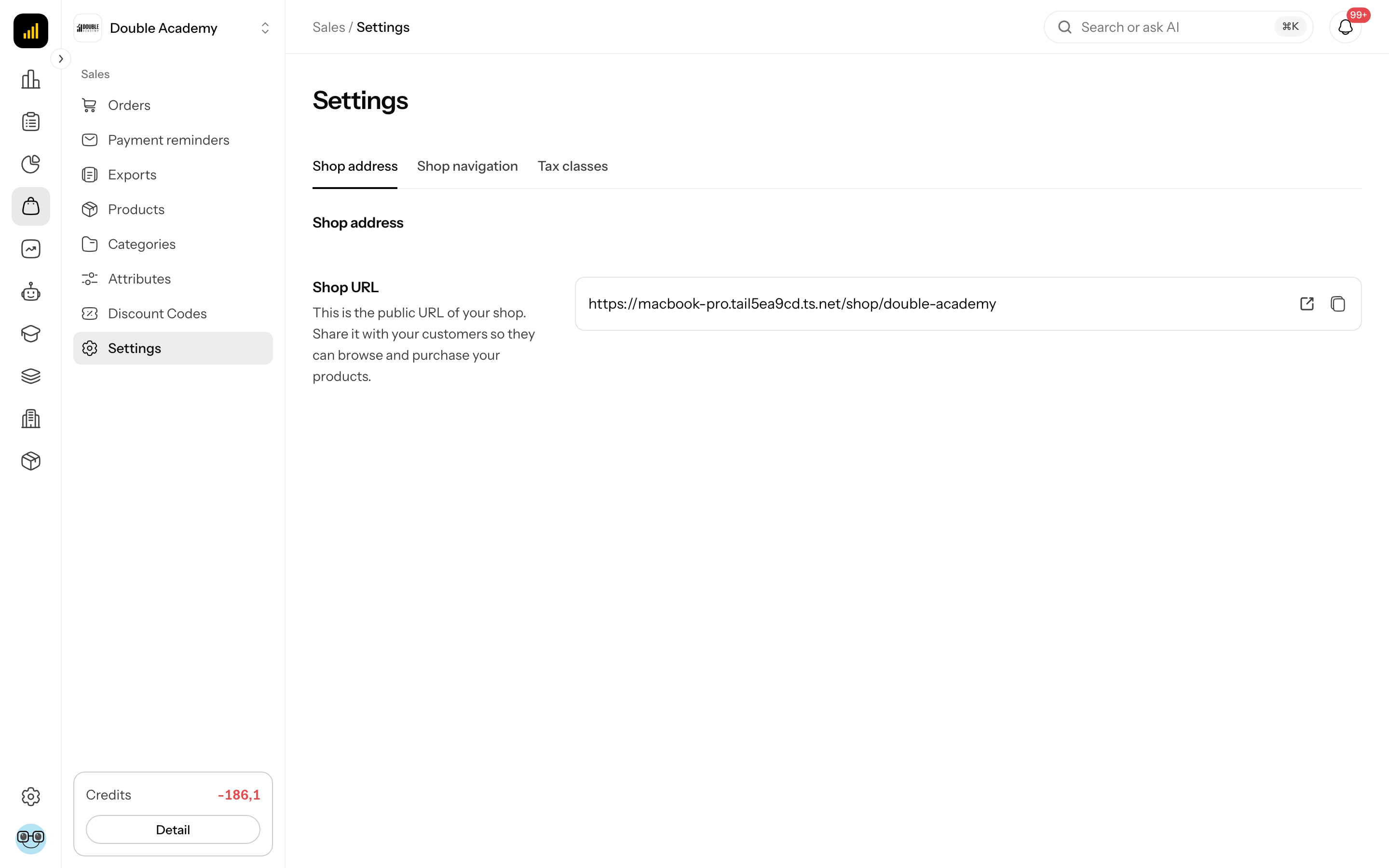
The Sales → Settings screen configures the organization's public shop (online store). It has three parts: Shop address (the public link you send to customers), Shop navigation (which categories appear in the bar above the products in the shop, and in what order) and Tax classes (VAT rates per country, which you then assign to products).
Where to find it
In the left menu click Sales (the shopping bag icon) and then the last sub-item Settings. The screen header reads Sales / Settings.
You see the sub-item only with the permission Sales → Settings → View.
What I see on the Settings screen
On Sales → Settings there are three tabs under the heading. Clicking one switches which part is shown below them:
| Part | What you set there |
|---|---|
| Shop address | the public address of the shop — copy or open it |
| Shop navigation | the categories in the bar above the products and their order |
| Tax classes | VAT classes with rates for individual EU countries |
The selected part is written into the page address (?section=shop, ?section=navigation, ?section=tax-classes), so you can send a direct link to it. If Shop navigation has unsaved changes, a warning shows next to its name in the list.
How to find and share the shop address
In Sales → Settings → Shop address the Shop URL field shows the public address of your shop in the form https://…/shop/<organization-identifier>.
- In the left menu click Sales → Settings.
- In the tabs click Shop address (it opens by default).
- At the right end of the Shop URL field click the Copy URL icon. URL copied to clipboard appears.
- Paste the address wherever you need it (e-mail, social media, website).
To see the shop as a customer does, click the arrow icon Open shop in the same field — the shop opens in a new tab.
The address cannot be changed; it is derived from the organization's identifier. The shop shows only published products and only visible categories (see Products and Categories).
How to choose the categories in the shop navigation
Shop navigation decides which categories appear in the bar above the products in the shop.
Before you start
- You need the permission Sales → Settings → Edit. Without it you only see this part; the add field and the buttons are not shown.
- The categories must exist in Sales → Categories and be visible (see Categories).
Steps
- In the left menu click Sales → Settings.
- In the tabs click Shop navigation.
- In the Categories on the shop page row click into the Add category field and pick a category from the list (you can type to search). The category is added to the end of the list below the field.
- Repeat for more categories.
- Change the order by dragging a category by its Move handle on the left of the row.
- Remove a category from the list with the Remove icon on the right of the row.
- Top right, click Save. Shop categories saved appears.
Discard changes (next to Save) returns the list to its last saved state. Both buttons are active only when there are unsaved changes. Unsaved changes are kept even if you switch to another part of the settings in the meantime.
| Element | Meaning | Limits |
|---|---|---|
| Add category | picks a category for the shop bar | at most 50 categories; then the field is disabled with You can select at most 50 categories |
| order in the list | order of the categories in the shop bar | changed by dragging |
| Hidden chip | the category is hidden and will not appear in the shop | a hidden category cannot be added (in the list it is marked Hidden – not shown in the shop) |
An empty list means all categories
If you select no category, the screen says No category selected, so the shop shows every visible category. Use the selection only when you want to shorten the bar or set its order.
How to check that it works
- In Shop address click Open shop.
- The bar above the products should show the selected categories in the order you set.
What tax classes are
A tax class is a set of VAT rates — one rate for each EU country. You do not give a product a percentage but a class (for example Standard rate or E-publications). Which rate of the class is used on an order depends on the organization's VAT mode. The full explanation is in the chapter VAT.
Every organization starts with ready-made system classes holding the current rates of the EU countries: Standard rate, E-publications, Periodical e-publications, Printed publications, Printed periodicals, Food and dietary supplements and Exempt / zero rate. You can add your own classes.
What I see in the Tax classes part
In Sales → Settings → Tax classes there is:
- under the heading the line VAT mode: with the current mode (Domestic, OSS or Not a VAT payer), the link Organization settings (shown with the permission Organization → Settings → View; the link opens Organization → Integrations, where the VAT mode is changed in the Invoicing Provider section) and an "i" icon explaining how classes work,
- top right the New tax class button (only with the Edit permission),
- a table of classes (no pagination):
| Column | Meaning |
|---|---|
| Name | the class name; a Default chip on the default class, a Custom chip on a class you created |
| SK rate (by your organization's country) | the rate of your organization's country |
| Other countries | the SK and CZ rates (except the organization's country) as flag chips; the +N chip opens a popup with the rates of every country in the class |
| Products | how many products have this class; — for the default class with no products assigned |
Clicking a row opens the class for editing (only with the Edit permission).
How to create your own tax class
Before you start
- You need the permission Sales → Settings → Edit.
- Check whether one of the system classes is enough — they cover the common cases.
Steps
- In the left menu click Sales → Settings.
- In the tabs click Tax classes.
- Top right, click New tax class. The New tax class panel slides in from the right.
- In Name type the class name.
- If the class should be the default, turn on Default class.
- In Rates by country click into Add country and pick an EU country. A row for the country appears.
- In the field next to the country type the rate in percent (for example
23or25.5). - Repeat steps 6–7 for every country you sell to. Remove a country row with the cross at its end.
- At the bottom click Save. Successfully created appears and the class is added to the table with the Custom chip.
| Field | Required | Meaning | Limits / default |
|---|---|---|---|
| Name | yes (for a custom class) | the class name in the app | at most 100 characters |
| Default class | no | the class is used for products without a class of their own | off; only one class can be the default |
| Rates by country | no | VAT rate in % for each country | 0 – 100, at most 2 decimal places; each country once; EU countries only |
If the class has no rate, the panel says No rates yet — the product’s legacy rate is used.
How to check that it works
- Open a product in Sales → Products and in the Pricing part pick the new class in Tax class (see Products). Its rates show under the field.
- After saving the product, the number in the Products column of the Tax classes table goes up.
How to edit a tax class or its rates
- Sales → Settings → Tax classes.
- Click the class's row. A panel with its name opens.
- Change Name, the rates in Rates by country, or add a country with Add country.
- Click Save. Successfully saved appears.
For a system class you can leave Name empty — the default translated name is used (Leave empty to use the default name.).
New rates apply to every order created after saving. Existing orders and their documents do not change — the VAT is stored on each of their lines permanently.
How to change the default tax class
The default class is used for every product whose Tax class field is set to Default (…).
- Sales → Settings → Tax classes.
- Click the row of the class that should become the new default.
- Turn on Default class.
- Click Save.
The previous default stops being the default automatically. On the default class the switch is disabled with To change the default, make another class the default. — so the default cannot be "switched off", only replaced.
How to delete a tax class
- Sales → Settings → Tax classes.
- Click the class's row.
- In the panel click Delete.
- Confirm in the Delete window with Delete. If products use the class, the window warns: This class is assigned to N products. They will move to the default class. Continue?
- Successfully deleted appears.
Products of the deleted class start using the default class, so their VAT rate on new orders may change. The default class cannot be deleted — its Delete button is disabled with The default class cannot be deleted. A deleted system class is not recreated automatically.
What is set elsewhere
The Sales → Settings screen does not cover everything related to selling:
| What | Where |
|---|---|
| Supported currencies, Default currency, Order currency | Organization → Settings → Localization (Organization settings) |
| VAT mode | Organization → Integrations → Invoicing Provider (VAT) |
| Payment gateway (Stripe, GoPay, Comgate) | Organization → Integrations → Payment Gateway (Payment gateway) |
| Invoices and proforma invoices | Organization → Integrations → Invoicing Provider (Invoicing) |
| Prices and tax class of a product | Products |
| Discounts | Discount Codes |
Shipping and delivery methods are not set in the app.
Who can do this
Permissions are set in the Permission matrix, row Sales → Settings:
| Permission | What it allows |
|---|---|
| View | open Sales → Settings, see the shop address, navigation and tax classes |
| Edit | change the shop navigation (Add category, Save), create, edit and delete tax classes |
The Organization settings link next to the VAT mode is shown only with the permission Organization → Settings → View.
Common questions and problems
I see neither the New tax class button nor the Add category field. You only have the View permission. Changes need Sales → Settings → Edit.
A category cannot be picked in Add category. The category is hidden (Hidden – not shown in the shop). Make it visible in Sales → Categories.
The Add category field is disabled. You have already picked 50 categories. Remove one.
An item in the category list has the Hidden chip. The category was hidden after it was added. It will not appear in the shop; make it visible again or remove it from the list.
I changed the navigation but the shop looks the same. You did not save — click Save. The Shop navigation tab shows a warning until you save.
The rate cannot be saved; the field says "Enter a number 0–100 (at most 2 decimal places)". The rate has the wrong format. Type, for example, 21, 9.5 or 25,5.
The name field says "Enter a name". A custom class must have a name.
The Delete button of a class is grey. It is the default class. First make another class the default.
A country I sell to is missing. Add country offers EU countries only. For sales outside the EU no rate is set in the class; your home country's rate is used (see VAT).
Where do I change the shop address? It cannot be changed — it comes from the organization's identifier.
Related
- VAT — VAT mode and how VAT is calculated on an order
- Products — assigning a tax class to a product
- Categories — categories and their visibility
- Organization settings — currencies and languages
- Payment gateway
- Invoicing
- How to start selling a product