Events
What it is for
Events are online sessions that run straight in the browser on the Doubleros server — a webinar, a training, a meeting or a group call. Nothing is installed, no Zoom or other third-party service is used, and attendees sign in to the app with their usual account.
In the Events section you schedule an event, decide who will see it and where people join it from. The broadcast itself, the chat and moderation are described in the chapter How to broadcast.
Where to find it
In the left menu click Live events → Events.
The Live events item appears in the menu only if your organization's subscription includes the Live events module and your role has the permission Events → View.
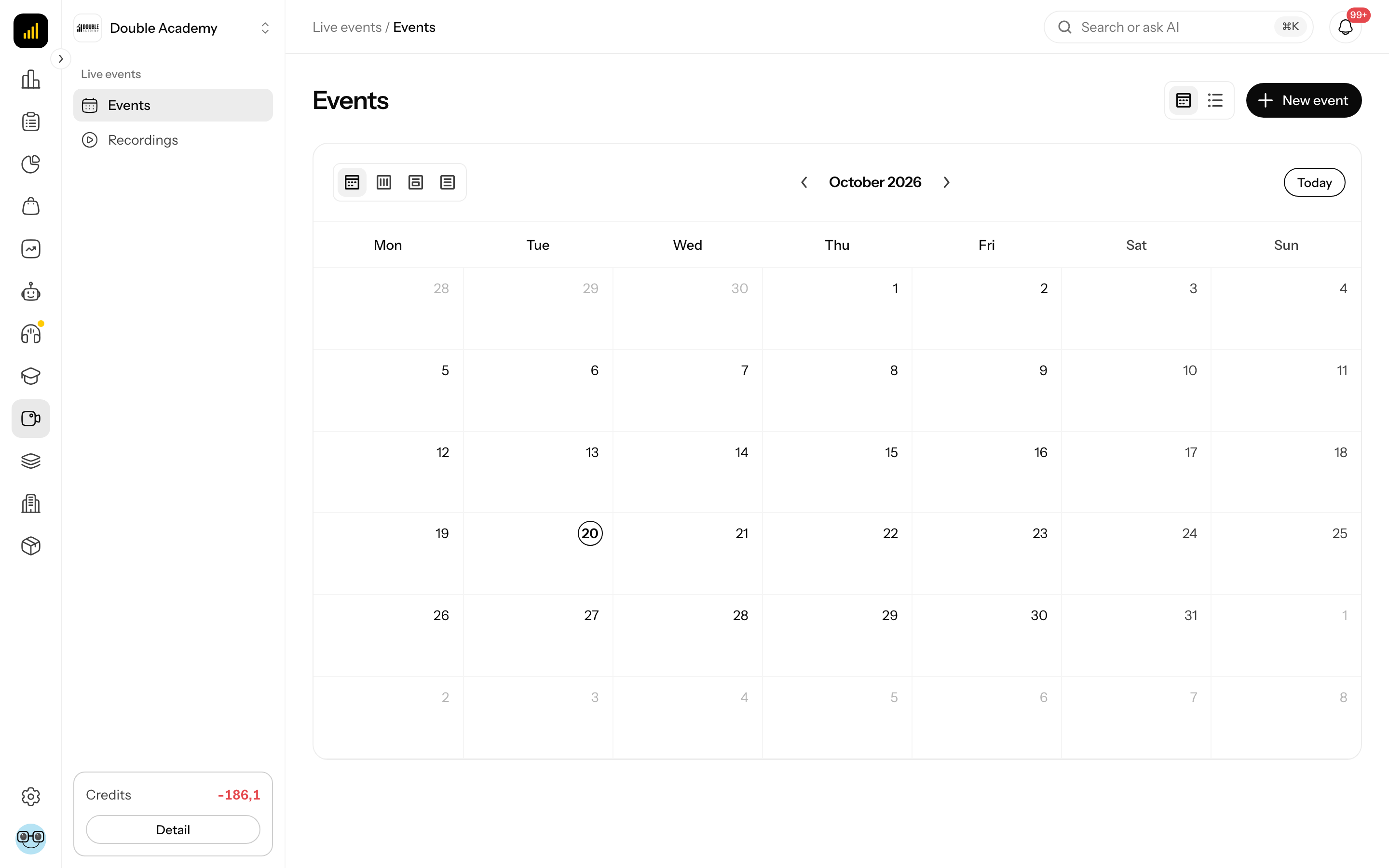
What I see on the screen
The Events screen has two views. You switch between them with two icons at the top right next to the New event button:
- the calendar icon — Calendar (opens by default),
- the list icon — List (the page address gets
?view=list, so you can send it to a colleague with this view already selected).
Calendar
In the Calendar view there is a bar above the grid:
| Element | What it does |
|---|---|
| left and right arrows | move a month, week or day back or forward |
| period name | shows which period you are looking at |
| Today | jumps back to today |
| Month, Week, Day, Agenda | how the calendar is shown; Week and Day show the real length of an event, Agenda is a list of the week's events |
On a computer the calendar opens in the Month view, on a phone in the Agenda view. Each event in the calendar is a block with a coloured status dot, the time and the title.
- Clicking the block opens the event page.
- The … button on the block opens a menu with Edit and Delete. It appears only with the Events → Edit or Events → Delete permission. Copy link is not in it — that is in the List view and on the event page.
List
The List view shows a table of events sorted by the most recent start.
| Column | Meaning |
|---|---|
| Title | the event's title; clicking it opens the event page. A group call has the label Group call after the title |
| Status | the event's status (see Event states) |
| Who can watch | All members or Selected members only |
| Starts at | date and time of the start |
| … | the row's action menu |
The … menu in a row has these actions:
- Copy link — copies the address of the event page (available to everyone who sees the list),
- Edit — opens the event form (only with the permission Events → Edit),
- Delete — deletes the event (only with the permission Events → Delete).
Search: above the table click the magnifier icon (Search) and type into the Search events… field. It searches event titles. Below the table is pagination with a choice of rows per page.
If you have no events yet, the table is empty.
Two event types
The event type is chosen when the event is created, in the Event type field, and it cannot be changed later.
| Type | How it works |
|---|---|
| Broadcast | One person presents, everyone else watches and writes in the chat. |
| Group call | Everyone invited joins with a camera and microphone. One screen can be shared at a time. |
In the form of an existing event the Event type field is greyed out with the explanation The type is fixed when the event is created — it decides what everyone is allowed to do in the room. If you picked the wrong type, create a new event and delete the old one.
Event states
| State | Meaning | Who sets it |
|---|---|---|
| Draft | work in progress; only event managers see it, members do not | you, in the form |
| Scheduled | the event is published to its audience and waits for its start; the chat is already open | you, in the form (the default when creating) |
| Live | the event is running right now | the app, after a click on Start event or Start the call |
| Ended | the event is over, the room is closed | the app, after a click on End, or automatically (see below) |
| Cancelled | the event did not take place | you, in the form, or automatically (see below) |
The app tidies up states by itself:
- A Scheduled event that nobody started switches to Cancelled at the earliest 2 minutes after its planned end.
- A Live event that is more than 15 minutes past its planned end with nobody left in the room switches to Ended.
- The check runs every 5 minutes, so the status change can come a few minutes later.
- A Draft never changes automatically.
How to create an event
Before you start
- You need the permission Events → Create (see Permission matrix).
- If the event should be shown to only some people, prepare a role, a CRM group or know the names of the specific members. Only people with a user account in the organization can be invited.
- Viewers need the permission Events → View in their role, otherwise they cannot get into the section.
Steps
- In the left menu click Live events → Events.
- At the top right click New event. Alternatively, in the Calendar view click a day (the event is suggested for 10:00 that day), or in the Week or Day view drag across a time slot with the mouse — the event gets exactly that time; a slot shorter than 30 minutes is replaced by a suggestion for 10:00 that day.
- The New event panel slides in from the right. Fill in the Title.
- Optionally fill in the Description.
- In Event type choose Broadcast or Group call.
- In Status leave Scheduled (the audience sees the event straight away) or choose Draft (only managers see the event).
- In Starts at pick the date and time.
- Check the Ends at field — once you pick the start, it sets itself to one hour later.
- In Who can watch choose All members or Selected members only.
- If you chose Selected members only, pick the audience in the Roles, groups or people field (see How to set the event audience).
- If you want a recording, turn on Record this event automatically.
- At the bottom click Create.
The message Event created appears and the event shows up in both the calendar and the list.
| Field | Required | Meaning | Limits / default |
|---|---|---|---|
| Title | yes | the name attendees see | at most 255 characters |
| Description | no | text under the picture on the event page | — |
| Event type | yes | Broadcast or Group call | default Broadcast; cannot be changed after creation |
| Status | yes | when creating, only Scheduled or Draft | default Scheduled |
| Starts at | yes | date and time of the start, 24-hour time in 5-minute steps | a new event cannot start in the past; default 10:00 (or the nearest free time if 10:00 has already passed today) |
| Ends at | yes | planned end | at least 30 minutes after the start; default start + 60 minutes |
| Who can watch | yes | All members or Selected members only | default All members |
| Record this event automatically | no | the recording starts by itself when the event starts | off by default |
| Roles, groups or people | with Selected members only | who will see the event | see below |
TIP
Creating an event sends no e-mail or notification to anyone. Send attendees the link to the event — see How to send a link to the event.
How to check it works
- In the List view check that the event has the status Scheduled and the right value in the Who can watch column.
- Click the event's title. The event page opens, with the status next to the title in the top bar.
- Ask someone from the audience to open Live events → Events — they must see the event in the calendar. If they do not, see Common questions and problems.
How to set the event audience
In the event panel (New event or Edit event) the Who can watch field decides who the event is shown to.
- All members — every member of the organization with the permission Events → View sees the event.
- Selected members only — the Roles, groups or people picker appears below the field.
How to pick the audience:
- Click into the Roles, groups or people field.
- Type the name of a role, a group or a person. The list is divided into Roles, CRM groups and Members.
- Click an item. It is added as a chip and the list stays open for the next pick.
- Remove a chip with the cross on it.
Below the field the app keeps showing who the selection reaches:
| Text below the field | Meaning |
|---|---|
| Pick a type, then choose from it. Everything you add is listed below. | nothing is selected yet |
| Covers N members | this many people with an account will see the event |
| … · N contacts without an account | the CRM group contains contacts without a user account — they cannot join |
| This selection covers no members with an account — no one will be able to watch. | the selection reaches nobody, the event would have no viewers |
What applies to the audience:
- A member from a CRM group sees the event only if their contact is linked to a user account.
- Event managers (a role with the permission Events → Create, Edit or Delete) see all events, drafts included, regardless of the audience.
- A change of audience applies at once: people added see the event, people removed can no longer join. Nobody is notified.
- Switching back to All members clears the selected audience.
How to send a link to the event
You can copy the link to the event page in three places:
- Live events → Events, List view, in the event's row … → Copy link,
- in the Edit event panel, with the link icon next to the panel title,
- on the event page, with the Copy link button at the top right.
Paste the link into an e-mail, a calendar invitation or a message. Whoever opens it must sign in to the app and be in the event's audience — the link gives nobody extra access, it only saves them looking through the menu.
How to open the event page
- In the left menu click Live events → Events.
- In the Calendar view click the event's block, or in the List view click the event's title.
At the top of the event page is the path Live events › event title with the event's status, and on the right the Copy link button. On the left is the picture (or the broadcast console if you have the permission Events → Edit), on the right the chat. Below the picture are Starts at and the event's description.
What happens on the page during a broadcast is described in How to broadcast.
How to edit an event
Before you start: you need the permission Events → Edit.
- In the left menu click Live events → Events.
- In the List view click … → Edit in the event's row, or in the Calendar view click … → Edit on the event's block.
- The Edit event panel slides in from the right. Change what you need.
- Click Save.
The message Event updated appears.
When editing:
- The Event type cannot be changed.
- Starts at may be in the past (for example when correcting the title of an event that has already taken place).
- The Status field offers all states, including Live and Ended. This is meant for fixing a stuck state, not for starting a broadcast.
Live in the form does not start the broadcast
If you set the status to Live in the form, the warning Marking an event live does not start a broadcast — viewers will see a live event with an empty stage until someone actually starts one. appears. The broadcast is started with the Start event button on the event page.
If you set an event that has already taken place back to Scheduled, its actual start and end are cleared. Also give it an Ends at in the future, otherwise the app switches it to Cancelled by itself within a few minutes. Recordings stay.
How to move an event in the calendar
Before you start: you need the permission Events → Edit.
- In the left menu click Live events → Events (the Calendar view).
- Grab the event's block with the mouse and drag it to another day or time.
- In the Week or Day view you can change the length by dragging the bottom edge of the block.
The change is saved immediately. If the app rejects it (for example, the event would be shorter than 30 minutes), the block jumps back to where it was and an error message appears. Events in the Ended and Cancelled states cannot be moved.
How to delete an event
Before you start: you need the permission Events → Delete.
- In the left menu click Live events → Events.
- In the List view click … → Delete in the event's row, or in the Calendar view … → Delete on the event's block.
- In the Delete event dialog with the question Are you sure you want to delete “title”? click Delete (Cancel takes you back without a change).
In the List view the message Event deleted appears; in the Calendar view the event just disappears from the calendar, without a message. The event's recordings are not deleted — they stay in Recordings.
An event in the Live state cannot be deleted — end it first.
Who can do this
Permissions are set by an administrator in Organization → Permissions, module Live Events, row Events (see Permission matrix).
| Task | Permission needed |
|---|---|
| see the Live events → Events menu and watch events meant for me | Events → View |
| create an event | Events → Create |
| edit and move an event, broadcast, start recording | Events → Edit |
| delete an event | Events → Delete |
| see all events including drafts, and moderate the chat and participants | any of Create, Edit, Delete in the Events row |
Common questions and problems
I do not see the New event button. Your role lacks the permission Events → Create.
There is no Edit or Delete in the row menu. The permission Events → Edit or Events → Delete is missing. Copy link is always available.
A member does not see the event. Check, in this order:
- the event is not in the Draft state,
- the member's role has the permission Events → View,
- with Selected members only, the member is in the selected role or CRM group, or is selected by name,
- with a CRM group, their contact is linked to a user account.
The message "An event cannot be scheduled in the past". A new event must start now at the earliest. Pick a later Starts at.
The message "An event must be at least 30 minutes long". Ends at is less than 30 minutes after the start. Move Ends at.
The message "End time is required" or "Start date is required". The field is empty — pick a date and time.
The message "A running event cannot be deleted". The event is Live. End it on the event page with the End button and then delete it.
The event switched to Cancelled by itself. It was Scheduled and nobody started it before its planned end. If it should take place later, open Edit, set a new Starts at and Ends at and the status Scheduled.
Opening the event link shows only “Event not found”. The event was deleted, is a Draft, or whoever opened the link is not in the event's audience (or lacks the Events → View permission). Check it in the Edit event form.
Do the invited people get an e-mail? No. Send them the link via Copy link.
Related
- How to broadcast — the broadcast console, the call, chat and moderation
- Recordings — recordings of events
- Groups — preparing an audience
- Permission matrix — the Events permissions