Categories
What it is for
The Categories screen sorts products so the customer can find their way around the offer. Categories have two levels: a Parent category (for example Clothing) and Child categories under it (T-shirts, Hoodies). A product can belong to several categories at once. Which categories show in the shop's top bar is chosen in Settings, section Shop navigation.
Where to find it
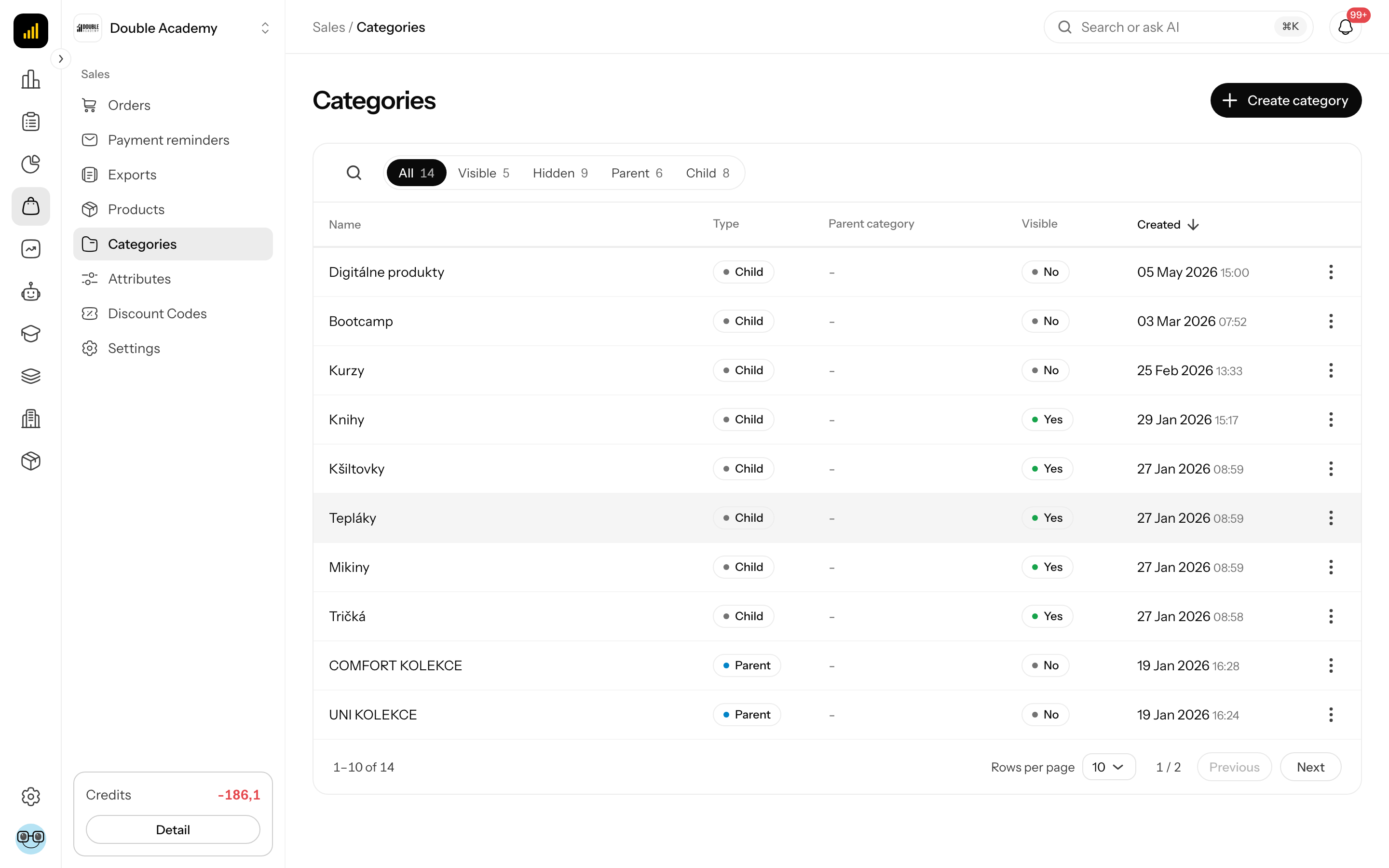
In the left menu click Sales, then Categories. The list opens with the heading Sales / Categories.
Before you start
Categories on the Categories screen are worth creating before the products — moving dozens of products afterwards is wasted work.
- Plan the tree: create the parent categories first, then the child ones, because a child category is attached to a parent that already exists.
- Check Supported languages in Organization → Settings → Localization — the category name must be filled in for each of them.
- You need the Sales → Categories → Create permission (see Who can do this).
What I see in the category list
The Sales → Categories list has tabs with counts above the table:
| Tab | What it shows |
|---|---|
| All | every category |
| Visible | categories the customer sees |
| Hidden | categories hidden from the customer |
| Parent | first-level categories |
| Child | subcategories |
Next to the tabs is the Search... button, which opens a search by name.
Table columns:
| Column | Meaning |
|---|---|
| Name | category name |
| Type | Parent or Child |
| Parent category | which category it belongs under; - for a parent |
| Visible | Yes / No |
| Created | date and time of creation |
Clicking a row opens it for editing. The … menu at the end of the row offers Edit, More info (columns hidden on a narrow screen) and Delete. Below the table are Rows per page and paging.
How to create a category
- In the left menu click Sales → Categories.
- Top right, click Create category.
- The Sales / Categories / Create page opens with the Details and Translations cards.
- In the Details card fill in the fields as in the table below.
- In the Translations card fill in Name in every language, and optionally URL slug.
- In the top right, click Create category.
After saving you see Category created successfully! and the app takes you back to the Sales → Categories list, where the new category appears.
Fields in the Details card:
| Field | Required | Meaning | Limits / default |
|---|---|---|---|
| Name | yes | internal category name | must be unique in the organization |
| Sort order | no | number the categories are sorted by; lower number = higher in the list | 0 or more; default 0 |
| Parent category (switch) | no | on = a first-level category others can go under | off by default |
| Visible (switch) | no | off = the customer does not see the category | on by default |
| Select parent category | no | which parent category it belongs under | shown only while the Parent category switch is off; lists only categories marked as parent |
Fields in the Translations card (Translated names and descriptions per organization languages), one block per supported language:
| Field | Required | Meaning | Limits |
|---|---|---|---|
| Name | yes, in every language | name the customer sees | an empty name stops the save: Translation name is required for all locales |
| URL slug | no | part of the category address | not sent when empty |
How to create a subcategory
On the Categories screen you create a subcategory by attaching it to a parent category:
- Make sure the parent category exists and has the Parent category switch on.
- In Sales → Categories click Create category.
- In the Details card leave the Parent category switch off.
- In Select parent category pick the parent.
- Fill in Name and Translations and click Create category.
The tree has only two levels — a subcategory cannot have subcategories of its own, because the select offers only parent categories.
How to put a product into a category
A product is put into a category in the product form, not on the Categories screen:
- Open Sales → Products and click the product.
- In the General section open the Category field and tick one or more categories.
- Click Save.
Details are in the Products chapter.
How to edit a category
- In Sales → Categories click the category row (or … → Edit).
- Change the fields in the Details and Translations cards.
- Click Save.
After saving you see Category updated successfully!. If you turn Parent category on for a category that had a parent, the link to its parent is removed on save.
How to hide a category
Hiding on the Categories screen is gentler than deleting: the category stays, the customer just does not see it.
- Open the category for editing.
- In the Details card turn the Visible switch off.
- Click Save.
Products in a hidden category stay and keep selling. A hidden category cannot be picked for Shop navigation in Settings.
How to change the order of categories
The order on the Categories screen comes from the Sort order field:
- Open the category for editing.
- Enter a number in Sort order (lower = higher in the list).
- Click Save and repeat for the other categories.
The order of categories in the shop's top bar is set separately, by dragging in Sales → Settings → Shop navigation.
How to delete a category
- In Sales → Categories open the row's … menu and click Delete — or click Delete while editing the category.
- Confirm Are you sure you want to delete this category?.
After deleting you see Category deleted successfully!. Products stay and only lose this category. Child categories of the deleted category are not deleted. If deleting fails you see Failed to delete category.
How to check categories work
- In Sales → Categories check in the Type and Parent category columns that the tree is right, and in Visible that the category is Yes.
- In Sales → Products use the Category filter — it shows the products that belong to it.
- If the category should be in the shop's top bar, add it in Sales → Settings → Shop navigation and then click Open shop in the Shop address section.
Who can do this
An administrator sets the permissions in the permission matrix on the Sales → Categories row:
| Permission | Allows |
|---|---|
| View | the Categories menu item and the list |
| Create | the Create category button |
| Edit | opening and saving a category |
| Delete | Delete in the row menu and in the edit page |
Common questions and problems
I don't see the Create category button. You lack the Sales → Categories → Create permission.
The Select parent category field is empty. No category has the Parent category switch on. Create one first or turn its switch on.
I don't see the Select parent category field at all. The category has Parent category switched on — a parent category cannot have another parent.
Saving shows Translation name is required for all locales. A Name is missing in some language in the Translations card; the empty field is marked This field is required.
Error A category named "…" already exists. The name must be unique — choose another.
The customer does not see the category. Check the Visible switch and whether the category is added to Shop navigation.
Related
- Products — putting a product into a category
- Attributes — product options and variants
- Settings — categories in the shop's top bar