Settings
What it is for
The Settings of the ambassador programme contain two things:
- Registration link — the address through which new people sign up as ambassadors themselves,
- Levels — commission rates. Each ambassador is on one level, and the level decides what percentage of the order they get.
Where to find it
In the left menu click Ambassador → Settings.
The item is shown only if your role has the permission Settings → View in the Ambassador module.
What I see on the screen
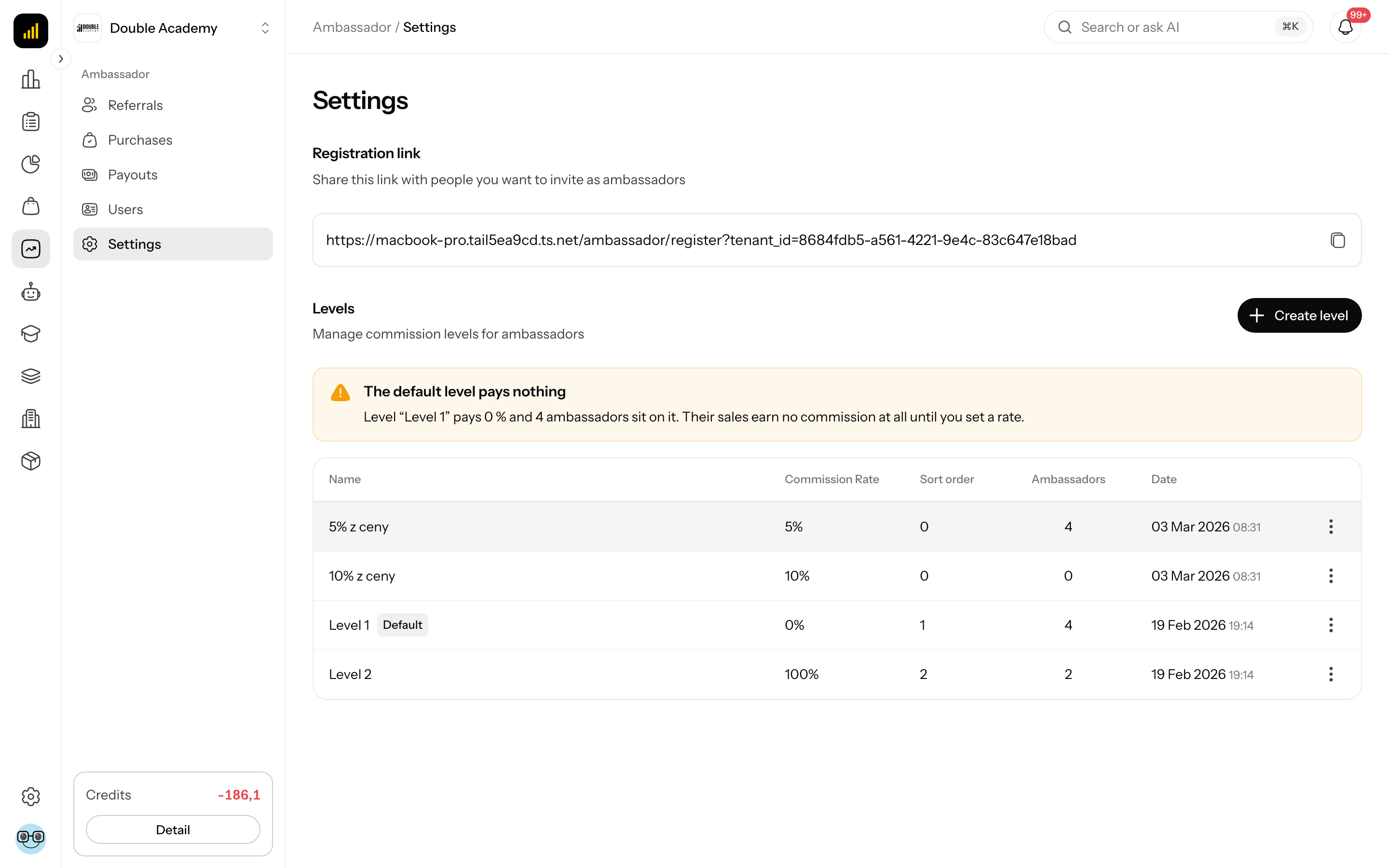
The Settings screen has two sections, one below the other.
Registration link — Share this link with people you want to invite as ambassadors. The field with the link cannot be edited; on its right is a copy icon (Copy to clipboard).
Levels — Manage commission levels for ambassadors. On the right is the Create level button. Below it is a table:
| Column | Meaning |
|---|---|
| Name | the level's name; the default level has the label Default |
| Commission Rate | the percentage of the order's commission base |
| Sort order | the level's position in the list and in menus |
| Ambassadors | how many ambassadors are on the level |
| Date | when the level was created |
| … | Edit, Delete |
If the default level has a 0 % rate, a warning The default level pays nothing is shown above the table — Level “name” pays 0 % and N ambassadors sit on it. Their sales earn no commission at all until you set a rate.
How to create a level
Before you start
- You need the permission Settings → Create (module Ambassador).
- Decide on the rate as a percentage, for example 10 for 10 %.
Steps
- In the left menu click Ambassador → Settings.
- In the Levels section click Create level.
- In the Create level dialog fill in Name.
- Fill in Commission Rate.
- Fill in Sort order.
- If new ambassadors should fall into this level, switch on Set as default level.
- Click Create.
| Field | Required | Meaning | Limits / default |
|---|---|---|---|
| Name | yes | the level's name, e.g. Basic, Partner | at most 100 characters; the name must not repeat |
| Commission Rate | yes | Commission rate in % (e.g. 5 for 5%) | 0 to 100; the default level must have more than 0 |
| Sort order | yes | the position in the list | 0 or more; 0 by default |
| Set as default level | no | New ambassadors will be automatically assigned to this level | the first level is always the default (the switch is locked) |
The message Successfully created appears and the level is added to the table. If you set it as the default, the previous default level stops being the default.
How to check it works
The level is in the table with the required rate; the default one has the label Default. A new ambassador (signed up or promoted) gets the default level.
How to edit a level
Before you start: you need the permission Settings → Edit (module Ambassador).
- In the left menu click Ambassador → Settings.
- In the Levels table click … → Edit in the row.
- In the Edit level dialog change the fields.
- Click Save.
The message Successfully saved appears.
- The new rate applies to new commissions of all ambassadors on the level. Commissions already created keep the original rate.
- For the default level the Set as default level switch is locked with the explanation This level is the default and cannot be changed. To change the default level, open another level and switch on Set as default level there.
How to move an ambassador to another level
You change a specific ambassador's level in their detail — see Users.
How to delete a level
Before you start
- You need the permission Settings → Delete (module Ambassador).
- The level must not be the default and must have no ambassadors assigned (the Ambassadors column = 0). Move the ambassadors elsewhere first.
Steps
- In the left menu click Ambassador → Settings.
- In the Levels table click … → Delete in the row. (Or open Edit and click the delete button in the dialog.)
- In the dialog Are you sure you want to delete? confirm.
The message Successfully deleted appears.
If the level cannot be deleted, the Delete item is greyed out with the explanation The default level cannot be deleted or Cannot delete level with assigned ambassadors.
How to invite people through the registration link
- In the left menu click Ambassador → Settings.
- In the Registration link section click the Copy to clipboard icon in the link field.
- The message Copied to clipboard appears. Send the link to the people you want to invite.
What happens when someone opens the link:
- The Ambassador Registration page opens with the fields First Name, Last Name, Email, Password and Phone (optional) and the Register button. The password must have at least 8 characters and contain an upper-case letter, a lower-case letter and a number.
- After clicking Register the Confirm your email step appears on the same page with Once your email is confirmed, your ambassador account will be reviewed. The ambassador enters the 6-digit code from the e-mail and clicks Confirm — the app signs them in straight away. The code is valid for 15 minutes; a new one is sent with Send a new code.
- The ambassador receives an e-mail with the verification code and a welcome e-mail. The organization's notification e-mails receive the e-mail New ambassador registration.
- The new ambassador has the status Pending, is on the default level and has the role Member in the organization.
- The administrator activates them in Users — only then can they generate links and earn commissions.
If they opened the registration through the affiliate link of another active ambassador, they are assigned to that ambassador as their referral.
WARNING
Registration requires at least one level. Without a level it ends with the error No default ambassador level is configured. It is also not possible to sign up with an e-mail that already has an account in the app (An ambassador with this email address already exists) — promote such a person in Users instead.
Who can do this
| Task | Required permission (module Ambassador, row Settings) |
|---|---|
| see Ambassador → Settings and the registration link | View |
| create a level | Create |
| edit a level | Edit |
| delete a level | Delete |
The administrator sets permissions in Organization → Permissions (see Permission matrix).
Common questions and problems
The message "The default level must pay more than 0 %. Otherwise new ambassadors earn nothing." Set the default level's rate to more than 0.
The message "A level named "…" already exists". Choose a different Name.
The message "This is the default level. Make another one the default first." The default level cannot be unset directly. Set another level as the default.
The message "The level cannot be deleted while ambassadors are assigned to it". Move the ambassadors to another level in their detail.
Ambassadors earn nothing. Check the warning The default level pays nothing and the rates of the levels.
A registered ambassador does not see their items in the menu. The role Member lacks the permission Personal ambassador section → View. Add it in Organization → Permissions.
Related
- Users — activating ambassadors and changing the level
- How to launch an ambassador programme — the full procedure
- Products — which products count towards the commission