Communication channels
What it is for
Communication channels connect Doubleros with apps outside it. Most often with Telegram: team members can then ask about CRM data straight from their phone and receive regular CRM reports and reminders. The assistant in Telegram respects your normal permissions — you see only what you would see in the app.
The same screen also has the AI apps (MCP) tab for connecting Claude, ChatGPT and other AI apps — it has its own chapter, AI apps (MCP).
The process in short: an administrator connects the organization bot → each member connects their own Telegram → the administrator sets access modes → (optionally) automations.
Where to find it
In the left menu click Organization and then Communication channels.
The screen has tabs under the heading. You see only those you have permission for:
| Tab | What it contains |
|---|---|
| Telegram | your personal Telegram account (My Telegram account) and the organization bot (Organization Telegram bot) |
| Connected accounts | the members who linked Telegram and their access mode |
| Automations | scheduled CRM reports and reminders sent to Telegram |
| AI apps (MCP) | connecting Claude, ChatGPT and other AI apps — see AI apps (MCP) |
The open tab is stored in the page address (e.g. ?tab=automations), so a reload or a shared link opens the same tab.
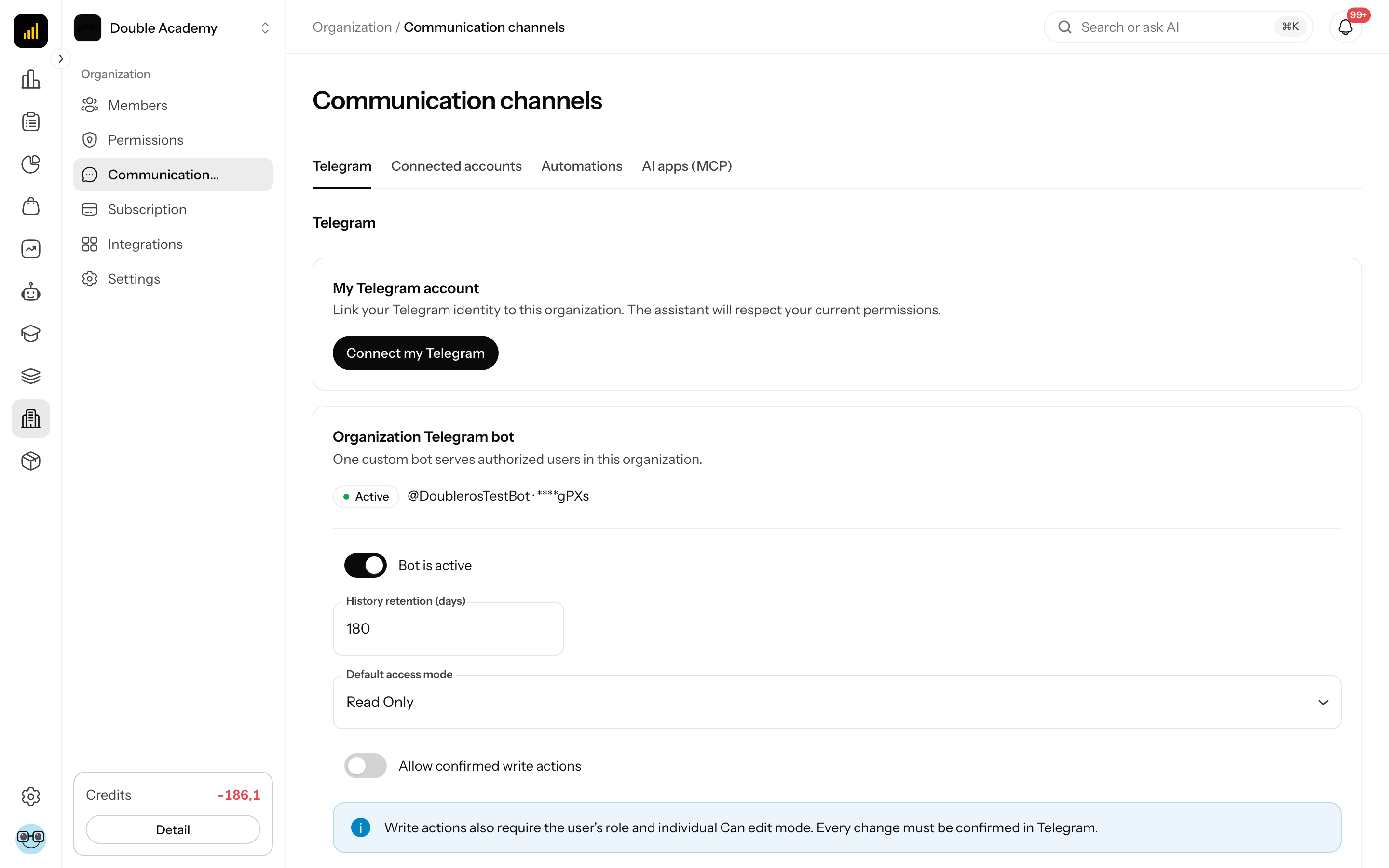
How to connect the organization's Telegram bot
An administrator connects the bot once for the whole organization. One bot serves all authorized members.
Before you start: you need a Telegram account and the Organization → Channel settings → Edit permission.
- In Telegram open @BotFather, create a new bot and copy the token it gives you.
- In Doubleros, in the left menu click Organization → Communication channels.
- Open the Telegram tab.
- In the Organization Telegram bot card paste the token into the BotFather token field.
- Click Connect bot.
- "Telegram bot connected." appears and the card shows the bot's status, its @name and a shortened token.
You see the token only once
The token is encrypted and will never be displayed in full again. If you lose it, create a new one in BotFather and replace it (see below).
How to check it worked: in the Organization Telegram bot card click Check connection (the button is below the settings form, next to Save changes). "The Telegram connection was checked." should appear along with the status Active.
A member who only has the Channel settings → View permission sees the bot status, its @name and the shortened token in the card, but not the settings form or the buttons. Until the bot is connected they see "A Telegram bot has not been configured yet."
How to configure the organization bot
Once the bot is connected, the Organization Telegram bot card shows a settings form:
- In the left menu click Organization → Communication channels and open the Telegram tab.
- In the Organization Telegram bot card change the fields (table below).
- Click Save changes. "Settings saved." appears.
| Field | Required | Meaning | Limits / default |
|---|---|---|---|
| Bot is active | — | switches the bot's answering on and off | on by default |
| History retention (days) | yes | how long questions and answers from Telegram are stored | whole number 30 to 3650; default 180 |
| Default access mode | yes | what the assistant may do for members whose mode is Organization default | Read only (default) or Can edit; only a member with the Access mode permission can change it |
| Allow confirmed write actions | — | lets the assistant in Telegram make changes | off by default; only a member with the Allow confirmed write actions permission can change it |
The assistant makes a change through Telegram only when all of this holds at once: Allow confirmed write actions is on, the member's mode is Can edit and their role has the permission for that change. The member must also confirm each change directly in Telegram.
The assistant in Telegram can search the CRM (contact, pipeline, salesperson and task statistics, deals closing soon) and list products, categories, attributes, discount codes, forms and funnels. It can change only the CRM: add a note, create and edit a task, edit a deal.
How to replace the bot token or disconnect the bot
Replace the token (e.g. when you generated a new one in BotFather):
- In Organization → Communication channels → Telegram, in the Organization Telegram bot card, find the Replace bot token section.
- Paste the new token into BotFather token.
- Click Replace. "Telegram bot connected." appears and the card shows the new shortened token.
Disconnect the bot:
- In the Organization Telegram bot card click Disconnect bot.
- In the window "Do you really want to disconnect the organization's Telegram bot?" confirm with Disconnect bot.
- "Telegram bot disconnected." appears. The bot stops answering all members.
How to connect your own Telegram account
Each member links their own Telegram.
Before you start: the organization bot must be connected and you need the Organization → Channel settings → Organization Telegram bot → Own permission (Telegram access).
- In the left menu click Organization → Communication channels and open the Telegram tab.
- In the My Telegram account card click Connect my Telegram.
- "A one-time link was created. Open it in Telegram." appears together with the Open Telegram button.
- Click Open Telegram. A chat with the organization bot opens — start it in Telegram (Start).
- Return to Doubleros and refresh the page.
The one-time link is valid for 10 minutes. If it expires, click Connect my Telegram again.
How to check it worked: the My Telegram account card shows the Connected label and your Telegram @name. Ask the bot a question, for example "What is the state of my pipeline?".
How to disconnect your own Telegram account
- In Organization → Communication channels → Telegram, in the My Telegram account card, click Disconnect account.
- In the window "Do you really want to disconnect your Telegram account from this organization?" confirm with Disconnect account.
- "Telegram account disconnected." appears.
How to manage connected accounts and access mode
In the Connected accounts tab an administrator sees every member who linked Telegram.
- In the left menu click Organization → Communication channels.
- Open the Connected accounts tab.
| Column | Meaning |
|---|---|
| first column | the organization member's name and e-mail |
| Telegram account | @name or ID in Telegram |
| Status | Active, Disconnected, Blocked, Preparing, Error or Closed |
| Last activity | when the member last wrote to the bot |
| Access mode | Organization default, Read only or Can edit |
Change a member's access mode: choose a new value in the Access mode column. It is saved immediately ("Access mode saved."). It can be changed only for an account in the Active status and only with the Access mode permission.
Revoke access: in the row click Revoke access and in the window "Do you really want to revoke access for this Telegram account?" confirm with Revoke access. "Telegram account access revoked." appears. The button is shown only for accounts in the Active status and only with the Connected accounts → Delete permission. The member then has to connect again.
If there are more connected accounts than fit on one page, pagination appears below the table. While nobody has connected Telegram, the table shows "No Telegram accounts are connected yet."
A specific member's Telegram account and access mode are also shown in Organization → Members → the … menu in the member's row → Settings.
How to create an automation
An automation sends selected members a private Telegram message with a CRM report or a reminder on a schedule. Automations only read data — they never change CRM records.
Before you start: the organization bot must be connected and every recipient must:
- have a connected Telegram account in the Active status,
- have the Organization Telegram bot → Own permission,
- for every type except Reminder, have the CRM → Reports → View permission,
- with Include financial values switched on, have the Statistics → View permission.
You need the Automations permission (Own is enough for automations for yourself). To pick other recipients as well you need Automations → Create together with Connected accounts → View.
- In the left menu click Organization → Communication channels.
- Open the Automations tab.
- Top right, click Create automation. The Create automation window opens.
- Fill in the fields as in the table. Some fields appear only for the chosen type and frequency.
- Click Save. "Automation saved." appears.
| Field | Required | Meaning | Limits / default |
|---|---|---|---|
| Name | yes | the automation's name in the list | at most 120 characters |
| Report or reminder | yes | message type: New leads, Today's tasks, Overdue tasks, Deals closing soon, Pipeline summary, Salesperson report, Reminder | default Today's tasks |
| Frequency | yes | Once, Daily or Weekly | default Daily |
| Delivery time | for Daily/Weekly | when the message arrives | default 08:00 |
| Delivery date and time | for Once | the exact time of the single message | — |
| Day of week | for Weekly | Monday to Sunday | default Monday |
| Time zone | yes | time zone for the delivery time | default your browser's time zone |
| Reminder text | for Reminder | the text that is sent | at most 3,000 characters |
| Days ahead | for Deals closing soon | how many days ahead to look for deals | 1 to 90; default 7 |
| Report period | for New leads, Overdue tasks, Pipeline summary, Salesperson report | Today, Yesterday, Last 7 days, Last 30 days, This week, Last week, This month, Last month | default Last 7 days |
| Include financial values | no | adds amounts to the report | only for Deals closing soon, Pipeline summary, Salesperson report and only with the Statistics → View permission |
| Recipients | yes | who receives the message | chosen from members with an active connected Telegram, at most 50; without Automations → Create (when editing Edit) and Connected accounts → View it offers only you |
| Active | — | whether the automation runs | on by default |
How to check it worked: the Automations list has a new row with the status Active and the Next delivery column shows the time of the first message. At that time the recipients get a message in Telegram.
How to edit, pause or delete an automation
The list in the Automations tab has the columns Name, Report or reminder, Recipients (count), Next delivery and Status (Active / Paused).
Edit or pause:
- In Organization → Communication channels → Automations click Edit in the row.
- In the Edit automation window change the fields. To pause, switch off Active.
- Click Save.
Delete:
- In the row click Delete.
- In the Delete automation window confirm with Delete.
- "Automation deleted." appears.
With Automations → Own (without View) the list shows only the automations you created. Even with View, Edit and Delete appear on other members' automations only with Automations → Edit or Delete. If there are more automations than fit on one page, pagination appears below the table.
Who can do this
Permissions are set in Organization → Permissions, in the Organization module, in the Channel settings row and the rows below it:
| Matrix row | What it allows |
|---|---|
| Channel settings → View | see the organization bot and its status |
| Channel settings → Edit | connect, configure, replace and disconnect the bot |
| Organization Telegram bot → Own | connect your own Telegram account |
| Connected accounts → View / Delete | see connected accounts / revoke their access |
| Access mode → Edit | change the default and individual access mode |
| Allow confirmed write actions → Edit | switch on changes through Telegram (and changes through MCP) |
| Automations → Own | automations for yourself |
| Automations → View / Create / Edit / Delete | all members' automations and other recipients |
Common questions and problems
I don't see Communication channels in the menu. You have none of the permissions above. Ask an administrator of the organization.
The message "Telegram is connected to a different webhook URL. Reconnect the bot to repair it." appeared. The bot was set up somewhere else in the meantime. Paste the token again in Replace bot token and click Replace.
The message "Telegram API is currently unavailable. Try the connection check again later." appeared. The problem is on Telegram's side. Try Check connection again in a few minutes.
The message "Retention must be between 30 and 3650 days." appeared. Enter a whole number in this range in History retention (days).
When creating an automation, "No eligible member has a connected Telegram account." appears. The recipients first have to connect their Telegram (Connect my Telegram). Until then the Recipients field is disabled.
Saving an automation shows "Every recipient must be an active member with a linked Telegram account and the required permissions." One of the selected recipients has no active Telegram account or lacks a permission: Organization Telegram bot → Own, for reports CRM → Reports → View and for financial values Statistics → View. Add the permission in Organization → Permissions or remove the recipient.
Saving an automation shows "The automation settings are invalid." Check the type and its fields: Reminder needs Reminder text filled in (at most 3,000 characters) and Days ahead must be 1 to 90.
The Organization Telegram bot card only says "A Telegram bot has not been configured yet." Nobody has connected the bot yet and you do not have Channel settings → Edit. Ask an administrator.
The Allow confirmed write actions switch or the Default access mode field is disabled. You lack the Allow confirmed write actions or the Access mode permission, respectively.
The assistant in Telegram won't change anything. Check all three conditions: Allow confirmed write actions is on, the member's mode is Can edit and their role has the permission for the change. Only the CRM can be changed (notes, tasks, deals).
I don't see the Include financial values field. It appears only for reports with amounts (Deals closing soon, Pipeline summary, Salesperson report) and only if you have the Statistics → View permission.
Related
- AI apps (MCP) — connecting Claude, ChatGPT and other AI apps
- Ros (AI helper) — Ros inside Doubleros
- Members — who belongs to the organization
- Permission matrix — what each role may do