Users
What it is for
Users in the Ambassador module is the list of all the organization's ambassadors. Here you create an ambassador from an existing member, approve (activate) them after they sign up, change their level or deactivate them. In the ambassador's detail you see their balance, commissions and the people they brought in.
Where to find it
In the left menu click Ambassador → Users.
The item is shown only if your role has the permission Users → View in the Ambassador module.
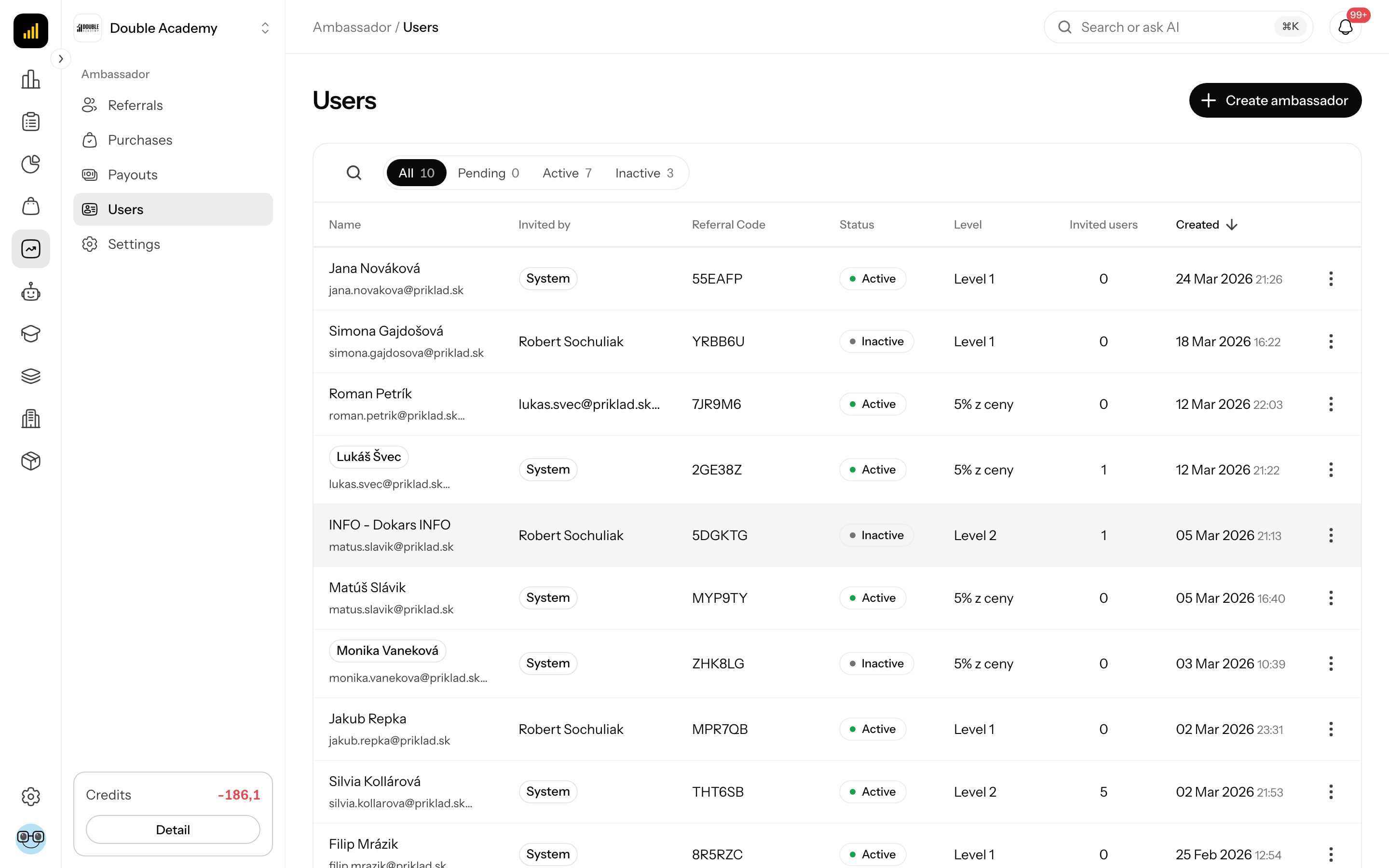
What I see on the screen
Top right is the Create ambassador button (only with the permission Users → Create).
Above the table are tabs with counts and a magnifier icon (Search...):
| Tab | What it shows |
|---|---|
| All | all ambassadors |
| Pending | ambassadors who signed up and are waiting for approval |
| Active | active ambassadors |
| Inactive | deactivated ambassadors |
| Column | Meaning |
|---|---|
| Name | the ambassador's name and e-mail (without a name the label Not specified) |
| Invited by | the ambassador through whose link they signed up; System if nobody invited them |
| Referral Code | the code added to their links as ?ref= |
| Status | Pending, Active or Inactive |
| Level | their level |
| Invited users | how many people are assigned to them |
| Created | when they became an ambassador |
Clicking a row opens the ambassador's detail. The … menu in the row has Detail (and on a narrow screen More info). The table shows 10 rows per page, with pagination below it.
Ambassador statuses
| Status | Meaning |
|---|---|
| Pending | signed up themselves and is waiting for approval; their section is blurred, they earn no commissions and cannot be paid out |
| Active | generates links, earns commissions on new orders and can be paid out |
| Inactive | loses the ambassador section, earns nothing on new orders and cannot be paid out; history and existing commissions stay |
How to create an ambassador from an existing member
Before you start
- You need the permission Users → Create (module Ambassador).
- The person must be a member of the organization (see Members).
- For the ambassador to see their section, their role needs the permission Personal ambassador section → View.
- We recommend having a level with a rate greater than 0 % (see Settings). If no level exists, the app creates a default level Starter on promotion, with a rate of only 0.1 % — then change its rate in Settings.
Steps
- In the left menu click Ambassador → Users.
- Top right, click Create ambassador.
- In the Create ambassador dialog click the Select user field and start typing a name or e-mail (Start typing to search...).
- Click the member. Anyone who already is an ambassador has the label User is already an ambassador and cannot be selected.
- Click Make ambassador. The button is active only after a member is selected.
The message User promoted to ambassador! appears.
What happens:
- The member immediately has the status Active, is on the default level and gets a referral code.
- A welcome e-mail is sent to their address.
How to check it works
The member is in the Active tab. After signing in they see Ambassador → My Affiliate Link in the menu and can generate a link (if their role has the permission Personal ambassador section → View).
How to open an ambassador's detail
- In the left menu click Ambassador → Users.
- Click the ambassador's row (or … → Detail).
The user's detail opens on the Ambassador tab (the path at the top reads Ambassador › Users › name). The other tabs of the detail depend on your permissions.
The Ambassador tab contains:
- a summary of Invited users (count), Purchases (number of commissions) and Rate,
- a Details card with Referral Code, Status and Level; next to it the balance per currency: Available, Requested, Total Paid,
- a table with a Purchases / Invited users switch:
- Purchases: Referral, Commission base, Rate, Commission, Status, Date,
- Invited users: Name, Email, Date.
If the user is not an ambassador, the tab shows Not ambassador — This user is not registered as an ambassador in this organization.
How to change an ambassador's status or level
This is also how you approve an ambassador who signed up themselves.
Before you start
- You need the permission Users → Edit (module Ambassador). Without it Status and Level are read-only.
Steps
- In the left menu click Ambassador → Users.
- To approve new ones, click the Pending tab.
- Click the ambassador's row.
- In the Details card, in the Status field choose Active (approval), Inactive (deactivation) or Pending.
- To change the level, choose another level in the Level field (each shows its percentage).
The change is saved right after you choose, and the message Successfully saved appears. No e-mail is sent to the ambassador when the status changes — let them know yourself.
A level change applies to new commissions; existing ones keep the original rate.
How to check it works
The ambassador is in the list under the tab matching the new status. An activated ambassador sees My Affiliate Link without the blur after refreshing the page.
Who can do this
| Task | Required permission (module Ambassador, row Users) |
|---|---|
| see the list and detail of ambassadors | View |
| create an ambassador from a member | Create |
| change status and level | Edit |
The administrator sets permissions in Organization → Permissions (see Permission matrix).
Common questions and problems
I don't see Create ambassador. The permission Users → Create is missing.
I can't find the member in the Select user field. You have to start typing; only members of the organization are searched. If the person is not a member, invite them first (see Members).
The message "This user is already an ambassador". They are already in the list — search for them.
The message "The user is not a member of this organisation". Invite them to the organization first.
Status and Level cannot be changed. The permission Users → Edit is missing.
An activated ambassador does not see Ambassador in the menu. Their role lacks the permission Personal ambassador section → View. With self-registration this is the role Member.
How do I remove an ambassador completely? Ambassadors cannot be deleted in the app. Set their status to Inactive.
Related
- Settings — levels and the registration link
- Payouts — paying out commissions
- Referrals — customers assigned to ambassadors
- Permission matrix — the permission Personal ambassador section