Projects
What Projects are for
Projects are the only place in Doubleros where public content is created: a multi-page website, funnels and forms. One project holds one domain, one design and one SEO setup together — the website pages, the funnels and the forms all live inside it.
A project's content is built in the Studio: you tell the AI what you want, it builds the page, and you then refine it in the chat or by clicking straight into the text. There are no separate "My Websites", "Landing Pages", "Funnels" or "Forms" lists in the menu any more — everything is in a project.
Where to find Projects
In the left sidebar, click Content and then Projects.
The Projects item only shows for people who are allowed to view projects (see Who can work with projects).
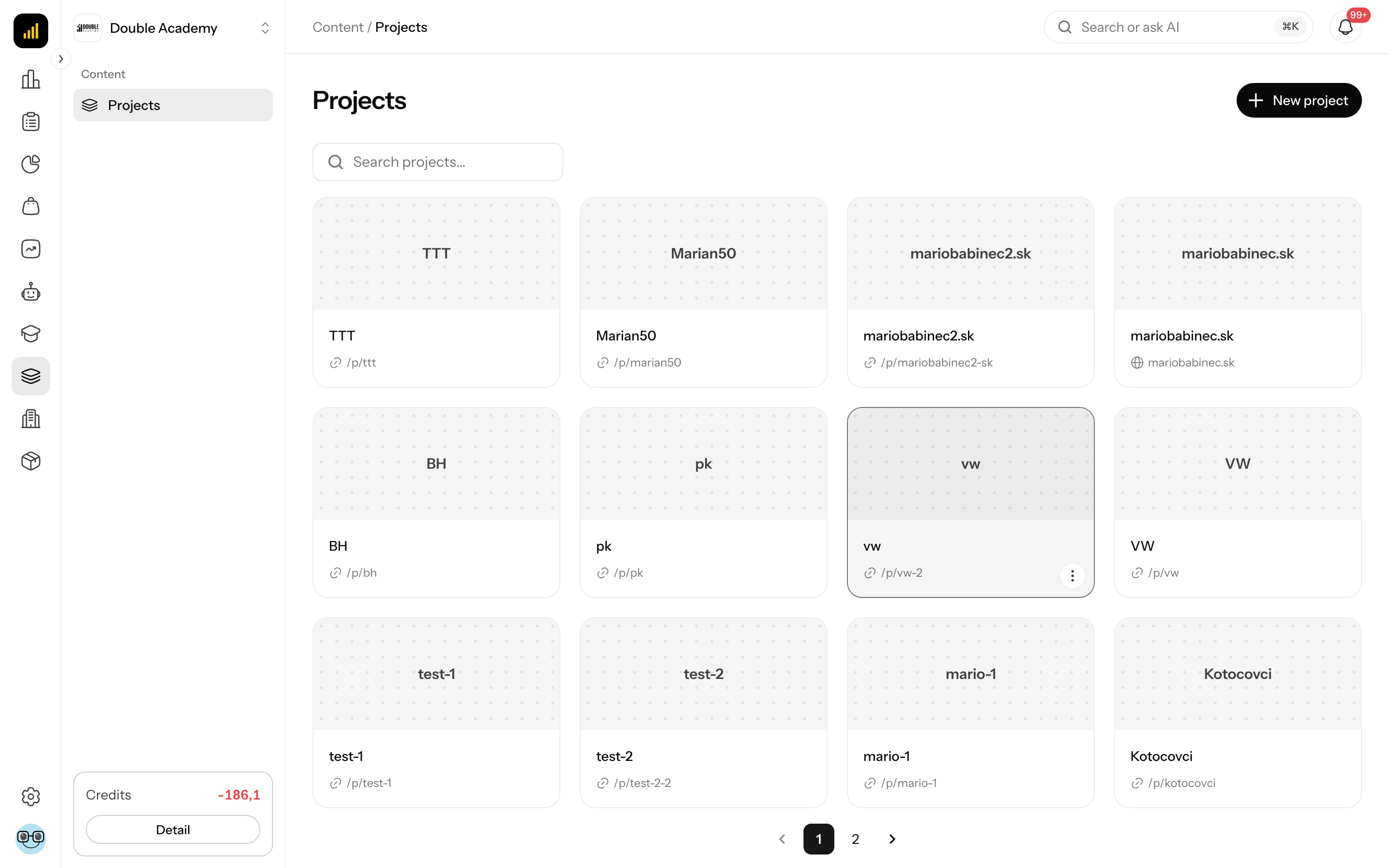
What the Projects screen shows
The Projects screen has the heading Projects with the small label Content above it.
| Element | Where | What it does |
|---|---|---|
| New project | top right | opens a side panel to create a project; only visible to people allowed to create projects |
| Search projects… | field above the cards | searches the project name, its address (slug) and its custom domain; case does not matter |
| Project cards | grid below the search | one card = one project; click a card to open the project in the Studio |
| Pagination | below the cards | 12 projects per page; page numbers appear only when there are more projects |
Each project card shows:
| Part of the card | Meaning |
|---|---|
| Image | the default share image you uploaded for the project in SEO; without one, a grey area with the project name |
| Name | the internal project name |
| Address | a globe icon and the custom domain, if one is attached; otherwise a link icon and the address /p/<project-address> |
| … (Actions) | icon at the bottom right of the card; on a computer it appears when you hover over the card, on a touch device it is always visible |
The … menu (tooltip Actions) on a card offers:
- Edit — opens the project in the Studio (the same as clicking the card).
- Delete — deletes the project (red item; only visible to people allowed to delete projects).
The card does not show whether the project is published. You see the publishing state inside the project, next to the Publish button (see Publishing).
The search text and the page number are kept in the page address. When you leave the Studio with Close, you land on the same page with the same search.
How to create a project
Before you start
- You need the Create permission in the Projects row of the Content module in the permission matrix. Without it you do not see New project.
- Nothing else has to be prepared. The domain, design and SEO are set inside the project.
- If you will sell something in the project, it helps to create the product first — the AI can then use it straight away.
Steps
- In the left sidebar, click Content → Projects.
- At the top right, click New project.
- A side panel titled New project slides in from the right.
- In Project name, type a name (for example Spring campaign).
- Click Create (or press Enter).
| Field | Required | Meaning | Limits |
|---|---|---|---|
| Project name | yes | internal name shown in the project list and in the Studio | 1 to 255 characters; below the field the reminder The address, domain and design are set inside the project later. |
What happens after you create it
- The message Project created appears and the Studio of the new project opens right away.
- The project gets an address (slug) derived from the name, for example spring-campaign. If that address already exists in the organization, a number is added (spring-campaign-2).
- The project is empty: no page, funnel or form. Instead of the editor the Studio shows a start screen — see How to start in an empty project.
- The project is not public yet. Until you publish something, a visitor at its address sees the page This page is under construction.
How to check it worked
- In the Studio, click Close at the top right.
- The Projects list must contain a card with your name and the address
/p/<project-address>.
How to start in an empty project
While the project has no page, the Studio asks What are we building in “…”? and offers three options:
| Option | What it does |
|---|---|
| Website | opens the website brief What site are we building? |
| Funnel | opens funnel creation — see Funnels |
| Form | creates the form Untitled form and opens it — see Forms |
To build a website:
- Click Website.
- In the field, describe in your own words the website you want.
- If you are not sure how to start, click Start from a brief and pick one of the prepared briefs.
- To attach something, click the + icon below the field and choose Attach image, Attach document, Reference site (the AI takes its colours, type and rhythm) or Attach a Claude design (an .html export the website is built from).
- Click Build it.
The AI builds the website including its home page. Back returns you to the three options. The next steps are in Website and pages.
How to find your way around the project Studio
The Studio is the screen that opens when you click a project card. It fills the whole screen and has three parts.
1. The narrow icon strip on the far left. It switches what you work on:
| Icon | Tooltip | What it opens |
|---|---|---|
| folder | Content | the list of website pages, funnels and forms with the editor next to it |
| magnifier | SEO | title, description, favicon, share image, measurement codes, sitemap and robots.txt — see Project settings and SEO |
| cog | Settings | project name, home page, custom domain, invoicing, addresses — see Project settings and SEO |
The icon strip is only on a wide screen (1200 px and more). On a narrower screen, laptops included, there is no strip: the panel icon in the top bar (Expand menu) opens a side menu with the Pages, Funnels and Forms sections and, below them, the Project group with SEO and Settings.
2. The content panel (next to the icon strip, only with the Content icon). It has three sections, each with a + icon:
| Section | Tooltip of + | What it contains | When empty |
|---|---|---|---|
| Pages | New page | the website pages; the home page has a house icon | No pages yet |
| Funnels | New funnel | the project's funnels, each with its steps below it | No funnels yet |
| Forms | New form | the project's forms | No forms yet |
The + icon only shows for people allowed to edit the project. Clicking a section's name collapses or expands it.
New page does not create a page straight away. If the project has no website yet, it opens the website brief (see How to start in an empty project). If the website exists, it shows Ask for a new page in the chat: write in the chat what the page should contain, and the AI works out its name and address from that.
3. The top bar (left to right):
| Element | What it does |
|---|---|
| panel icon (Collapse menu / Expand menu) | hides or shows the content panel to give the editor more room; on a narrower screen it opens the side menu |
| mode switch | Preview (the page and the chat about it), Media (the pictures the site uses), Code editor (edit the project files by hand), Other (opens Settings; lit while SEO or settings are open); not shown on a phone |
| device preview switch | changes the preview width: Desktop preview, Tablet preview, Mobile preview; not shown on a phone |
| content picker | a button with the name of the open page or step (for a step also the funnel's name); opens a list of pages and funnels with the Search pages and steps field; shows Choose an item while nothing is chosen |
| Open in a new tab icon | opens the page in a new browser tab; with a custom domain it offers Open on the custom domain or Open on the Doubleros address |
| History icon | version history; shown when a page, a funnel or a step is open — see Studio editor |
| Publish with an arrow | publishes the open part; the arrow shows every part of the project — see Publishing |
| Close | takes you back to the Projects list |
When no page or step is open (for example on a funnel's overview), the mode switch only offers Preview, Media and Code editor. Open SEO and settings from the icon strip then.
If you open the address of a project that does not exist or was deleted, you see Project not found.
On a phone the Studio looks different — see Studio editor.
How to rename a project
A project can only be renamed in its settings; the project list has no such action.
- In the left sidebar, click Content → Projects.
- Click the project card.
- In the narrow icon strip on the left, click the cog (Settings). On a narrower screen, open the side menu with the panel icon and choose Settings in the Project group.
- In the Project name card, change the Project name field.
- Click Save at the bottom (or press Enter).
Saved appears. Renaming only changes the internal name — the public address of the project and the domain stay the same.
How to delete a project
Before you start
- You need the Delete permission in the Projects row of the Content module. Without it you see neither the Delete item nor the Delete project button.
- Deleting stops the website and every funnel of the project. If ads or e-mail links point to them, redirect those first.
From the project list
- In the left sidebar, click Content → Projects.
- On the project card, click … (Actions) at the bottom right.
- Click Delete.
- In the Delete project dialog, read the question Delete the project “…” along with its pages and funnels?
- Click Delete. (Cancel returns without any change.)
From the Studio
- Open the project and click the cog (Settings) in the icon strip on the left. On a narrower screen you find it in the side menu, in the Project group.
- At the bottom left, click the red Delete project.
- In the Delete project dialog, click Delete.
What happens after deleting
- Project deleted appears. From the Studio you return to the project list.
- The project disappears from the list, and its pages and funnels no longer answer visitors.
- The custom domain is released immediately — you can attach it to another project right away.
- The application has no way to restore a deleted project. If you deleted one by mistake, contact support (Reporting issues).
Can a project be duplicated?
There is no project duplication in Projects — the card's … menu only has Edit and Delete. If you need a similar project, create a new one and describe in the Studio chat what it should look like.
Who can work with projects
Permissions are set in the permission matrix, module Content, row Projects.
| What you want to do | Permission needed |
|---|---|
| see Content → Projects and open a project | Projects → View |
| create a project (New project) | Projects → Create |
| add pages, funnels and forms (the + icons), change settings, SEO, domain, publish the website | Projects → Edit |
| delete a project | Projects → Delete |
| publish a funnel | Funnels → Edit |
| delete a funnel | Funnels → Delete |
The My Websites row in the matrix controls nothing today — website rights follow the Projects row.
Common questions and problems with projects
I do not see Projects under Content. You lack the Projects → View permission, or your organization does not have the Content module enabled. Ask your organization administrator.
I do not see the New project button. You lack the Projects → Create permission.
The project settings say "You do not have permission to edit this project." You only have view permission. The fields may look editable, but saving is refused.
I do not see the + icon next to Pages, Funnels or Forms. You lack the Projects → Edit permission.
I searched for a project and nothing was found. An empty result shows No projects yet, even when projects exist. Clear the Search projects… field.
Where are my old websites, pages and funnels? They are in projects. An old link to edit a page or funnel (for example from the CRM) takes you to the right project automatically.
The message "Could not find a free address for …". The organization has too many projects with the same name. Choose a different name.
Related
- Website and pages — generating the website and working with pages
- Funnels — sales funnels in a project
- Forms — lead collection, orders and reservations
- Studio editor — chat edits, in-text editing, version history
- Project settings and SEO
- Custom domain
- Publishing