Invoicing
What it is for
Invoicing decides who issues the documents for your orders and when the customer receives them. Doubleros does not number invoices itself — your invoicing tool (FAPI, iDoklad or POHODA) issues them. After payment Doubleros hands it the order, stores the document number and PDF, and emails the customer.
With FAPI, Doubleros can also issue a proforma invoice for every new order and send automatic payment reminders for it.
Where to find it
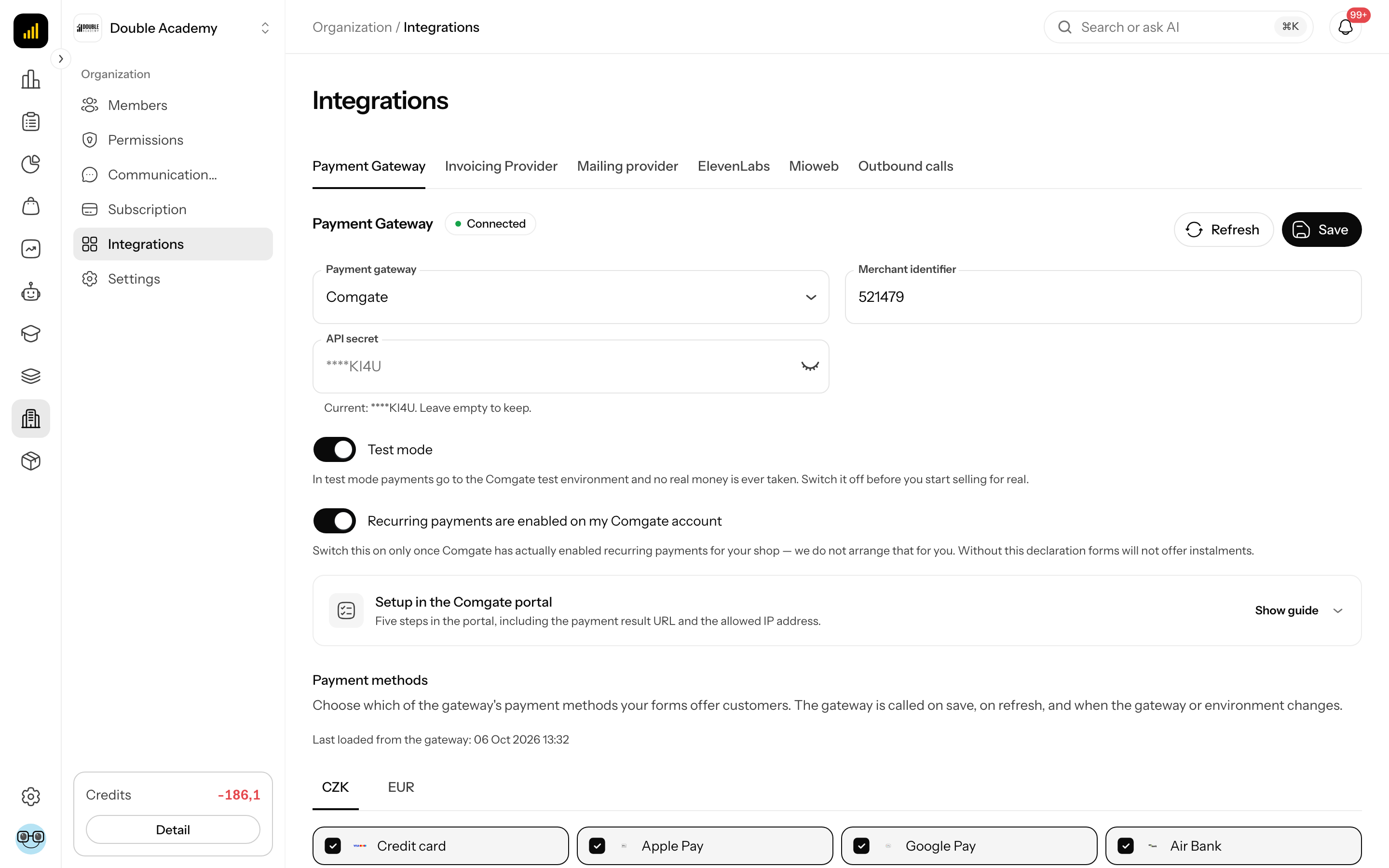
- Invoicing Provider: in the left menu Organization → Integrations, in the tabs Invoicing Provider. Direct address:
/dashboard/organization/integrations?integration=invoicing. - Emails with documents and reminders: in the left menu Organization → Settings, in the tabs the Transactional emails section.
- Documents of a particular order: Sales → Orders → open the order → the Proforma invoice and Invoice buttons top right (see Orders).
- Sent reminders: Sales → Payment reminders (see Payment reminders).
Which tool to choose
| Tool | Invoice after payment | Proforma invoice and reminders | How the document gets into the tool |
|---|---|---|---|
| FAPI | yes, automatically | yes | Doubleros creates the document directly in FAPI |
| iDoklad | yes, automatically | no | Doubleros sends the paid order to iDoklad, which creates the invoice |
| POHODA | not automatically | no | by hand: XML export in Sales → Exports and import into POHODA |
| None | no | no | — |
Without an invoicing tool Doubleros issues no documents for orders.
Before you start
- Organization billing details — in Organization → Settings → Billing details (company ID, tax ID, address). The company ID is required for POHODA.
- An account in the invoicing tool — access to FAPI (username and API key), to iDoklad (your own OAuth app with a Client ID and Client Secret), or to POHODA.
- Payment gateway — if you want to take payments online, see Payment Gateway.
- Permission — Organization → Settings → Edit.
How to connect FAPI
- In the left menu click Organization → Integrations.
- In the tabs click Invoicing Provider.
- In the Invoicing provider field select FAPI.
- Fill in FAPI Username (the email you sign in to FAPI with).
- Fill in the FAPI API Key.
- Click Save at the bottom of the panel. Organization was successfully updated appears.
- The list of forms loads from FAPI. In FAPI form select the default FAPI form the documents are filed under.
- Optionally, in FAPI form for the store, select another form for storefront orders.
- In Proforma invoice due date (days) enter the due period or leave it empty.
- Optionally switch on Sync purchases from FAPI.
- Check VAT mode at the bottom of the panel (see VAT).
- Click Save.
Below the fields is a note: Doubleros creates the invoice directly in FAPI after payment is received. FAPI sends no customer emails; configure their sender, branding, and content in the organization's system email settings.
| Field | Required | What it means | Limits / default |
|---|---|---|---|
| FAPI Username | yes (the form does not enforce it, but FAPI does not work without it) | the FAPI login name | — |
| API Key | yes (the form does not enforce it, but FAPI does not work without it) | the FAPI API key | masked after saving; empty field = keep the stored one |
| FAPI form | no | The default form for every document without a setting of its own. | the list is loaded from FAPI |
| FAPI form for the store | no | Used for storefront orders; everything else falls back to the default form. | — |
| Proforma invoice due date (days) | no | how many days after issue the proforma invoice is due | 1 to 60; empty = 14 days; applies to new proforma invoices only |
| Sync purchases from FAPI | no | Every night, pull FAPI invoices and create the matching clients and deals in the CRM. Independent of issuing invoices. | off by default |
| VAT mode | yes | Domestic — always your home country’s rate, OSS — rate by the customer’s country or Not a VAT payer — you sell without VAT | Choose OSS only if you are registered for the One-Stop-Shop (OSS) scheme. See VAT |
FAPI form on a particular form
Orders from one particular form can also be filed under another FAPI form: in the form editor, on the Invoicing card, in the FAPI form field (Overrides both the project and the organization setting.).
How to connect iDoklad
- In the left menu click Organization → Integrations → Invoicing Provider.
- In the Invoicing provider field select iDoklad.
- Fill in iDoklad Client ID and iDoklad Client Secret of your OAuth app in iDoklad. Set the app's callback to the public backend address
/api/invoicing/idoklad/callback(as the text below the field says). - Click Connect in the blue box Connect the organization's iDoklad account. …. The button is disabled until both the Client ID and Client Secret are filled in.
- Sign in to iDoklad and allow access. When you come back, the green box The organization is connected to iDoklad. appears.
- In Invoice template select a template (The template controls numbering, maturity, bank account, and the remaining document defaults.).
- Click Save.
The Connected label shows for iDoklad only once the account is connected and a template is selected. Disconnect it with Disconnect in the green box.
How to set up POHODA
- In the left menu click Organization → Integrations → Invoicing Provider.
- In the Invoicing provider field select POHODA.
- Click Save.
A box appears: Export paid orders to XML from Sales → Exports. After importing it into POHODA, upload the response and Doubleros stores the generated invoice numbers. with an Open exports button. The export steps are in the Exports chapter.
When documents are created
| Moment | What happens | Tool |
|---|---|---|
| an order is created and not paid | a proforma invoice is issued and the customer gets it by email with the PDF — only if the Proforma invoice email is on | FAPI only |
| the customer pays through the gateway | the order turns Paid and an invoice is issued (with FAPI the proforma becomes the tax document) | FAPI, iDoklad |
| the customer pays by bank transfer against the proforma | FAPI matches the payment, Doubleros learns about it on its regular sync and marks the order Paid | FAPI |
| you mark the order paid by hand | same as a gateway payment | FAPI, iDoklad |
| the order is cancelled before payment | the unpaid proforma is cancelled in FAPI | FAPI |
| manual export | the invoices are created in POHODA, Doubleros stores their numbers from the response | POHODA |
More rules:
- A free order (total 0) is marked paid at once and gets neither a proforma nor an invoice.
- Instalment sales: every instalment has its own document. When the order is created, the proforma covers the first instalment only. See Instalment sales.
- If the invoicing tool does not answer at the moment, Doubleros retries automatically; the order is paid normally in the meantime.
- A document always matches the order at the time of purchase — later product changes do not alter it.
How to switch on proforma invoices (FAPI only)
A proforma invoice is issued for every new unpaid order, whatever the payment method. It is switched on and off with a single switch — the Proforma invoice email. While the email is off, no document is issued at all.
- Make sure the Invoicing Provider is FAPI (otherwise the Advance invoice group does not show in the emails).
- In the left menu click Organization → Settings.
- In the tabs click Transactional emails.
- Click the Advance invoice group — the groups are collapsed when the page opens.
- On the Proforma invoice template switch the toggle on (Issues an advance invoice when an order is created and sends it to the buyer. Switching it off stops the document too.).
- Optionally click the template, expand it and edit Email subject and Email body.
- Click Save at the bottom of the page.
The proforma invoice is off by default. Set the due period in Proforma invoice due date (days) under FAPI. The proforma email has the PDF attached and a Pay now button; it never goes out without the PDF — it waits until FAPI has generated it.
How to set up reminders for unpaid proforma invoices (FAPI only)
Doubleros sends reminders in five waves around the due date of an unpaid proforma. You switch each wave on separately.
| Template in the Payment reminders group | When it goes out |
|---|---|
| Reminder — a day before the due date | a day before the due date |
| Reminder — on the due date | on the due date |
| Reminder — 1 day overdue | 1 day after the due date |
| Reminder — 3 days overdue | 3 days after the due date |
| Reminder — 7 days overdue | 7 days after the due date (the last one) |
- In the left menu click Organization → Settings.
- In the tabs click Transactional emails.
- Click the Payment reminders group to expand it.
- Switch on the waves you want to send.
- Optionally expand a template and edit its text.
- Click Save at the bottom of the page.
Sending rules:
- Reminders are off by default.
- They go out only during business hours, 9:00 – 18:00 (Prague time zone); the check runs every hour.
- A customer gets at most one reminder a day per order.
- Right before sending, Doubleros asks FAPI whether it has been paid — a paid order is never reminded.
- The reminder carries the proforma PDF. If the PDF is missing, the reminder is skipped.
- Paid, cancelled and free orders are not reminded.
Every sent, failed and skipped reminder is listed in Sales → Payment reminders and on the order in the reminders card. See Payment reminders.
How to edit the emails with documents
All emails a customer gets about an order are in Organization → Settings → Transactional emails. At the top you set Sender name and Reply-to address; below them are the System templates in groups:
| Group | Templates | When it shows |
|---|---|---|
| Order and payment | Order confirmation, Payment confirmation, Invoice, Order cancellation | always |
| Advance invoice | Proforma invoice | FAPI only |
| Payment reminders | five waves (table above) | FAPI only |
| Instalments | Instalment received, Instalment failed | only if the organization can sell in instalments |
| Membership | course access, access ending, Password setup | always |
To edit one template:
- In the left menu click Organization → Settings → Transactional emails.
- If you have several languages, pick one with the Template language switch.
- Click a group (e.g. Order and payment) — the list of templates expands.
- Switch the template on or off (Enabled / Disabled).
- Click the template to expand it and edit Email subject and Email body. The prepared system copy is shown; once edited it is saved as the organization's custom copy.
- Restore default copy returns to the system copy.
- Click Save at the bottom of the page.
A disabled email can be edited in advance (This email is off — you can write it now; it starts going out once you switch it on.). Password setup cannot be switched off (Always sent). Until you change Instalment received, it follows the on/off state of Payment confirmation.
How to check it works
- Place a test order on a published sales form and do not pay it.
- Open it in Sales → Orders — with FAPI and the proforma switched on there is a Proforma invoice button top right; the customer (you) gets an email with the PDF.
- Pay the order (or mark it Paid in the detail via Change status).
- After a moment an Invoice button appears in the detail and the Invoice email arrives.
- In FAPI / iDoklad check that the document was created under the right form or template.
Who can do this
| Action | Required permission (permission matrix) |
|---|---|
| see Invoicing Provider and Transactional emails | Organization → Settings → View |
| change the tool, keys, due period, emails | Organization → Settings → Edit |
| open a document PDF on an order | Sales → Orders → View |
Common questions and problems
I don't see the Proforma invoice or the reminders in Transactional emails. They show only when the Invoicing Provider is saved as FAPI.
Why did the customer get a proforma even though they paid by card? The proforma is issued for every new order before payment. The email contains the sentence If you have already paid by card or through the payment gateway, do not pay it again — we will send the tax invoice as soon as the payment arrives. If you don't want it, switch off the Proforma invoice email.
Message “Enter a number of days between 1 and 60.”Proforma invoice due date (days) must be a whole number from 1 to 60, or empty (14 days).
Message “Select FAPI as the organization's invoicing provider first.” or “Enter the FAPI username and API key in the organization settings.” FAPI is not selected or the credentials are missing. Fill them in and click Save.
Message “The iDoklad authorization has expired. Reconnect the account.” Click Disconnect and then Connect again.
The customer paid by bank transfer and the order is still unpaid. FAPI matches bank transfers with the proforma; Doubleros learns about it on its next sync with FAPI. If the customer paid with a different variable symbol, mark the order paid by hand.
Can I issue a credit note or refund money? No. Doubleros creates neither refunds nor credit notes; handle them directly in the gateway and in the invoicing tool.
Related
- Payment Gateway
- VAT — VAT mode and rates
- Payment reminders — overview of sent reminders
- Exports — export to POHODA
- Orders — documents on the order
- Instalment sales