AI settings
What it is for
The AI → Settings screen manages all of the organization's AI assistants in one place. It also shows assistants that are not enabled yet or are paused, and it is where you do everything except the chatting itself: editing, publishing, pausing and deleting.
You do not set AI models, API keys or technical settings here — Doubleros manages them securely.
Where to find it
In the left menu click AI and then Settings.
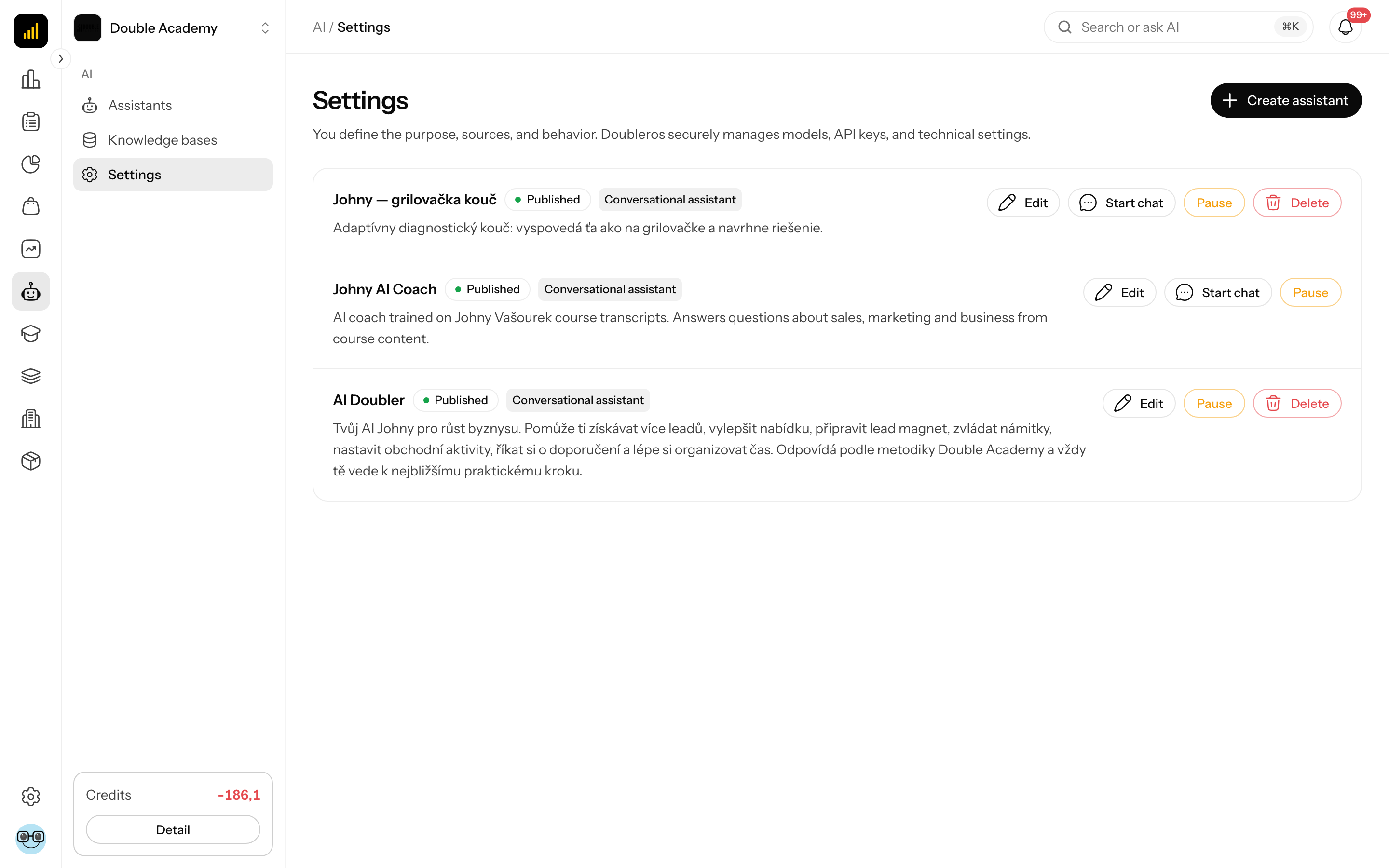
What I see on the AI settings screen
At the top is the heading Settings with the text "You define the purpose, sources, and behavior. Doubleros securely manages models, API keys, and technical settings." and, top right, the Create assistant button (only with the permission to create assistants).
Below is the list of assistants. Each row has:
| Element | Meaning |
|---|---|
| Name | the assistant's name |
| Status label | Draft, Preparing, Ready to test, Published or Paused |
| Unpublished draft | a confirmed draft of changes exists for the assistant and has not been published yet |
| Type label | Conversational assistant or Questionnaire and diagnostic assistant |
| Description | the assistant's description, otherwise No description |
| Knowledge | names of the attached knowledge (in grey below the description) |
| Buttons on the right | actions depending on the assistant's status and your permissions (see below) |
If the organization has no assistant yet, "You have not created an assistant yet" is shown.
Buttons in an assistant's row:
| Button | When it appears | What it does |
|---|---|---|
| Test and publish draft | an unpublished draft exists and you may edit | opens the workspace with the draft |
| Edit | you may edit | opens the workspace; if a draft in progress exists it opens that one, otherwise it creates a new one |
| Start chat / Test assistant | the assistant is enabled (in the Ready to test status it is Test assistant) | opens the chat with the assistant |
| Publish to organization | status Ready to test | enables the assistant for the organization |
| Publish to organization (disabled) | status Draft or Preparing | not possible — the draft must be finished and confirmed |
| Pause | status Published | switches the assistant off |
| Publish again | status Paused | switches the assistant on again |
| Delete | you may delete | deletes the assistant and its conversations |
How to create an assistant from AI settings
- In the left menu click AI → Settings.
- Top right, click Create assistant.
- Continue as described in Assistants, section How to create an assistant.
How to edit an assistant
- In the left menu click AI → Settings.
- In the assistant's row click Edit.
- The assistant workspace opens. Editing, testing and publishing are described in Assistants, section How to change an assistant that is already enabled.
Editing an enabled assistant changes nothing until you click Publish changes in the workspace. If the editor cannot be opened, "Could not open the assistant editor" appears — refresh the page and try again.
How to publish an assistant that is ready to test
Before you start: the assistant must be in the Ready to test status and you need the AI → Assistants → Edit permission.
- In the left menu click AI → Settings.
- Next to the assistant click Test assistant and check its answers.
- Return to AI → Settings and click Publish to organization.
- "Assistant published to the organization" appears and the label changes to Published.
How to check it worked: the assistant is listed in AI → Assistants and has the Start chat button here.
If the Publish to organization button is disabled, hovering over it shows "Finish the setup and confirm the design first. The assistant can then be published." — click Edit and finish the setup.
How to pause an assistant
Pausing switches the assistant off temporarily without deleting it — settings, versions and conversations are kept.
- In the left menu click AI → Settings.
- Next to an assistant in the Published status click Pause.
- "Assistant paused" appears and the label changes to Paused.
What happens: the assistant disappears from AI → Assistants and members cannot chat with it.
How to switch a paused assistant on again
- In the left menu click AI → Settings.
- Next to an assistant in the Paused status click Publish again.
- The label changes to Published and the assistant returns to AI → Assistants.
You can also switch a paused assistant on by editing it and clicking Publish changes in the workspace — publishing activates it at the same time.
How to delete an assistant
- In the left menu click AI → Settings.
- Next to the assistant click Delete.
- In the confirmation window ("The assistant and its conversations will be permanently deleted.") confirm the deletion.
- "Successfully deleted" appears.
Deleting cannot be undone — every conversation with the assistant is removed too. The knowledge bases the assistant used remain. If you only want to switch the assistant off temporarily, use Pause.
The Delete button is shown for every assistant, including older assistants of the Knowledge type (with the delete right).
Who can do this
Permissions are set in Organization → Permissions in the AI → Assistants row (and AI → Settings):
| What | Required permission |
|---|---|
| Open AI → Settings | AI → Settings → View or AI → Assistants → View |
| Create assistant | AI → Assistants → Create |
| Edit, Publish to organization, Pause, Publish again | AI → Assistants → Edit |
| Delete | AI → Assistants → Delete |
| Chat with an assistant | AI → Assistants → Conversations: Own or View |
Common questions and problems
I don't see an assistant a colleague created. Until the assistant is in the Published state (so also while it is a draft or paused), only its author sees it in AI → Settings.
Publishing in AI Settings failed with a message. In AI → Settings an error shows the reason returned by the server, for example:
- "Finish and test the assistant design before publishing it." — the assistant is not in a state it can be published from;
- "Attach at least one knowledge base before testing the assistant." — the assistant has no knowledge base attached;
- "All attached knowledge sources must finish processing before the assistant can be tested or published." — a source is still processing.
If the server returns no reason, "Could not complete the action" appears. Open the assistant with Edit and check the Settings panel and the buttons at the top right.
Deleting an assistant failed with a message about Bootcamp. "This assistant is used for a Bootcamp final evaluation. Select a different assistant in Bootcamp settings before deleting it." — select a different assistant for the final evaluation in the Bootcamp settings, then delete again.
Where do I set the AI model or API key? Nowhere — Doubleros manages models and keys. You define the assistant's behavior through its settings in the workspace.
Where do I set up Telegram? In Organization → Communication channels — see Communication channels.
Related
- Assistants — creating, testing, publishing and chatting
- Knowledge — the assistants' sources
- Communication channels — Telegram and AI apps
- Permission matrix — who may manage assistants
- AI credits — usage