Video library
What it is for
The Video library is one place for every video in Membership. You upload a video here once and then pick it in any lesson, as a course intro video or on the membership home page. A video is never uploaded straight into a lesson — it is always picked from the library.
Videos are stored on a video host (Bunny), which processes them after upload for smooth playback. You sort videos into folders and can add subtitles, chapters and moments to each one and see how it is watched.
Where to find it
- In the left menu, click Membership (the graduation cap icon).
- In the expanded list, click Membership administration.
- In the tabs under the heading click Videos.
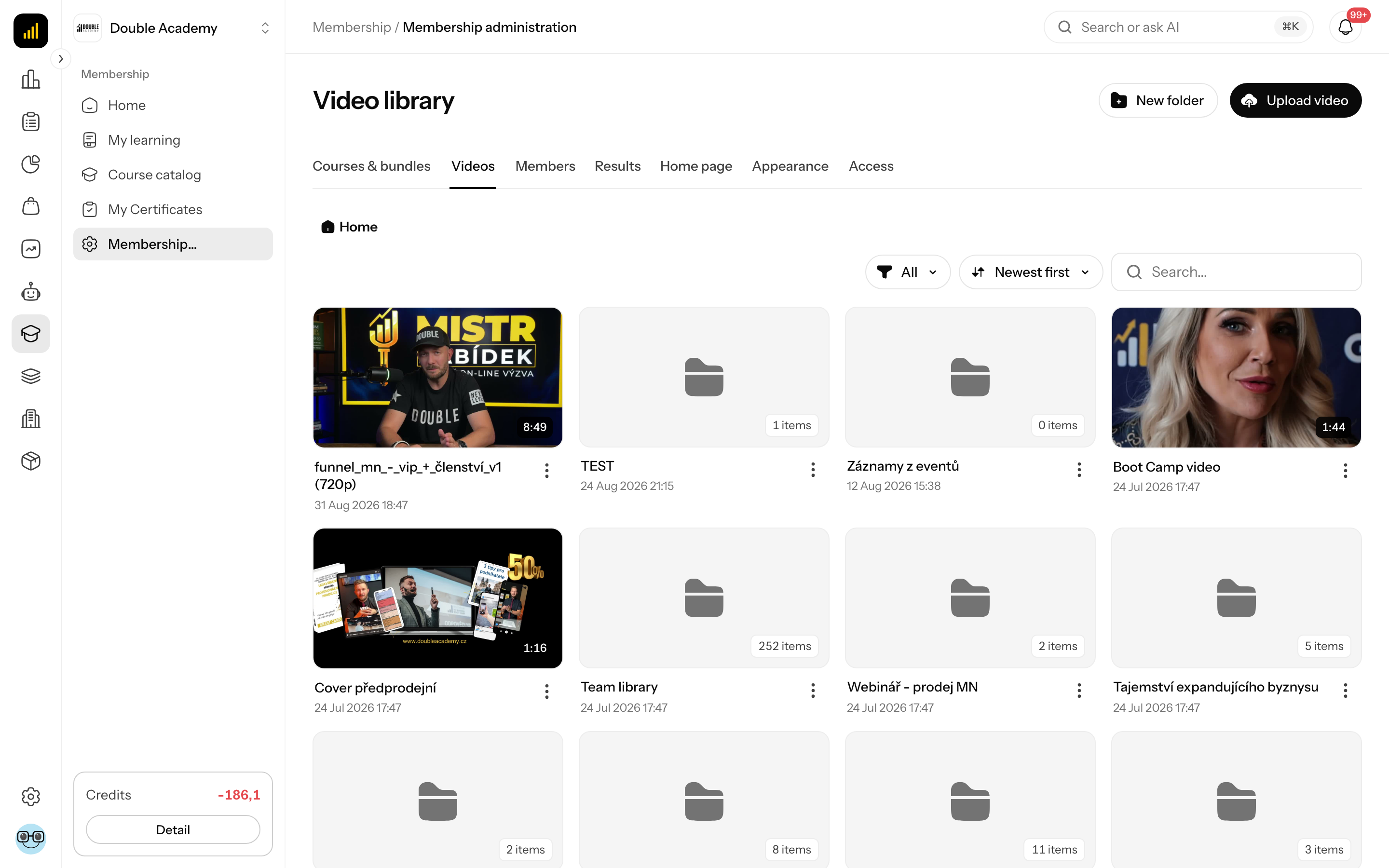
The page heading reads Membership · Video library.
The Videos item is shown only to people with Courses and content → View.
What I see on the screen
The Video library has these parts:
- Top right, the New folder and Upload video buttons.
- Breadcrumbs — the path to the open folder, starting at Home. Click a name to go back up.
- The bar above the content:
- search Search video… — searching covers the whole library, not just the open folder; each video found shows a link to the folder it is in,
- type filter: All, Folders only, Videos only,
- sorting: Name (A–Z), Name (Z–A), Newest first, Oldest first.
- Folders (folder tiles) and below them videos (cards with thumbnail, name and duration).
- Status chip on a video card — shown only while the video is not fully ready (see Video statuses).
The "…" menu on a video card:
| Action | What it does |
|---|---|
| Edit | opens the video detail (same as clicking the card) |
| Statistics | opens the video's viewing statistics |
| Delete | deletes the video after confirmation |
The "…" menu on a folder:
| Action | What it does |
|---|---|
| Edit | opens the dialog to rename and move the folder |
| Statistics | statistics for all videos in the folder |
| Delete | deletes the folder after confirmation |
An empty folder shows No videos here yet — Upload a video to this folder — it becomes available to pick in any lesson.
Video statuses
After upload a video goes through statuses. You see the chip on the video card in the Video library.
| Status | What it means | Can it be picked for a lesson? |
|---|---|---|
| Uploading | the file is still being transferred from your computer | no |
| Processing | the video host is transcoding the video | no |
| Playable | the video already plays in a lower quality, higher qualities are still encoding | yes |
| Ready (no chip) | the video is finished in all qualities | yes |
| Error | processing failed, or the video stayed unprocessed for more than 24 hours | no |
The status refreshes by itself, no need to reload the page. While a video is Playable, the video detail says for example Already playable at 720p — higher qualities are still encoding.
How to upload a video
You upload a video to the Video library with a button or by dragging the file.
Before you start:
- You need Courses and content → Create.
- The recommended format is MP4 (H.264) — such a video plays shortly after the upload finishes. Other formats (MOV, WebM, MKV, AVI) are supported but must be fully transcoded first, so they take longer to become available.
- If you want the videos in a folder, create and open the folder first (see How to create a folder). The video is uploaded into the folder that is currently open.
With the button:
- In the left menu, click Membership → Membership administration → Videos.
- Open the folder you want to upload into (or stay in Home).
- Top right, click Upload video.
- The Upload video dialog opens. Drag files into it or click the field and pick them on your computer. You can pick several videos at once.
By dragging: drag files from your computer anywhere onto the Video library. The text Drop the video here to upload appears — drop the files.
What happens during the upload:
- A progress panel appears at the bottom right with Uploading 1 of 3 and the progress of each file. Shrink it with Minimize and enlarge it with Expand.
- Files that are waiting carry a Waiting chip. Failed ones carry Failed (heading Upload failed); remove them from the panel with Remove from the list.
- The upload continues even if you go to another page in the app. Do not close or reload the browser tab — the browser asks you about it, because the upload would be interrupted.
- You can add more files while uploading; they are queued.
After upload the video has the status Processing and then Playable or Ready.
How to cancel an upload
- In the upload panel, click Cancel upload next to the file.
- In the dialog Cancel this upload? (Uploading “…” will stop and the partly created video will be deleted.) click Cancel upload.
How to check it works
- The video is in the open folder of the Video library as a card with a thumbnail.
- Wait until the status chip disappears or Playable shows.
- Click the video — it must play in the detail.
- The video is now offered in a lesson via Choose from library (see Courses & bundles).
How to create a folder
Folders in the Video library are only for keeping things organised — one folder per course, for example. Students never see them.
- On the Video library screen open the folder the new folder should go in (or stay in Home).
- Top right, click New folder.
- In the New folder dialog fill in:
| Field | Required | What it means | Default |
|---|---|---|---|
| Folder name | yes | the tile's name in the library | — |
| Parent folder | no | which folder the new folder belongs to | the folder currently open; Home = top level |
- Click Save.
Folder saved appears. You enter the folder by clicking its tile.
You need Courses and content → Create.
How to rename or move a folder
- On the Video library screen click "…" → Edit on the folder.
- In the Edit dialog change the Folder name or Parent folder.
- Click Save.
A folder cannot be moved into itself or into one of its sub-folders — the app then shows A folder cannot be moved into itself or one of its sub-folders.
How to move a video to another folder
You move a video in the Video library in two ways:
By dragging: grab the video card and drop it on the target folder's tile or on a folder name in the breadcrumbs (for example Home). Moved appears. Folders can be moved the same way.
In the video detail:
- Click the video card.
- On the Info tab pick the target folder in the Folder field.
- Click Save.
Moving has no effect on lessons — the video stays in the lessons where it is used.
How to edit a video (video detail)
You open the video detail in the Video library by clicking the video card (or "…" → Edit). A panel with a player and tabs slides in from the right. At the top right is the Download video icon (it offers resolutions such as Download in 720p); the cross closes the panel.
| Tab | What it holds |
|---|---|
| Info | Video Title, Video Description (Optional notes about this video…), Folder, the video ID with a Copy button; Save button at the bottom |
| Captions | AI transcription and subtitle upload |
| Chapters | parts of the video the student can jump between |
| Moments | marked moments in the video |
| Statistics | the video's viewership |
A name change on the Info tab is saved with Save (message Video saved). The video's name in the library does not change in lessons where the video is already picked — a lesson has its own name.
How to add chapters and moments to a video
Chapters split a video into parts (the student jumps between them), moments mark specific points. In the video detail in the Video library:
- Click the video card and open the Chapters (or Moments) tab in the panel.
- Play the video and stop it where the chapter should start.
- Click Add chapter at playhead (or Add moment at playhead). The time fills in by itself.
- Type the name in the Chapter title (or Moment label) field.
- Repeat for other points. Jump to time takes you back to an item's time.
- Click Save.
Chapters saved (or Moments saved) appears. Until you add something, the tab says No chapters yet / No moments yet.
How to add subtitles to a video
In the video detail in the Video library, Captions tab, you have two options.
Generate with AI (Transcribes the video into subtitles — and optional chapters. Translates to 57+ languages.):
- Click the video card and open the Captions tab.
- In the Generate with AI part pick the Language.
- If you want chapters too, tick Also chapters.
- Click Start transcription.
AI transcription queued — ready soon appears. The transcription runs in the background; the subtitles (and chapters) appear shortly.
WARNING
AI transcription is a paid feature of the video host.
Upload your own file:
- On the Captions tab, next to the Subtitles list, click Upload file.
- Pick a .vtt or .srt file.
Subtitles uploaded appears. Each language in the subtitle list has a Download icon and a delete icon (message Subtitles deleted).
How to view video or folder statistics
- In the Video library click "…" → Statistics on a video or folder (or open the Statistics tab in the video detail).
- You see Views, Watch time and, for a video, Engagement (for a folder Videos — the number of videos), charts Views over time, Watch time over time and Top countries.
Engagement shows how far people watch the video — that is, where they lose interest. Without data it says No viewership data for this period yet.
How to delete a video
Before you start: the video must not be used in any lesson. You need Courses and content → Delete.
- In the Video library click "…" → Delete on the video card.
- In the Delete video dialog (Delete “title”? This also removes it from the video host.) click Delete.
Video deleted appears.
DANGER
Deleting removes the video from the video host too and cannot be undone.
If the video is used in a lesson, it cannot be deleted and you get This video is used in a lesson. Detach it there before deleting. Detach it in the lesson (lesson panel → Delete icon on the video, or pick another video → Save), see Courses & bundles.
How to delete a folder
- In the Video library click "…" → Delete on the folder.
- In the Delete folder dialog click Delete.
Folder deleted appears. Its sub-folders are also removed and the videos move to the parent folder. No video is deleted by deleting a folder.
Who can do this
Permissions are set in the Permission matrix, module Membership, row Courses and content:
| What you want to do | Permission needed |
|---|---|
| see the Video library, play and download videos, statistics | Courses and content → View |
| upload a video, create a folder | Courses and content → Create |
| rename, move, subtitles, chapters, moments | Courses and content → Edit |
| delete a video, folder, subtitles | Courses and content → Delete |
Everyone who opens the library sees the buttons; without the needed permission the action ends with an error (for example Error saving).
Common questions and problems
The video has been "Processing" for a long time. A video in a format other than MP4 (H.264) must be fully transcoded, which takes longer for a long video. If a video stays unprocessed for more than 24 hours it switches to Error — then delete it and upload it again, ideally as MP4 (H.264).
I don't see the video when picking it for a lesson. Only a video with the status Ready or Playable can be picked.
The upload was interrupted. You probably closed or reloaded the browser tab. Upload the file again.
The video cannot be deleted. It is used in a lesson — detach it there first.
I can't find a video. Use Search video… — it searches the whole library across folders.
Related
- Courses & bundles — picking a video for a lesson and the course intro video
- Home page — a video on the membership home page
- How to create and sell a course — the whole path
- My learning — how the student sees the video